
1. Introduction
This manual provides comprehensive instructions for the setup, operation, and maintenance of your LINCNOVA AIBOX Wireless CarPlay & Android Auto Adapter. Please read this manual thoroughly before using the device to ensure proper functionality and to maximize your user experience.

Image 1.1: The LINCNOVA AIBOX device, shown with logos for Netflix, ESPN, YouTube, and Hulu, indicating its multimedia capabilities. USB cables are also visible, suggesting connectivity options.
2. Product Overview
The LINCNOVA AIBOX is a 3-in-1 wireless adapter designed to convert your vehicle's factory wired Apple CarPlay or Android Auto system into a wireless smart entertainment hub. It enables access to various streaming services and offers seamless smartphone integration.
Key Features:
- Wireless Connectivity: Converts wired Apple CarPlay and Android Auto to wireless.
- Entertainment Access: Supports streaming services such as Netflix, ESPN, YouTube, and HULU via mobile hotspot.
- Local Media Playback: Features an SD card slot for playing local video and music files.
- Multiple Control Methods: Compatible with touch screen, steering wheel controls, voice commands, and OEM knob controls.
- High-Speed Transmission: Utilizes 5.0G transmission rate for stable and uninterrupted performance.

Image 2.1: An illustration of the internal smart IC chip, highlighting Bluetooth 5.0 and Wi-Fi 5.8 GHz capabilities, ensuring fast and stable data transmission.
3. Compatibility Requirements
The LINCNOVA AIBOX is designed for vehicles equipped with built-in factory wired Apple CarPlay. Please verify your vehicle's specifications before use.
Important Compatibility Notes:
- Wired CarPlay Required: This device is only compatible with vehicles that have built-in factory wired CarPlay.
- Potential Incompatibility: The device may not function correctly if:
- Your car already supports wireless CarPlay (e.g., some BMW models).
- Your car is configured with UConnect.
- Your car does not support touch screen functionality.
- Your car model is older than 2016.
4. Setup Instructions
Follow these steps to set up your LINCNOVA AIBOX adapter:
- Locate USB Port: Identify the USB port in your vehicle that supports wired CarPlay.
- Connect Adapter: Plug the LINCNOVA AIBOX adapter into the vehicle's USB port using the provided USB Type-C cable.
- Initial Boot-up: The device will power on automatically. The car's infotainment screen should display the adapter's interface.
- Pair Smartphone: On your smartphone, enable Bluetooth and Wi-Fi. Search for the AIBOX device in your Bluetooth settings and pair with it.
- Confirm Connection: Once paired, your smartphone should automatically connect to either Wireless CarPlay or Android Auto, depending on your device.
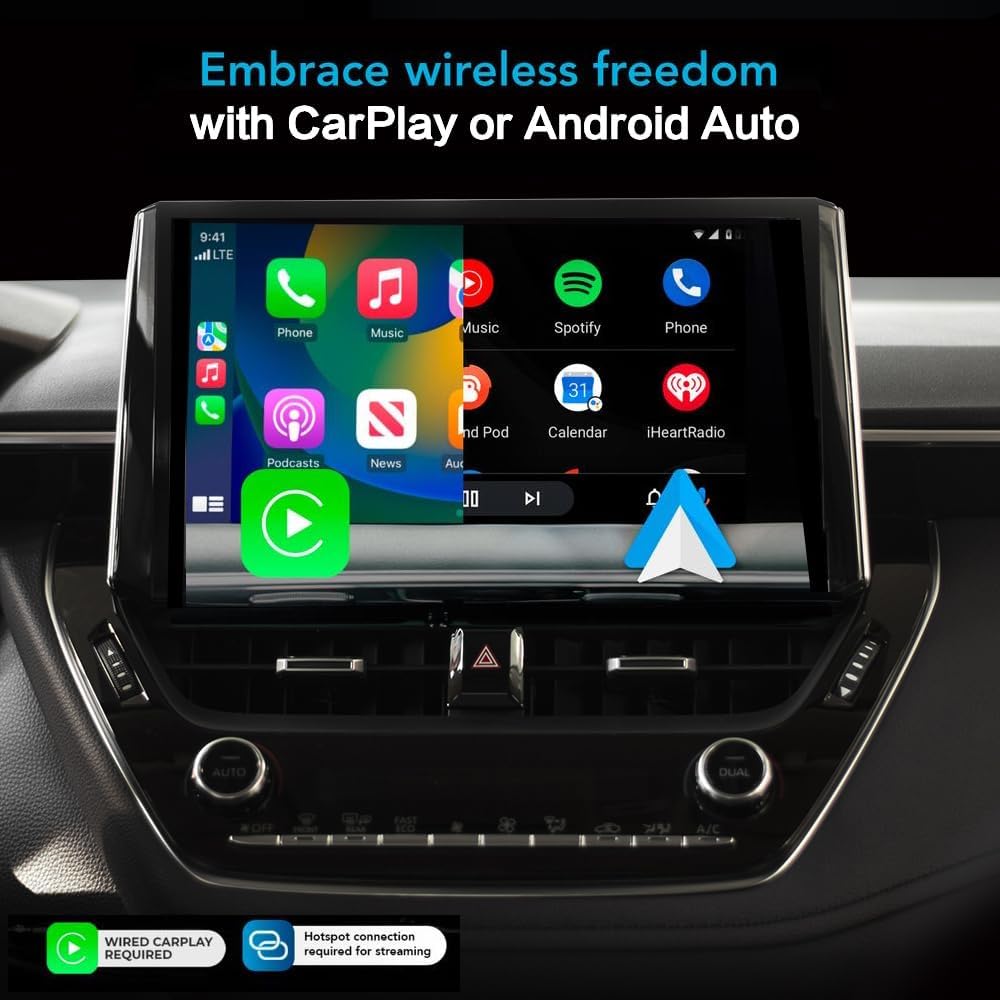
Image 4.1: A car's infotainment screen displaying the wireless CarPlay interface on the left and the Android Auto interface on the right, demonstrating the adapter's core functionality.
5. Operating Instructions
5.1 Wireless CarPlay and Android Auto
After successful setup, your smartphone will connect wirelessly to the vehicle's display, providing access to your phone's navigation, communication, and audio features through the car's interface.
5.2 Streaming Services (Netflix, ESPN, YouTube, HULU)
To access streaming applications, a mobile hotspot connection is required. Connect the AIBOX to your smartphone's mobile hotspot or another Wi-Fi source.
- Enable Hotspot: Activate the mobile hotspot feature on your smartphone.
- Connect AIBOX to Hotspot: Navigate to the AIBOX's settings menu on your car's screen, find the Wi-Fi settings, and connect to your smartphone's hotspot.
- Launch Apps: Once connected, you can launch pre-installed streaming applications like Netflix, ESPN, YouTube, or HULU from the AIBOX interface.

Image 5.1: A car's dashboard screen displaying multiple streaming applications, including YouTube, Netflix, and Hulu, demonstrating the expanded entertainment options provided by the AIBOX.
5.3 Local Media Playback
The AIBOX features an SD card slot for playing local video and music files.
- Insert SD Card: Insert a compatible SD card containing your media files into the TF card slot on the AIBOX.
- Access Media Player: Navigate to the media player application on the AIBOX interface.
- Select Files: Browse and select your desired video or music files for playback.

Image 5.2: A car's infotainment screen displaying a grid of applications, including Netflix, YouTube, and a Play Store icon, indicating the device's capability to run various apps.
5.4 Control Methods
The AIBOX supports various control methods for ease of use:
- Touch Screen Control: Directly interact with the car's infotainment screen.
- Steering Wheel Control: Utilize your vehicle's existing steering wheel buttons for navigation and media control.
- Voice Control Mode: Use voice commands for hands-free operation.
- OEM Knob Control: If your vehicle has an OEM control knob, it can be used to navigate the AIBOX interface.

Image 5.3: A collage illustrating the various ways to control the AIBOX, including touch screen, steering wheel buttons, voice commands, and the vehicle's original equipment manufacturer (OEM) control knob.
6. Maintenance
To ensure the longevity and optimal performance of your LINCNOVA AIBOX, consider the following maintenance guidelines:
- Keep Clean: Regularly wipe the device with a soft, dry cloth to remove dust. Avoid using liquid cleaners directly on the device.
- Avoid Extreme Temperatures: Do not expose the device to extreme heat or cold, as this can affect its electronic components.
- Secure Connection: Ensure the USB connection is secure to prevent accidental disconnections.
- Software Updates: Check for available Over-The-Air (OTA) software updates to ensure the device has the latest features and bug fixes.
7. Troubleshooting
If you encounter issues with your LINCNOVA AIBOX, refer to the following common troubleshooting steps:
- Device Not Powering On:
- Ensure the USB cable is securely connected to both the AIBOX and the vehicle's USB port.
- Verify that the vehicle's USB port is active and providing power.
- No Wireless CarPlay/Android Auto Connection:
- Confirm your vehicle has factory wired CarPlay.
- Ensure Bluetooth and Wi-Fi are enabled on your smartphone and paired with the AIBOX.
- Restart both the AIBOX (by unplugging and replugging) and your smartphone.
- Streaming Apps Not Working:
- Verify that the AIBOX is connected to a stable mobile hotspot or Wi-Fi network.
- Check your mobile hotspot's data plan and signal strength.
- Lag or Overheating:
- Ensure the device has adequate ventilation.
- Close unnecessary background applications on the AIBOX if possible.
- Screen Goes Black:
- Disconnect and reconnect the AIBOX from the USB port.
- Ensure your car's infotainment system is fully updated.
8. Specifications
The following table details the technical specifications of the LINCNOVA AIBOX:
| Feature | Specification |
|---|---|
| Model Number | 00850067879923 |
| Brand | LINCNOVA |
| Connectivity Technology | Hotspot, Bluetooth |
| Controller Type | Android, iOS |
| Special Feature | Android Auto, Apple CarPlay |
| Compatible Devices | Smartphone |
| Connector Type | USB Type-C |
| Audio Output Mode | Surround |
| Surround Sound Channel Configuration | 2.1 |
| Video Encoding | H.264, H.265/HEVC |
| Item Weight | 6.1 ounces |
| Package Dimensions | 5 x 5 x 3 inches |

Image 8.1: A detailed diagram illustrating the physical dimensions of the LINCNOVA AIBOX (63mm x 63mm x 16mm) and its various ports, including Type-C power, TF card slot, and USB interface. It also lists the CPU as Quad-core ARM CortexTM-A53 and the system as Android 10.0.
9. Warranty and Support
For warranty information or technical support, please refer to the contact details provided with your product packaging or visit the official LINCNOVA website. Keep your purchase receipt for warranty claims.