
1. Introduction
This manual provides detailed instructions for the setup, operation, maintenance, and troubleshooting of your InnoView 4K OLED Portable Monitor. Designed for versatility and high performance, this 14-inch OLED monitor offers stunning visual clarity and portability for various applications, from professional creative work to gaming and general productivity.

Figure 1.1: The InnoView 14-inch 4K OLED Portable Monitor, showcasing its sleek design and integrated stand.
2. Key Features
- OLED Self-luminous Screen: Utilizes advanced OLED technology where each pixel emits light independently, providing superior picture quality, rich colors, and deep contrast without the need for a traditional backlight.
- Excellent Visual Effects: Features a 4K (3840x2400P) resolution, 100% DCI-P3 color gamut for professional-grade color accuracy (ΔE<2), and an extraordinary 100,000:1 contrast ratio for vibrant and realistic visuals.
- Ultra-Fast Response Time: Boasts a 1ms response time, a natural characteristic of OLED, ensuring clear images with no smearing or delay, even during fast-moving scenes.
- Highly Portable Design: Weighs approximately 1.24 lb (0.56 kg) and is only 0.15 inches (3.8 mm) thick at its thinnest point, making it easy to transport.
- Integrated 180° Adjustable Stand: A high-quality, sturdy stand allows for flexible angle adjustments and can also be used to hang the monitor, optimizing desktop space.
- Wide Compatibility: Equipped with USB-C and standard HDMI ports, compatible with a broad range of devices including laptops, smartphones, gaming consoles (Switch, XBOX, PS5/4/3), mini PCs, and cameras.

Figure 2.1: Overview of the monitor's key performance specifications and design elements.
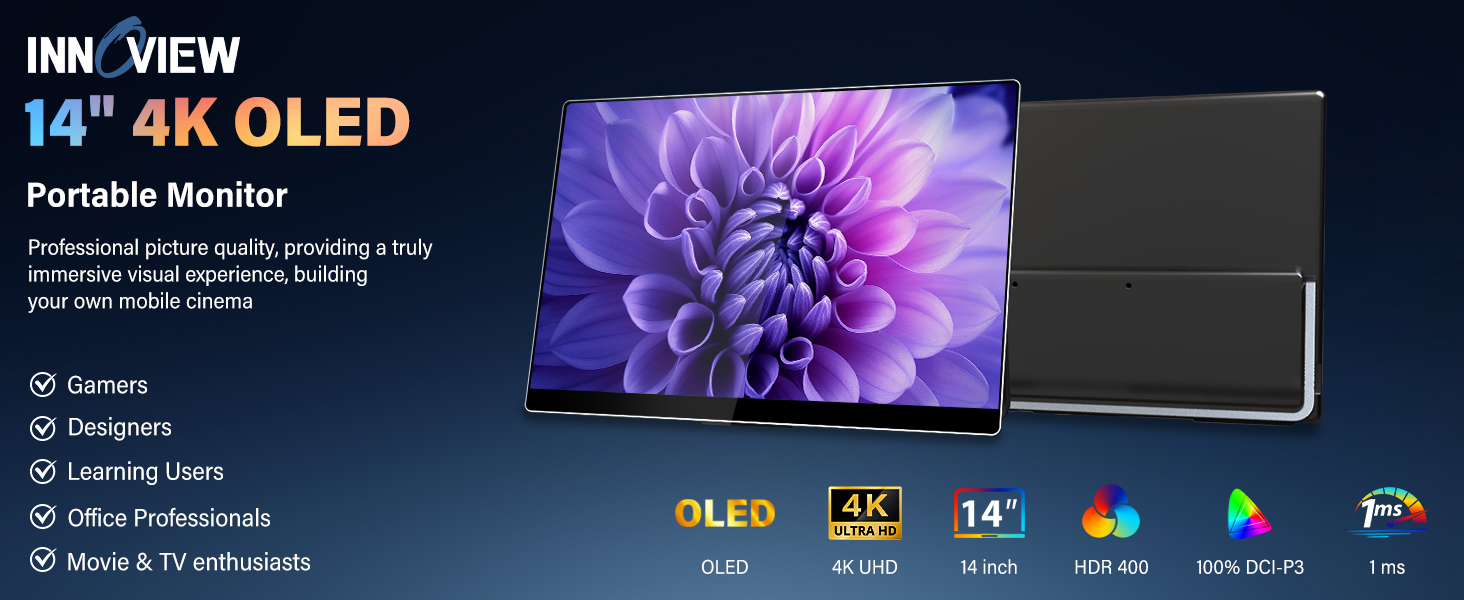
Figure 2.2: Visual representation of the fundamental difference between OLED and LCD display technologies.

Figure 2.3: Demonstration of the superior detail and realism provided by 4K UHD resolution.
3. Setup Guide
3.1 Package Contents
Before beginning, ensure all items are present in the package:
- InnoView 4K OLED Portable Monitor
- HDMI Cable
- Full-functional USB-C to USB-C Cable
- USB-C to USB-C Power Supply Cable (for power only)
- Power Adapter
- User Manual

Figure 3.1: Contents included with your InnoView 4K OLED Portable Monitor.
3.2 Connecting Your Monitor
The InnoView portable monitor offers flexible connectivity options. No drivers are required for most devices, enabling a plug-and-play experience.
Using USB-C (Full-featured)
For devices with a full-featured USB-C port (supporting DisplayPort Alternate Mode and power delivery), a single USB-C cable can transmit both video signal and power.
- Connect one end of the full-featured USB-C cable to the monitor's USB-C port.
- Connect the other end to your device's full-featured USB-C port.

Figure 3.2: Connecting the monitor using a USB-C cable and an additional power cable for stable operation.
Using HDMI and USB-C (Power)
For devices without a full-featured USB-C port, or if additional power is needed, use the HDMI cable for video and a USB-C cable for power.
- Connect one end of the HDMI cable to the monitor's HDMI port.
- Connect the other end of the HDMI cable to your device's HDMI output.
- Connect the USB-C power cable to the monitor's USB-C power input port.
- Connect the other end of the USB-C power cable to the provided power adapter and plug it into a power outlet.

Figure 3.3: Connecting the monitor using an HDMI cable for video and a separate power cable.
Important Note on Power Supply:
Due to varying output power from different devices, if the monitor flickers or displays a black screen, please connect the external power adapter to the monitor separately to ensure stable power delivery.
Mac mini M4 Series Connection:
When connecting to a Mac mini M4 series, ensure you connect the monitor to the Thunderbolt port. The front USB-C port on the Mac mini M4 series does not provide video signal output.

Figure 3.4: Proper connection method for Mac mini M4 series devices.
4. Operating Instructions
4.1 Monitor Controls
The monitor features intuitive buttons for power, menu navigation, and adjustments.

Figure 4.1: Location of control buttons and ports on the monitor.
- Power Button: Press and hold to turn the monitor on or off. A short press may activate/deactivate standby mode.
- Up/Down Buttons: Navigate through menu options or adjust values.
- Menu Button: Press to open the On-Screen Display (OSD) menu. Press again to select an option or confirm a setting.
4.2 Adjusting Display Settings
The OSD menu allows you to customize various display settings.
- Press the Menu Button to open the OSD menu.
- Use the Up/Down Buttons to navigate through categories such as Brightness/Contrast, Color Settings, Audio Settings, Other Settings, and Input Source.
- Press the Menu Button again to enter a selected category.
- Use the Up/Down Buttons to adjust values or select sub-options.
- Press the Menu Button to confirm your selection or exit a sub-menu.
Adjusting Aspect Ratio (16:10 to 16:9)
You can easily switch the display aspect ratio from the native 16:10 to 16:9 if desired.

Figure 4.2: Steps to change the display aspect ratio.
4.3 Using the Adjustable Stand
The integrated 180° adjustable stand provides flexibility for various viewing angles and setups.
- Gently unfold the stand from the back of the monitor.
- Adjust the stand to your desired angle. The stand is designed to be anti-slip, break-resistant, and wear-resistant.
- The monitor can also be hung using the stand's design, if applicable to your setup, to save desktop space.

Figure 4.3: The monitor's sturdy and durable 180° adjustable stand.
5. Maintenance
Proper care and maintenance will extend the life of your InnoView Portable Monitor.
- Cleaning the Screen: Use a soft, lint-free cloth to gently wipe the screen. For stubborn smudges, slightly dampen the cloth with water or a screen-specific cleaning solution. Avoid using harsh chemicals, abrasive cleaners, or direct spraying onto the screen.
- Cleaning the Body: Wipe the monitor's body with a soft, dry cloth.
- Storage: When not in use or during transport, store the monitor in its protective sleeve or a padded case to prevent scratches and damage.
- Handling: Always handle the monitor with care, especially when adjusting the stand or connecting cables, to avoid undue stress on the ports or screen.

Figure 5.1: The monitor's slim profile makes it easy to carry and store in a laptop bag or sleeve.
6. Troubleshooting
This section addresses common issues you might encounter with your InnoView Portable Monitor.
- Monitor Flickers or Black Screen:
- This often indicates insufficient power. Ensure you are using the provided power adapter and connecting it directly to the monitor's USB-C power input.
- If connecting via a single USB-C cable, your device might not provide enough power. Try connecting the external power adapter to the monitor.
- No Signal Detected:
- Verify that the video cable (USB-C or HDMI) is securely connected to both the monitor and your source device.
- Check the input source setting on the monitor's OSD menu to ensure it matches the connected port.
- Ensure your source device is powered on and configured to output video to an external display.
- For Mac mini M4 series, confirm connection to the Thunderbolt port, not the front USB-C port.
- Image Quality Issues (e.g., blurry, distorted):
- Ensure the display resolution on your source device is set to 3840x2400 (4K) for optimal clarity.
- Check the video cable for damage or kinks. Try a different cable if available.
- Adjust brightness, contrast, and color settings via the OSD menu.
- No Sound from Monitor Speakers:
- Check the audio output settings on your source device to ensure audio is directed to the monitor.
- Adjust the volume level on both your source device and the monitor's OSD menu.
7. Specifications
| Feature | Specification |
|---|---|
| Brand | InnoView |
| Model Number | CA-INVPM208 |
| Screen Size | 14 Inches |
| Display Technology | OLED |
| Resolution | 4K (3840 x 2400 Pixels) |
| Aspect Ratio | 16:10 |
| Response Time | 1 Millisecond |
| Refresh Rate | 60 Hz |
| Color Gamut | 100% DCI-P3 |
| Contrast Ratio | 100,000:1 |
| Brightness | 350 Candela (Nits) |
| Viewing Angle | 178 Degrees |
| Connectivity | USB-C, HDMI |
| Product Dimensions | 1.25 x 21.38 x 31.27 cm (0.49 x 8.42 x 12.31 inches) |
| Item Weight | 1.43 kg (3.15 lbs) |
| Compatible Devices | Camera, Desktop, Gaming Console, Laptop, Smartphone |
8. Warranty and Support
InnoView is committed to providing high-quality products and excellent customer service. While specific warranty details are not provided in this manual, InnoView emphasizes professional after-sales support for its users.
For any product-related inquiries, technical assistance, or support needs, please refer to the official InnoView website or contact their customer service directly through the contact information provided on their official channels or product packaging.
Please retain your proof of purchase for any warranty claims or support requests.


