
Introduction
This manual provides detailed instructions for the setup, operation, and maintenance of your PRITOM TAB7 PRO Kids Tablet. Please read this guide thoroughly to ensure proper use and to maximize your tablet's features. The PRITOM TAB7 PRO is designed to offer a safe and engaging digital experience for children, featuring a durable design and comprehensive parental controls.
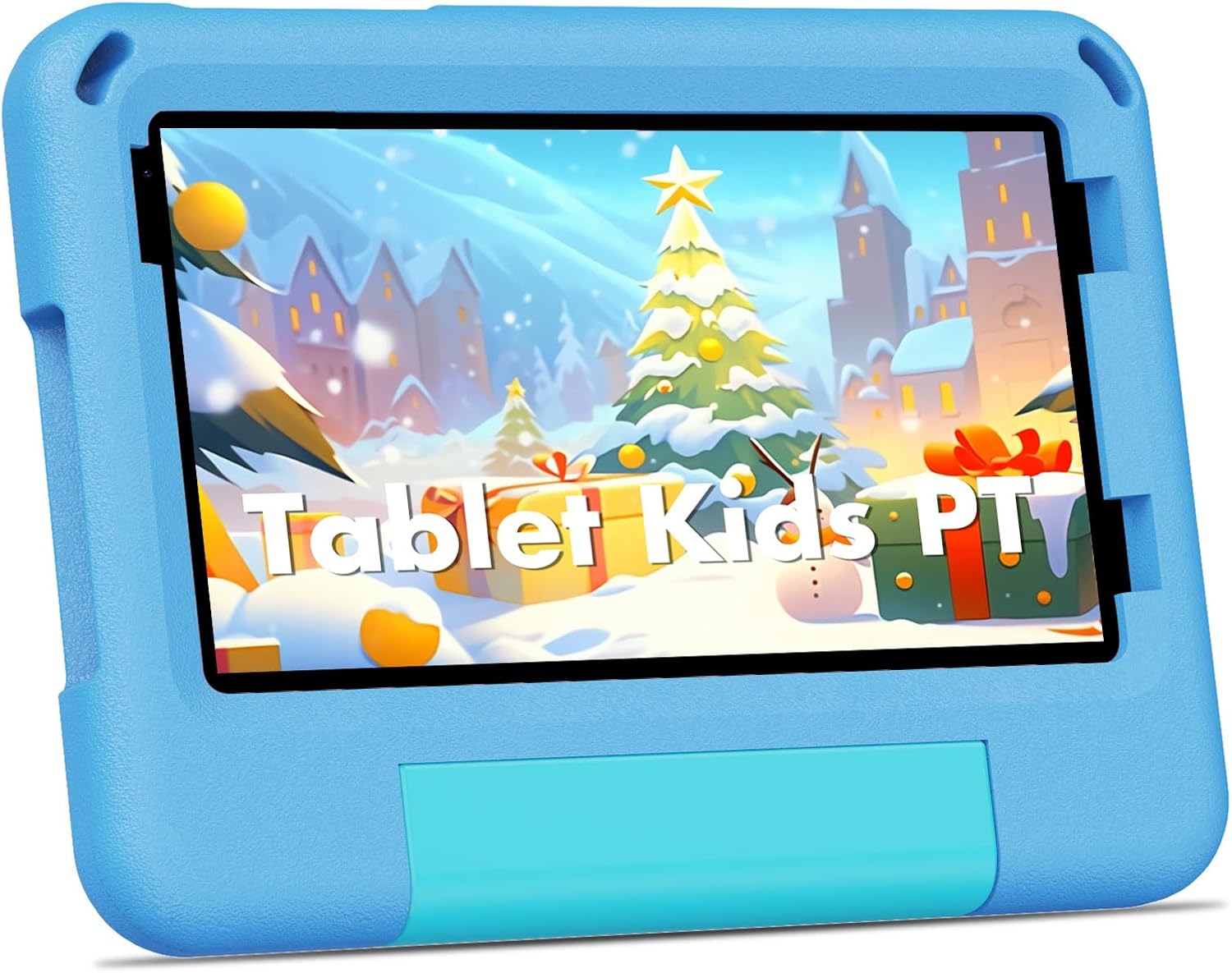
Image: The PRITOM TAB7 PRO Kids Tablet, showcasing its protective blue casing and a vibrant display.
Package Contents
Upon opening your PRITOM TAB7 PRO Kids Tablet package, verify that all items listed below are present:
- PRITOM TAB7 PRO Kids Tablet
- Charger
- Protective Cover Case
- User Guide (this manual)
Initial Setup
1. Charging the Tablet
Before first use, fully charge the tablet. Connect the provided charger to the tablet's Type-C port and plug it into a power outlet. The charging indicator will illuminate. A full charge typically takes several hours.
2. Powering On/Off
- To Power On: Press and hold the Power button located on the side of the tablet until the PRITOM logo appears.
- To Power Off: Press and hold the Power button, then select "Power Off" from the options that appear on the screen.
- To Restart: Press and hold the Power button, then select "Restart" from the options.
3. Initial Configuration
Upon first startup, follow the on-screen prompts to configure basic settings:
- Language Selection: Choose your preferred language.
- Wi-Fi Connection: Select your Wi-Fi network and enter the password to connect to the internet.
- Date and Time: Set the correct date and time, or allow the tablet to synchronize automatically via network.
- Google Account: Sign in with an existing Google account or create a new one. This is necessary for accessing the Google Play Store and other Google services.
4. Installing a Micro SD Card (Optional)
The tablet supports storage expansion up to 1 TB using a Micro SD card. Locate the Micro SD card slot on the side of the tablet. Gently insert the card until it clicks into place. Ensure the tablet is powered off before inserting or removing the card.

Image: The tablet's durable EVA case provides protection, as demonstrated by a child using the device.
Operating Your Tablet
1. Navigating the Interface
The PRITOM TAB7 PRO uses a touch-based interface. Common gestures include:
- Tap: To select an item or open an application.
- Tap and Hold: To access contextual menus or move icons.
- Swipe: To scroll through screens or lists.
- Pinch: To zoom in or out on images and web pages.
2. Kids Mode (iWawa) and Adult Mode
The tablet features a dedicated Kids Mode (iWawa) for a child-friendly environment and a standard Adult Mode for full Android functionality.

Image: The iWawa Kids Software interface, showing a selection of pre-installed educational applications and games designed for children.
- Entering Kids Mode: The tablet typically boots into Kids Mode by default. If not, locate the iWawa app icon and tap it.
- Exiting Kids Mode: To switch to Adult Mode, locate the "Exit" or "Parental Control" icon within iWawa, enter your parental password, and confirm to exit.
- Using Adult Mode: In Adult Mode, the tablet functions as a standard Android 14 device, allowing access to all installed applications and settings.

Image: The tablet operating in Adult Mode, showcasing common Android applications such as web browsers, app stores, and media players.
3. Parental Control Features
The iWawa software includes robust parental control options to manage your child's tablet usage.
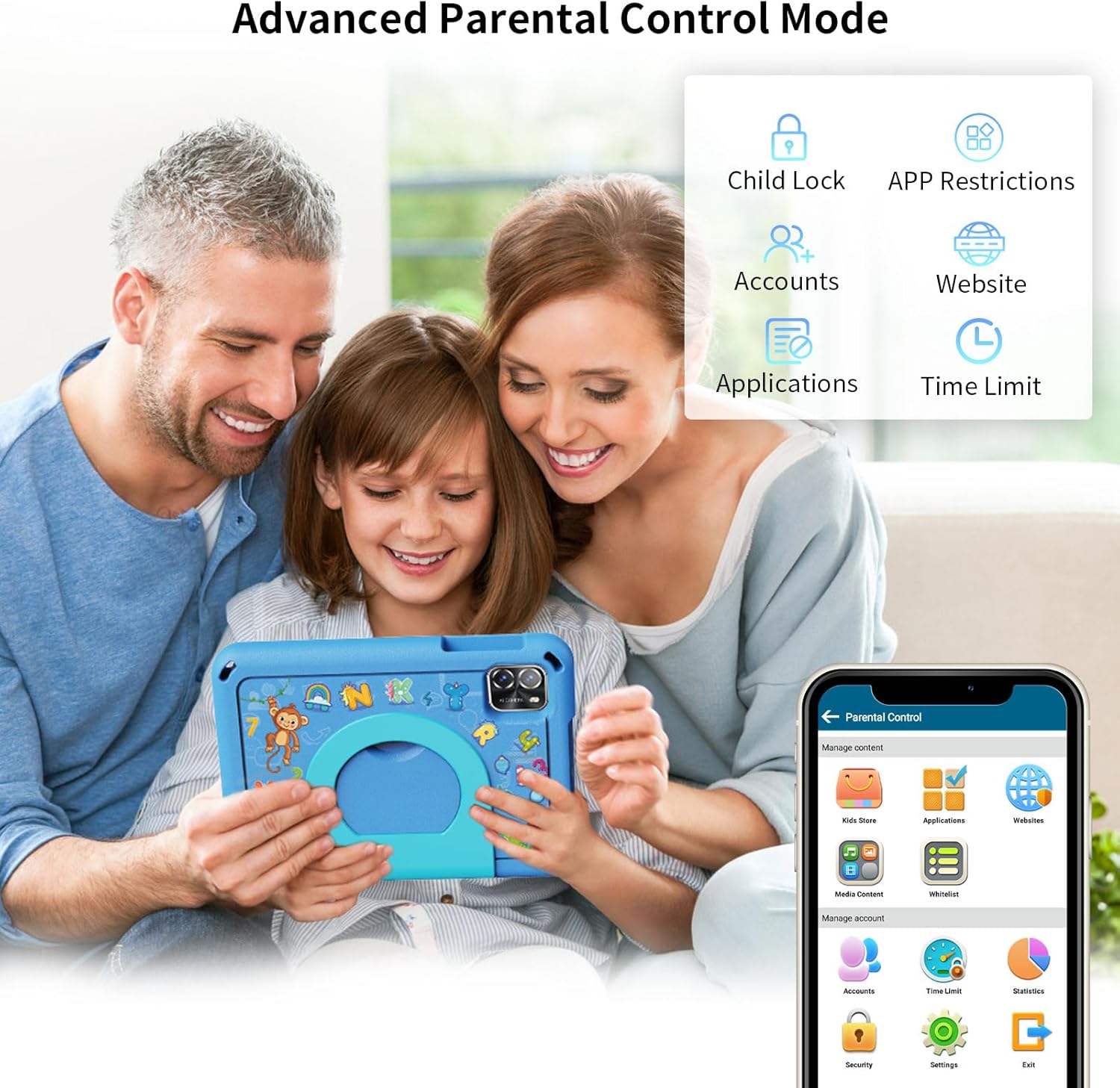
Image: The Parental Control interface, illustrating various settings such as app restrictions, time limits, and content filtering.
- APP Restrictions: Select which applications your child can access.
- Time Limits: Set daily usage limits or specific time blocks for tablet use.
- Content Management: Filter websites and recommend age-appropriate content.
- Child Locks: Prevent children from accessing unauthorized settings or exiting Kids Mode without permission.
- Multiple Accounts: Create separate profiles for different children with individualized settings.
4. Downloading Applications
- iWawa Kids Store: Access a curated selection of free educational and entertainment apps within Kids Mode.
- Google Play Store: In Adult Mode, you can download a wider range of applications from the Google Play Store. A Google account is required.
5. Camera Usage
The tablet is equipped with dual cameras. Open the Camera application to take photos or record videos. Tap the screen to focus and press the shutter button to capture.
Maintenance and Care
1. Cleaning the Tablet
Use a soft, lint-free cloth to clean the screen and body of the tablet. For stubborn smudges, slightly dampen the cloth with water or a screen cleaner. Avoid using harsh chemicals or abrasive materials.
2. Battery Care
- Avoid fully discharging the battery frequently.
- Do not expose the tablet to extreme temperatures.
- Use only the provided charger or a certified compatible charger.
3. Storage Management
Regularly check the tablet's storage space. Delete unnecessary files, apps, or clear app caches to maintain optimal performance. Utilize the Micro SD card for additional storage of media files.
4. Software Updates
Periodically check for system updates in the tablet's settings. Software updates can improve performance, add new features, and enhance security.
Troubleshooting
Common Issues and Solutions:
- Tablet will not turn on: Ensure the battery is charged. Connect the charger and wait a few minutes before attempting to power on again.
- Tablet is unresponsive: Press and hold the Power button for approximately 10-15 seconds to force a restart.
- Wi-Fi connection issues: Verify your Wi-Fi password. Restart your router and the tablet. Ensure the tablet is within range of the Wi-Fi signal.
- Apps are crashing or running slowly: Close background applications. Clear app caches in settings. Ensure sufficient storage space is available. Restart the tablet.
- Battery drains quickly: Reduce screen brightness. Close unused apps. Disable Wi-Fi or Bluetooth when not in use. Check for apps consuming excessive power in battery settings.
- Parental control password forgotten: Refer to the iWawa application's support or reset options, which may require a linked email for recovery.
Factory Reset (Last Resort)
If persistent issues occur, a factory reset may resolve them. Warning: This will erase all data on the tablet. Back up important files before proceeding. Navigate to Settings > System > Reset options > Erase all data (factory reset) and follow the prompts.
Product Specifications

Image: Key specifications of the PRITOM TAB7 PRO, including operating system, memory, storage, and display features.
| Feature | Detail |
|---|---|
| Model Name | TAB7 PRO |
| Operating System | Android 14 |
| Screen Size | 7 Inches |
| Screen Resolution | 1024 x 600 IPS HD |
| Processor | Quad-core, 1.8 GHz |
| RAM | 3 GB (+5GB Virtual) |
| Internal Storage | 64 GB |
| Expandable Storage | Up to 1 TB via Micro SD card |
| Wireless Connectivity | Wi-Fi (802.11ac, 802.11ax, 802.11b, 802.11g, 802.11n), Bluetooth |
| Cameras | Dual Cameras (2.0MP Front, 8.0MP Rear) |
| Average Battery Life | 6 Hours |
| Dimensions (LxWxH) | 8.2 x 6 x 1 inches |
| Weight | 14.8 ounces |
Warranty and Support
Your PRITOM TAB7 PRO Kids Tablet is covered by a manufacturer's warranty. Please refer to the warranty card included in your package for specific terms and conditions. For technical support, product inquiries, or warranty claims, please contact PRITOM customer service through their official website or the contact information provided with your purchase.
For additional resources and frequently asked questions, visit the official PRITOM store on Amazon: PRITOM Official Store.

