
1. Introduction
The Sainlogic Smart Portable Weather Station SA3 is designed to provide real-time monitoring of temperature, humidity, and barometric pressure. Featuring AI-powered weather forecasting, WiFi and Bluetooth connectivity, and integration with the Weatherseed app, this device allows for remote monitoring, custom alerts, and historical data storage. It is suitable for various environments including greenhouses, homes, and wine cellars.

Image 1.1: The Sainlogic SA3 device shown alongside a smartphone displaying the Weatherseed app interface with current weather data.
2. What's in the Box
Please check the package contents to ensure all items are present:
- 1 x Smart WiFi Temperature Humidity Sensor (not waterproof)
- 1 x Lanyard Loop
- 1 x User Manual
Note: 3 AAA batteries are required for operation and are not included in the package.
3. Specifications
| Feature | Description |
|---|---|
| Product Dimensions | 0.79 x 2.56 x 2.87 inches; 2.47 ounces |
| Item Model Number | SA3 |
| Batteries | 3 AAA batteries required (not included) |
| Manufacturer | sainlogic |
| Recommended Uses | Garden, Home |
| Specific Uses | Humidity, Pressure, Temperature monitoring |
| Power Source | Battery Powered |
| Special Feature | Accurate 24-Hour & 7-Day AI Weather Forecast, Customizable Alert, Smart Weather Station |
| Material | Acrylonitrile Butadiene Styrene (ABS) |
| Connectivity Technology | Bluetooth, Wi-Fi (2.4G Only) |
| Style | Portable Weather Station |
| Color | White |

Image 3.1: Diagram illustrating the internal components and key performance specifications of the SA3 weather station.
4. Setup and App Connection
Follow these steps to set up your Sainlogic SA3 Weather Station and connect it to the Weatherseed APP:
- Install Batteries: Open the battery compartment and insert 3 AAA batteries (not included), ensuring correct polarity.
- Download the Weatherseed APP: Search for "Weatherseed" in your smartphone's app store (iOS or Android) and download the application.
- Add Device: Open the Weatherseed APP. Tap "Add Device" and select "Model SA3" from the list of available devices.
- Initiate Pairing: On the SA3 device, press and hold the pairing button for 3 seconds until the indicator light flashes.
- Connect via Bluetooth: The app will detect the device via Bluetooth. Select it to connect.
- Configure Wi-Fi: Follow the in-app instructions to connect the device to your 2.4G Wi-Fi network. Enter your Wi-Fi password when prompted. (Note: The device only supports 2.4G Wi-Fi networks.)
- Placement: The integrated lanyard loop allows for drill-free mounting. Place the sensor in your desired monitoring location, such as a greenhouse, room, or wine cellar.

Image 4.1: Visual guide demonstrating the three main steps for connecting the SA3 weather station to the Weatherseed mobile application.
5. Operating Instructions
5.1 Real-Time Monitoring
Once connected, the Weatherseed APP will display real-time temperature, humidity, and barometric pressure data from your SA3 device. You can monitor these environmental changes from anywhere.
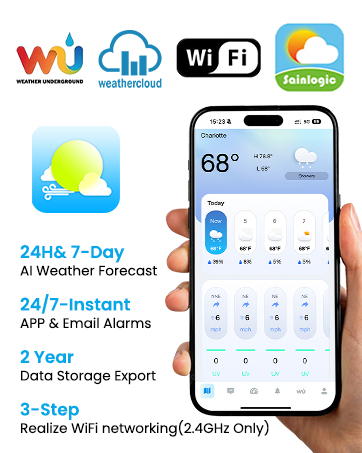
Image 5.1: The Weatherseed app displaying key features including 24H & 7-Day AI Weather Forecast, instant alerts, and data storage.
5.2 AI Weather Forecast
The Weatherseed APP provides an advanced AI-powered weather forecasting system, offering highly accurate 24-hour and 7-day weather predictions tailored to your specific location. This feature helps you prepare for environmental changes.

Image 5.2: The Weatherseed app interface showing a 7-day AI weather forecast, with the SA3 device monitoring conditions inside a greenhouse.
5.3 APP & Email Alerts
You can set custom temperature, humidity, and barometric pressure ranges within the Weatherseed APP. Receive instant alerts via the app or email if levels fall outside your preset thresholds. This is crucial for sensitive environments.
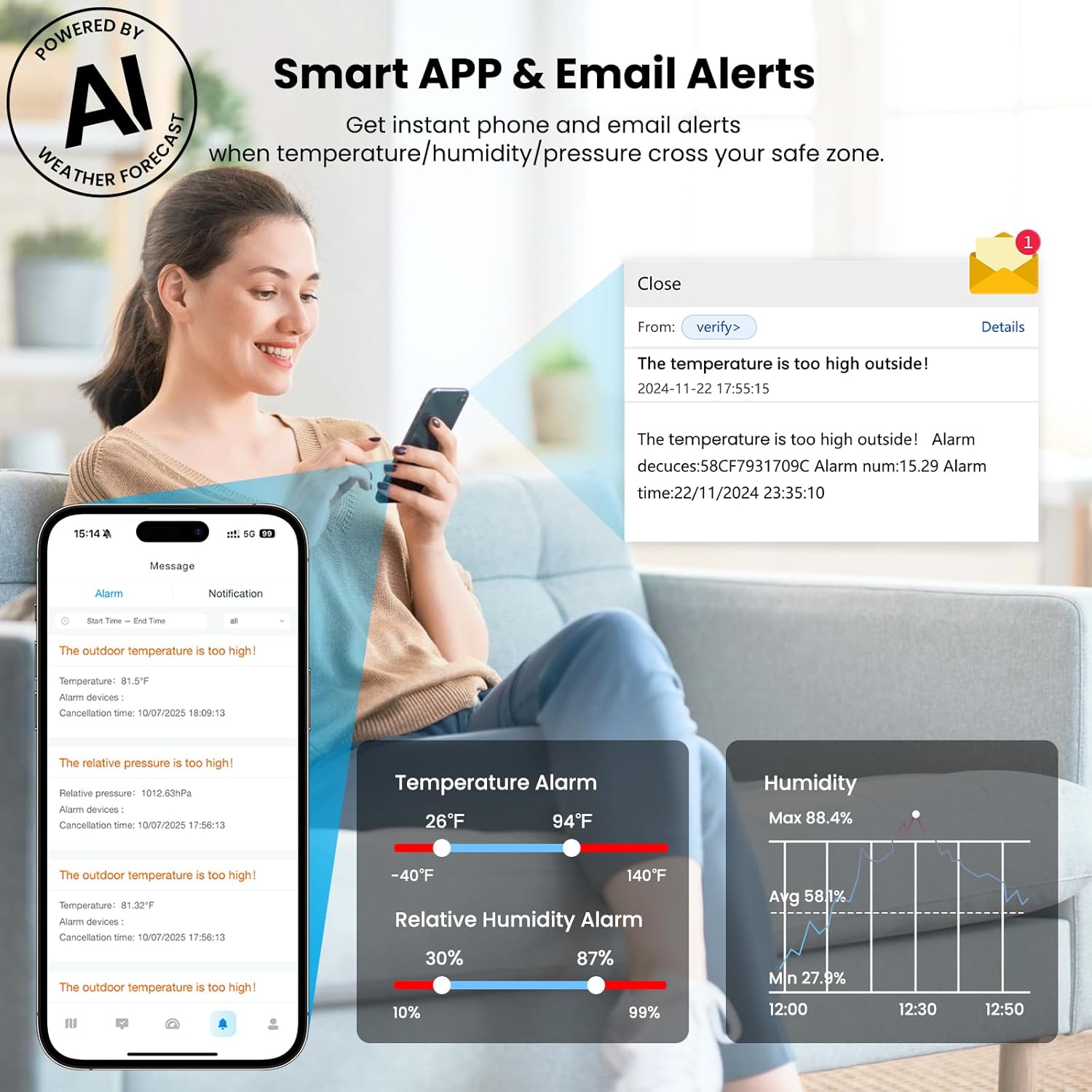
Image 5.3: A user interacting with the Weatherseed app, showing how to set custom alert ranges for temperature and humidity, and an example of an email alert.
5.4 Data Storage & Export
The Weatherseed APP stores up to 2 years of environmental trend data. You can view historical graphs within the app and export this data in Excel format for detailed analysis. This feature aids in making informed climate decisions.

Image 5.4: The Weatherseed app showing historical data graphs, with a laptop displaying exported data in an Excel spreadsheet.
5.5 Flexible Placement and Monitoring
The portable design and lanyard loop allow for versatile placement of the SA3 sensor. Monitor conditions in various locations such as gardens, living rooms, kitchens, freezers, wine cellars, garages, RVs, incubators, and greenhouses.

Image 5.5: An illustration depicting multiple SA3 sensors strategically placed throughout a home and garden, demonstrating remote monitoring capabilities.

Image 5.6: A collage showcasing diverse environments where the SA3 weather station can be effectively used, such as an RV, a greenhouse, and an incubator.
6. Maintenance
- Cleaning: Wipe the device with a soft, dry cloth. Do not use abrasive cleaners or immerse the device in water.
- Battery Replacement: When the battery indicator in the app shows low power, replace the 3 AAA batteries. Ensure the device is powered off before replacing batteries.
- Storage: If storing the device for an extended period, remove the batteries to prevent leakage. Store in a cool, dry place.
- Environmental Conditions: The sensor is not waterproof. Avoid exposure to direct rain or excessive moisture.
7. Troubleshooting
| Problem | Possible Cause | Solution |
|---|---|---|
| Device not connecting to APP | Low batteries, incorrect pairing mode, Wi-Fi issues (5Ghz network) | Replace batteries. Ensure device is in pairing mode (flashing light). Verify your Wi-Fi is 2.4Ghz. Restart device and app. |
| Inaccurate readings | Sensor obstruction, extreme environmental conditions, device malfunction | Ensure sensor is not blocked. Move device to a stable environment. If problem persists, contact support. |
| Alerts not received | Incorrect alert settings, app notifications disabled, email spam filter | Check alert thresholds in the Weatherseed APP. Enable app notifications. Check your email spam folder. |
| Data not updating | Loss of Wi-Fi connection, device out of range | Check Wi-Fi connectivity. Ensure device is within Wi-Fi range. Restart device. |
8. Warranty and Support
The Sainlogic Smart Portable Weather Station SA3 comes with a 1-year warranty from the date of purchase, covering manufacturing defects. Please retain your proof of purchase for warranty claims.
For technical support, troubleshooting assistance, or warranty inquiries, please contact Sainlogic customer service through their official website or the contact information provided in your purchase documentation.
You can also refer to the official user manual PDF for more detailed information: User Manual (PDF)