
DOOGEE U11-V
DOOGEE U11 Android 15 Tablet
User Manual
Product Overview
The DOOGEE U11 is an 11-inch Android 15 tablet designed for versatile use, from productivity to entertainment. It features a powerful Octa-Core processor, a high-resolution 90Hz display, and a long-lasting 8580mAh battery. This tablet comes equipped with ample storage and expandable memory, along with a suite of accessories to enhance your experience.
Key features include: Android 15 OS, 11-inch IPS 90Hz display, T606 Octa-core processor, 16GB RAM (expandable), 128GB internal storage (expandable up to 2TB), 8580mAh battery, 13MP main camera, 5MP front camera, dual speakers, Dual-Band WiFi, Bluetooth 5.0, AGPS, Face ID, and pre-installed WPS Office.

Image: DOOGEE U11 Android 15 Tablet shown with its full accessory kit, including the tablet, keyboard, mouse, and stylus.
Package Contents
Upon opening the package, verify that all the following items are included:
- 1 x DOOGEE U11 Tablet
- 1 x Tempered Glass Film
- 1 x Business Leather Case
- 1 x Bluetooth Keypad
- 1 x Stylus
- 1 x Mouse
- 1 x Charger
- 1 x Type-C USB Cable
- 1 x SIM Card Removal Needle
- 1 x User Manual
- 1 x Packing Box
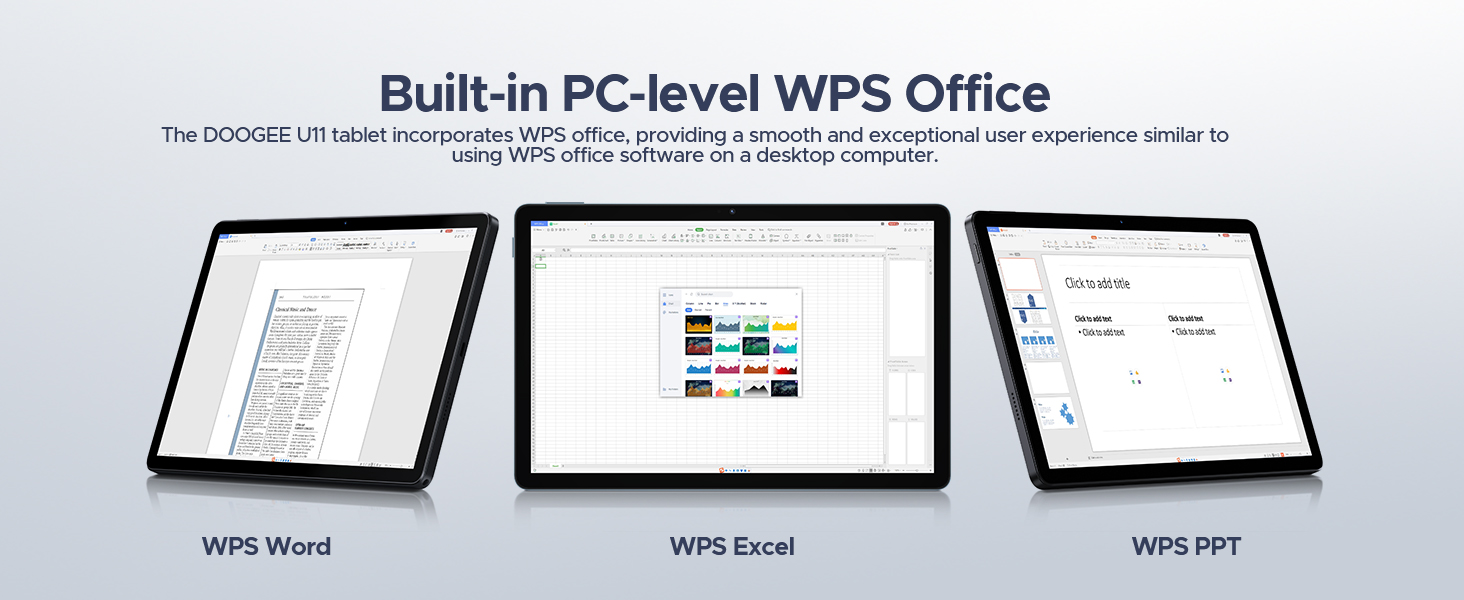
Image: A visual representation of all items included in the DOOGEE U11 Tablet package.
Setup Guide
1. Initial Charging
Before first use, fully charge the DOOGEE U11 tablet using the provided charger and Type-C USB cable. Connect the cable to the tablet's charging port and the charger to a power outlet. The battery indicator on the screen will show charging progress.
2. Powering On/Off
- To Power On: Press and hold the Power button located on the side of the tablet until the DOOGEE logo appears.
- To Power Off: Press and hold the Power button until the power options menu appears on the screen. Select "Power off" and confirm.
3. Initial Android Setup
Upon first power-on, follow the on-screen prompts to complete the initial Android 15 setup. This includes selecting your language, connecting to a Wi-Fi network, setting up your Google account, and configuring basic security settings.
4. Installing SIM/TF Card (Optional)
If you plan to use mobile data or expand storage, locate the SIM/TF card slot on the tablet. Use the provided SIM card removal needle to open the tray. Carefully insert your Nano-SIM card and/or microSD/TF card (up to 2TB) into the designated slots, ensuring correct orientation. Close the tray securely.
5. Connecting Bluetooth Accessories
The DOOGEE U11 comes with a Bluetooth keyboard and mouse. To pair them:
- Go to Settings > Connected devices > Bluetooth on your tablet and turn Bluetooth on.
- Put the keyboard/mouse into pairing mode (refer to their individual manuals for specific instructions, usually involves holding a button).
- Select the accessory from the list of available devices on your tablet and follow any on-screen prompts to complete pairing.
Operating Instructions
Display Features
The DOOGEE U11 features an 11-inch IPS full-color display with a 1280x800 pixel resolution, offering clear and vibrant visuals. The 90Hz refresh rate provides a smoother scrolling and gaming experience.

Image: Details of the tablet's 11-inch IPS display, highlighting its resolution, screen-to-body ratio, screen color, and contrast.
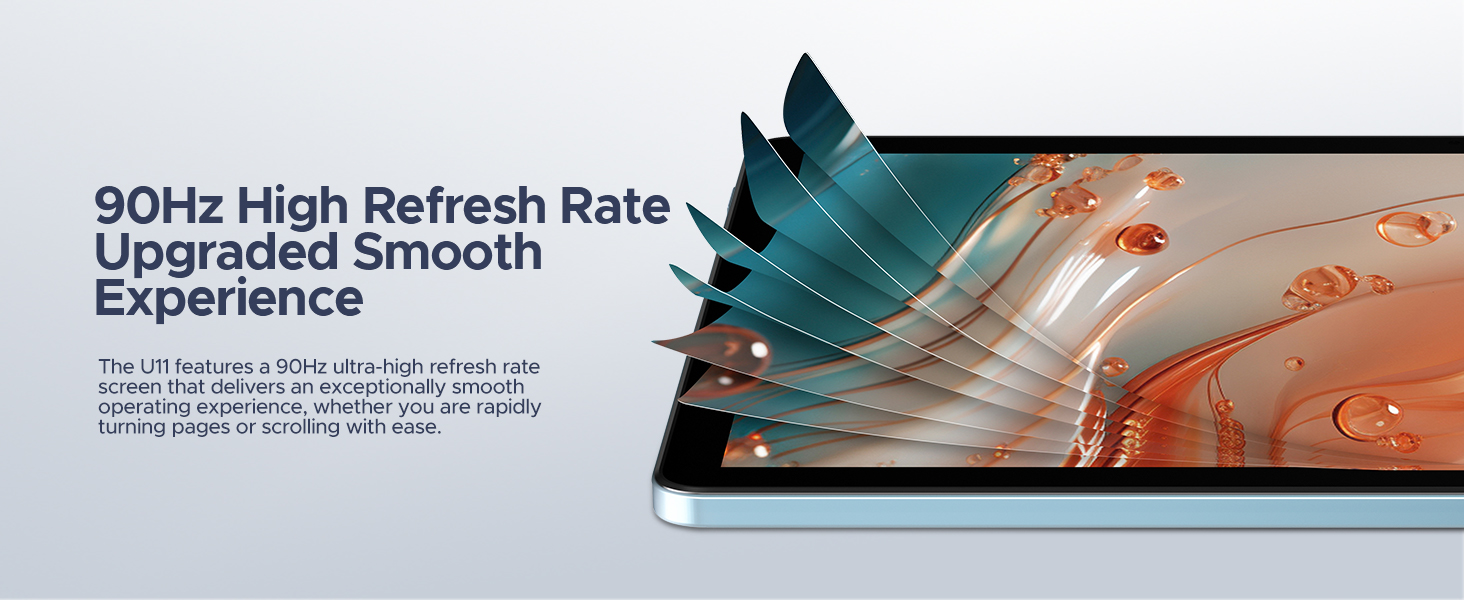
Image: Visual representation of the 90Hz high refresh rate, indicating a smoother user experience.
Performance and Storage
Equipped with a Unisoc T606 Octa-core processor, the tablet ensures efficient multitasking and smooth operation. It comes with 16GB of RAM (4GB physical + 12GB expandable) and 128GB of internal storage, which can be expanded up to 2TB using a microSD/TF card.

Image: Diagram illustrating the Unisoc T606 Octa-core processor, its clock speed, and GPU.

Image: Visualizing the 128GB internal storage with 2TB expansion capability and 4GB physical RAM with 12GB virtual expansion.
Battery Life
The 8580mAh battery provides extended usage times for various activities, including standby, music playback, video watching, and web browsing. The tablet also supports reverse charging, allowing it to act as a power bank for other devices.

Image: An internal view of the tablet highlighting the 8580mAh battery and its estimated usage hours for different activities.
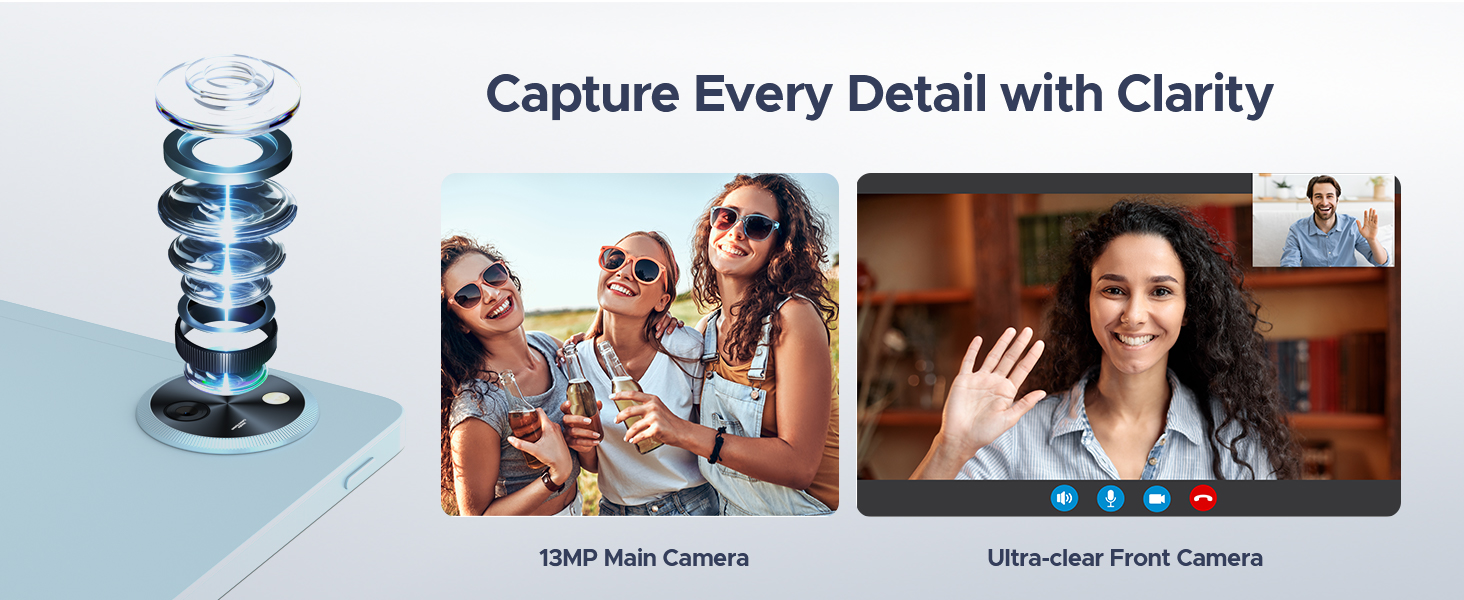
Image: The tablet connected via USB-C to a smartphone, demonstrating its reverse charging capability.
Cameras and Audio
Capture moments with the 13MP main camera and engage in clear video calls using the 5MP front camera. The tablet's professionally tuned dual speakers deliver clear and loud sound for an immersive audio experience.

Image: Depiction of the tablet's 13MP main camera and 5MP front camera, showcasing their clarity for photos and video calls.

Image: The tablet displaying a game, with a visual representation of sound waves emanating from its dual speakers.
Software Features (Android 15)
The DOOGEE U11 runs on the Android 15 operating system, offering a secure and personalized user experience. Features include:
- PC Mode with WPS Office: Easily switch to a PC-like interface for efficient work with pre-installed WPS Office (Word, Excel, PPT).
- Split-screen Functionality: Multitask by running two applications simultaneously on the screen.
- Low Blue Light Mode: Reduces blue light emission for comfortable viewing during extended use.
- Parental Controls: Manage and restrict access for children.
- Multi-user Features: Create separate user profiles for different individuals.
- Face Unlock: Securely unlock your device using facial recognition.
- Widevine L1 Certification: Enjoy 1080P HD streaming on platforms like YouTube, HBO, and Amazon Prime Video.
- Accurate Navigation System: Supports GPS, Beidou, GLONASS, Gali, and AGPS for reliable location services.
- FM Radio Function: Listen to FM radio stations by plugging in headphones.
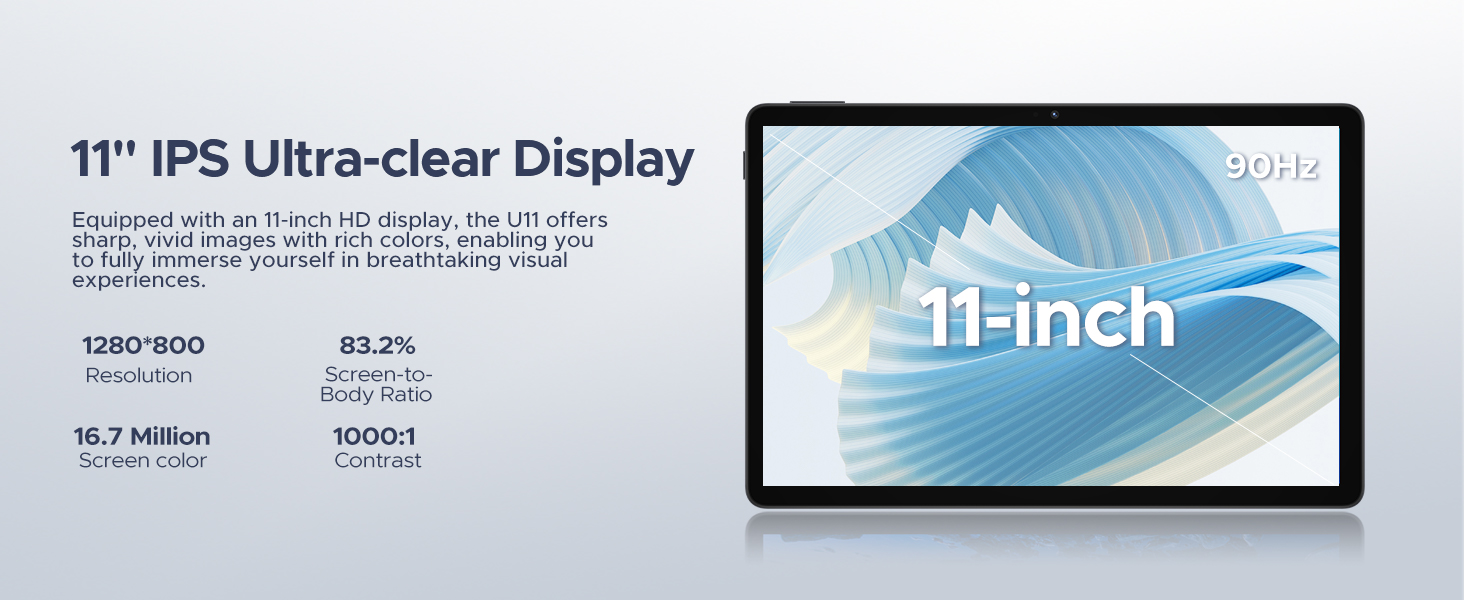
Image: The tablet screen displaying the Android 15 logo and various app icons, emphasizing the new operating system.
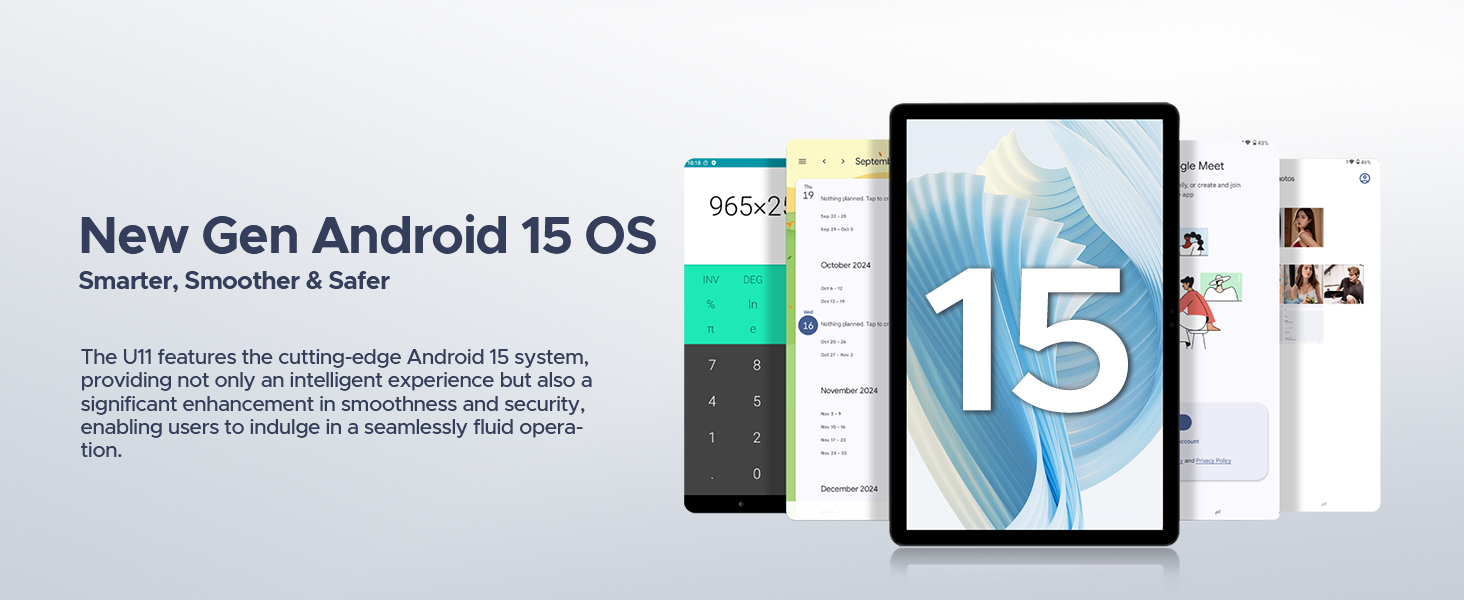
Image: Icons representing Bedtime Mode, Automatic Screen Brightness Adjustment, Multi-user System, and Parental Control features.

Image: The tablet screen showing two applications running side-by-side in split-screen mode, demonstrating multitasking.
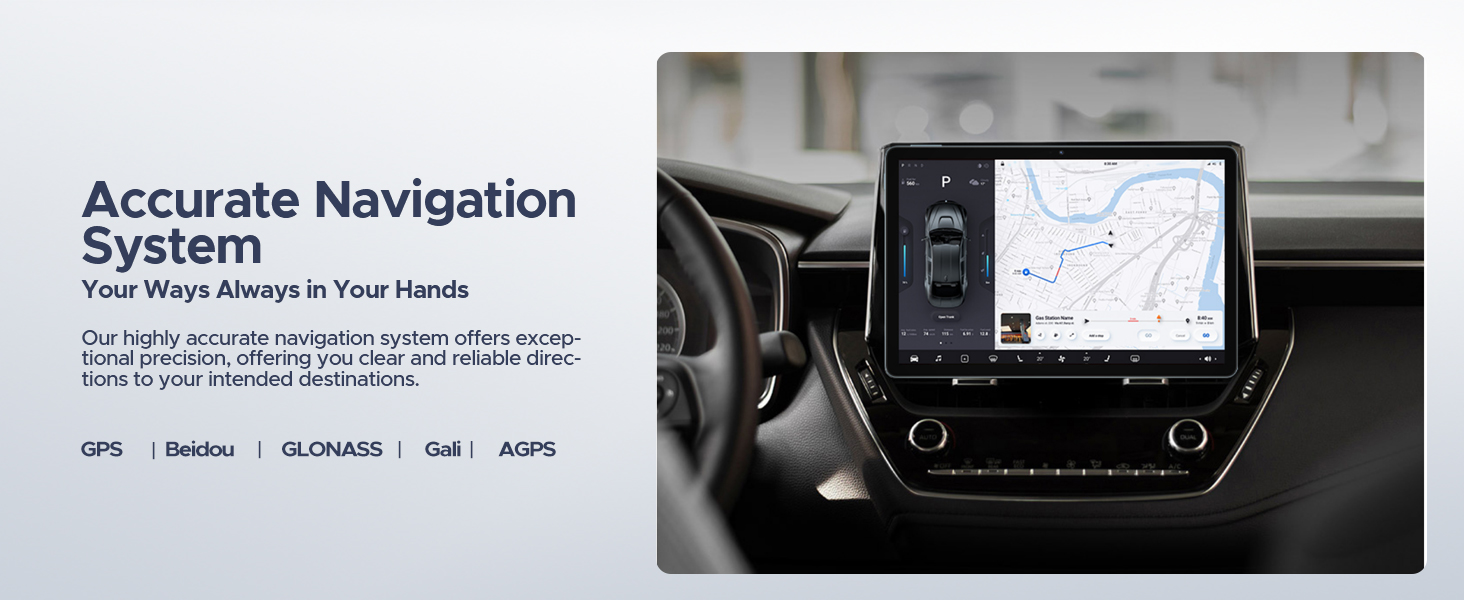
Image: A user comfortably viewing the tablet, with examples of the screen in normal and low blue light modes.
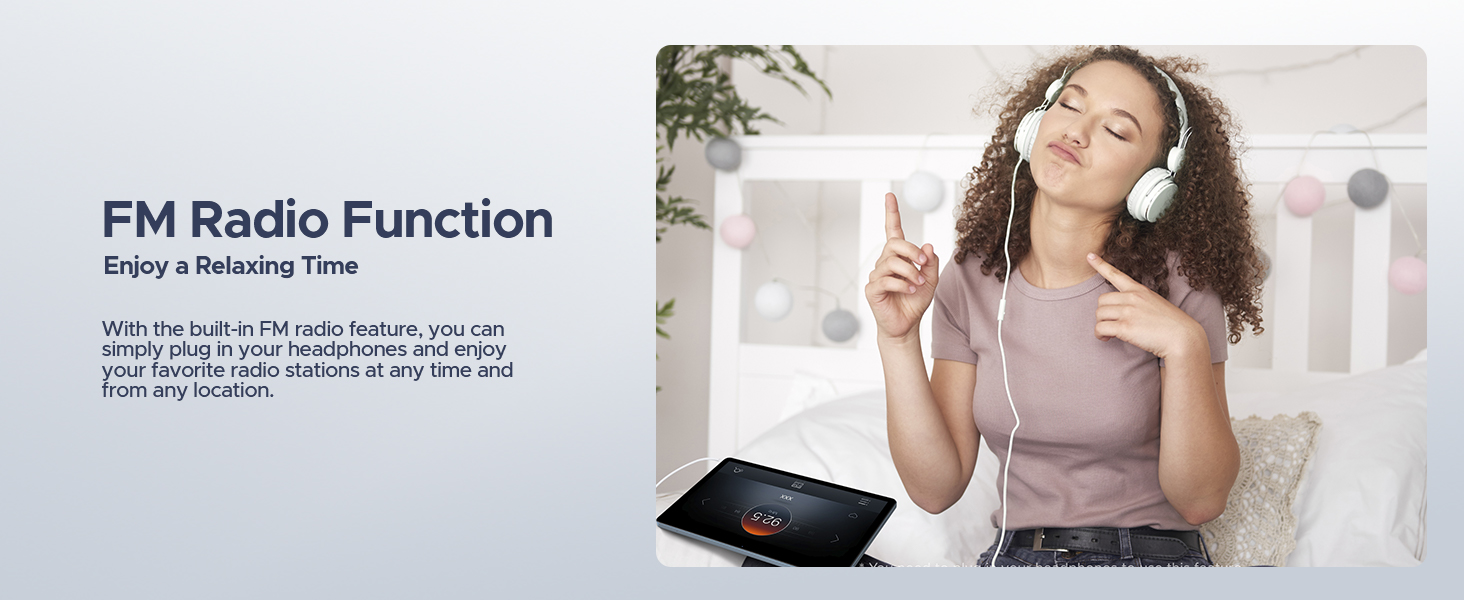
Image: A user unlocking the tablet using facial recognition technology.
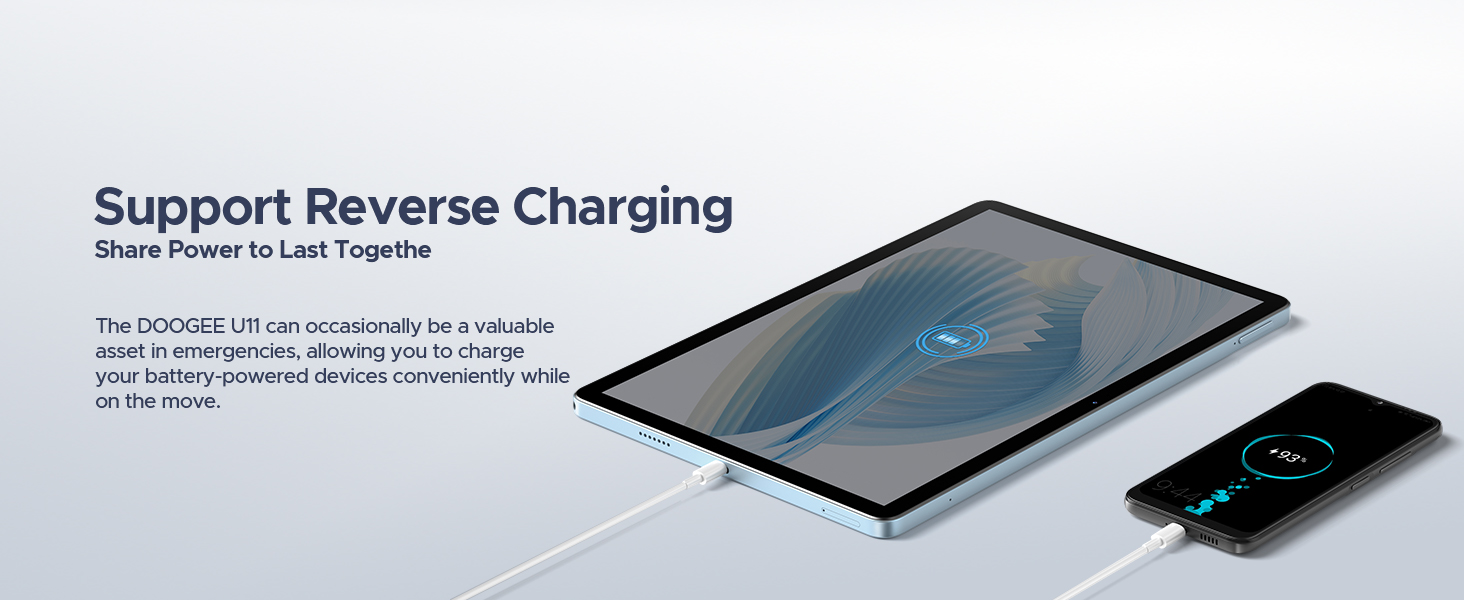
Image: The tablet displaying a high-definition video, with logos of streaming services like Netflix, Hulu, Prime Video, HBO Max, and YouTube, indicating Widevine L1 support.
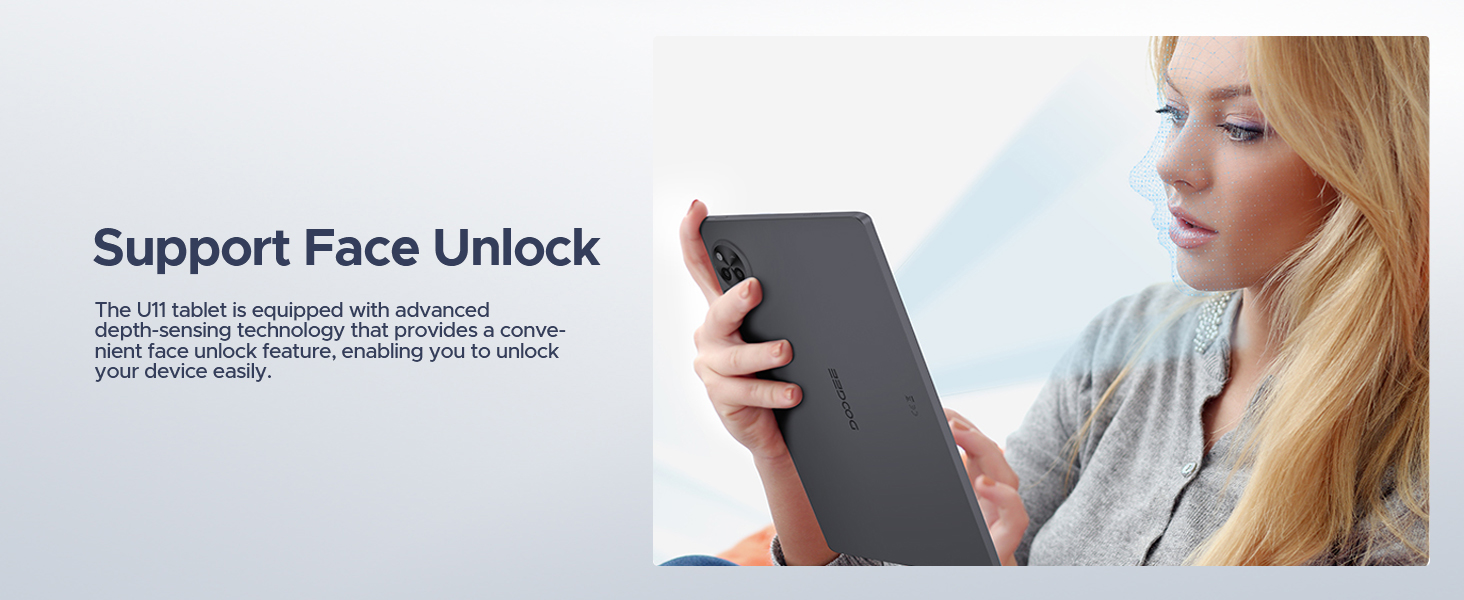
Image: The tablet displaying a navigation map within a car, highlighting support for GPS, Beidou, GLONASS, Gali, and AGPS.
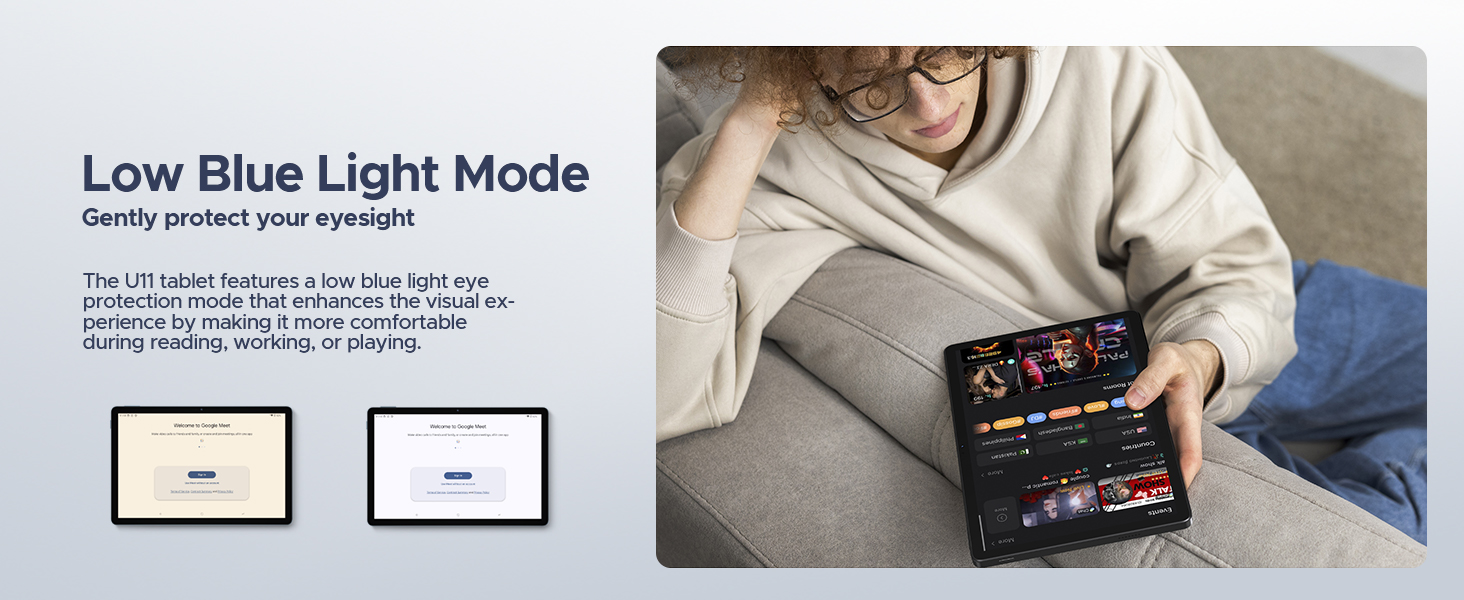
Image: The tablet screen showing WPS Office applications (Word, Excel, PPT), indicating PC-level productivity.
Maintenance
Cleaning the Tablet
To clean the tablet's screen and body, use a soft, lint-free cloth. For stubborn smudges, slightly dampen the cloth with water or a screen-safe cleaning solution. Avoid using harsh chemicals, abrasive materials, or excessive moisture, as these can damage the device.
Software Updates
Regularly check for and install system updates to ensure optimal performance, security, and access to new features. Go to Settings > System > System update to check for available updates. Ensure your tablet is connected to Wi-Fi and has sufficient battery life before starting an update.
Battery Care
To prolong battery lifespan:
- Avoid extreme temperatures.
- Do not let the battery completely drain frequently.
- Use the original charger provided with the tablet.
- If storing the tablet for an extended period, charge it to about 50% before turning it off.
Troubleshooting
This section addresses common issues you might encounter with your DOOGEE U11 tablet.
Device Not Powering On
- Ensure the battery is charged. Connect the tablet to the charger and wait a few minutes before attempting to power on again.
- Press and hold the Power button for at least 10-15 seconds to force a restart.
Screen Unresponsive or Frozen
- Force restart the tablet by pressing and holding the Power button until the device reboots.
- If the issue persists, consider performing a factory reset (Note: This will erase all data on the tablet. Back up important data first.).
Wi-Fi or Bluetooth Connectivity Issues
- Toggle Wi-Fi/Bluetooth off and on in the tablet's settings.
- Restart your Wi-Fi router or the Bluetooth device you are trying to connect to.
- Forget the network/device in settings and try reconnecting.
Apps Crashing or Not Responding
- Clear the app's cache and data (Settings > Apps > [App Name] > Storage & cache).
- Uninstall and reinstall the problematic app.
- Ensure the tablet's software is up to date.
Specifications
| Feature | Detail |
|---|---|
| Brand | DOOGEE |
| Model Name | U11-V |
| Operating System | Android 15 |
| Screen Size | 11 Inches |
| Max Screen Resolution | 1280*800 Pixels |
| Processor | 1.6 GHz Octa-Core (Unisoc T606) |
| RAM | 16GB (4GB physical + 12GB expandable) |
| Internal Storage | 128 GB |
| Expandable Storage | Up to 2 TB (TF Card) |
| Battery Capacity | 8580mAh |
| Main Camera | 13MP |
| Front Camera | 5MP |
| Connectivity | Dual-Band WiFi (5GHz/2.4GHz), Bluetooth 5.0, AGPS |
| Dimensions (LxWxH) | 10.1 x 6.67 x 0.31 inches |
| Item Weight | 3.27 pounds |
| Color | Gray |
Warranty and Support
The DOOGEE U11 tablet comes with a two-year warranty service. DOOGEE also offers lifetime technical support for this product. If you encounter any issues or have questions, customer support is available to assist you within 24 hours.
For support, please refer to the contact information provided in your product packaging or visit the official DOOGEE website.

Image: Information regarding DOOGEE's customer service, including 30-day money-back guarantee, 2-year limited warranty, and 24/7 online support.
Related documentsU11-V


Ask a question about this manual
Ask about setup, troubleshooting, compatibility, parts, safety, or missing instructions. Manuals+ will review the question and use this page’s manual context to help answer it.