
1. Introduction
The MCHOSE Ace 60 PRO is a compact 60% wired gaming keyboard designed for high performance and customization. It features Hall Effect magnetic switches, rapid trigger technology, an 8K polling rate, and adjustable actuation points, making it suitable for competitive gaming and everyday use. This manual provides detailed instructions for setting up, operating, maintaining, and troubleshooting your keyboard.
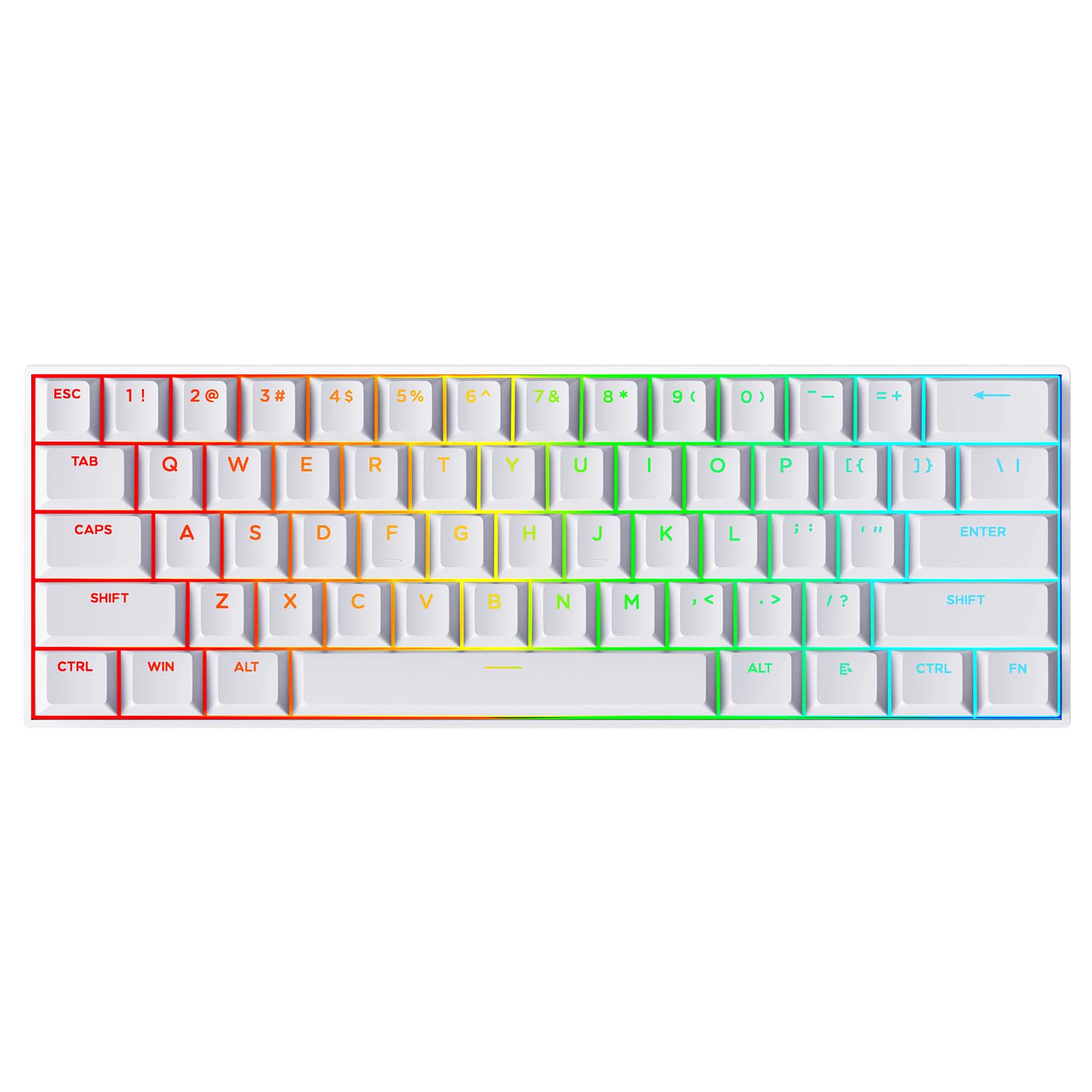
Image: The MCHOSE Ace 60 PRO Gaming Keyboard in white.
2. What's in the Box
Upon unboxing your MCHOSE Ace 60 PRO keyboard, verify that all the following items are included:
- MCHOSE Ace 60 PRO Gaming Keyboard
- Keycap & Switch Puller
- USB Cable (Type-C)
- 2 x Replacement Switches
- Dust Cover
- User Manual
Video: An unboxing and introduction to the MCHOSE Ace 60 PRO-White HE keyboard, showing the contents of the package.
3. Setup
3.1 Connecting the Keyboard
- Connect the provided USB-C cable to the keyboard's USB-C port.
- Connect the other end of the USB-C cable to an available USB port on your computer or gaming console.
- The keyboard will automatically be recognized by your system.
3.2 Driver Installation (Optional for Advanced Customization)
For advanced customization of key remapping, RGB lighting, and performance settings, use the MCHOSE driver software. You can use either the web-based driver or the desktop driver.
Using the MCHOSE Web Driver:
- Open a compatible web browser (Chrome, Edge, or Opera).
- Navigate to the MCHOSE official website: https://www.mchose.store.
- Scroll down to the "Support" section and click on "Drivers & Firmwares".
- Under "M HUB Web", click "Open M HUB Web".
- Select your device (Ace 60) to access customization options.
Video: Instructions on how to connect and use the MCHOSE Web Driver for keyboard customization.

Image: Step 1 of connecting to the MCHOSE Web Driver, showing the website address.

Image: Step 2 of connecting to the MCHOSE Web Driver, showing language selection and entering the M HUB WEB.

Image: Step 3 of connecting to the MCHOSE Web Driver, showing device selection for the Ace 60 keyboard.
Using the MCHOSE Desktop Driver:
The desktop driver is available for Windows 10 and above. Download and install it from the "Drivers & Firmwares" section of the MCHOSE official website.
4. Operation
4.1 Key Features
- Compact 60% Layout: Saves desk space while providing essential keys.
- Hall Effect Magnetic Switches: Offers precise and rapid response.
- Adjustable Actuation Point: Customize key sensitivity from 0.1mm to 3.4mm.
- Rapid Trigger & Berserk Mode: Enables instant actuation and ultra-responsive keystrokes for competitive gaming.
- 8 kHz Polling Rate: Ensures ultra-fast 0.1ms report rate for minimal latency.
- RGB Lighting: Features 16.8 million colors and 22 dynamic lighting effects.
- Hot-Swappable: Compatible with magnetic switches for easy replacement.
4.2 Adjustable Actuation Point
The Uranus magnetic switches allow for an adjustable actuation range from 0.1mm to 3.4mm. This feature enables you to fine-tune the sensitivity of each key to match your preferred playstyle. Adjustments can be made via the MCHOSE driver software.

Image: Diagram illustrating the adjustable actuation points for the keyboard switches, ranging from 0.1mm to 3.4mm.

Image: Cross-section diagram of a switch showing the actuation range from 0.1mm to 3.4mm.
4.3 Rapid Trigger & Berserk Mode
Rapid Trigger allows for instant key actuation and reset, providing a competitive edge in fast-paced games. Berserk Mode further enhances responsiveness with ultra-precise 0.01mm keystrokes. These modes can be activated and configured through the MCHOSE driver software.

Image: Visual representation of 0.01mm RT accuracy and ultra-low latency in gaming scenarios.

Image: Comparison of key response between a traditional mechanical keyboard and a Hall Effect keyboard with Rapid Trigger.
4.4 RGB Lighting Control
The keyboard supports 16.8 million customizable RGB colors and 22 dynamic lighting effects. You can adjust backlight color, brightness, and speed using the MCHOSE driver or through keyboard shortcuts.

Image: Diagram showing key combinations for controlling RGB backlight color, brightness, and speed.
5. Customization with MCHOSE Driver
The MCHOSE driver (web or desktop) provides extensive customization options:
- Key Remapping: Assign custom functions to any key.
- RGB Lighting: Fine-tune colors, effects, and brightness.
- Performance Settings: Adjust polling rate, actuation points, and activate gaming modes like Rapid Trigger and Berserk Mode.
- Advanced Key Functions: Configure SOCD, RS, MT, TGL, and DKS for complex commands.

Image: Screenshot of the MCHOSE driver interface showing performance settings, including Berserk Mode activation and polling rate options.

Image: Screenshot of the MCHOSE driver interface showing trigger, lighting, and advanced key settings.
5.1 Advanced Key Functions Explained
- RS (Rapid Stop):
- Compares the actuation depths of two assigned keys and triggers only the deeper-pressed key.
- SOCD (Simultaneous Opposite Cardinal Directions):
- When opposing direction keys (e.g., Left+Right) are pressed together, you can set it to neutralize, prioritize the last-pressed, or hold the first-pressed direction.
- DKS (Dynamic Key Press):
- Map up to four separate actions along a single key's travel—at actuation, bottom-out, first release, and full release—for chain macros or multi-stage commands.
- MT (Mod-Tap):
- Assign a key to send one keycode on a quick tap and a different (usually modifier) code when held, blending typing and modifier layers seamlessly.
- TGL (Toggle):
- Turn any key into an on/off switch—press once to latch the output, press again to cancel, with a hold still providing momentary behavior for instant control.

Image: Explanations of advanced key functions like RS, SOCD, DKS, MT, and TGL.

Image: Illustration of 4-in-1 action keys, allowing assignment of multiple actions to a single key based on press depth.
Image: Example of Dynamic Key Press (DKS) configuration, showing how one key can perform four functions based on different press depths.
6. Maintenance
6.1 Cleaning the Keyboard
- Disconnect the keyboard from your computer before cleaning.
- Use a soft, lint-free cloth slightly dampened with water or a mild cleaning solution to wipe down the keycaps and chassis.
- For deeper cleaning, use the provided keycap puller to remove keycaps and clean underneath with compressed air or a small brush.
- Ensure the keyboard is completely dry before reconnecting it.
6.2 Replacing Switches
The MCHOSE Ace 60 PRO features a hot-swappable PCB, allowing for easy replacement of magnetic switches without soldering.
- Use the provided switch puller to carefully remove the desired switch.
- Align the pins of the new magnetic switch with the holes on the PCB.
- Gently press the new switch into place until it clicks securely.

Image: Illustration of the hot-swappable PCB and magnetic switches, demonstrating how to remove and insert switches.
7. Troubleshooting
| Problem | Possible Cause | Solution |
|---|---|---|
| Keyboard not responding | Loose cable connection, incorrect USB port, driver issue. |
|
| RGB lighting not working or incorrect | Software settings, keyboard shortcut error. |
|
| Keys feel inconsistent or unresponsive | Incorrect actuation point setting, faulty switch. |
|
8. Specifications
| Feature | Detail |
|---|---|
| Model | ACE 60 PRO |
| Layout | 60% Compact |
| Switch Type | Hall Effect Magnetic (TTC Uranus Switch) |
| Actuation Range | 0.1mm - 3.4mm (Adjustable) |
| Polling Rate | 8 kHz (0.1ms Report Rate) |
| Connectivity | Wired (USB-C) |
| Keycaps | Durable PBT Keycaps |
| Backlighting | RGB (16.8 million colors, 22 effects) |
| Hot-Swappable | Yes (Magnetic Switches only) |
| Product Dimensions | 11.4"L x 3.93"W x 1.1"H (29cm x 10cm x 3.5cm) |
| Item Weight | 2.2 pounds (approx. 1 kg) |
| Compatible Devices | PC, Laptop, Gaming Console (PS5, XBOX) |

Image: Diagram showing the dimensions of the MCHOSE Ace 60 PRO keyboard.

Image: Detailed specifications of the Uranus Magnetic Switch, including lifespan, actuation range, sensitivity, and trigger pressure.
9. Warranty & Support
9.1 Warranty Information
MCHOSE products typically come with a manufacturer's warranty. Please refer to the warranty card included in your product packaging or visit the official MCHOSE website for detailed warranty terms and conditions.
9.2 Customer Support
For technical assistance, troubleshooting, or general inquiries, please contact MCHOSE customer support:
- Website: https://www.mchose.store
- Email: support@mchose.store
- Customer support is available Monday to Friday from 9 AM to 6:30 PM CST.


