
Product Overview
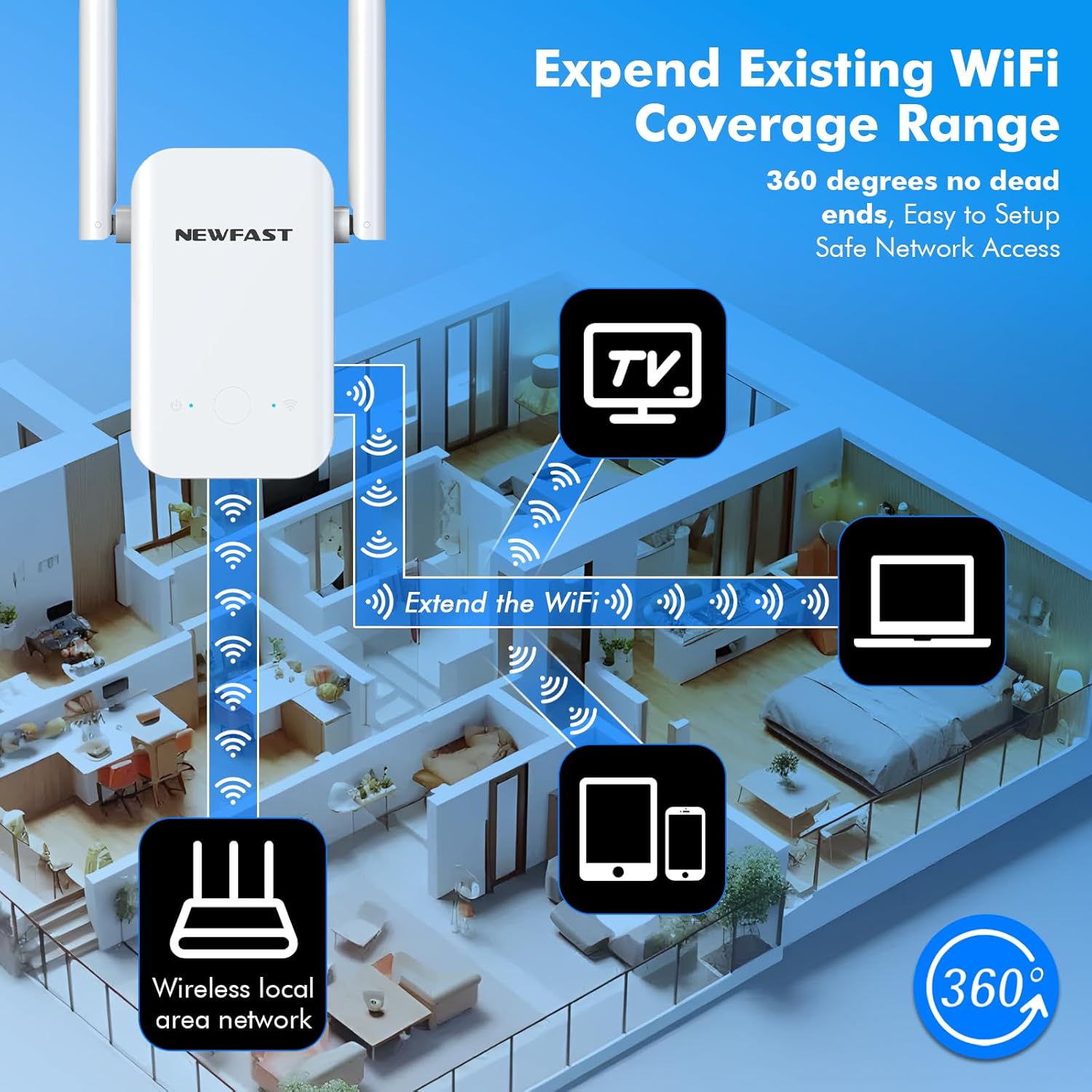
The NEWFAST RE513 WiFi Extender is designed to expand your existing wireless network coverage, eliminating Wi-Fi dead zones and providing a more stable internet connection throughout your home or office. This device operates on the 2.4GHz band, offering speeds up to 300Mbps, suitable for streaming, gaming, and general browsing.

The NEWFAST RE513 WiFi Extender, a compact device with two external antennas, designed to boost wireless signal coverage.
Key Features:
- Expanded WiFi Coverage: Enhances your WiFi signal to cover dead zones, ensuring reliable connectivity throughout your space.
- Stabilized 2.4GHz Band: Optimizes network speed up to 300Mbps for seamless online activities.
- Compact Design: Features a sleek, portable design that blends into any environment.
- Secure and Reliable: Supports WPA/WPA2 encryption for network security and offers a WPS one-click configuration.
- Smart Indicator: Includes a power indicator (blue) and WiFi indicator (blue for good signal, red for weak signal) for easy monitoring.

This image illustrates the technical specifications of the extender, including its 300Mbps speed capability and 2.4GHz frequency band support.

The extender supports various security protocols and features like WPA/WPA2 encryption, guest networks, WPS, and parental controls to keep your devices secure.
Setup Instructions
The NEWFAST RE513 WiFi Extender offers a simple setup process, primarily through the WPS (Wi-Fi Protected Setup) button. Ensure your main router supports WPS for the easiest setup.
WPS One-Tap Setup:
- Plug the NEWFAST RE513 WiFi Extender into a power outlet near your main router.
- Wait for the power indicator light on the extender to turn solid blue.
- Press the WPS button on your existing main router.
- Within two minutes, press the WPS button on the NEWFAST RE513 WiFi Extender.
- The WiFi indicator light on the extender will blink during connection and turn solid blue once successfully connected.
- Once connected, unplug the extender and move it to an optimal location (see 'Optimal Placement' below).

This image visually guides you through the WPS one-key connection steps for quick setup.
Optimal Placement:
For best performance, place the WiFi extender in a location that is approximately 10-40 feet away from your main router. Avoid placing it too close to the router, as it won't effectively extend the signal to dead zones. Similarly, avoid placing it too far, where it cannot receive a strong signal from the router. The smart WiFi indicator light (blue for good signal, red for weak signal) will help you find the ideal spot.
This diagram shows how to strategically place the extender within your home to maximize WiFi coverage and eliminate dead zones.
Operating the Extender
Once set up, the NEWFAST RE513 WiFi Extender operates automatically to extend your wireless network. Devices within its expanded range will connect to the extended network, typically identified by your original network name with a "_EXT" or "_Plus" suffix.
Indicator Lights:
- Power Indicator (Blue): Indicates the device is powered on.
- WiFi Indicator (Blue): Indicates a strong and stable connection to the main router.
- WiFi Indicator (Red): Indicates a weak signal from the main router, suggesting the extender might be placed too far away.
Multi-Device Support:
The extender supports connection for various devices, including smartphones, tablets, laptops, smart cameras, game consoles, and smart bulbs, ensuring all your wireless devices receive an improved signal.

The extender is compatible with a wide range of devices, providing extended Wi-Fi for all your connected electronics.
Application Scenarios:
The NEWFAST RE513 is suitable for various environments where WiFi coverage needs to be extended, including villas, apartments, self-built houses, offices, lofts, and lodging houses.

This image displays the versatility of the extender, showing its effectiveness in different residential and commercial settings.
Maintenance
The NEWFAST RE513 WiFi Extender is designed for stable, long-term operation with minimal maintenance. Follow these guidelines to ensure optimal performance:
- Placement: Ensure the extender is placed in a well-ventilated area to allow for proper heat dissipation. Avoid covering the device or placing it in enclosed spaces.
- Cleaning: Periodically wipe the exterior of the device with a soft, dry cloth. Do not use liquid cleaners or aerosols.
- Power Cycle: If you experience persistent connectivity issues, try unplugging the extender from the power outlet for 10 seconds and then plugging it back in. This can often resolve minor glitches.

The extender features a side heat dissipation design to ensure stable operation for extended periods.
Troubleshooting
If you encounter issues with your NEWFAST RE513 WiFi Extender, refer to the following common problems and solutions:
- No Power:
Symptom: Power indicator light is off.
Solution: Ensure the extender is securely plugged into a working power outlet. Try a different outlet. - Weak Signal (Red WiFi Indicator):
Symptom: The WiFi indicator light is red.
Solution: The extender is too far from your main router or there are too many obstructions. Relocate the extender closer to the main router, ensuring the WiFi indicator turns blue. Refer to the 'Optimal Placement' section. - No Internet Access on Extended Network:
Symptom: Devices connect to the extended network but have no internet.
Solution: Verify that your main router has internet access. Re-perform the setup process to ensure the extender is properly connected to your main router. - Cannot Connect to Extended Network:
Symptom: Devices cannot find or connect to the extended network.
Solution: Ensure the extender is powered on and the WiFi indicator is solid blue. Try restarting both your main router and the extender. - Forgotten Password:
Symptom: Cannot access the extender's management page or extended network.
Solution: If you forgot the password for the extended network, it is usually the same as your main router's WiFi password. If you need to reset the extender's administrative password, you may need to perform a factory reset. - Factory Reset:
Symptom: Persistent issues or need to reconfigure.
Solution: Locate the reset button (often a small pinhole) on the extender. With the extender powered on, use a paperclip or similar object to press and hold the reset button for approximately 5-10 seconds until the lights flash. The extender will restart with factory default settings, and you will need to perform the setup process again.
Specifications
| Brand | NEWFAST |
| Model | RE513 |
| Product Dimensions | 3.07 x 1.69 x 6.14 inches |
| Item Weight | 4.8 ounces |
| Wireless Communication Standard | 802.11bgn |
| Data Transfer Rate | 300 Megabits Per Second |
| Frequency Band Class | Single-Band (2.4GHz) |
| Special Features | 360 Degree Coverage, LED Indicator, 1-Tap Setup |
What's in the Box
The NEWFAST RE513 WiFi Extender package includes the following items:
- 1 x N300 WiFi Extender
- 1 x User Manual
Warranty and Support
For warranty information or technical support regarding your NEWFAST RE513 WiFi Extender, please refer to the contact details provided on the product packaging or the official NEWFAST website. Keep your purchase receipt for warranty claims.