
MCHOSE G75 PRO
Contents
MCHOSE G75 PRO 75% Wireless Mechanical Keyboard User Manual
Model: G75 PRO
Brand: MCHOSE
1. Introduction and Overview
The MCHOSE G75 PRO is a high-performance 75% wireless mechanical keyboard designed for versatility and an exceptional typing experience. It features tri-mode connectivity (Bluetooth 5.0, 2.4GHz wireless, and USB-C wired), hot-swappable switches, double-shot PBT keycaps, and vibrant RGB backlighting. With its ergonomic design and robust build, the G75 PRO is suitable for gaming, professional work, and everyday use.

Figure 1: MCHOSE G75 PRO 75% Wireless Mechanical Keyboard (Black & Green)
2. Package Contents
Please verify that all items are present in your package:
- MCHOSE G75 PRO Keyboard
- Keycap & Switch Puller
- USB Cable (USB-A to USB-C)
- 2.4GHz Receiver
- 2 x Replace Switches
- Dust Cover
- User Manual
- Handy Guide

Figure 2: All items included in the MCHOSE G75 PRO package.
Video 1: Unboxing the MCHOSE G75 PRO Keyboard, showcasing the contents and initial appearance.
3. Key Features
- Tri-Mode Connection: Supports BT5.0, 2.4GHz wireless, and USB-C wired connections for versatile use across multiple devices.
- Large Capacity 8000mAh Battery: Provides extended usage time, up to 400 hours without RGB lighting.
- Superior Customization & Sound Experience: 5-layer gasket structure for noise dampening and shock absorption, delivering a pure HiFi Mahjong sound. Pre-lubed creamy linear switches enhance typing feel.
- Hot-Swappable PCB: Allows effortless customization with any 3-pin or 5-pin switches without soldering.
- Ergonomic Design: Features a golden angle for comfortable typing, reducing finger and wrist fatigue.
- Compact 75% Layout (82 keys): Saves desktop space while retaining essential arrow keys.
- Double-Shot PBT Keycaps: Designed for durability, resisting shine and wear over time.
- Elaborate Design: Includes a hidden magnetic side plate for 2.4GHz receiver storage and a one-click mode switch button.
- Per-Key RGB Lighting: Offers 16.8 million colors and various lighting effects, adjustable via MCHOSE HUB software.

Figure 3: Detailed breakdown of G75 PRO's advanced features.
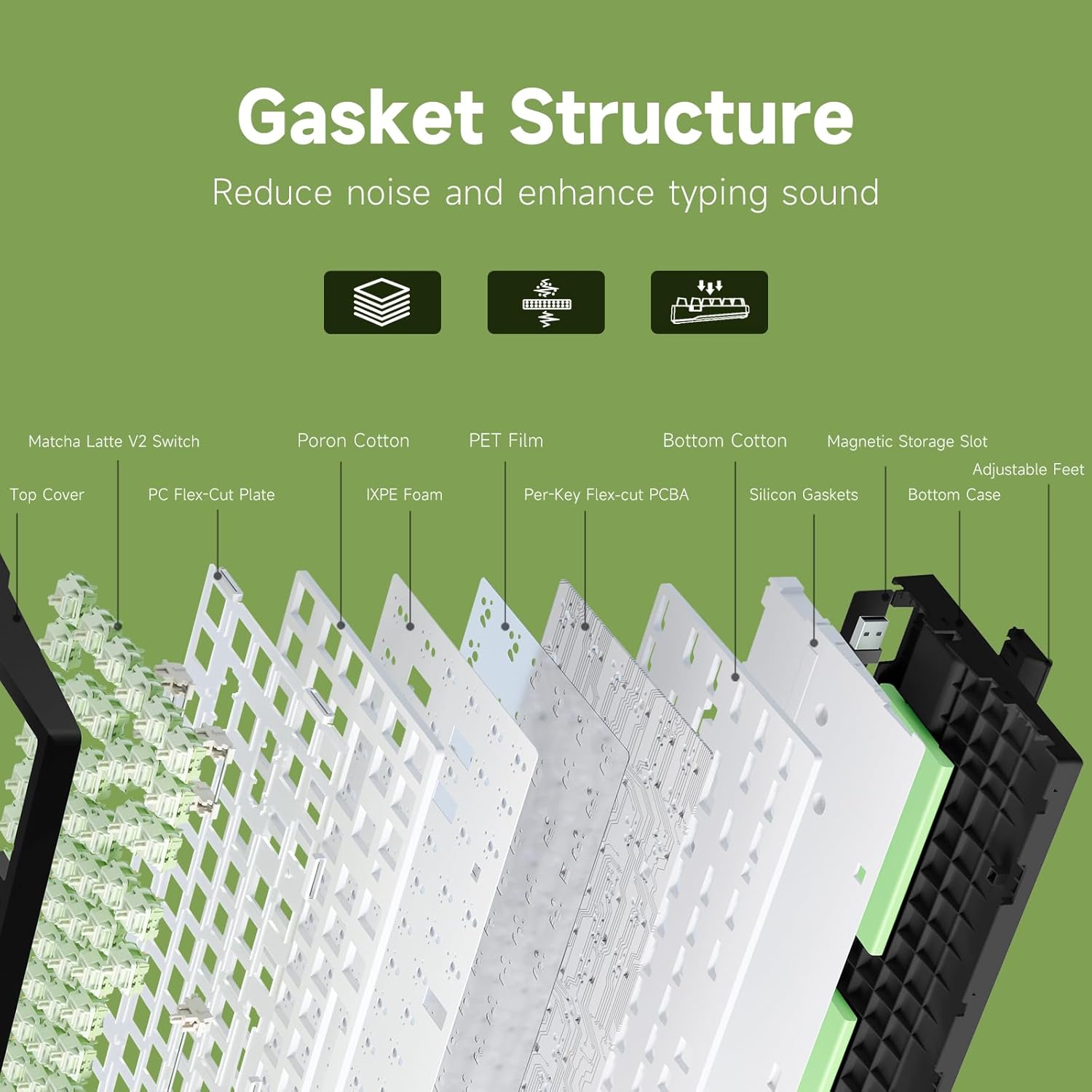
Figure 4: Internal Gasket Structure for enhanced sound and feel.
4. Setup and Connectivity
4.1 Charging the Keyboard
Before first use, it is recommended to fully charge your MCHOSE G75 PRO keyboard. Connect the provided USB-C cable to the keyboard's USB-C port and the other end to a powered USB port (e.g., computer, wall adapter). The keyboard features an 8000mAh battery for long-lasting performance.
4.2 Tri-Mode Connection
The G75 PRO supports three connection modes: Bluetooth (BT5.0), 2.4GHz Wireless, and USB-C Wired. You can easily switch between modes using the dedicated mode switch button located on the top left side of the keyboard.

Figure 5: Ergonomic design elements and connectivity ports.
4.2.1 2.4GHz Wireless Mode
- Locate the 2.4GHz USB receiver stored in the magnetic slot on the side of the keyboard.
- Plug the 2.4GHz receiver into an available USB port on your computer.
- Slide the mode switch button on the keyboard to the 2.4G position. The keyboard will automatically connect.
4.2.2 Bluetooth 5.0 Mode
- Slide the mode switch button on the keyboard to the BT position.
- On your device (PC, laptop, tablet, smartphone), enable Bluetooth and search for new devices.
- Select "MCHOSE G75 PRO" from the list of available devices to pair.
- The keyboard can store up to 3 Bluetooth connections. Use FN + Q/W/E to switch between paired devices.
4.2.3 USB-C Wired Mode
- Connect the provided USB-C cable to the keyboard's USB-C port.
- Connect the other end of the USB-C cable to a USB port on your computer.
- Slide the mode switch button on the keyboard to the USB position. The keyboard will be recognized as a wired device.

Figure 6: Tri-mode connection options for various devices.
5. Operating Instructions
5.1 RGB Backlighting Control
The MCHOSE G75 PRO features customizable RGB backlighting. Use the following key combinations to adjust lighting effects:
- FN + =: Switch backlight color
- FN + B: Check battery level (indicator light will show status)
- FN + \|: Switch backlight mode (various effects)
- FN + ↑: Increase backlight brightness
- FN + ↓: Decrease backlight brightness
- FN + ←: Decrease backlight speed
- FN + →: Increase backlight speed

Figure 7: RGB Backlighting settings and controls.
5.2 Hot-Swappable Switches
The G75 PRO's hot-swappable PCB allows you to easily change switches without soldering. This feature enables customization of your typing feel and sound. Use the provided keycap and switch puller for safe removal and installation.
- Carefully remove the keycap using the keycap puller.
- Use the switch puller to gently grasp the switch and pull it straight up.
- Align the pins of the new 3-pin or 5-pin switch with the holes on the PCB and press down firmly until it clicks into place.
- Re-attach the keycap.

Figure 8: Hot-swappable switch mechanism.
5.3 MCHOSE HUB Software
For advanced customization, including macro editing, key redefinition, RGB effects, and polling rate settings, download and install the MCHOSE HUB software. You can find the software on the official MCHOSE website.
Figure 9: MCHOSE HUB Software interface for advanced customization.
Video 2: Guide on how to connect and use the MCHOSE Web driver and Desktop driver for software customization.
6. Maintenance
To ensure the longevity and optimal performance of your MCHOSE G75 PRO keyboard, follow these maintenance guidelines:
- Cleaning: Regularly clean the keycaps and keyboard body with a soft, dry cloth. For deeper cleaning, you can remove keycaps using the provided puller and use compressed air to clear dust and debris from beneath.
- Storage: When not in use, especially for extended periods, store the keyboard in a dry, cool place. Use the provided dust cover to protect it from dust accumulation.
- Battery Care: Avoid completely draining the battery frequently. Charge the keyboard when the battery indicator is low. If storing for a long time, charge it to about 50-70% to preserve battery health.
- Avoid Liquids: Keep liquids away from the keyboard to prevent damage to internal components.
7. Troubleshooting
If you encounter any issues with your MCHOSE G75 PRO keyboard, please refer to the following common troubleshooting steps:
| Problem | Possible Cause | Solution |
|---|---|---|
| Keyboard not responding in wireless mode. | Low battery, incorrect mode selected, receiver not connected, pairing issue. | Charge the keyboard. Ensure the mode switch is set to 2.4G or BT. Re-insert the 2.4GHz receiver or re-pair Bluetooth. Try wired mode to confirm keyboard functionality. |
| RGB lighting not working or stuck. | Lighting settings incorrect, software conflict. | Use FN key combinations to cycle through lighting modes and brightness. Restart the keyboard. Check MCHOSE HUB software for advanced settings. |
| Specific keys not working. | Loose or faulty switch/keycap, software issue. | Remove and re-seat the keycap and switch. Try swapping the switch with one of the spare switches provided. Test in wired mode. Reinstall MCHOSE HUB software if applicable. |
| Lag or input delay in wireless mode. | Interference, distance from receiver, low battery. | Ensure no strong interference sources nearby. Move closer to the receiver. Charge the keyboard. Try 2.4GHz mode if using Bluetooth, or wired mode. |
8. Specifications
| Attribute | Detail |
|---|---|
| Product Dimensions | 12.6 x 5.4 x 1.06 inches |
| Item Weight | 2.51 pounds |
| Manufacturer | MCHOSE |
| Item Model Number | G75 PRO |
| Batteries | 1 Nonstandard Battery required (included) |
| Brand | MCHOSE |
| Compatible Devices | Laptop, PC, Gaming Console, Tablet, Smartphone |
| Connectivity Technology | 2.4GHz Wireless, BT5.0, USB-C |
| Keyboard Description | Mechanical |
| Special Feature | Ergonomic, Backlit, Rechargeable, Customizable Display Keys, Hot-Swappable |
| Color | Black&Green (RGB Backlighting) |
| Number of Keys | 82 |
| Style | Contemporary |
9. Warranty and Support
For warranty information, technical support, or further assistance with your MCHOSE G75 PRO keyboard, please contact MCHOSE Official customer support. You can also visit the official MCHOSE website for the latest drivers, firmware, and FAQs: mchose.store.
Please retain your proof of purchase for any warranty claims.
Documents and downloads
Ask a question about this manual
Ask about setup, troubleshooting, compatibility, parts, safety, or missing instructions. Manuals+ will review the question and use this page’s manual context to help answer it.