
JJENXYYDS EQ8000
Stereo Graphic EQ8000 31-Band Graphic Equalizer User Manual
Model: EQ8000 | Brand: JJENXYYDS
Introduction
This manual provides comprehensive instructions for the operation, setup, and maintenance of your JJENXYYDS Stereo Graphic EQ8000 31-Band Graphic Equalizer. Designed for professional audio environments such as stages, concerts, and recording studios, this equalizer offers precise audio frequency adjustment, digital audio decoding, and noise reduction capabilities. Please read this manual thoroughly before using the device to ensure optimal performance and longevity.

Image: The EQ8000 Stereo Graphic Equalizer, showcasing its front panel with LED spectrum analyzer, included remote control, and RCA audio cables.
Key Features
- 31-Band Digital Equalizer: Offers precise audio tuning with real-time frequency point levels for each band.
- LED Music Spectrum Analyzer: Integrated LED display visually represents sound dynamics.
- Multiple Input Interfaces: Optical, Coaxial, DVD, CD, and AUX audio inputs for versatile connectivity.
- Bluetooth 5.4 Connectivity: Seamless wireless audio streaming.
- USB Lossless Playback: Supports direct playback from U Disk.
- Noise Reduction: Enhances audio clarity by minimizing unwanted noise.
- 12 Customizable Jump Modes: Allows for dynamic visual effects on the LED display.
- Dual 10-Segment EQ Sliders: Provides tactile control over frequency adjustments.
- Sturdy and Portable Design: Ultra-thin 1U chassis with rugged aluminum construction.

Image: Visual summary of the EQ8000's professional audio features, highlighting its 31-segment dynamic spectrum, Bluetooth 5.4, and various decoding and output options.
Setup and Connections
Proper connection of the EQ8000 is crucial for optimal performance. Follow these steps to integrate the equalizer into your audio system.
Front Panel Overview
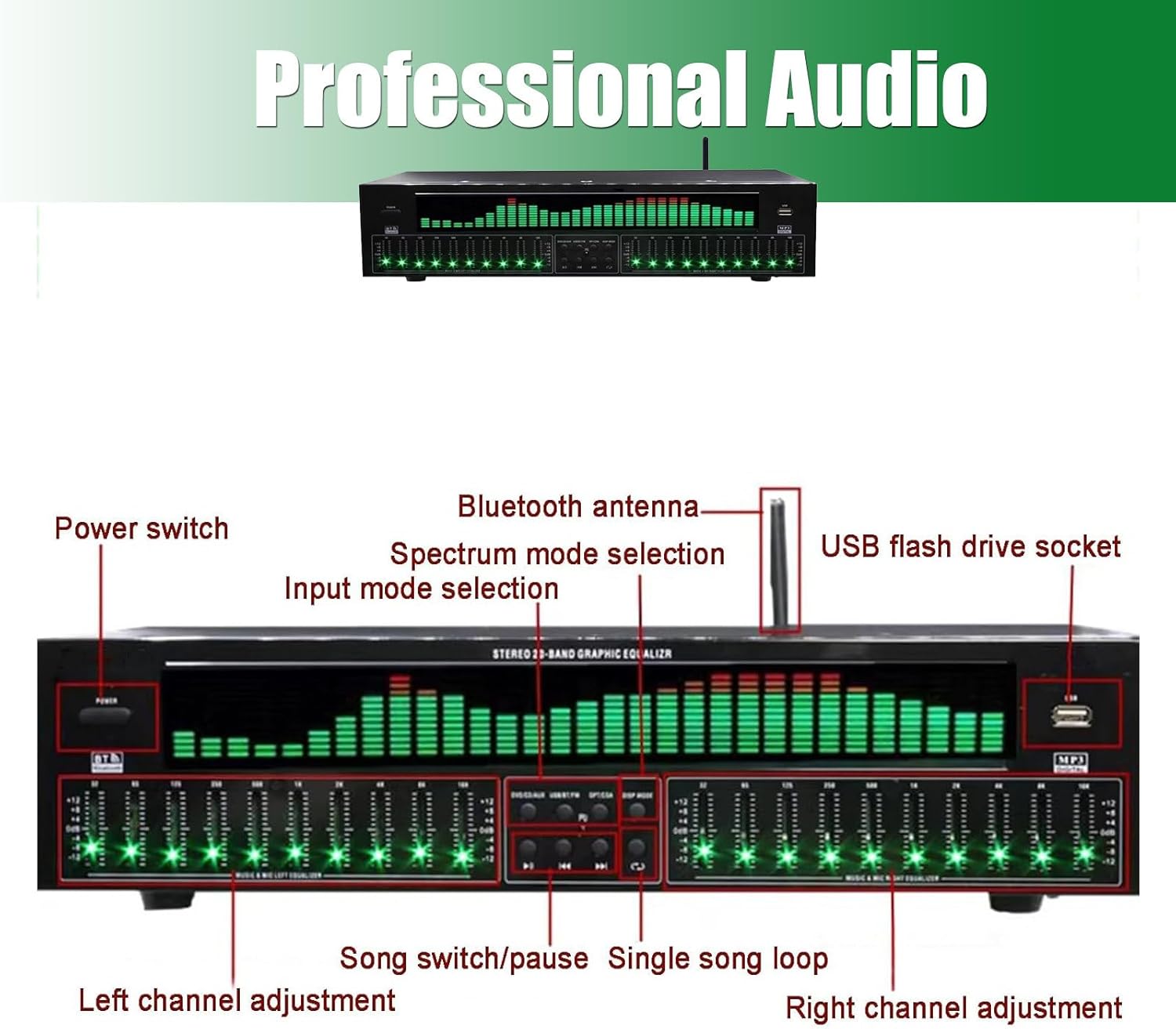
Image: Detailed view of the EQ8000's front panel, indicating the location and function of the power switch, Bluetooth antenna, spectrum and input mode selectors, USB port, playback controls, and left/right channel adjustments.
Rear Interface Overview

Image: Comprehensive diagram of the EQ8000's rear panel, showing all input and output ports including optical, coaxial, AUX, CD, DVD, audio outputs, radio antenna, Bluetooth antenna, and power input.
Connecting Your Equalizer
- Power Connection: Connect the power cable to the Power Interface on the rear panel and plug it into a suitable power outlet.
- Audio Input:
- For digital sources, use the Optical or Coaxial inputs.
- For analog sources, connect your DVD player, CD player, or other AUX devices to the corresponding RCA input jacks.
- Audio Output: Connect the Audio Output interfaces (OUT1, OUT2) to your amplifier or powered speakers using RCA cables.
- Bluetooth Antenna: Attach the Bluetooth antenna to the BT.ANT port for optimal wireless signal reception.
- Radio Antenna: If using the radio function, connect a suitable antenna to the FM ANT port.
Video: A demonstration of connecting the EQ8000 Graphic Equalizer to an audio system, including speaker and input/output connections, and a brief sound test.
Operating Instructions
Once connected, you can begin operating your EQ8000 equalizer.
- Power On/Off: Press the 'Power' button on the front panel to turn the unit on or off.
- Input Selection: Use the 'Input mode selection' button to cycle through available audio inputs (Optical, Coaxial, DVD, CD, AUX, Bluetooth, USB). The selected input will be indicated on the LED display.
- Equalization Adjustment:
- Use the 31 individual sliders for 'Left channel adjustment' and 'Right channel adjustment' to fine-tune specific frequency bands. Adjusting a slider up increases the gain for that frequency, while moving it down decreases it.
- The LED spectrum analyzer will visually represent the audio signal and your adjustments.
- Spectrum Display Modes: Press the 'Spectrum mode selection' button to cycle through the 12 available LED display modes. These modes offer different visual representations of the audio spectrum.
- USB Playback: Insert a USB flash drive into the 'USB flash drive socket'. Use the 'Song switch/pause' and 'Single song loop' buttons to control playback.
- Bluetooth Pairing: Select Bluetooth input. The device will enter pairing mode. Search for "EQ8000" on your Bluetooth-enabled device and connect.

Image: A visual representation of the 12 distinct LED spectrum display modes, demonstrating the dynamic visual feedback provided by the equalizer.
Maintenance
To ensure the longevity and optimal performance of your EQ8000, follow these maintenance guidelines:
- Cleaning: Use a soft, dry cloth to clean the exterior of the unit. Avoid using abrasive cleaners or solvents, which may damage the finish.
- Ventilation: Ensure adequate ventilation around the unit. Do not block the ventilation openings.
- Environment: Operate the equalizer in a dry environment, away from direct sunlight, excessive heat, and moisture.
- Power Off When Not in Use: If the unit will not be used for an extended period, disconnect it from the power outlet.
Troubleshooting
If you encounter issues with your EQ8000, refer to the following common problems and solutions:
| Problem | Possible Cause | Solution |
|---|---|---|
| No power | Power cable not connected; Power outlet faulty; Unit fuse blown. | Check power cable connection; Try a different outlet; Contact customer support for fuse replacement. |
| No sound output | Incorrect input selected; Cables not connected properly; Amplifier/speakers off or muted. | Verify input selection; Re-check all audio cable connections; Ensure amplifier/speakers are on and volume is up. |
| Distorted sound | Input signal too high; EQ settings too extreme; Faulty cables. | Reduce input volume; Adjust EQ sliders to a more neutral position; Replace audio cables. |
| Bluetooth pairing issues | Device too far; EQ8000 not in pairing mode; Interference. | Ensure device is within range; Select Bluetooth input on EQ8000; Reduce interference from other wireless devices. |
| USB playback not working | Unsupported file format; USB drive corrupted; USB drive not properly inserted. | Ensure audio files are supported (e.g., MP3, WAV); Try a different USB drive; Re-insert USB drive firmly. |
Specifications
Detailed technical specifications for the EQ8000 Graphic Equalizer:
| Feature | Specification |
|---|---|
| Name | 31-Band Digital Equalizer |
| Material | Metal |
| Color | Green (LEDs) |
| Center Frequency of Balance Adjustment Point | 32Hz - 16kHz |
| Adjustment Range | ±12dB |
| Input Sensitivity | 20mV |
| Input Impedance | 47KΩ |
| Signal-to-Noise Ratio | >95dB |
| Frequency Response | 20Hz - 20kHz (±1.5dB) |
| Total Harmonic Distortion | <0.01% |
| Bluetooth Version | 5.4 |
| U Disk Playback | Supported |
| Product Size | 43 x 19 x 11 cm (19.3 x 7.5 x 4.3 in) |
| Net Weight | 3kg (7.48 pounds) |
| Input Interfaces | Optical, Coaxial, DVD Audio, CD Audio, AUX Audio |
| Output Interfaces | Audio output interface x 2 |

Image: A visual representation of the equalizer's dimensions and a summary of its core technical specifications.
Warranty and Support
For warranty information, technical support, or service inquiries, please refer to the contact details provided with your product packaging or visit the official JJENXYYDS website. Keep your purchase receipt as proof of purchase for warranty claims.
The manufacturer offers 24-hour support for professional equipment. For any questions, please reach out to the provided contact channels.
Ask a question about this manual
Ask about setup, troubleshooting, compatibility, parts, safety, or missing instructions. Manuals+ will review the question and use this page’s manual context to help answer it.