1. Overview
The Uniden R4w is an advanced radar and laser detection system designed to provide comprehensive awareness of various speed enforcement technologies. It features extreme long-range detection capabilities, a Blackfin® DSP (Digital Signal Processor) for accurate signal processing, and a multi-color OLED display for clear visual and voice alerts. Integrated Wi-Fi, Bluetooth, and GPS functionalities enhance its performance, offering R/TACH app support and access to a pre-loaded speed and red-light camera database. The R4w incorporates proprietary technology for unparalleled performance and includes an Auto Learn feature to minimize false alerts over time, ensuring a quieter driving experience.
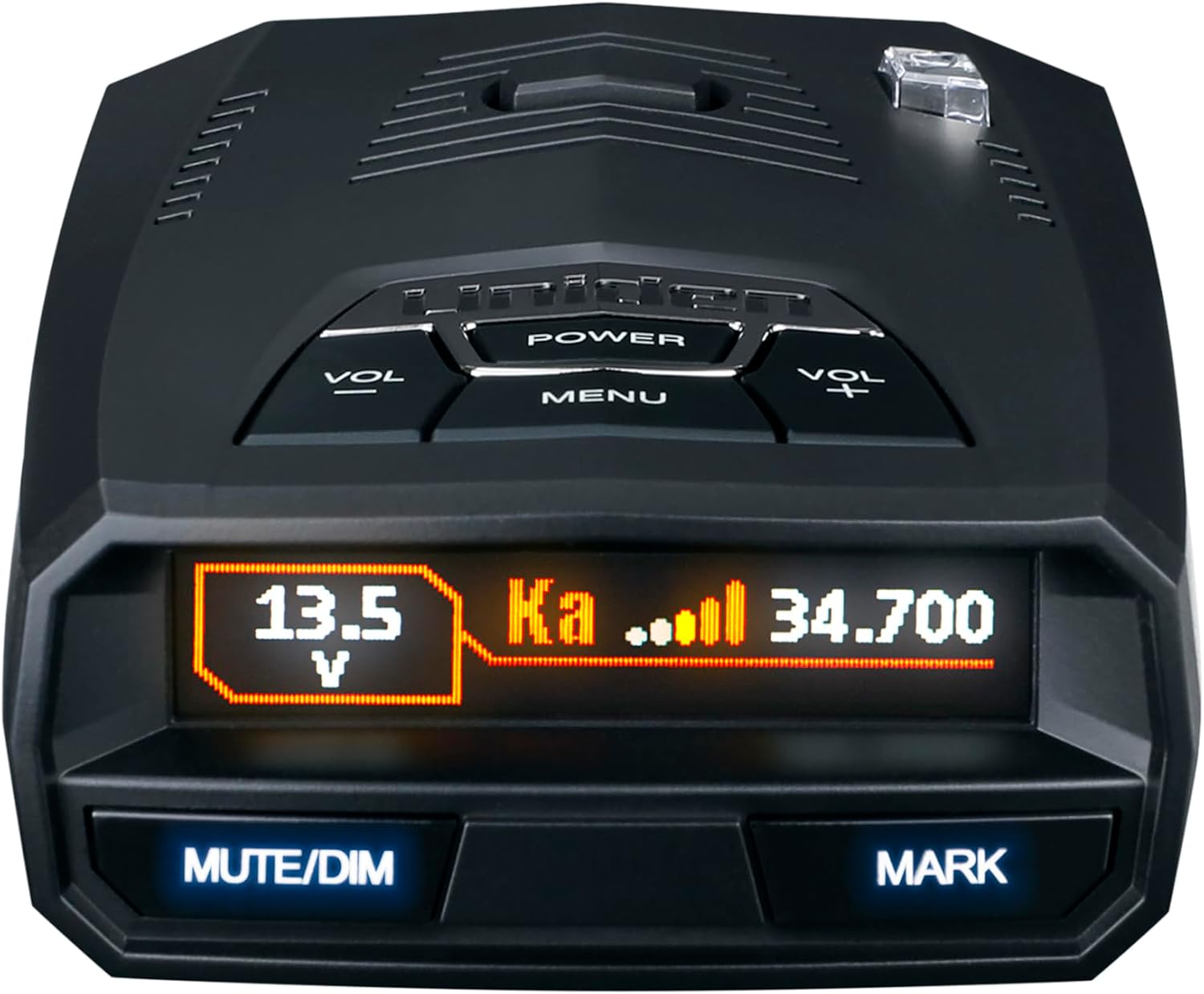
Figure 1: Front view of the Uniden R4w detector displaying voltage and Ka band detection.
Key Features:
- Extreme Long-Range Performance: Detects radar and laser signals from significant distances.
- Blackfin® DSP: Digital Signal Processor for enhanced detection accuracy and reduced false alerts.
- Multi-Color OLED Display: Provides clear visual information and alerts.
- Voice Alerts: Programmable voice alerts for hands-free operation.
- Built-in GPS with Auto Mute Memory: Automatically mutes false alerts at learned locations (e.g., retail store door alarms).
- Wi-Fi & Bluetooth Connectivity: Enables firmware updates, R/TACH app support, and access to speed/red-light camera databases.
- Advanced K/KA Band Filtering: Minimizes false alerts from vehicle blind-spot monitoring and collision avoidance systems.
Video 1: Official Uniden R4w product overview highlighting key features and functionality.
2. Setup
2.1 Unboxing and Components
Upon opening the Uniden R4w package, ensure all components are present:
- Uniden R4w Radar Detector Unit
- Carrying Case
- Premium Suction Cup Bracket
- Dual Suction Cup Bracket
- Auxiliary Power Adapter with Mute Key, USB Port
- USB Data Cable
- User's Manual

Figure 2: All components included in the Uniden R4w package.
2.2 Mounting the Detector
Choose a mounting location on your windshield that provides an unobstructed view of the road ahead and behind. Clean the windshield surface thoroughly before attaching the suction cup bracket. Press the suction cup firmly against the glass and engage the lever to secure it. The R4w unit attaches magnetically to the bracket for easy removal and reattachment.

Figure 3: Side view of the detector, illustrating its compact design and connectivity options.
2.3 Power Connection
Connect the auxiliary power adapter to your vehicle's 12V power outlet. Plug the other end into the R4w detector. The power adapter often includes an additional USB port for charging other devices and a mute button for convenient control.
2.4 Initial Power On and GPS Lock
Once powered on, the detector will perform a self-test. Allow a few moments for the GPS to acquire a signal. A successful GPS connection is indicated on the OLED display, enabling features like Auto Mute Memory and red-light/speed camera alerts.
2.5 Wi-Fi and Bluetooth Setup (R/TACH App)
Download the free R/TACH app to your smartphone (iOS or Android). Follow the in-app instructions to pair your R4w detector via Bluetooth and connect it to a Wi-Fi hotspot. This enables seamless firmware updates, personalized settings management, and real-time alerts from the R/TACH community.

Figure 4: The R/TACH app allows for advanced customization and real-time alert sharing.
3. Operating the Detector
3.1 Basic Controls
- POWER Button: Turns the unit on/off.
- VOL +/- Buttons: Adjusts the alert volume.
- MENU Button: Accesses the settings menu.
- MUTE/DIM Button: Mutes current alerts or adjusts display brightness. Double-press to activate Auto Mute Memory for stationary false alerts.
- MARK Button: Marks locations for user-defined alerts or GPS lockouts.
3.2 Sensitivity Modes
The R4w offers various sensitivity modes to optimize performance based on your driving environment:
- Highway Mode: Provides maximum sensitivity for all bands, ideal for open road driving.
- City Mode: Reduces K-band sensitivity to minimize false alerts in urban areas.
- Advanced Mode: Allows individual adjustment of sensitivity for X, K, and Ka bands.
3.3 Band Settings
Customize which radar and laser bands the detector monitors:
- X-Band: Can typically be turned off in most regions to reduce false alerts, unless X-band radar is known to be used.
- K-Band: Generally kept on, but sensitivity can be adjusted to filter out false alerts from vehicle safety systems.
- Ka-Band: Always recommended to keep on at full sensitivity as it is almost always a legitimate threat.
- Laser: Keep on for laser detection.
- MRCD/Gatso: Enable if these photo radar systems are present in your area; otherwise, keep off to avoid false alerts.
- TSF (Traffic Sensor Filter): Helps filter out false alerts from traffic flow sensors.
3.4 GPS Lockouts and Quiet Ride
- Auto Mute Memory: The detector learns and automatically mutes recurring stationary false alerts based on GPS location.
- Quiet Ride: Sets a speed threshold below which the detector will remain silent, preventing alerts in slow-moving traffic or urban areas.
3.5 Display and Voice Alerts
- Display Color: Choose from multiple color options for the OLED display to match your vehicle's interior or personal preference.
- Speed Display: Toggle the display of your current speed on the screen.
- Voice Alerts: Customize voice alert preferences for clear, hands-free communication of threats.
4. Maintenance
4.1 Firmware Updates
Uniden periodically releases firmware updates to improve performance, add new features, and fix bugs. The R4w supports over-the-air updates via Wi-Fi or through a USB connection to a computer.
- Wi-Fi Update: Connect your detector to a Wi-Fi hotspot via the R/TACH app. The app will notify you of available updates and guide you through the process.
- USB Update: Connect the detector to your computer using the provided USB data cable. Download the Uniden update software from the official website and follow the instructions to update the firmware.
4.2 Cleaning and Care
- Detector Unit: Wipe the unit with a soft, dry cloth. Avoid using abrasive cleaners or solvents.
- Suction Cups: If suction cups lose their grip, clean them with warm, soapy water. For stubborn cases, boiling them for 2-5 minutes can help restore their original shape and suction power.
5. Troubleshooting
5.1 False Alerts
- Cause: Signals from automatic door openers, vehicle blind-spot monitors, or traffic flow sensors.
- Solution: Utilize Auto Mute Memory (double-press MUTE/DIM), adjust K-band sensitivity, enable TSF, or use City Mode.
5.2 No Power/Display Off
- Cause: Loose power connection, blown fuse in vehicle's 12V outlet, or faulty power adapter.
- Solution: Check all connections, inspect vehicle fuse, or try a different 12V outlet.
5.3 GPS Not Connecting
- Cause: Obstructed view of the sky, unit indoors, or temporary satellite issues.
- Solution: Ensure clear view of the sky, move to an open area, or allow more time for satellite acquisition.
6. Specifications
| Feature | Detail |
|---|---|
| Product Dimensions | 4.5 x 2.8 x 1.1 inches (4.5"L x 2.8"W x 1.1"H) |
| Item Weight | 1.92 pounds |
| Item Model Number | R4w |
| Display Type | OLED |
| Frequency Bands Supported | Ka, K, X |
| Power Source | Corded Electric |
| Voltage | 12 Volts (DC) |
| Compatible Devices | Smartphone, iPhone |
| Other Display Features | Wireless |
| Date First Available | April 1, 2025 |
| UPC | 050633600665 |
7. Warranty and Support
For detailed warranty information, product registration, and technical support, please refer to the official Uniden website or the documentation included in your product package. You can also contact Uniden customer service for assistance.


