
1. Introduction
This manual provides comprehensive instructions for the installation, operation, and maintenance of your MY7254 High-Power WiFi Repeater. This device is designed to extend the range of your existing Wi-Fi network, eliminate dead zones, and provide stable, high-speed wireless connectivity throughout your home or office.
The MY7254 supports dual-band frequencies (2.4GHz and 5GHz) and offers multiple operating modes to suit various networking needs. Please read this manual carefully before using the product to ensure proper setup and optimal performance.
2. Package Contents
- MY7254 High-Power WiFi Repeater
- Ethernet Cable
- Quick Installation Guide
Please check the package contents upon unboxing. If any items are missing or damaged, contact customer support.
3. Product Features
- Wide Coverage: Equipped with 6 high-gain antennas to maximize Wi-Fi signal range up to 200 square meters, effectively eliminating dead zones.
- Dual Band Speed: Supports both 2.4GHz and 5GHz networks, offering combined transmission speeds of up to 1200Mbps for smooth streaming and gaming.
- Simple Installation: Easy configuration via the WPS button for quick setup or through an intuitive web interface for advanced settings. No extensive technical knowledge required.
- Universal Compatibility: Works seamlessly with any existing Wi-Fi router, modem, or gateway, regardless of brand or model.
- Multiple Operating Modes: Functions as a Repeater, Access Point (AP), or Bridge, adapting to various network requirements.
- High-Speed Signal & Strong Wall Penetration: Designed to provide robust signal strength even through walls, ensuring consistent connectivity.
- Extra Ethernet Port: Allows for wired connection of devices like game consoles, smart TVs, or desktop computers to your Wi-Fi network.
4. Physical Overview
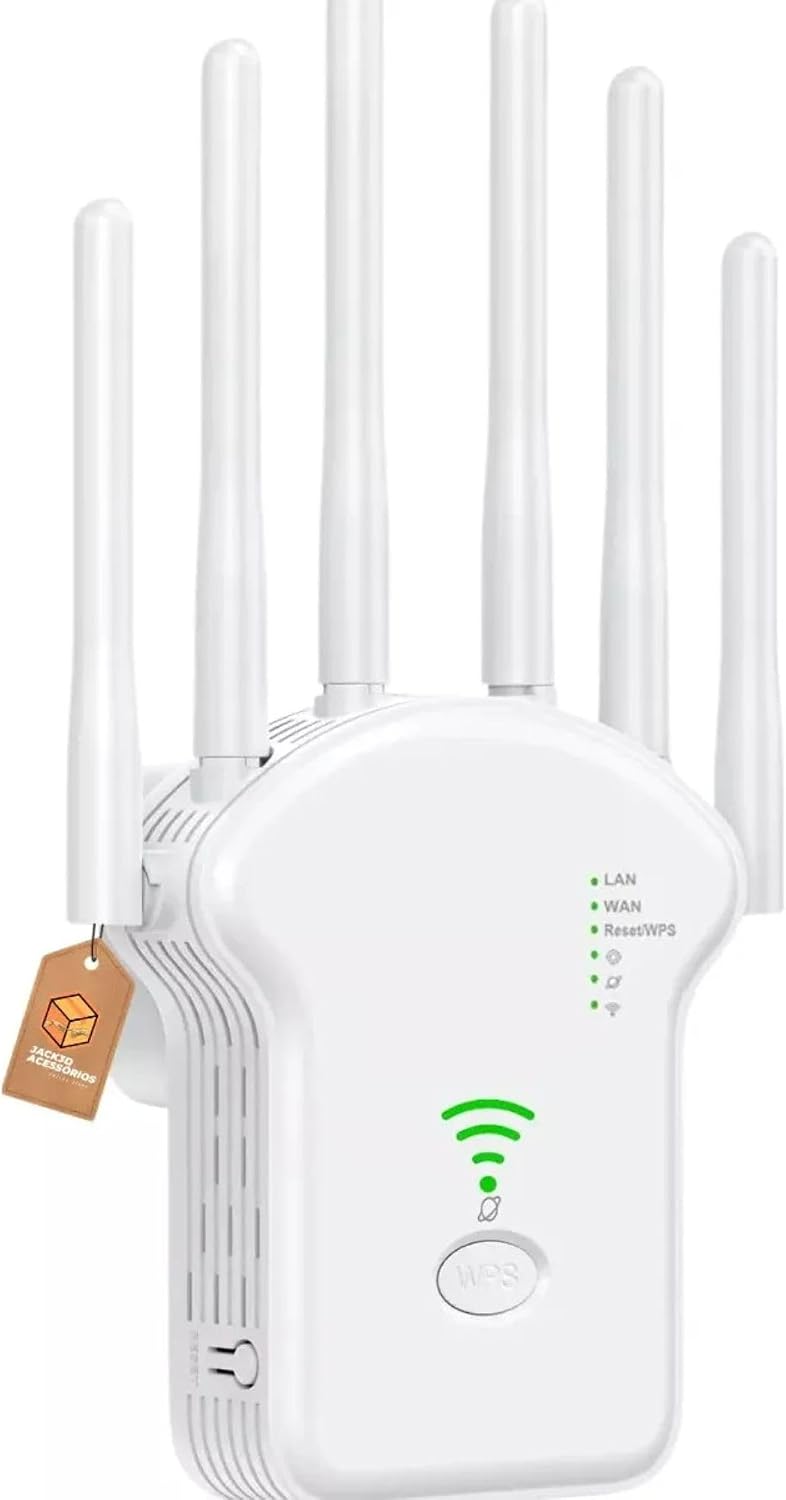
Figure 4.1: Front View of the Repeater
This image displays the front of the MY7254 WiFi Repeater, highlighting its six external antennas. Visible are the LED indicators for LAN, WAN, Reset/WPS, and Wi-Fi signal strength, along with the prominent WPS button for quick setup.

Figure 4.2: Top-Down View and Ports
A top-down perspective of the MY7254 Repeater, showcasing its unique hexagonal shape and the arrangement of its six antennas. The bottom edge reveals the combined LAN/WAN port, which supports wired connections.
LED Indicators:
- LAN LED: Indicates connection status of the LAN port.
- WAN LED: Indicates connection status of the WAN port (when operating in Router mode).
- Reset/WPS LED: Indicates WPS activity or device reset status.
- Signal Strength LEDs: Multiple LEDs indicating the strength of the Wi-Fi signal received or transmitted.
Buttons and Ports:
- WPS Button: Used for quick, secure setup with WPS-enabled routers.
- Reset Button: Press and hold to restore factory default settings.
- LAN/WAN Port: An RJ45 Ethernet port for wired connections, functioning as LAN or WAN depending on the operating mode.
5. Setup and Installation
The MY7254 offers two primary methods for setup: using the WPS button or via a web browser.
5.1. WPS (Wi-Fi Protected Setup) Method (Recommended for quick setup)
- Power On: Plug the MY7254 repeater into an electrical outlet near your existing Wi-Fi router. Wait for the power LED to stabilize.
- Activate WPS on Router: Press the WPS button on your main Wi-Fi router. Refer to your router's manual for the exact location and procedure.
- Activate WPS on Repeater: Within two minutes of pressing WPS on your router, press the WPS button on the MY7254 repeater. The WPS LED on the repeater will blink during the connection process.
- Connection Confirmation: Once connected, the signal strength LEDs on the repeater will illuminate, indicating a successful connection.
- Relocate Repeater: Unplug the repeater and move it to a location between your router and the Wi-Fi dead zone. Ensure the signal strength LEDs indicate a good signal from your router.
Note: The extended network will typically have the same name as your main Wi-Fi network with "_EXT" or "_Plus" appended, or it might retain the original name depending on the router and repeater settings.
5.2. Web Browser Method (For detailed configuration)
- Power On: Plug the MY7254 repeater into an electrical outlet.
- Connect to Repeater:
- Wireless: Connect your computer or mobile device to the repeater's default Wi-Fi network (e.g., "WiFi-Repeater" or "MY7254_XXXX"). No password is required initially.
- Wired: Connect your computer to the repeater's LAN/WAN port using an Ethernet cable.
- Access Web Interface: Open a web browser (e.g., Chrome, Firefox) and enter the default IP address (usually 192.168.1.254 or repeater.local) in the address bar. If these do not work, check the Quick Installation Guide for the correct default IP or URL.
- Login: Enter the default username and password (usually "admin" for both).
- Select Mode: On the setup page, choose your desired operating mode (Repeater, AP, or Router).
- Configure Settings:
- Repeater Mode: Scan for available Wi-Fi networks, select your main network, enter its password, and configure the extended network's name and password.
- AP Mode: Configure the repeater to create a new Wi-Fi network from a wired internet connection.
- Router Mode: Configure the repeater to act as a primary router, connecting to a modem.
- Save and Reboot: Apply the settings and allow the repeater to reboot.
- Relocate Repeater: After successful configuration, unplug and relocate the repeater to an optimal position.
6. Operating Modes
The MY7254 supports three main operating modes:
6.1. Repeater Mode (Range Extender)
In Repeater mode, the device extends the coverage of an existing wireless network. It receives the wireless signal from your main router and re-transmits it, effectively expanding the Wi-Fi range to areas with weak or no signal.
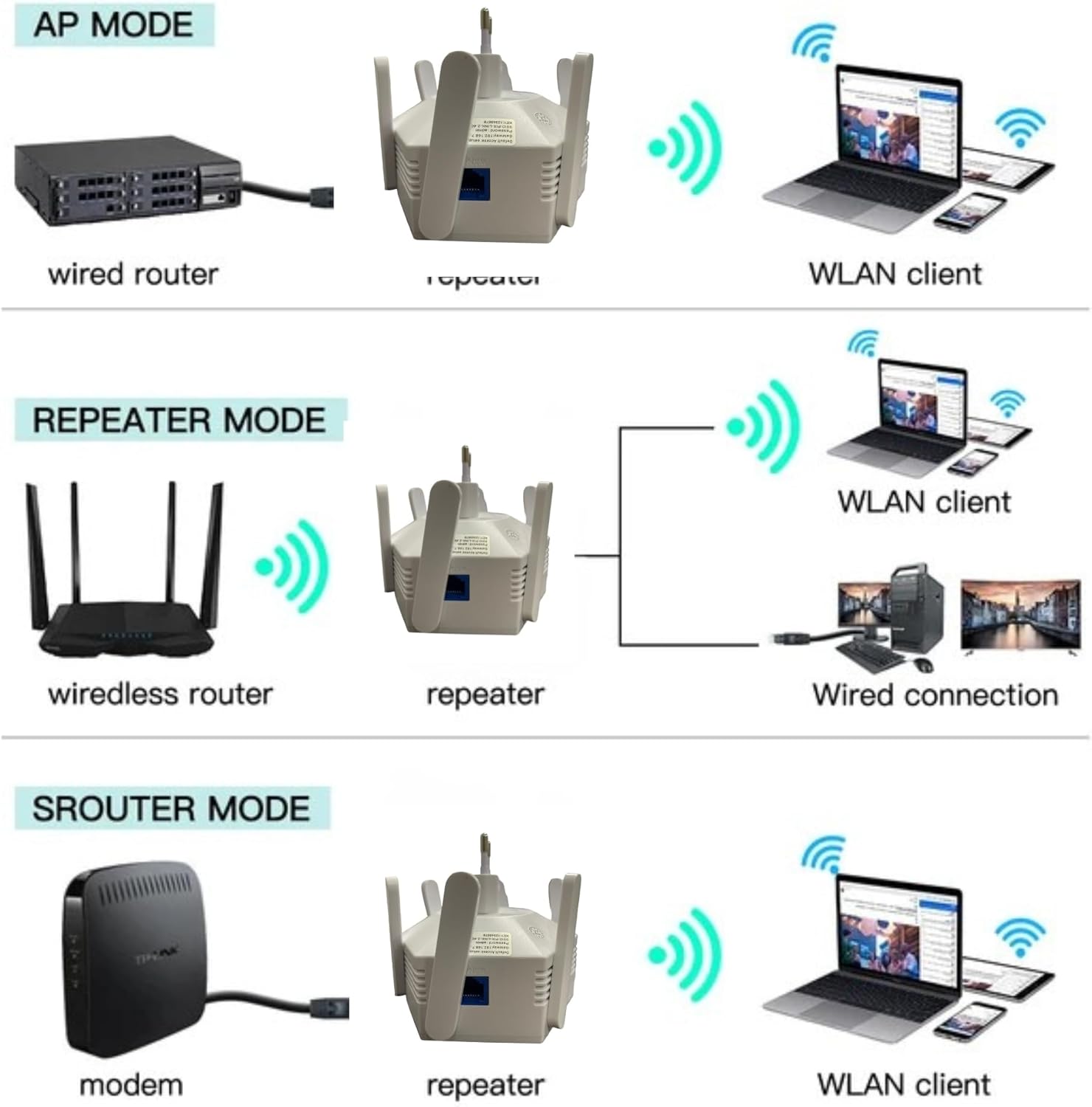
Figure 6.1: Operating Mode Diagrams
This diagram visually explains the three primary operating modes: AP Mode (Access Point), Repeater Mode, and Router Mode. It shows how the MY7254 connects to different network devices (wired router, wireless router, modem) and then provides connectivity to various client devices (WLAN clients, wired connections).
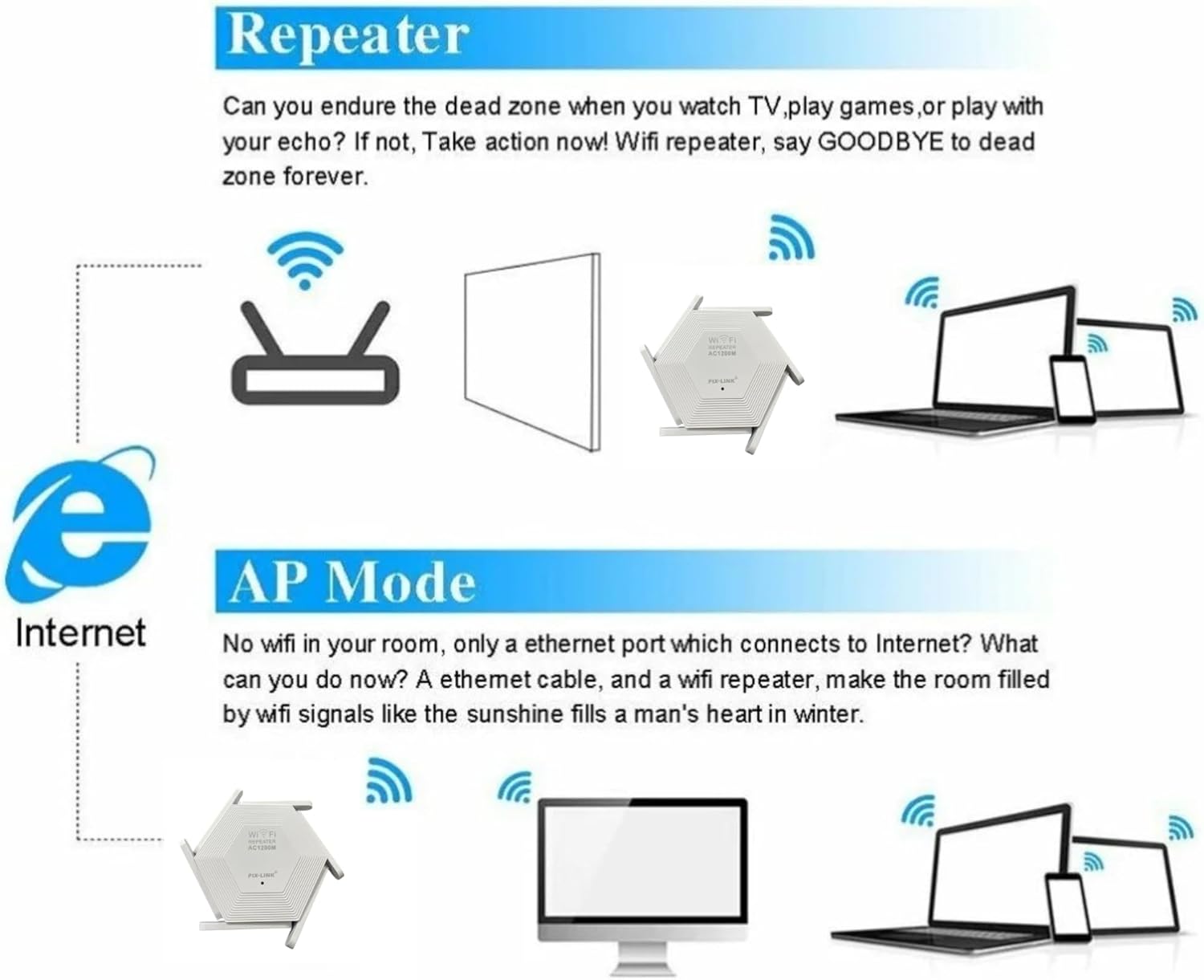
Figure 6.2: Repeater vs. AP Mode Comparison
This image provides a clear comparison between Repeater mode and AP mode. Repeater mode illustrates how the device extends an existing wireless signal, while AP mode demonstrates how it creates a new Wi-Fi network from a wired internet source.
6.2. Access Point (AP) Mode
In AP mode, the device transforms a wired internet connection into a wireless network. This is useful in locations where only a wired connection is available, allowing wireless devices to connect.
6.3. Router Mode (Bridge)
In Router mode, the device acts as a primary router, connecting directly to a modem and creating a new private network. This mode is suitable for setting up a new network or replacing an existing router.
7. Maintenance and Best Practices
- Optimal Placement: Place the repeater in a central location between your router and the area needing coverage. Avoid placing it near large metal objects, concrete walls, or appliances that emit electromagnetic interference (e.g., microwaves, cordless phones).
- Firmware Updates: Periodically check the manufacturer's website for firmware updates. Updating firmware can improve performance, add new features, and fix bugs.
- Cleaning: Use a soft, dry cloth to clean the device. Do not use liquid cleaners or aerosols.
- Power Cycle: If you experience network issues, try power cycling the repeater (unplug it for 10 seconds, then plug it back in).
- Security: Always use strong, unique passwords for your Wi-Fi network and the repeater's administration interface.
8. Troubleshooting
| Problem | Possible Cause | Solution |
|---|---|---|
| No power / LEDs off | Device not plugged in or power outlet issue. | Ensure the repeater is securely plugged into a working electrical outlet. Try a different outlet. |
| Cannot connect to the extended Wi-Fi network | Incorrect Wi-Fi password, repeater not configured correctly, or out of range. | Verify the Wi-Fi password. Re-run the setup process (WPS or web browser). Move the repeater closer to your main router. |
| Slow internet speed after connecting to repeater | Poor signal strength between router and repeater, interference, or too many devices. | Relocate the repeater to an optimal position where it receives a strong signal from the main router (check signal LEDs). Reduce interference sources. Limit connected devices if necessary. |
| Cannot access the web management page | Incorrect IP address/URL, device not connected to repeater's network, or IP conflict. | Ensure your device is connected to the repeater's Wi-Fi or via Ethernet. Verify the correct IP address (192.168.1.254 or repeater.local). Try resetting the repeater to factory defaults. |
| Repeater frequently disconnects | Unstable signal from main router, interference, or firmware issue. | Optimize repeater placement. Check for sources of interference. Consider updating the repeater's firmware. |
9. Specifications
| Feature | Detail |
|---|---|
| Model | MY7254 |
| Brand | Generic |
| Wireless Standard | 802.11a/b/g/n |
| Data Transfer Rate | Up to 1200 Mbps (Combined) |
| Frequency Band | Dual-Band (2.4GHz & 5GHz) |
| Antennas | 6 High-Gain Antennas |
| Ports | 1 x 10/100Mbps LAN/WAN Port |
| Security | WPA-PSK/WPA2-PSK, WPA/WPA2 |
| Operating Modes | Repeater, Access Point, Router |

Figure 9.1: Feature Comparison
This image presents a comparative table highlighting the superior features of the MY7254 model, including its dual-band (2.4G and 5G) support, WPS functionality, 6 antennas, and a high Wi-Fi transmission rate of 1200Mbps, distinguishing it from a lower-spec model.
10. Safety Information
- Do not expose the device to water, fire, humidity, or hot environments.
- Do not attempt to disassemble, repair, or modify the device.
- Use only the power adapter provided or recommended by the manufacturer.
- Keep the device away from medical devices, as it may cause interference.
- Ensure proper ventilation around the device to prevent overheating.
11. Warranty and Support
This product comes with a standard manufacturer's warranty. For specific warranty terms and conditions, please refer to the warranty card included in your package or visit the manufacturer's official website.
For technical support, troubleshooting assistance, or to report issues, please contact your retailer or the manufacturer's customer service. Contact information can typically be found on the product packaging or the manufacturer's website.
Please retain your proof of purchase for warranty claims.


