1. Introduction
The PUSOKEI VX2 AimBox is a versatile keyboard and mouse converter designed to enhance your gaming experience on various consoles. It allows gamers to use a keyboard and mouse for precise control, offering features like adjustable sensitivity, a 3.5mm audio jack, and customizable RGB lighting effects. This manual provides detailed instructions for setup, operation, and maintenance of your device.
Key Features:
- Easy Setup: Configure all settings conveniently through the Vlead APP.
- Wide Compatibility: Compatible with Xbox Series X/S, Xbox One, and PlayStation 4.
- Precise Control: Designed for gamers who prefer keyboard and mouse input over traditional controllers.
- 3.5mm Sound Jack: Integrated audio jack for communication and immersive sound.
- RGB Light: Customizable RGB lighting effects to enhance your gaming environment.
2. Package Contents
Please verify that all items are present in your package:
- 1 x Game Console Mouse and Keyboard Converter
- 1 x USB to MicroUSB Cable
- 1 x USB to Type C Cable
- 1 x User Manual

Image: The PUSOKEI VX2 AimBox converter shown with its accompanying USB to MicroUSB and USB to Type C cables.
3. Setup and Installation
Follow these steps to set up your PUSOKEI VX2 AimBox:
- Connect the Converter: Connect the PUSOKEI VX2 AimBox to your gaming console (PS4, Xbox Series X/S, or Xbox One) using the provided USB cables.
- Connect Peripherals: Plug your keyboard and mouse into the USB ports on the converter.
- Connect Headset (Optional): If desired, connect your 3.5mm headset to the audio jack on the converter.
- Download Vlead APP: Download and install the Vlead APP on your mobile device (available for Android and iOS).
- Pair with APP: Use Bluetooth (BT 5.0) to pair the converter with the Vlead APP for configuration.
- Adjust Settings: Use the Vlead APP to adjust mouse sensitivity, camera settings, joystick configurations, key bindings, and RGB lighting effects.
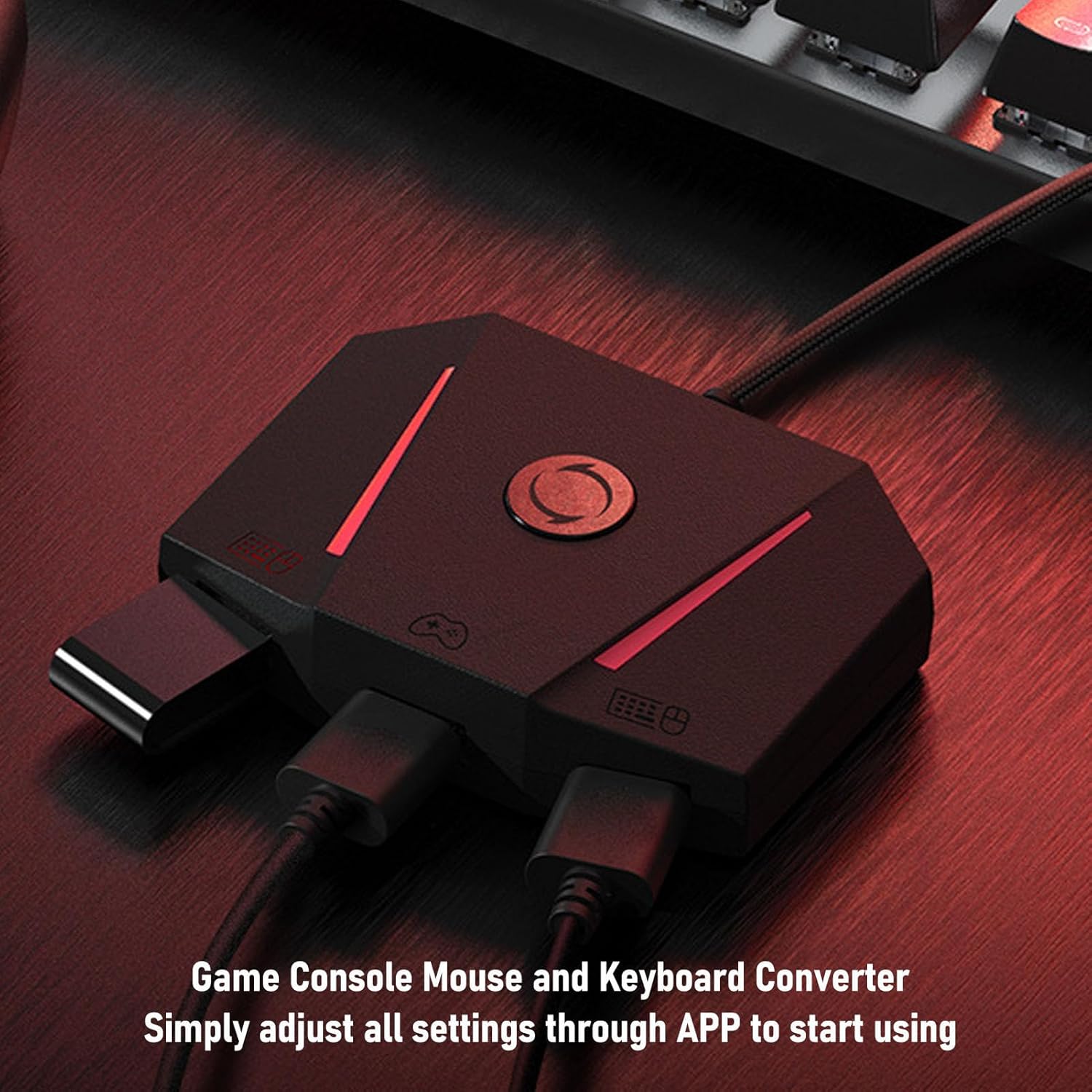
Image: The PUSOKEI VX2 AimBox converter connected to a gaming console, with a keyboard and mouse plugged in, indicating readiness for use.

Image: A close-up of the PUSOKEI VX2 AimBox displaying RGB lighting, with text indicating easy configuration via the APP for mouse, camera, joystick, key binding, and lighting settings.

Image: A diagram illustrating the connection of an Xbox Series X/S console to the PUSOKEI VX2 AimBox, which then connects to a headset, keyboard, mouse, and controller.
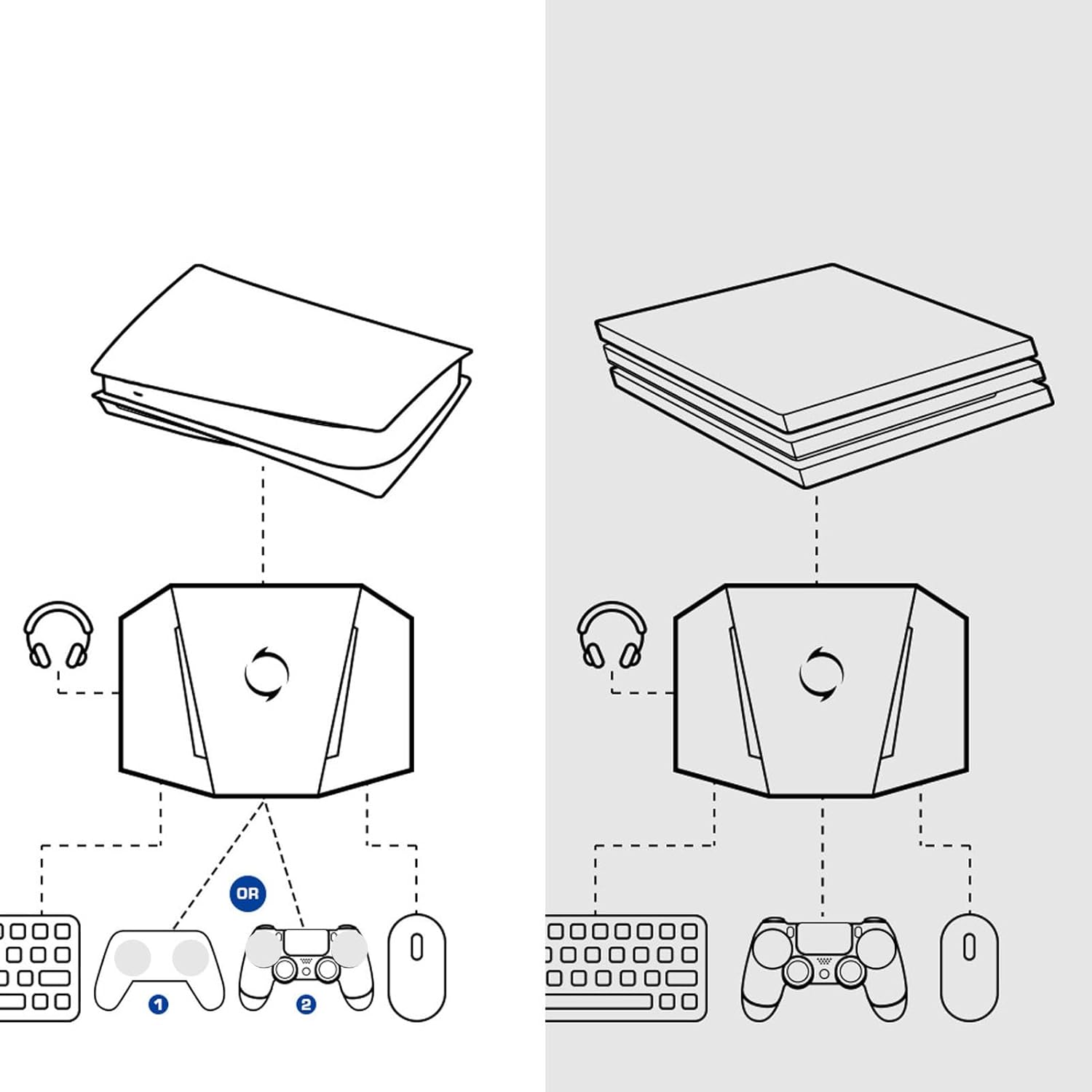
Image: A diagram illustrating the connection of a PlayStation console (PS4/PS5) to the PUSOKEI VX2 AimBox, which then connects to a headset, keyboard, mouse, and controller.

Image: A diagram illustrating the connection of a Nintendo Switch console to the PUSOKEI VX2 AimBox, which then connects to a headset, keyboard, and mouse.
3.1. PS5 Connection Method
For PS5 consoles, ensure you follow the specific connection instructions to enable remote play and bind the device correctly. This typically involves setting up a wired connection, connecting the Type-C data cable, and using the companion app to pair the device with a generated code from your PS5 settings.
Video: Detailed guide on connecting the PUSOKEI VX2 AimBox to a PS5 console, including remote play setup and app binding procedures.
4. Operating Instructions
Once the PUSOKEI VX2 AimBox is set up, you can begin using your keyboard and mouse for gaming. The Vlead APP provides extensive customization options:
- Mouse Sensitivity: Adjust mouse sensitivity (HIP and ADS) and dead zone settings for optimal aiming.
- Key Bindings: Customize keyboard and mouse button assignments to match your preferred playstyle.
- RGB Lighting: Personalize the RGB light effects to create an immersive gaming atmosphere.
- Audio: Utilize the 3.5mm jack for in-game audio and voice chat.
Video: Demonstrates the PUSOKEI VX2 AimBox in action, showcasing gameplay with keyboard and mouse input on a console.
Video: Illustrates the configuration settings within the Brook Sniper app, which is similar to the Vlead app for adjusting mouse sensitivity, key bindings, and other preferences.
Video: Demonstrates the 1000Hz polling rate test for the Besavior P5General, highlighting the responsiveness and precision of the device.
5. Specifications
| Feature | Specification |
|---|---|
| Item Type | Game Console Mouse and Keyboard Converter |
| Material | ABS |
| Color | Black |
| Lighting Effect | RGB |
| Input Interface | USB |
| Output Interface | 3 x USB, 1 x 3.5mm Headphone Jack |
| APP | for Vlead |
| Bluetooth | BT 5.0 (For Setting APP) |
| Compatible with | Xbox Series X/S, Xbox One, PlayStation 4 |
| Package Dimensions | 5.51 x 5.12 x 2.36 inches |
| Item Weight | 6.2 ounces (175 Grams) |
| Model Number | PUSOKEIpr4dneb70g |

Image: An exploded view of the PUSOKEI VX2 AimBox, detailing its internal circuit board, added counterweight, and anti-slip silicone rubber foot pads.
6. Maintenance
To ensure the longevity and optimal performance of your PUSOKEI VX2 AimBox, please follow these maintenance guidelines:
- Keep the device clean and free from dust. Use a soft, dry cloth for cleaning.
- Avoid exposing the device to extreme temperatures, humidity, or direct sunlight.
- Do not attempt to disassemble or repair the device yourself, as this may void the warranty.
- Store the device in a safe place when not in use to prevent damage.
7. Troubleshooting
If you encounter any issues with your PUSOKEI VX2 AimBox, please refer to the following common troubleshooting steps:
- Device not recognized by console: Ensure all cables are securely connected. Try using different USB ports on your console. Verify that your console's settings are configured for wired controller communication (if applicable).
- Keyboard/Mouse not responding: Check if the keyboard and mouse are properly plugged into the converter. Try using different keyboard/mouse devices to rule out peripheral issues. Ensure the Vlead APP is correctly paired and settings are applied.
- Lag or input delay: Ensure all connections are stable and free from interference. Reduce the number of other USB devices connected to the console.
- APP connection issues: Make sure Bluetooth is enabled on your mobile device and the converter. Restart both the app and the converter.
- Audio not working: Check headset connection to the 3.5mm jack. Verify console audio settings.
If the problem persists after trying these steps, please contact customer support.
8. Warranty and Support
The PUSOKEI VX2 AimBox Keyboard Mouse Adapter comes with a standard manufacturer's warranty. For specific warranty terms and conditions, please refer to the documentation included with your purchase or visit the official PUSOKEI website.
For technical support, troubleshooting assistance, or warranty claims, please contact PUSOKEI customer service through their official channels. Have your model number (PUSOKEIpr4dneb70g) and purchase information ready when contacting support.