
Introduction
This manual provides detailed instructions for the installation, operation, and maintenance of your ACECAR 6580 Car Stereo. Please read this manual thoroughly before using the product to ensure proper function and safety. Keep this manual for future reference.
Product Overview
The ACECAR 6580 is an advanced in-car entertainment system featuring a 2.5D IPS touchscreen, Android 12 operating system, built-in GPS, WiFi, and CarPlay support. It is designed to enhance your driving experience with navigation, multimedia, and connectivity features.

Image: Front view of the ACECAR 6580 Car Stereo unit, showing the 7-inch IPS display with various application icons for radio, music, video, and Bluetooth phone. The unit also shows physical buttons on the left side and USB cables at the bottom right.
Key Features:
- Display: 7-inch IPS screen with 2.5D curved glass, 1280x720 resolution, 178° wide viewing angle.
- Operating System: Android 12 GO Edition.
- Processor: Quad-core with 4GB RAM.
- Connectivity: Dual-band WiFi (2.4G/5G), Bluetooth 5.0, Wireless CarPlay.
- Navigation: Built-in GPS module with offline map support.
- Camera Support: AHD 720P/1080P dual-mode rear camera input with 150° ultra-wide lens and night vision.
- USB Ports: Front-mounted USB 3.0 (QC3.0 fast charging) and dual rear USB 2.0 ports.
- Audio: Built-in 45W x4 channel amplifier with EQ presets, FM radio with RDS.
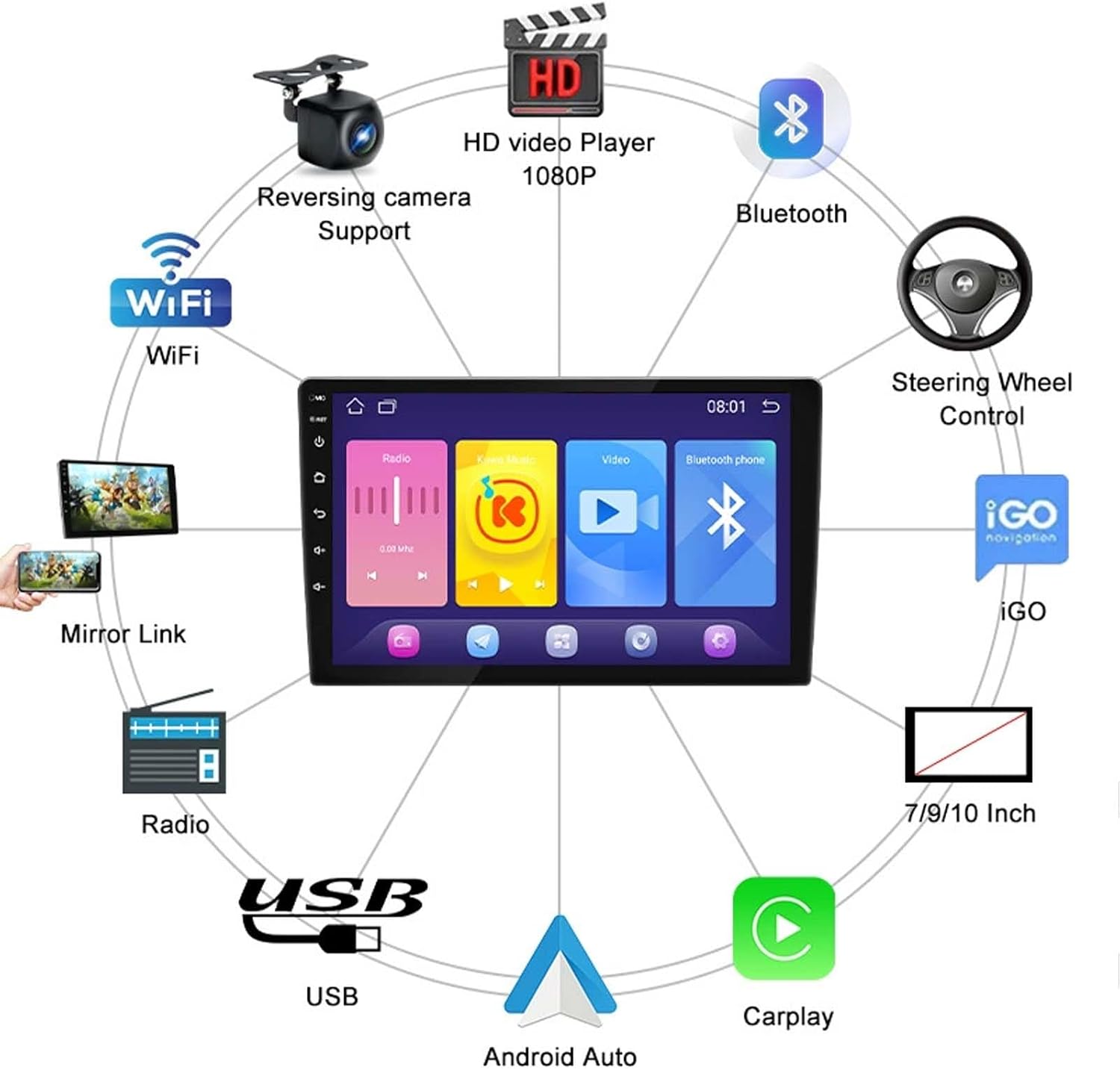
Image: A circular diagram highlighting the main functionalities of the car stereo, such as WiFi, reversing camera support, HD video player, Bluetooth, steering wheel control, iGO navigation, various screen size options (7/9/10 Inch), Android Auto, CarPlay, USB connectivity, and radio.
Safety Information
- Always ensure the vehicle is parked safely before operating the stereo's advanced features.
- Do not attempt to install or repair the unit if you are not qualified. Consult a professional installer.
- Avoid prolonged exposure to direct sunlight or extreme temperatures.
- Keep the screen clean and free from obstructions.
- Ensure all wiring is correctly connected to prevent short circuits or damage.
- Do not block ventilation openings on the unit.
Package Contents
Verify that all items listed below are included in your package:
- Host Unit (Car Stereo)
- Bracket & Screws
- GPS Antenna
- Camera Input Cable
- ISO Cable
- RCA Cable
- Universal Power Cable
- 2 USB Cables
- Waterproof Rear Camera (if included in your specific package)

Image: A detailed list of accessories included with the car stereo, categorized by version (All version, Quad Core, Octa Core, 7 Inch version) and power cable options. It shows items like camera input, GPS antenna, USB cables, RCA wire harnesses, 4G antenna, frame & bracket, and various power cables.
Setup and Installation
Professional installation is recommended. Incorrect wiring can damage the unit or vehicle. Ensure the vehicle's power is disconnected before starting installation.
General Installation Steps:
- Remove Old Unit: Carefully remove your existing car stereo from the dashboard.
- Connect Wiring:
- Connect the Universal Power Cable to the vehicle's wiring harness.
- Connect the RCA Cable for audio output and auxiliary input.
- Connect the Camera Input Cable for the rear view camera.
- Attach the GPS Antenna, ensuring it has a clear view of the sky.
- Connect the USB Cables for external devices.
- Mounting: Secure the ACECAR 6580 unit into the dashboard using the provided brackets and screws. Ensure a snug fit.
- Test Connections: Before fully reassembling the dashboard, temporarily reconnect the vehicle's power and test basic functions (power on/off, audio, display).
- Final Assembly: Reassemble the dashboard components.

Image: The ACECAR car stereo unit seamlessly integrated into a vehicle's dashboard, displaying a user interface with navigation and local music applications. This illustrates a successful installation.

Image: A comparison showing the car stereo installation. The top section shows an "After Installation" view with a 7-inch screen and a diagram of the unit's rear dimensions (155mm width, 10mm depth). The bottom section shows a "Before Installation" view and a "9-inch General-purpose machine" for contrast, indicating different screen sizes and their fit.
Dimensions (7-inch model):

Image: Technical drawing showing the dimensions of the 7-inch car stereo unit. The width is indicated as 176mm (6.92 inches) and the height as 104mm (4.09 inches). This helps in verifying compatibility with vehicle dashboards.

Image: A visual comparison of three different screen sizes for car stereos: 7 inch, 9 inch, and 10 inch. Each size is shown with its front panel dimensions (e.g., 7 inch: 178mm x 102mm) and the corresponding rear unit dimensions, illustrating the physical differences for installation planning.
Operating Instructions
1. Basic Operation:
- Power On/Off: Press and hold the power button (usually on the left side) to turn the unit on or off. A short press typically mutes/unmutes audio.
- Volume Control: Use the volume buttons or on-screen controls to adjust audio levels.
- Home Screen: Tap the home icon to return to the main application interface.
- Navigation: Tap the navigation icon to access GPS functions.
2. Android 12 OS:
- App Management: Swipe up from the home screen to access the app drawer. Tap an icon to open an app.
- Settings: Access system settings (WiFi, Bluetooth, Display, Sound, etc.) via the 'Settings' app.
- Google Play Store: Download and install additional applications from the pre-installed Google Play Store.
3. Navigation (GPS):
- The unit comes with a pre-installed GPS module.
- For offline maps, download the required map data via a WiFi connection before travel.
- Follow on-screen prompts to enter destinations and receive turn-by-turn directions.
4. Wireless CarPlay:
- Ensure your iPhone's Bluetooth and WiFi are enabled.
- On the car stereo, open the CarPlay application.
- Follow the on-screen instructions to pair your iPhone via Bluetooth. Once paired, CarPlay will connect wirelessly.
- Access iPhone apps, navigation, calls, and messages directly from the stereo screen.
5. Bluetooth 5.0:
- Pairing: Go to 'Settings' > 'Bluetooth'. Enable Bluetooth on the stereo and your device. Select the stereo's name from your device's Bluetooth list and confirm pairing.
- Hands-Free Calling: Make and receive calls directly through the stereo.
- Audio Streaming: Play music from your paired device wirelessly.
6. USB Connectivity:
- Connect USB drives to play multimedia files (audio, video, images).
- The front USB 3.0 port supports fast charging for mobile devices.
- Rear USB 2.0 ports can be used for dashcams (up to 128GB) or other peripherals.
7. Radio (FM/AM):
- Open the 'Radio' application.
- Use the scan function to find available stations.
- Save your favorite stations as presets.
- RDS (Radio Data System) provides station information and traffic news where available.
8. Backup Camera:
- When the vehicle is shifted into reverse, the display will automatically switch to the rear camera view.
- The AHD 720P/1080P camera provides a clear image with a 150° ultra-wide lens.
- Night vision activates automatically in low-light conditions.
Maintenance
- Screen Cleaning: Use a soft, lint-free cloth to gently wipe the screen. For stubborn smudges, slightly dampen the cloth with water or a screen-safe cleaner. Do not use abrasive cleaners or solvents.
- Software Updates: Periodically check for system updates via the 'Settings' menu to ensure optimal performance and access to new features.
- General Care: Avoid spilling liquids on the unit. Protect it from extreme temperatures and direct sunlight when parked for extended periods.
Troubleshooting
| Problem | Possible Cause | Solution |
|---|---|---|
| Unit does not power on. | Incorrect wiring; blown fuse; vehicle battery issue. | Check power connections. Inspect vehicle fuses. Ensure vehicle battery is charged. Consult a professional. |
| No sound. | Volume muted or too low; incorrect speaker wiring; audio settings. | Increase volume. Check mute status. Verify speaker connections. Adjust audio output settings. |
| GPS signal lost or inaccurate. | GPS antenna obstructed or improperly placed; outdated maps. | Ensure GPS antenna has a clear view of the sky. Update map data. |
| Bluetooth not connecting. | Bluetooth disabled; device not in pairing mode; interference. | Ensure Bluetooth is enabled on both devices. Put device in pairing mode. Try pairing again. |
| Rear camera not displaying. | Camera not connected; incorrect wiring; camera faulty. | Check camera input cable connection. Verify reverse trigger wire. Test camera functionality. |
| Touchscreen unresponsive. | Temporary software glitch; screen damage. | Restart the unit. If issue persists, contact support. |
Specifications
- Model Number: 6580
- Brand: ACECAR
- Display Size: 7 Inches (10 Inches also available in other variants)
- Display Type: IPS, 2.5D Curved Glass
- Resolution: 1280x720
- Operating System: Android 12 GO Edition
- Processor: Quad-core
- RAM: 4GB
- Internal Storage: 32GB
- Connectivity: Bluetooth 5.0, Dual-band Wi-Fi (2.4G/5G), USB
- Special Features: Built-in GPS, Wireless CarPlay, AHD 1080P Backup Camera Support, FM Radio with RDS, Steering Wheel Control Support
- Audio Output: 45W x4 Channel Amplifier, EQ Presets
- Included Components: Host, Bracket & Screws, GPS Antenna, Camera Input Cable, ISO Cable, RCA Cable, Universal Power Cable, 2 USB Cables
Warranty Information
The ACECAR 6580 Car Stereo comes with a 12-month warranty from the date of purchase. This warranty covers manufacturing defects and malfunctions under normal use. It does not cover damage caused by improper installation, misuse, accidents, unauthorized repairs, or normal wear and tear.
To claim warranty service, please retain your proof of purchase and contact ACECAR customer support.
Customer Support
For technical assistance, troubleshooting, or warranty inquiries, please contact ACECAR customer support through the retailer where you purchased the product or visit the official ACECAR website for contact information.
Online Resources: For additional support and frequently asked questions, please refer to the ACECAR Store on Amazon.