
1. Introduction
Thank you for choosing the SOULION R200 Bluetooth Computer Speakers. This manual provides essential information for setting up, operating, and maintaining your speakers. Please read it carefully to ensure optimal performance and longevity of your device.

Image 1.1: The SOULION R200 Bluetooth Computer Speakers with USB-C and USB-A connectors.
2. Package Contents
Ensure all items are present in the package:
- SOULION R200 Speaker
- Integrated USB Cable (with USB-C to USB-A adapter)
- User Manual
3. Product Features
- USB Plug & Play: Simple connection for power and audio via USB.
- USB-C Compatibility: Built-in adapter for modern USB-C devices.
- Bluetooth Mode: Wireless audio streaming.
- Dynamic LED Lights: Four selectable light modes.
- Compact Design: Space-saving form factor for desktops.
- Convenient Volume Knob: Easy access to volume control.

Image 3.1: The SOULION R200 speaker featuring a stylish fabric design.
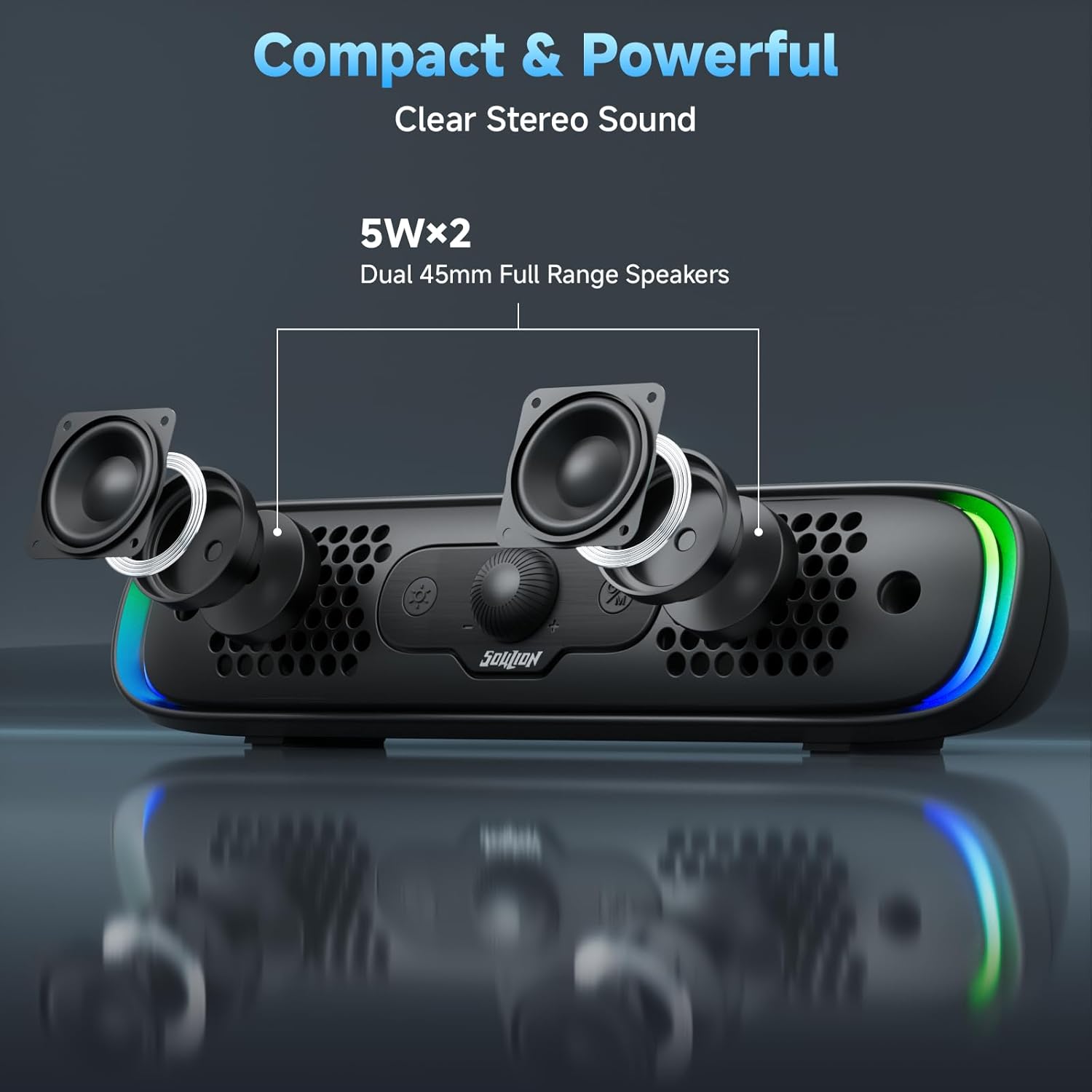
Image 3.2: An internal view highlighting the dual 45mm full-range speakers for clear stereo sound.
4. Controls and Indicators

Image 4.1: Overview of the speaker's control panel, showing the Light Button, Rotary Knob, and Mode Button.
- Light Button (☀):
- Click to switch LED light modes.
- Long press for 3 seconds to wipe off Bluetooth connection and reset.
- Rotary Knob (+/-): Rotates to adjust volume.
- Mode Button (⏻/M):
- Click to switch between USB and Bluetooth modes.
- Long press for 3 seconds to power on/off the speaker.
5. Setup Guide
5.1. USB Connection (Plug & Play)
The SOULION R200 speakers are designed for easy plug-and-play operation with USB-A or USB-C ports.

Image 5.1: Illustration of connecting the speaker via USB-C (left) and USB-A (right) to various devices.
For Windows / ChromeOS / Linux:
- Plug the USB connector (USB-A side) into an available USB port on your PC, desktop, or laptop.
- The speaker will power on automatically.
- Adjust audio output settings if necessary:
Image 5.2: Steps to select 'R200' as the audio output device in Windows settings.
- Click the speaker icon in your system tray.
- Choose "R200" as the audio output device.
- Save changes.
For macOS / iPad / Android Devices (USB-C):
- Plug the USB connector (USB-C side) into an available USB-C port on your device.
- The speaker will power on automatically.
- Adjust audio output settings if necessary:

Image 5.3: Steps to select 'R200' as the audio output device in macOS System Settings.
- Go to System Settings > Sound > Output.
- Choose "R200" as the output device.
- Save changes.
5.2. Bluetooth Pairing
To use Bluetooth mode, the speaker must still be powered via USB.

Image 5.4: Instructions for pairing the SOULION R200 speaker via Bluetooth.
- Plug the USB connector into a certified USB power supply (5V/1A).
- Click the "M" (Mode) button on the speaker to switch to Bluetooth mode. The speaker will indicate it is ready for pairing.
- On your phone, tablet, or laptop, turn on Bluetooth and search for devices.
- Select "R200" from the list of available devices to connect and pair.
Note: If the R200 was previously paired with another device and is not able to pair, long press the Light button (☀) for 3 seconds to clear the previous Bluetooth connection, then attempt to pair again.
6. Operating Instructions
6.1. Power On/Off
- Power On: Connect the USB cable to a power source. The speaker will automatically power on. If it's off, long press the "M" (Mode) button for 3 seconds.
- Power Off: Long press the "M" (Mode) button for 3 seconds.
6.2. Volume Control

Image 6.1: Demonstrating the use of the rotary knob to adjust speaker volume.
- Rotate the central knob clockwise to increase volume.
- Rotate the central knob counter-clockwise to decrease volume.
6.3. LED Light Modes

Image 6.2: Visual representation of the four available LED light modes: Flow, Breathing, Solid, and Off.
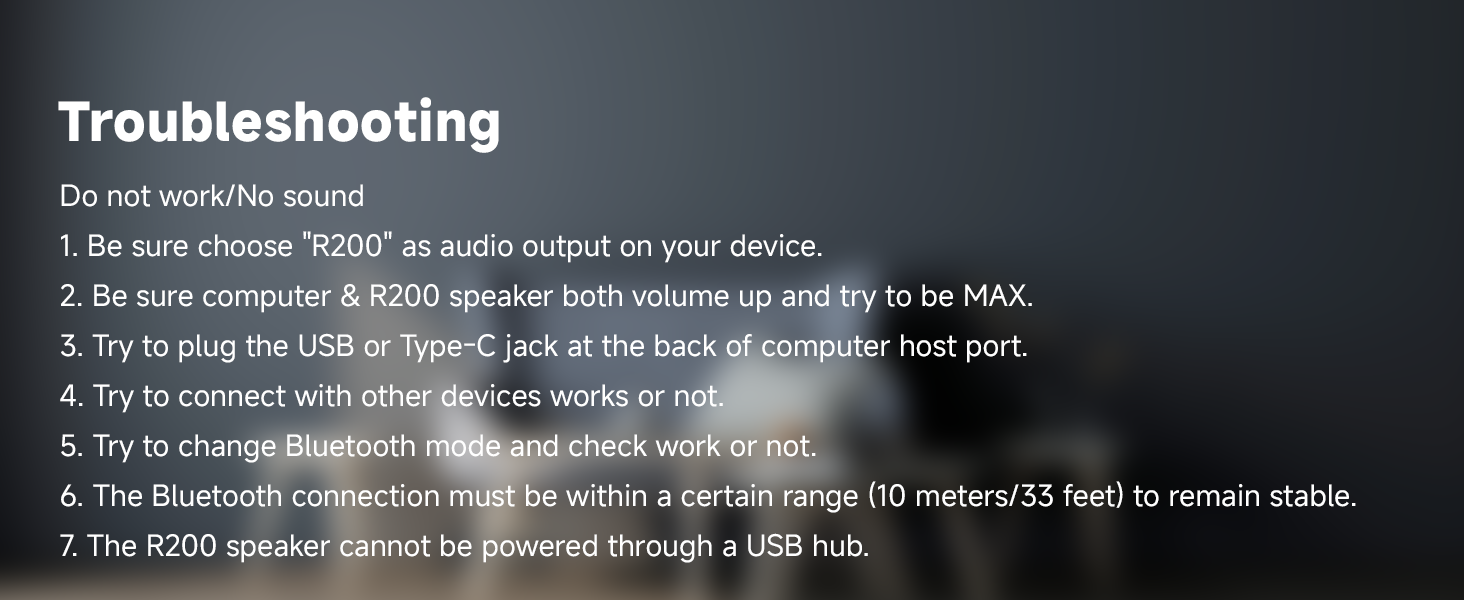
Image 6.3: Instructions for using the Light Button to cycle through LED modes.
- Click the Light button (☀) to cycle through the four dynamic light modes: Flowing Light, Breathing Light, Monochrome Mode, or turn the lights off.
6.4. Switching Modes (USB/Bluetooth)

Image 6.4: Instructions for using the Mode Button to switch between USB and Bluetooth input.
- Click the "M" (Mode) button to switch between USB input and Bluetooth input.
7. Maintenance
To ensure the longevity and optimal performance of your SOULION R200 speakers, follow these maintenance guidelines:
- Keep the speakers clean by wiping them with a soft, dry cloth. Avoid abrasive cleaners or solvents.
- Do not expose the speakers to excessive moisture, rain, or extreme temperatures.
- Avoid placing heavy objects on the speakers.
- Store the speakers in a cool, dry place when not in use for extended periods.
8. Troubleshooting
If you encounter issues with your SOULION R200 speakers, refer to the following common solutions:

Image 8.1: A visual summary of common troubleshooting steps for the speaker.
- No Sound / Not Working:
- Ensure "R200" is selected as the audio output device on your computer or connected device.
- Verify that both the speaker volume and your device's volume are turned up, preferably to maximum for testing.
- Try plugging the USB or Type-C cable into a different port, ideally a direct port on the computer's host (e.g., rear ports on a desktop).
- Test the speaker with another device to determine if the issue is with the speaker or the original device.
- Switch to Bluetooth mode and check if audio works, then switch back to USB mode if needed.
- The R200 speaker cannot be powered through a USB hub; connect directly to a computer port or a dedicated USB power adapter.
- Bluetooth Connection Issues:
- Ensure the Bluetooth connection is within the effective range (10 meters / 33 feet) for stable operation.
- If pairing fails, long press the Light button (☀) for 3 seconds to clear previous Bluetooth connections, then re-attempt pairing.
- Ensure USB power is supplied to the speaker when using Bluetooth mode.
- Note that USB-C fast charging adapters are not compatible for powering this speaker.
9. Specifications
| Feature | Specification |
|---|---|
| Model Name | R200 |
| Speaker Type | Soundbar |
| Connectivity Technology | Bluetooth 5.3, USB-C, USB |
| Audio Output Mode | Stereo |
| Speaker Maximum Output Power | 6 Watts |
| Frequency Response | 18 Hz |
| Impedance | 4 Ohm |
| Signal-to-Noise Ratio | 40 dB |
| Bluetooth Range | 10 Meters |
| Product Dimensions (D x W x H) | 2.9" x 12" x 3" (approx. 7.4cm x 30.5cm x 7.6cm) |
| Item Weight | 1.28 pounds (approx. 0.58 kg) |
| Material | Acrylonitrile Butadiene Styrene (ABS), Metal |
| Power Source | Corded Electric (USB) |
| Control Method | Push Button, Rotary Knob |
| Special Features | Bluetooth, LED Light, Lightweight, Portable, USB C, USB Plug & Play |
10. Warranty Information
The SOULION R200 Bluetooth Computer Speakers come with a 1-Year Warranty from the date of purchase. This warranty covers manufacturing defects and workmanship under normal use. It does not cover damage caused by misuse, accidents, unauthorized modifications, or improper installation.
Please retain your proof of purchase for warranty claims.
11. Customer Support
For further assistance, technical support, or warranty inquiries, please contact SOULION customer service through the retailer's platform or the official SOULION website.
When contacting support, please provide your product model (R200) and a detailed description of the issue.


