Introduction
This manual provides detailed instructions for the setup, operation, and maintenance of your Glacier Weikav Stars75s mechanical keyboard. Designed for versatility and performance, this keyboard features triple-mode connectivity, a premium aluminum case, hot-swappable switches, and customizable RGB lighting.
Key Features:
- Premium Aluminum Case Build: Crafted from aerospace-grade 6063 aluminum with anodized and electrophoresis finishes, offering durability and elegance.
- Customizable RGB Underglow: Personalized lighting effects to enhance your setup and mood.
- Triple Mode Connection: Supports Bluetooth, 2.4G wireless, and USB-C, with a built-in compartment for the 2.4G receiver.
- Responsive Typing Experience: Equipped with a Leaf spring Beryllium Copper mount and high-quality PBT keycaps for superior feedback.
- Hot Swappable: Easily replace switches without soldering, allowing for complete customization of your typing experience.
What's in the Box
Upon unboxing your Glacier Weikav Stars75s keyboard, please ensure all the following components are present:
- Glacier Weikav Stars75s Mechanical Keyboard
- USB-C to USB-A Cable
- 2.4G Wireless Receiver (stored in the keyboard's magnetic compartment)
- Keycap Puller
- Switch Puller
- User Manual

Image: The Glacier Weikav Stars75s mechanical keyboard with its default keycaps and RGB lighting.
Setup Guide
1. Connectivity Options
Your Stars75s keyboard offers three modes of connection: wired USB-C, 2.4G wireless, and Bluetooth.

Image: Icons representing Bluetooth, 2.4G wireless, and USB-C connectivity, along with operating system logos (macOS, Windows, Linux, iOS, Android).
Wired Connection (USB-C)
- Connect the provided USB-C cable to the port on the back of the keyboard.
- Plug the USB-A end of the cable into an available USB port on your computer.
- The keyboard will be automatically recognized and ready for use.
2.4G Wireless Connection
- Locate the 2.4G wireless receiver stored in the magnetic compartment on the back of the keyboard.
- Plug the 2.4G receiver into an available USB port on your computer.
- Ensure the keyboard's power switch (located under the CAPS LOCK key) is turned on.
- The keyboard should automatically connect to the receiver.

Image: A close-up view of the magnetic compartment on the keyboard's underside, showing the 2.4G wireless receiver.
Bluetooth Connection
- Ensure the keyboard's power switch (located under the CAPS LOCK key) is turned on.
- Press and hold the Fn key + 1, 2, or 3 to enter Bluetooth pairing mode for the desired profile. The indicator light will flash rapidly.
- On your device (computer, tablet, smartphone), go to Bluetooth settings and search for "Glacier Stars75s".
- Select the keyboard to pair. The indicator light will stop flashing once connected.
- You can pair up to three Bluetooth devices and switch between them using Fn + 1, 2, or 3.
2. Installing Switches (Hot-Swappable Feature)
The Glacier Weikav Stars75s features hot-swappable sockets, allowing you to change mechanical switches without soldering. This enables full customization of your typing feel.
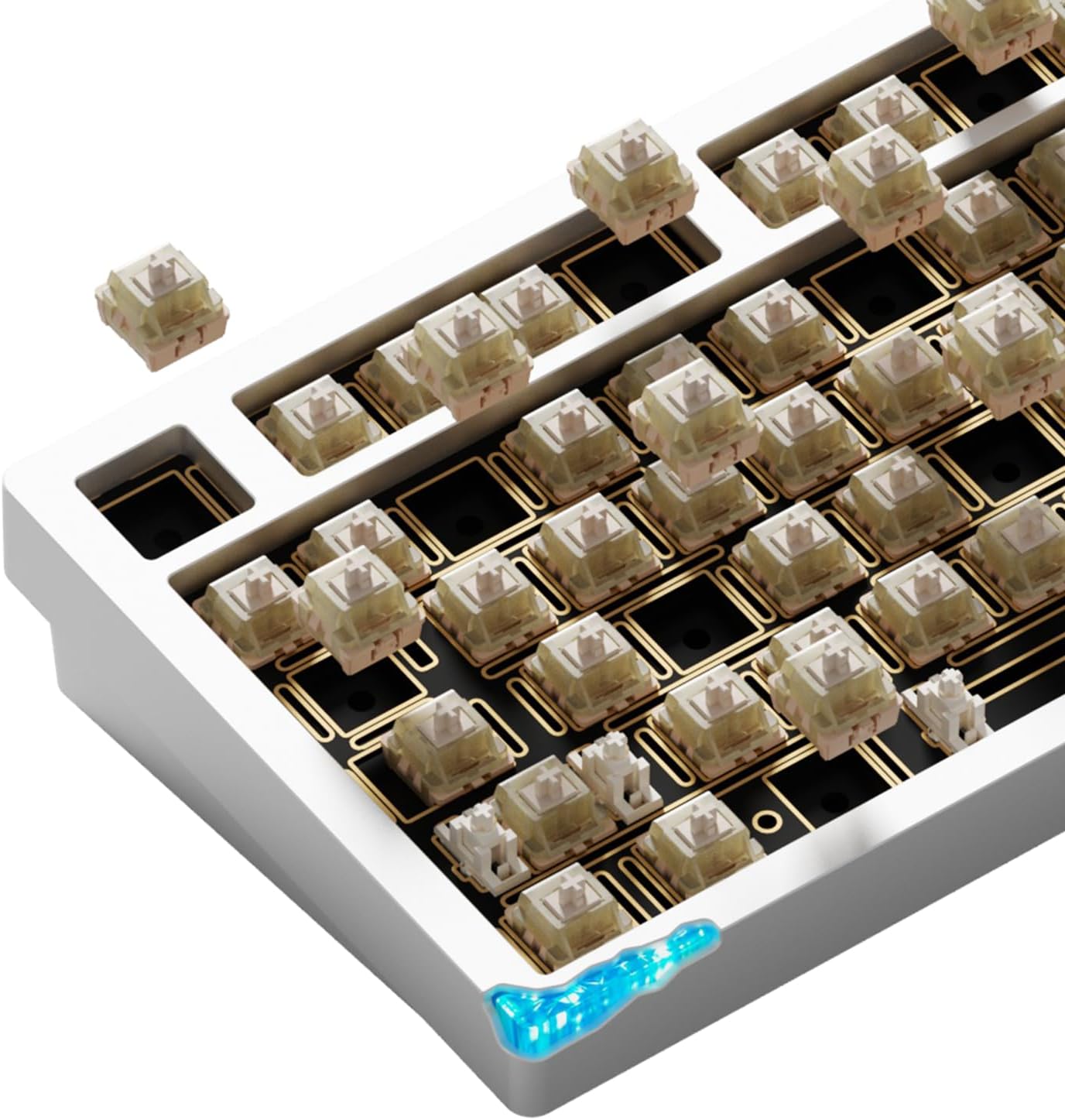
Image: A detailed view of the keyboard's PCB with switches removed and new switches being inserted, highlighting the hot-swappable design.
- Use the provided keycap puller to gently remove the desired keycap.
- Use the provided switch puller to carefully remove the switch from its socket.
- Align the pins of the new switch with the holes on the PCB. Ensure the pins are straight to avoid bending.
- Gently press the new switch into place until it clicks securely.
- Re-attach the keycap.
Video: A demonstration of how to install and remove switches on a 75% mechanical keyboard, showcasing the hot-swappable feature.
Video: A short clip demonstrating the hot-swappable nature of a 75% wireless mechanical keyboard, including switch removal and insertion.
Operating Instructions
1. RGB Lighting Control
The Stars75s features customizable RGB underglow and per-key lighting. Use the following key combinations to adjust lighting effects:
- Fn + \ |: Cycle through different lighting effects.
- Fn + [ {: Decrease brightness.
- Fn + ] }: Increase brightness.
- Fn + ; :: Decrease animation speed.
- Fn + ' ": Increase animation speed.
- Fn + . >: Change lighting color (for static modes).

Image: The Glacier Weikav Stars75s keyboard displaying its customizable RGB underglow, illuminating the desk surface.
2. Function Keys and Multimedia Controls
The top row of keys (F1-F12) can be used as standard function keys or multimedia controls by pressing them in combination with the Fn key.
- Fn + F1: Mute
- Fn + F2: Volume Down
- Fn + F3: Volume Up
- Fn + F4: Play/Pause
- Fn + F5: Previous Track
- Fn + F6: Next Track
- Fn + F7: Web Browser
- Fn + F8: Email
- Fn + F9: Calculator
- Fn + F10: Search
- Fn + F11: Lock Screen
- Fn + F12: My Computer
Maintenance
1. Cleaning Your Keyboard
To maintain optimal performance and appearance, regular cleaning is recommended:
- Disconnect the keyboard from all power sources.
- Use a soft, lint-free cloth dampened with a small amount of water or a mild cleaning solution to wipe down the keycaps and case. Avoid excessive moisture.
- For deeper cleaning, use the provided keycap puller to remove keycaps and clean underneath with compressed air or a small brush.
2. Mounting System Adjustments
The keyboard features a Leaf spring Beryllium Copper mount for a responsive typing experience. For advanced users, the internal mounting system can be adjusted. Refer to the following video for guidance on different mounting systems.
Video: A detailed guide on how to install and adjust three different mounting systems (Silica Gel Particle, Split O-Ring, Top Mount) for a mechanical keyboard, including steps for disassembling and reassembling the case.
Troubleshooting
- Keyboard not responding:
- Ensure the keyboard is fully charged or connected via USB-C.
- Check the power switch (under CAPS LOCK) is in the ON position for wireless modes.
- For 2.4G wireless, ensure the receiver is properly plugged in and the keyboard is in 2.4G mode (Fn + 4).
- For Bluetooth, ensure the keyboard is paired and selected in your device's Bluetooth settings. Try re-pairing if necessary.
- Try connecting via USB-C to rule out wireless connectivity issues.
- RGB lighting not working or stuck:
- Ensure the keyboard is powered on.
- Use Fn + \ | to cycle through lighting effects.
- Adjust brightness using Fn + [ { and Fn + ] }.
- Keys not registering or double-typing:
- This may indicate a faulty switch. Use the provided switch puller to remove the affected switch and replace it with a new one.
- Ensure the switch is fully seated in the hot-swappable socket.
Specifications
| Brand | Glacier |
| Model | Stars75s |
| Connectivity Technology | Bluetooth, 2.4G Wireless, USB-C (Wired) |
| Keyboard Description | Mechanical |
| Special Features | CNC Aluminum Case, Hot-Swappable, RGB Lighting, Leaf Spring Mount |
| Compatible Devices | PC (Windows), Mac, Linux, iOS, Android |
| Material | Aluminum |
| Item Weight | 4 pounds |
| Package Dimensions | 18 x 8 x 3 inches |
Video: A promotional video showcasing the LEOBOG Hi75C PRO Aluminum Alloy Mechanical Gaming Keyboard, highlighting its design, features, and typing experience. This video provides a general overview of a similar high-quality mechanical keyboard.
Video: A sound test comparing "clacky" and "thocky" sounds of a mechanical keyboard with Blue Lotus switches, demonstrating the auditory feedback of different switch types.
Warranty and Support
For warranty information, technical support, or further assistance, please refer to the official Glacier PC Gaming store or contact their customer service directly. Details can be found on the product packaging or the Glacier brand website.
Visit the Glacier Store on Amazon for more products and support.