
Introduction
This manual provides comprehensive instructions for the Lenovo ThinkCentre neo 50a 24 Gen 5 All-in-One (AIO) Desktop. It covers essential information regarding product setup, operation, maintenance, and troubleshooting to ensure optimal performance and longevity of your device. Please read this manual thoroughly before using your AIO desktop.
Safety Information
Observe the following safety precautions to prevent damage to your device or injury to yourself:
- Do not expose the device to water or excessive moisture.
- Avoid placing the device near heat sources or in direct sunlight.
- Use only the power adapter provided with the device.
- Ensure proper ventilation around the device to prevent overheating.
- Disconnect the power cable before cleaning or performing any maintenance.
Package Contents
Verify that all items are present in the package:
- Lenovo ThinkCentre neo 50a 24 Gen 5 AIO Desktop
- 90W AC Adapter
- Lenovo Calliope Keyboard (wired)
- Lenovo Calliope Mouse (wired)
- Power Cord
- Free 32GB USB Drive
Setup Instructions
Follow these steps to set up your Lenovo ThinkCentre neo 50a 24 Gen 5 AIO Desktop:
- Unpack the Device: Carefully remove the AIO desktop and all accessories from the packaging. Place the desktop on a stable, flat surface.
- Connect Peripherals:

Rear view of the AIO desktop with ports for connecting peripherals.
Connect the wired Lenovo Calliope Keyboard and Mouse to the available USB ports on the rear of the AIO desktop. - Connect Power: Insert the power cable into the 90W AC Adapter, then connect the adapter to the power input port on the rear of the AIO desktop. Plug the other end of the power cable into a grounded electrical outlet.
- Power On: Locate the power button, typically on the side or rear of the display unit. Press the power button to turn on the desktop.

Side view of the AIO desktop, highlighting the power button location.
- Initial Windows Setup: Follow the on-screen instructions to complete the Windows 11 Pro initial setup, including language selection, network connection, and user account creation.
Operating Instructions
This section details the basic operation and features of your AIO desktop.
Power Management
- Power On: Press the power button once.
- Shut Down: In Windows, click the Start button, then Power > Shut down.
- Sleep Mode: In Windows, click the Start button, then Power > Sleep.
Display and Graphics
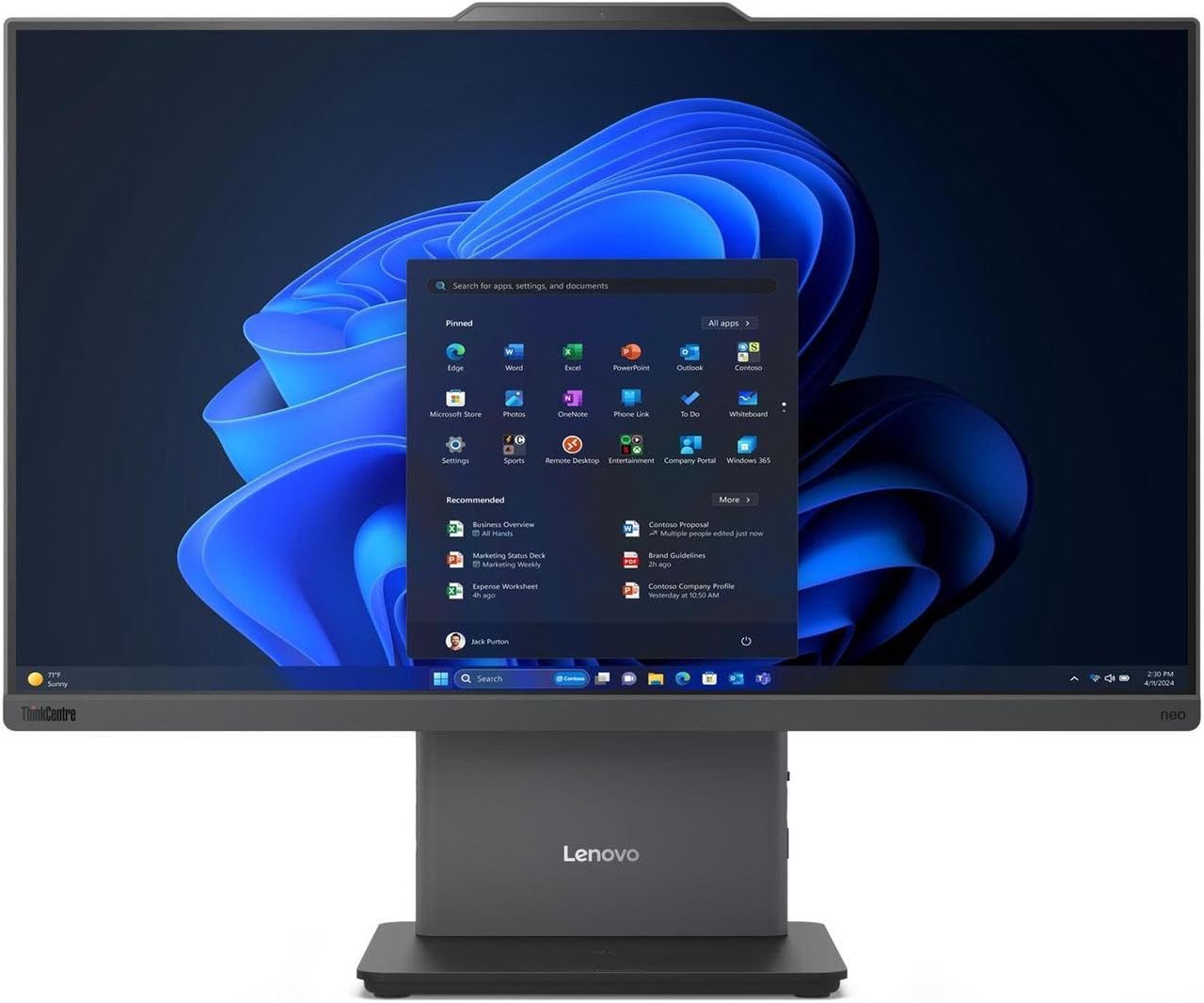
Front view of the AIO desktop displaying the Windows 11 interface.
The 23.8-inch LED-backlit IPS display offers a 1920x1080 resolution with a 100Hz refresh rate for smooth visuals. It features an anti-glare coating and 250 nits brightness, covering 99% sRGB for accurate color reproduction. Adjust display settings via Windows Display Settings.
Camera and Audio
- 5MP Camera: The integrated 5MP camera is suitable for video conferencing and online communication. Access it through applications like Camera, Microsoft Teams, or Zoom.
- Audio by HARMAN: The AIO desktop features stereo speakers (3W x2) with Audio by HARMAN for clear sound. A headphone/microphone combo jack is available for private listening or external audio devices.
Connectivity
- Wi-Fi 6 (AX201): Connect to wireless networks for internet access. Manage Wi-Fi connections through Windows Network & Internet settings.
- Bluetooth 5.2: Pair with Bluetooth-enabled devices such as headphones, speakers, or mobile phones.
- USB Ports: Utilize the various USB ports for connecting external devices:
- 1x USB 3.2 Gen 2 Type-C (10Gbps, Data Transfer)
- 1x USB 3.2 Gen 2 Type-A (10Gbps)
- 2x USB 2.0 Type-A
- RJ-45 LAN: For wired network connections.
Maintenance
Proper maintenance ensures the longevity and performance of your AIO desktop.
- Cleaning: Use a soft, lint-free cloth slightly dampened with water or a screen cleaner to wipe the display. For the chassis, use a dry, soft cloth. Avoid abrasive cleaners or solvents.
- Ventilation: Ensure that the ventilation openings on the device are not blocked to prevent overheating.
- Software Updates: Regularly check for and install Windows updates and driver updates from Lenovo's official support website to maintain system security and performance.
- Data Backup: Periodically back up important data to an external drive or cloud storage to prevent data loss.
Troubleshooting
This section addresses common issues you might encounter.
- No Power:
Symptom: The desktop does not turn on when the power button is pressed.
Solution: Ensure the power cable is securely connected to both the desktop and the electrical outlet. Verify the outlet is functional by plugging in another device. Check the AC adapter for any damage. - No Display:
Symptom: The desktop powers on, but nothing appears on the screen.
Solution: Ensure the display brightness is not set to minimum. Restart the computer. - No Internet Connection:
Symptom: Unable to access the internet via Wi-Fi or Ethernet.
Solution: For Wi-Fi, check if Wi-Fi is enabled in Windows settings and if you are connected to the correct network. For Ethernet, ensure the cable is securely connected to both the desktop and the router/modem. Restart your router/modem. - Peripherals Not Responding:
Symptom: Keyboard or mouse is not working.
Solution: Ensure the USB cables are firmly connected to the correct ports. Try connecting them to different USB ports. Restart the desktop.
Specifications
Detailed technical specifications for the Lenovo ThinkCentre neo 50a 24 Gen 5 AIO Desktop:
| Feature | Detail |
|---|---|
| Model Name | ThinkCentre neo 50a 24 Gen 5 |
| Item Model Number | 12SD0002US |
| Processor | Intel Core i5-13420H (8-Core, up to 4.6 GHz) |
| RAM | 24 GB DDR5 SDRAM (4800 MHz) |
| Storage | 1 TB M.2 SSD |
| Display | 23.8-inch LED-backlit IPS (1920 x 1080), 100Hz, Anti-glare, 250 nits, 99% sRGB |
| Graphics | Intel Iris Xe Graphics (Integrated) |
| Operating System | Windows 11 Pro |
| Wireless Connectivity | Intel Wi-Fi 6 AX201 (2x2), Bluetooth 5.2 |
| Ports | 1x USB 3.2 Gen 2 Type-C, 1x USB 3.2 Gen 2 Type-A, 2x USB 2.0 Type-A, 1x HDMI v1.4, 1x Headphone/Microphone Combo Jack, 1x RJ-45 LAN, 1x Rectangle plug Power Jack |
| Camera | 5MP Camera |
| Audio | Stereo speakers, 3W x2, Audio by HARMAN |
| Dimensions (H x W x D) | 16.97 x 21.25 x 7.56 inches |
| Weight | 13.23 pounds |
| Color | Luna Grey |
Warranty and Support
Your Lenovo ThinkCentre neo 50a 24 Gen 5 AIO Desktop comes with a 1-Year Support from Lenovo within the US. For technical assistance, warranty claims, or service, please contact Lenovo customer support directly. Keep your proof of purchase for warranty validation.
For further information and support resources, visit the official Lenovo support website.