
Introduction
This manual provides detailed instructions for the safe and effective operation of your FOXWELL BT60 Car Battery Tester and FOXWELL NT716 OBD2 Scanner. The BT60 is designed to diagnose 6V and 12V automotive batteries, while the NT716 offers comprehensive OBD2 diagnostic and special functions for various vehicle systems. Please read this manual thoroughly before using the devices to ensure proper usage and to prevent damage.
Important Safety Information
Always observe the following safety precautions when using the FOXWELL BT60 and NT716:
- Wear appropriate eye protection and protective clothing when working near vehicle batteries.
- Ensure the vehicle is in a well-ventilated area.
- Avoid sparks or open flames near the battery, as batteries can produce explosive gases.
- Do not touch hot engine parts or exhaust systems.
- Keep the devices dry and clean. Do not expose them to moisture or extreme temperatures.
- Only use the provided cables and accessories.
- If battery acid comes into contact with skin or eyes, flush immediately with plenty of water and seek medical attention.
Package Contents
Verify that all items are present in your package:
- FOXWELL BT60 Battery Tester Unit
- FOXWELL NT716 OBD2 Scanner Unit
- Battery Clamps (for BT60)
- OBD-II Diagnostic Cable (for NT716)
- User Manual (this document)
- USB Cable (for updates/charging if applicable)
Product Overview
FOXWELL BT60 Battery Tester
The BT60 is a compact, wireless battery tester designed for 6V and 12V batteries. It connects via Bluetooth to a smartphone application for detailed analysis.

Figure 1: FOXWELL BT60 Battery Tester. This image displays the BT60 unit with its battery clamps and a list of its key functions: State of Health (SOH), State of Charge (SOC), Load Test, Battery Voltage, Resistance Test, Cranking Test, Ripple Test, Data Storage, and Data Share.
- Battery Clamps: For connecting to the vehicle battery terminals.
- LED Indicators: Provide status feedback (e.g., power, Bluetooth connection).
- Bluetooth Module: Enables wireless communication with the companion app.
FOXWELL NT716 OBD2 Scanner
The NT716 is a comprehensive diagnostic scanner featuring an Android 9.0 operating system, a touchscreen interface, and extensive vehicle coverage for various diagnostic and service functions.

Figure 2: FOXWELL NT716 OBD2 Scanner and BT60 Battery Tester. This image shows both the NT716 scanner and the BT60 battery tester, along with a smartphone displaying the BT60 app interface. The NT716 features an Android 9.0 operating system and highlights its capabilities for 4 systems diagnosis, 9 reset functions, full OBDII modes, and bi-directional control.
- Touchscreen Display: For navigating menus and viewing diagnostic data.
- OBD-II Port: Connects to the vehicle's diagnostic link connector (DLC).
- USB Port: For charging and data transfer.
- Wi-Fi Module: For software updates and online features.
Setup Instructions
1. FOXWELL BT60 Battery Tester Setup
- Download the App: Search for the "FOXWELL BT60" app on your smartphone's app store (iOS or Android) and install it.
- Charge the BT60 (if applicable): Ensure the BT60 unit has sufficient power.
- Connect to Battery:
- Connect the red clamp to the positive (+) terminal of the vehicle battery.
- Connect the black clamp to the negative (-) terminal of the vehicle battery.
- Pair via Bluetooth:
- Enable Bluetooth on your smartphone.
- Open the BT60 app. The app will automatically search for and connect to the BT60 unit. Follow any on-screen prompts to complete pairing.

Figure 3: BT60 Wireless Connection. This image illustrates the BT60 battery tester connected to a car battery in the trunk, communicating wirelessly via Bluetooth 5.3 with a smartphone held by a user in the driver's seat, demonstrating the convenience of independent testing from a distance of up to 10 meters.
2. FOXWELL NT716 OBD2 Scanner Setup
- Locate OBD-II Port: The OBD-II port is typically located under the dashboard on the driver's side. Refer to your vehicle's manual if you cannot find it.
- Connect to Vehicle: Plug the OBD-II diagnostic cable into the vehicle's OBD-II port and then connect the other end to the NT716 scanner. The scanner will power on automatically.
- Initial Configuration:
- Upon first use, the device may prompt you to select a language, time zone, and other basic settings. Follow the on-screen instructions.
- Connect to a Wi-Fi network for software updates. Navigate to Settings > Wi-Fi and select your network.

Figure 4: NT716 User Interface and Connectivity. This image highlights the NT716's user-friendly touchscreen interface, showing icons for Diagnostic, Maintenance, Update, Data Manager, My Account, and More. It also illustrates "One-Click Wifi Update Free Lifetime" and options for "One-Click Send/Share Report via E-mail," "One-click Screenshot to Save Data," and "One-click Feedback Problem to Foxwell Team."
- Software Update: It is recommended to perform a software update after initial setup to ensure you have the latest vehicle coverage and features. Navigate to the Update section on the main menu and follow the prompts.
Operating Instructions
1. Using the FOXWELL BT60 Battery Tester
The BT60 performs various tests to assess battery health and the vehicle's charging system.
- Start the App: Ensure the BT60 is connected to the battery and Bluetooth is paired with your smartphone. Open the BT60 app.
- Select Test Type: The app will present options for different tests, including:
- Battery Test: Measures State of Health (SOH), State of Charge (SOC), Voltage, and Internal Resistance.
- Cranking Test: Evaluates the battery's ability to start the engine.
- Charging Test: Checks the alternator's output, including load/no-load voltage and ripple.
- Perform Test: Follow the on-screen instructions within the app to initiate and complete each test. This may involve starting the engine for cranking or charging tests.
- Review Results: The app will display detailed results and recommendations.

Figure 5: BT60 Test Results Display. This image shows a smartphone screen displaying the FOXWELL BT60 app interface, illustrating how battery status, charging test results, and cranking test results are presented clearly. It includes metrics like SOH, SOC, CCA, voltage, resistance, no-load voltage, load voltage, ripple, starting voltage, and start-up time.
- Share Reports: The app allows you to customize battery serial numbers and share diagnostic reports via image or text.

Figure 6: BT60 Report Sharing. This image demonstrates the BT60 app's capability to customize battery information and share diagnostic reports. Users can input battery details and then choose to share the report as an image or text, facilitating easy record-keeping and communication.
2. Using the FOXWELL NT716 OBD2 Scanner
The NT716 provides comprehensive vehicle diagnostics and service functions.
- Connect and Power On: Ensure the NT716 is connected to the vehicle's OBD-II port. The device will power on.
- Select Diagnostic Function: From the main menu, tap Diagnostic to begin. The scanner will automatically identify the vehicle via Auto VIN or allow manual selection.
- Perform System Scan:
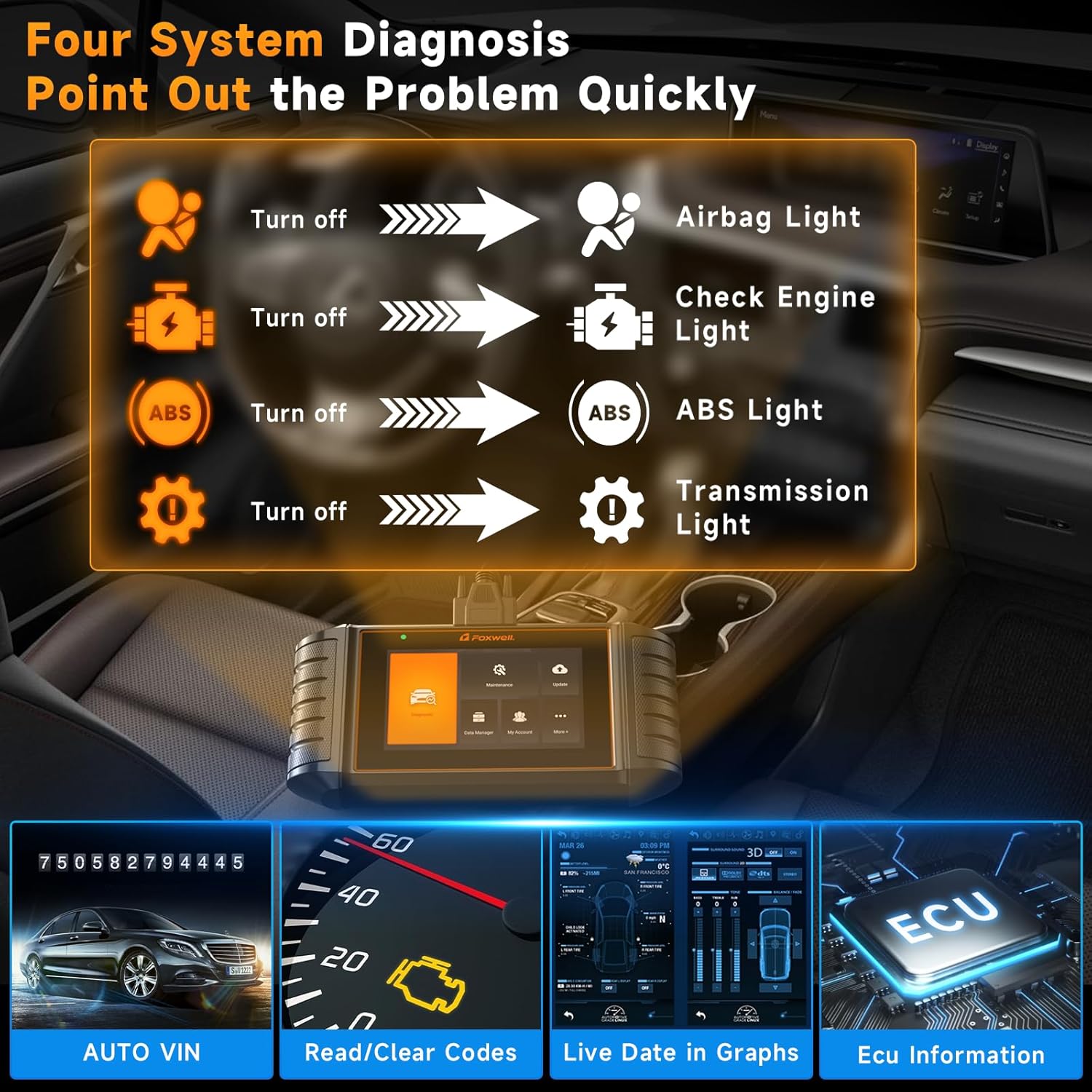
Figure 7: NT716 Four System Diagnosis. This image illustrates the NT716's ability to diagnose four key vehicle systems: Engine (Check Engine Light), ABS (ABS Light), Airbag (Airbag Light), and Transmission (Transmission Light). It also highlights features like Auto VIN, Read/Clear Codes, Live Data in Graphs, and ECU Information.
- Read/Clear Codes: Access and clear Diagnostic Trouble Codes (DTCs) from various systems (Engine, ABS, Airbag, Transmission).
- Live Data: View real-time sensor data in text or graph format.
- ECU Information: Retrieve Electronic Control Unit (ECU) details.
- Special Functions / Reset Services: From the main menu, tap Maintenance to access various reset and service functions.

Figure 8: NT716 Reset Functions. This image showcases nine common reset and service functions available on the NT716 scanner: Oil Reset Light, ABS Bleeding, Parking Brake, Injector Coding, BMS Reset, DPF Regeneration, SAS Calibration, TPMS, and Throttle Relearn.
- Oil Reset: Resets the oil service light.
- ABS Bleeding: Performs brake bleeding procedures.
- Parking Brake: Services the electronic parking brake (EPB).
- Injector Coding: Codes new injector numbers.
- BMS Reset: Resets the Battery Management System.
- DPF Regeneration: Initiates Diesel Particulate Filter regeneration.
- SAS Calibration: Calibrates the Steering Angle Sensor.
- TPMS: Tire Pressure Monitoring System service.
- Throttle Relearn: Adapts the throttle body.
- Bi-directional Control / Active Tests: This function allows the scanner to send commands to vehicle components to test their functionality.

Figure 9: NT716 Bi-Directional Control. This image illustrates the NT716's bi-directional control capabilities, showing the scanner sending commands to various vehicle components for active testing. Examples include Test Fan Motor, Test Shift Solenoid Valve, Test Engine Coolant Temperature, and Active Grille Shutter. The process involves clicking Diagnostic, reading VIN, selecting model, clicking fault system, and performing the function test.
- Navigate to Diagnostic, select the vehicle, then choose the relevant system and look for Active Test or Bi-directional Control options.
- Follow on-screen prompts to activate components like the fan motor, shift solenoid valve, or engine coolant temperature.
Maintenance
- Cleaning: Use a soft, damp cloth to clean the device casings. Do not use abrasive cleaners or solvents.
- Software Updates: Regularly check for and install software updates for the NT716 via Wi-Fi to ensure optimal performance and the latest vehicle coverage. For the BT60, ensure your smartphone app is updated.
- Storage: Store the devices in a dry, cool environment, away from direct sunlight and extreme temperatures. Keep them in their original packaging or a protective case when not in use.
- Cable Inspection: Periodically inspect all cables for damage. Replace any frayed or damaged cables immediately.
Troubleshooting
| Problem | Possible Cause | Solution |
|---|---|---|
| BT60 does not connect via Bluetooth. | Bluetooth is off on smartphone; BT60 not powered; app not open; interference. | Ensure Bluetooth is enabled. Check BT60 connection to battery. Restart app and BT60. Move closer to the device. |
| NT716 does not power on. | Improper connection to OBD-II port; vehicle ignition off; vehicle battery low. | Verify secure connection to OBD-II port. Turn vehicle ignition to ON position. Check vehicle battery voltage. |
| NT716 fails to communicate with vehicle. | Incorrect vehicle protocol; faulty OBD-II port; damaged cable; software issue. | Ensure correct vehicle information is entered. Try on another vehicle if possible. Inspect OBD-II cable. Update software. |
| Inaccurate BT60 battery test results. | Loose clamp connection; battery terminals corroded; incorrect battery type/CCA input. | Ensure clamps are securely attached. Clean battery terminals. Verify correct battery parameters in the app. |
| NT716 Wi-Fi update fails. | Weak Wi-Fi signal; incorrect Wi-Fi password; server issues. | Move closer to Wi-Fi router. Re-enter Wi-Fi password. Try updating again later. |
Specifications
FOXWELL BT60 Battery Tester
- Battery Voltage Range: 6V, 12V
- Test Standards: CCA, BCI, CA, MCA, JIS, DIN, IEC, EN, SAE, GB
- Connectivity: Bluetooth 5.3 (up to 10m range)
- Functions: Battery Test (SOH, SOC, Voltage, Resistance), Cranking Test, Charging Test (Alternator)
- Operating Temperature: 0°C to 50°C (32°F to 122°F)
- Storage Temperature: -20°C to 70°C (-4°F to 158°F)
FOXWELL NT716 OBD2 Scanner
- Operating System: Android 9.0
- Display: Touchscreen (size not specified, inferred from images)
- Connectivity: OBD-II cable, Wi-Fi
- Diagnostic Functions: Read/Clear DTCs, Live Data, ECU Information, Auto VIN, 4 System Diagnosis (Engine, ABS, Airbag, Transmission)
- Special Functions: Oil Reset, ABS Bleeding, Parking Brake, Injector Coding, BMS Reset, DPF Regeneration, SAS Calibration, TPMS, Throttle Relearn
- Bi-directional Control: Yes
- Update: One-Click Wi-Fi Update (Lifetime Free)
- Operating Voltage: 9-18V DC (via OBD-II)
Warranty Information
FOXWELL products are manufactured to high-quality standards and are warranted against defects in materials and workmanship for a specified period from the date of purchase. Please refer to the warranty card included with your product or visit the official FOXWELL website for detailed warranty terms and conditions. Keep your purchase receipt as proof of purchase.
Customer Support
If you encounter any issues or have questions regarding your FOXWELL BT60 Battery Tester or NT716 OBD2 Scanner, please contact FOXWELL customer support. You can typically find contact information on the official FOXWELL website or through the "Feedback Problem to Foxwell Team" option within the NT716 device's interface (refer to Figure 4).
- Online Support: Visit the official FOXWELL website for FAQs, software downloads, and support contact forms.
- Email Support: Refer to your product packaging or the FOXWELL website for the customer support email address.
- In-App Feedback: Use the feedback function within the NT716 scanner to report issues directly to the FOXWELL team.


