
1. Introduction
Thank you for purchasing the Acer S2 3-in-1 Qi2 15W Wireless Charging Station. This device is designed to provide efficient and simultaneous wireless charging for your compatible Apple iPhone, Apple Watch, and AirPods. Please read this manual thoroughly before use to ensure proper operation and to maximize the lifespan of your product.
2. Package Contents
Verify that all items are present in your package:
- Acer S2 3-in-1 Qi2 Wireless Charging Station
- Power Adapter
- USB-C Cable
- User Manual (this document)
3. Product Overview
The Acer S2 charging station features a compact, cylindrical design with multiple charging points for your devices. Key features include Qi2 certification for 15W fast charging, a motorized rotating phone charger, and retractable charging compartments for AirPods and Apple Watch.

Figure 3.1: The Acer S2 3-in-1 Qi2 Wireless Charging Station, shown charging an iPhone, Apple Watch, and AirPods simultaneously. The device is silver with a green indicator light at the base.

Figure 3.2: A visual breakdown of the Acer S2's core functionalities, including its Qi2 certification, motorized rotating phone charger, intelligent power distribution, and integrated hideaway compartments for AirPods and Apple Watch.

Figure 3.3: Illustration of the stable flat-base design, highlighting the anti-slip pads at the bottom that ensure the charging station remains firmly in place during use.
4. Setup Instructions
- Unpack the Device: Carefully remove the Acer S2 charging station, power adapter, and USB-C cable from the packaging.
- Connect Power: Insert the USB-C cable into the charging port on the back of the Acer S2. Connect the other end of the USB-C cable to the provided power adapter.
- Plug into Outlet: Plug the power adapter into a wall outlet. The indicator light at the base of the charging station will illuminate, indicating it is powered on and ready for use.
- Positioning: Place the charging station on a flat, stable surface. The weighted base and anti-slip pads ensure stability.

Figure 4.1: The Acer S2 charging station properly connected to its power adapter and a wall outlet. This image emphasizes the use of the included adapter for optimal performance.
Important Note: To ensure optimal performance and prevent issues such as jerky rotation or charging instability, always use the original power adapter included in the box. Third-party adapters may not provide sufficient power.
5. Operating Instructions
5.1 Charging an iPhone (Qi2 15W)
- Ensure the charging station is powered on.
- Place your MagSafe-compatible iPhone onto the magnetic charging pad. The phone will snap into place securely.
- The charging pad supports 360° rotation. Gently rotate your phone to your desired viewing angle (portrait or landscape).
- The charging indicator on your iPhone will confirm charging has begun. The station intelligently prioritizes 15W charging for your phone.

Figure 5.1: Visual representation of the Qi2 15W fast charging capability for iPhone, highlighting its speed advantage over standard Qi charging.
5.2 Charging Apple Watch (3W)
- Locate the retractable Apple Watch charging module on the side of the station.
- Gently press the module to extend it.
- Place your Apple Watch onto the charging puck. It will magnetically align and begin charging at 3W.
- When not in use, you can retract the module by gently pushing it back into the station.
5.3 Charging AirPods (5W)
- Locate the retractable AirPods charging pad on the opposite side of the station.
- Gently press the pad to extend it.
- Place your AirPods (with wireless charging case) onto the extended pad. Charging will begin at 5W.
- When not in use, you can retract the pad by gently pushing it back into the station.

Figure 5.2: An overview of the Acer S2's compatibility, detailing charging wattages for iPhone (15W), AirPods (5W), and Apple Watch (3W). It specifies compatibility with iPhone 12-16 series, AirPods Pro/3/2, and Apple Watch Series 1-10.
5.4 Compatibility Notes
- iPhone: Compatible with iPhone 12, 13, 14, 15, 16 series, and iPhone SE (2nd & 3rd Gen). For non-Qi2 compatible phones, a MagSafe case is required for magnetic attachment and optimal charging.
- Apple Watch: Compatible with Apple Watch Series 1 through 10. Not compatible with Samsung watches.
- AirPods: Compatible with AirPods 4, AirPods 3, AirPods Pro 2, AirPods Pro, AirPods (3rd generation), and AirPods 2 Wireless Charging Case.
- Phone Cases: The charger is compatible with MagSafe cases. Non-MagSafe, metal cases, or cases thicker than 0.19 inches (5mm) may interfere with charging efficiency or magnetic attachment.

Figure 5.3: Visual guide on phone case compatibility, indicating that MagSafe cases are supported, while non-MagSafe, metal cases, or cases with grips/stands may not work effectively.
5.5 iPhone 16 Series Users Notice
Important: For iPhone 16/16 Plus/Pro/Pro Max users, please update your iOS to Beta 5 or later to resolve potential compatibility issues with the Qi2 protocol. Older beta versions may prevent wireless charging functionality.
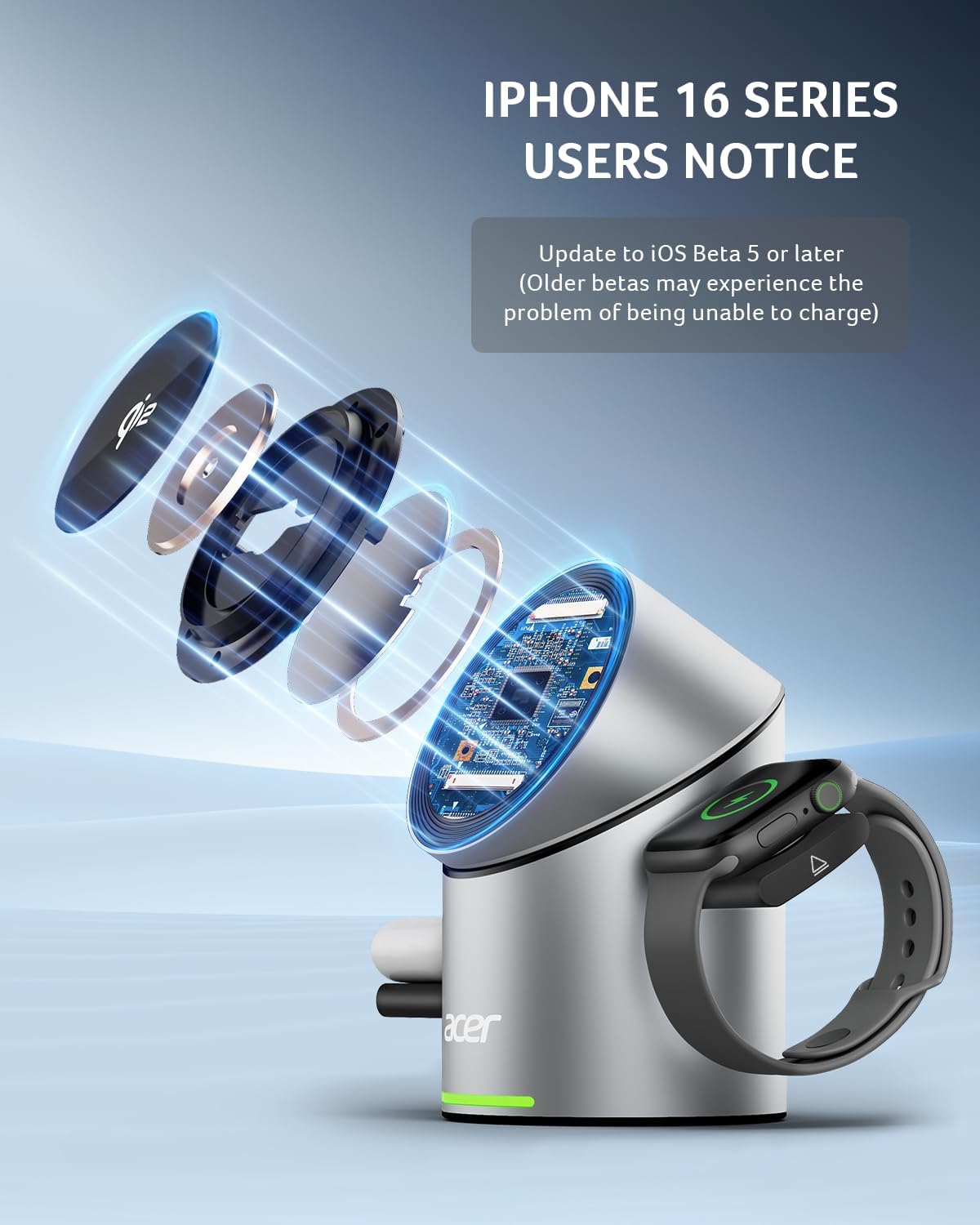
Figure 5.4: A specific notice for iPhone 16 series users, advising an iOS update to Beta 5 or later to ensure proper Qi2 wireless charging functionality.
6. Maintenance
- Cleaning: Disconnect the power before cleaning. Use a soft, dry cloth to wipe the surface of the charging station. Do not use abrasive cleaners, solvents, or immerse the device in water.
- Storage: Store the device in a cool, dry place away from direct sunlight and extreme temperatures when not in use for extended periods.
- Cable Care: Avoid bending or crimping the USB-C cable excessively.
7. Troubleshooting
| Problem | Possible Cause | Solution |
|---|---|---|
| Device not charging. | Not properly connected to power; device misalignment; incompatible case; iOS version issue (iPhone 16 series). | Ensure power adapter is securely plugged in. Realign device on charging pad. Remove thick or metal cases. Update iPhone 16 series iOS to Beta 5 or later. |
| Jerky rotation or instability. | Using a non-original power adapter. | Use the original power adapter provided with the product. |
| Slow charging. | Non-optimal power input; device not centered; background apps consuming power. | Ensure using the original power adapter. Re-position device to ensure proper alignment. Close unnecessary background applications. |
| Overheating during charging. | Poor ventilation; incompatible case; foreign objects on charging pad. | Ensure adequate airflow around the charger. Remove phone case if it's too thick or metal. Remove any foreign objects from the charging surface. |
8. Specifications
| Feature | Detail |
|---|---|
| Model Number | SL-S2 |
| Product Dimensions | 2.99 x 2.99 x 4.29 inches (7.6 x 7.6 x 10.9 cm) |
| Item Weight | 12.3 ounces (350g) |
| Brand | Acer |
| Connector Type | USB-C (2-Pin Power Adapter) |
| Input Voltage | 9 Volts |
| Amperage | 3 Amps |
| Wattage | 15 watts (Max) |
| Special Features | Automatic Off, Wireless Charging, Qi2 Certified, 360° Rotating Phone Charger, Retractable Modules |
| Compatible Devices | iPhone 12-16 Series, iPhone SE (2nd/3rd Gen), Apple Watch 1-10, AirPods (with wireless charging case) |

Figure 8.1: Detailed dimensions of the Acer S2 charging station, illustrating its compact and portable design with a height of 4.3 inches (10.9 cm) and a width of 3 inches (7.6 cm).
9. Important Safety Information
- Do not disassemble, modify, or repair the device yourself.
- Keep the device away from water, moisture, and high temperatures.
- Avoid dropping or subjecting the device to strong impacts.
- Do not place metal objects or magnetic cards between your device and the charging pad, as this may interfere with charging or damage the device.
- Ensure proper ventilation around the charging station during use.
- Keep out of reach of children.
10. Warranty and Support
Acer products are designed for reliability and performance. For warranty information, technical support, or service inquiries, please refer to the warranty card included with your product or visit the official Acer support website. Protection plans are also available for extended coverage.
For the latest support information, please visit: www.acer.com/support


