
Introduction
Thank you for choosing the QIDUHUQI 4K Wireless Display Adapter. This device allows you to mirror content from your smartphone, tablet, laptop, or PC to a larger display such as a TV, monitor, or projector. It supports various protocols including AirPlay, DLNA, and Miracast, providing a versatile solution for screen sharing in different environments. Please read this manual carefully to ensure proper setup and operation.
Product Overview
Package Contents
- QIDUHUQI 4K Wireless Display Adapter
- USB Power Cable with Wi-Fi Antenna (Type-C to USB-A)
- User Manual
Device Components
Familiarize yourself with the different parts of your wireless display adapter:

Figure 1: QIDUHUQI Wireless Display Adapter Components (Micro-USB port, switch button, HDMI connector, and signal source antenna).
- HDMI Connector: Plugs into your TV, monitor, or projector.
- Micro-USB Port: Connects to the USB power cable for power supply.
- Switch Button: Used to switch between different mirroring modes or reset the device.
- Signal Source Antenna: Ensures stable wireless connection.
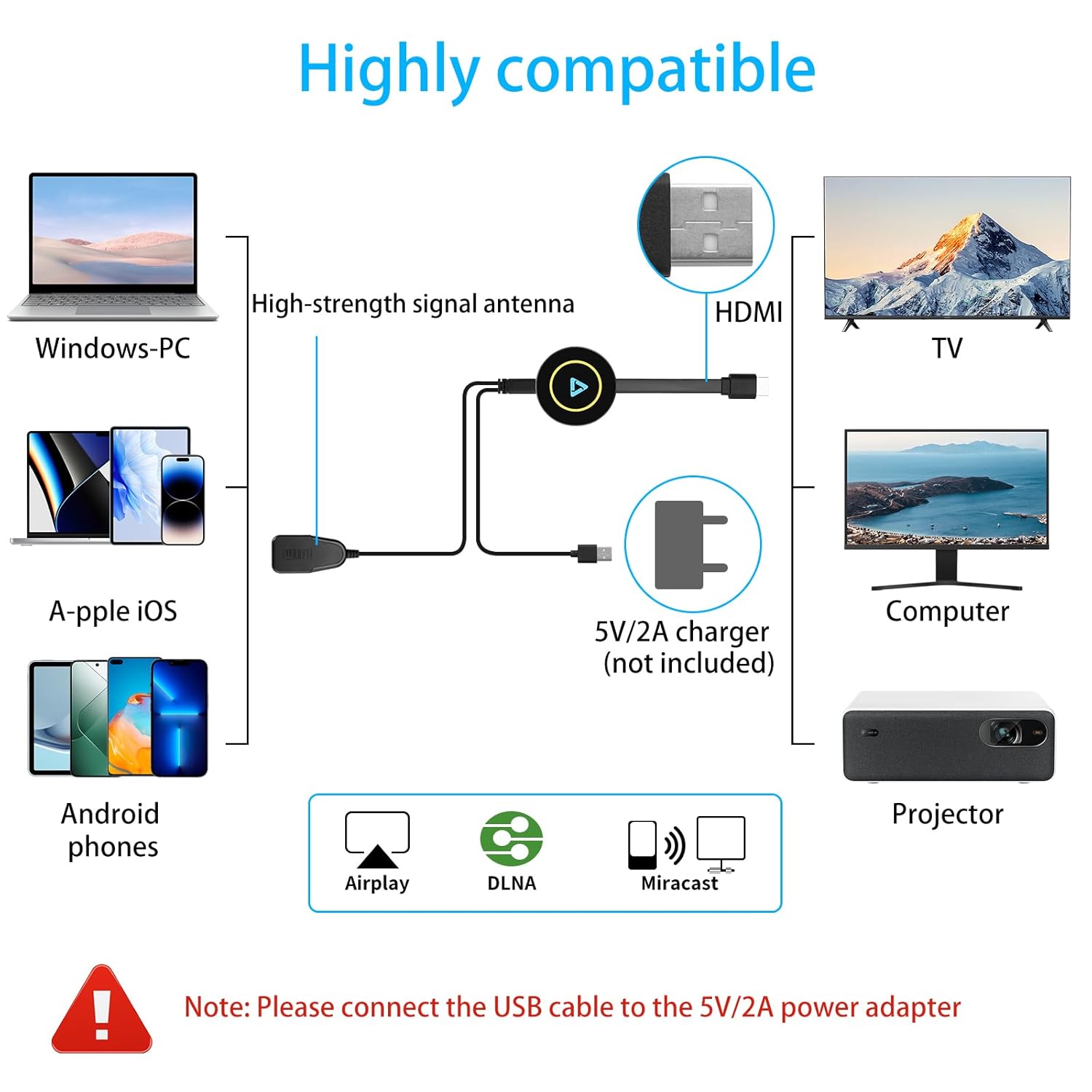
Figure 2: Compatibility diagram showing supported input devices (Windows PC, iOS, Android phones) and output displays (TV, Computer Monitor, Projector).
Setup Instructions
Follow these steps to set up your QIDUHUQI Wireless Display Adapter:
- Connect Wi-Fi Antenna: Connect the device's Wi-Fi antenna Type-C plug to the corresponding port on the screen mirroring device.
- Connect to Display: Insert the HDMI plug of the adapter into an available HDMI high-definition interface on your TV, monitor, or projector.
- Power the Device: Insert the USB connector of the power cable into a 5V/2A USB power adapter (charger head or mobile power bank). Connect the power adapter to a power outlet.
- Select Input Source: Use your TV's remote control or body buttons to select the corresponding HDMI input source (e.g., HDMI 1, HDMI 2) where the adapter is connected.
- Initial Screen: Once the correct HDMI input is selected, you should see the adapter's main screen displayed on your TV, showing connection instructions and a QR code.
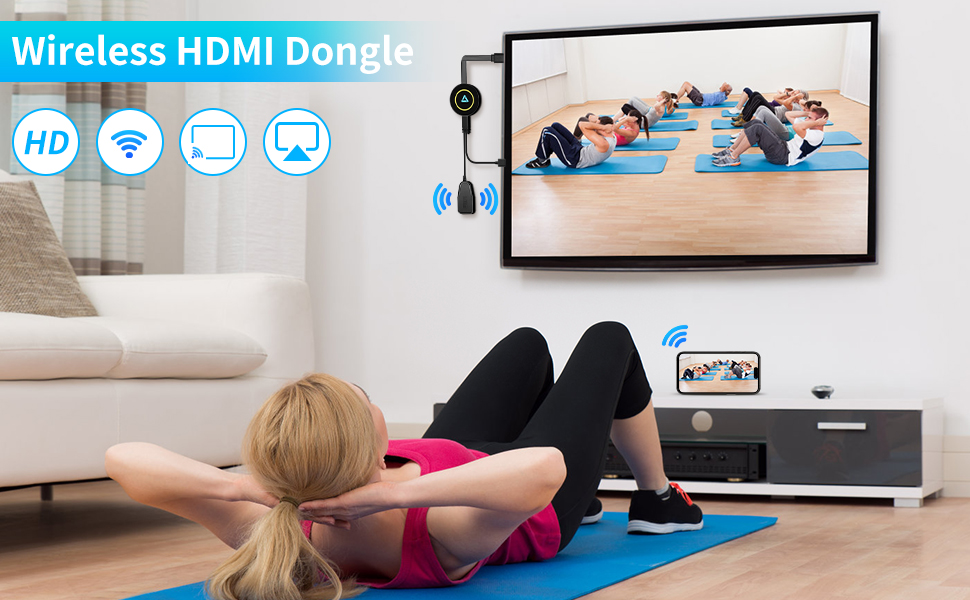
Figure 3: Connecting the Wi-Fi antenna cable to the adapter.

Figure 4: Adapter connected to a TV.
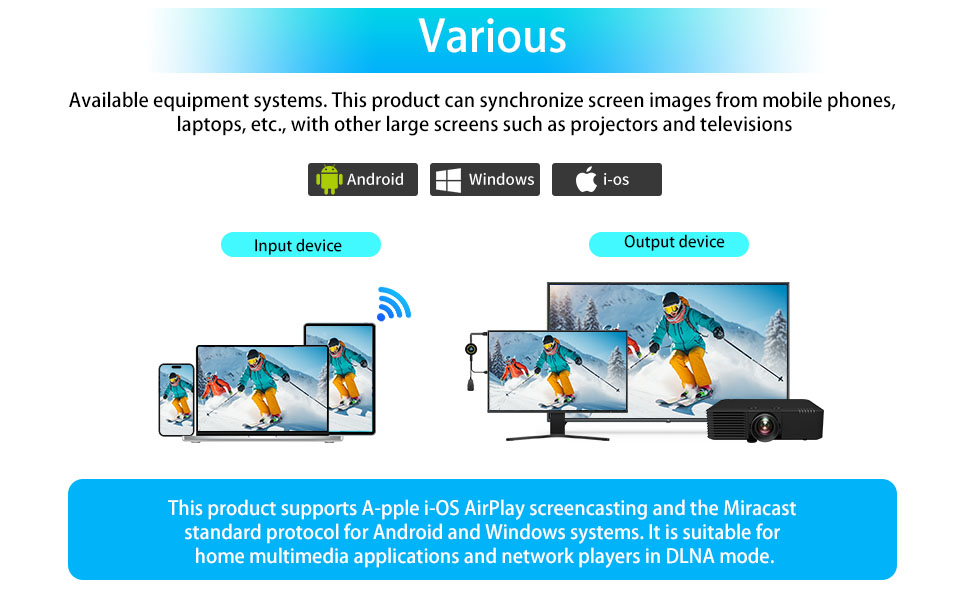
Figure 5: Connecting the power adapter.
Video 1: Wireless Screen Mirroring Device Installation Guide. This video demonstrates the physical connection and input source selection on a TV.
Operating Instructions
Screen Mirroring Modes
The QIDUHUQI Wireless Display Adapter supports AirPlay, DLNA, and Miracast protocols. The device will automatically detect the mirroring protocol from your source device.
Connecting Your Device (Android/iOS/Windows/Mac)
Most phones can quickly find the screen mirroring function by swiping down from the top of the screen to access the notification bar for quick connection. The exact steps may vary slightly depending on your device's operating system and brand.
Video 2: How to Connect a Dongle to Android Phones & Tablets. This video demonstrates the process of connecting an Android phone via Smart View.
General Steps for Android Devices (Miracast):
- Ensure the Wireless Display Adapter is powered on and connected to your display.
- On your Android phone, swipe down from the top of the screen to open the Quick Settings panel.
- Look for a screen mirroring option such as "Smart View" (Samsung), "Cast" (Google), "Wireless Display," "Screen Mirroring," or similar.
- Select the QIDUHUQI adapter from the list of available devices.
- Confirm the connection on your phone if prompted.
General Steps for iOS Devices (AirPlay):
- Ensure the Wireless Display Adapter is powered on and connected to your display.
- Connect your iOS device to the Wi-Fi network broadcast by the QIDUHUQI adapter (SSID and password will be displayed on your TV screen).
- On your iOS device, open Control Center (swipe down from the top-right corner on newer iPhones/iPads, or swipe up from the bottom on older models).
- Tap "Screen Mirroring" or "AirPlay Mirroring".
- Select the QIDUHUQI adapter from the list.
General Steps for Windows/Mac Devices:
- Ensure the Wireless Display Adapter is powered on and connected to your display.
- For Windows: Press Windows key + P, then select "Connect to a wireless display" and choose the QIDUHUQI adapter.
- For Mac: Connect your Mac to the adapter's Wi-Fi network. Then, click the AirPlay icon in the menu bar and select the QIDUHUQI adapter.
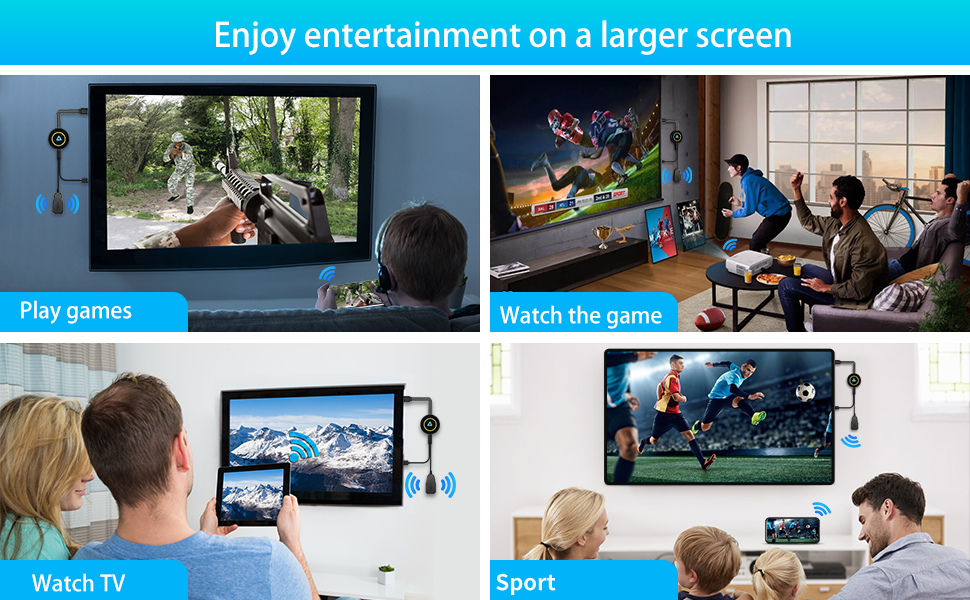
Figure 6: Various entertainment and productivity uses of the adapter.
Troubleshooting
- No Display/Black Screen:
- Ensure the adapter is properly powered by a 5V/2A power source.
- Verify the HDMI connection to your display is secure.
- Check that your TV/monitor is set to the correct HDMI input source.
- Try connecting the adapter to a different HDMI port or display.
- Unstable or Lagging Connection:
- Ensure the Wi-Fi antenna is positioned for optimal signal reception.
- Reduce the distance between your source device and the adapter.
- Minimize interference from other wireless devices.
- Ensure your power source provides sufficient current (5V/2A).
- Cannot Connect to Wi-Fi:
- Verify the Wi-Fi password displayed on the TV screen is entered correctly.
- Restart both your source device and the wireless display adapter.
- No Audio or Video Issues:
- Check volume settings on both your source device and the display.
- Ensure your source device's media player is configured to output audio/video to the mirrored display.
- HDCP Content Not Supported:
- This device does not support content protected by HDCP (High-bandwidth Digital Content Protection). This includes many streaming services like Netflix, Amazon Video, Hulu, Prime Video, Sky Go, iTunes, Comcast TV, Xfinity, HBO Go, and DIRECTV.
- Attempting to mirror content from these services will result in a black screen or an error message.
Specifications
| Feature | Description |
|---|---|
| Brand | QIDUHUQI |
| Model Number | e3565325-30f0-4352-bc83-99b1efb4b4df |
| Connector Type | HDMI |
| Cable Type | HDMI |
| Compatible Devices | Smartphone, Tablet, Laptop, Personal Computer |
| Special Feature | Miracast, AirPlay, DLNA |
| Compatible Phone Models | iPhone, Samsung Galaxy (and other iOS/Android devices) |
| Recommended Uses | Screen mirroring, Home entertainment, Business presentations, Multimedia education |
| Color | Black |
| Number of Pins | 19 |
| Indoor/Outdoor Usage | Indoor |
| Maximum Voltage | 5 Volts |
| Product Dimensions | 7.06 x 3.38 x 0.78 inches |
| Item Weight | 2.89 ounces |
Important Notes
- Power Requirement: The Wireless Display Adapter requires an external power supply of at least 5V/2A for stable operation. Insufficient power may lead to performance issues or device malfunction.
- HDCP Content: This device is not compatible with certain subscribed paid applications featuring "HDCP" (High-bandwidth Digital Content Protection) video copyright protection. This includes, but is not limited to, services like Netflix, Amazon Video, Hulu, Prime Video, Sky Go, iTunes, Comcast TV, Xfinity, HBO Go, and DIRECTV. Attempting to mirror content from these platforms will result in a black screen or an error.
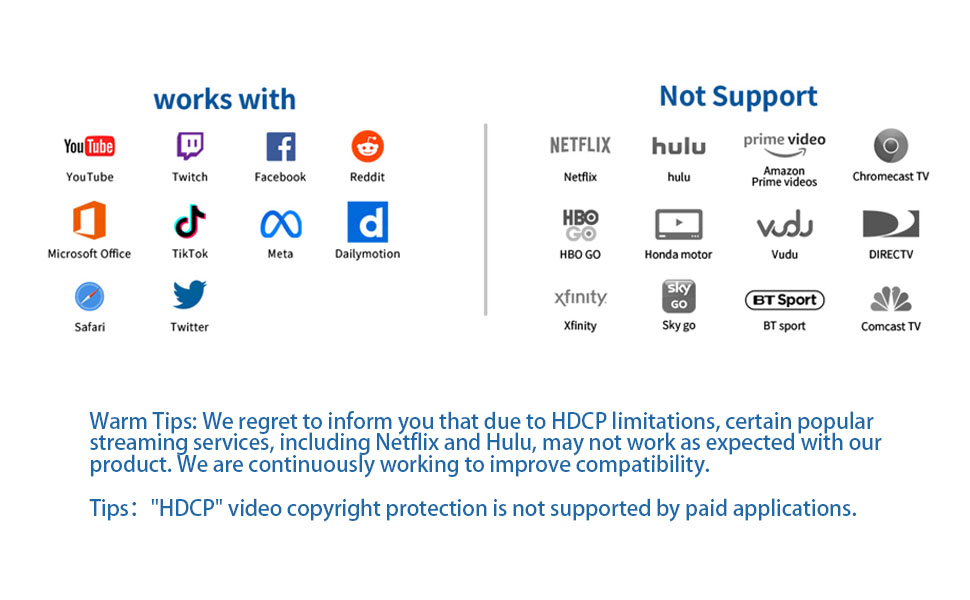
Figure 7: List of supported and unsupported applications due to HDCP limitations.
Warranty and Support
For warranty information or technical support, please refer to the product packaging or contact QIDUHUQI customer service through your retailer. Keep your purchase receipt for warranty claims.