
1. Introduction
This manual provides detailed instructions for the installation, operation, and maintenance of your AMprime Android 13 Single Din Car Stereo. This device features a 7-inch manual flip-out touch screen, Android 13 operating system, 4GB RAM, 64GB ROM, Wireless Carplay, Android Auto, Mirror Link, GPS, WiFi, FM/RDS radio, Bluetooth, EQ, DSP, and USB fast charging capabilities. Please read this manual thoroughly before use to ensure proper functionality and safety.
2. Safety Information
- Always operate the device safely and responsibly. Avoid distractions while driving.
- Ensure professional installation to prevent damage to the unit or vehicle.
- Do not attempt to disassemble or modify the unit. This may void the warranty and cause damage.
- Keep the unit away from water, moisture, and extreme temperatures.
- Clean the screen with a soft, dry cloth. Avoid abrasive cleaners.
3. Package Contents
Verify that all items are present in the package:
- AMprime Android 13 Car Stereo Unit
- AHD Rear Camera
- Power Cable
- GPS Antenna
- RCA Cable
- Camera Input Cable
- 6Pin USB Cable
- Radio Antenna
- Microphone
- User Manual
- Mounting Bracket
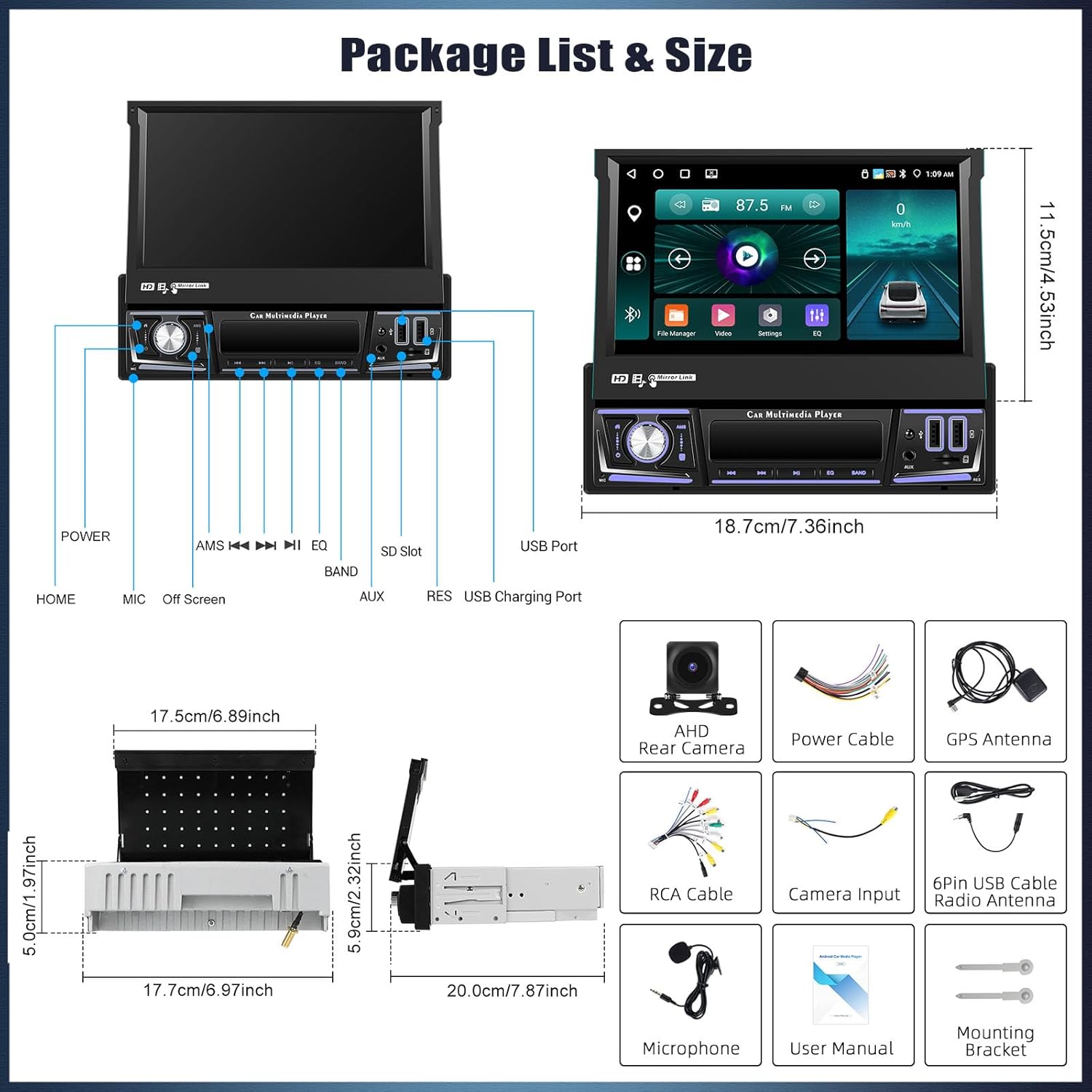
Image: Illustration of the car stereo unit, included accessories, and product dimensions.
4. Product Overview
The AMprime Android 13 Single Din Car Stereo features a retractable 7-inch touchscreen display. The main unit includes physical buttons and a rotary knob for essential controls, along with USB ports and an AUX input. The screen provides access to the Android 13 operating system and various applications.

Image: Front view of the car stereo with its screen extended, showing the user interface.
5. Setup and Installation
Installation of this car stereo requires technical knowledge and should ideally be performed by a qualified professional. Ensure the vehicle's power is disconnected before beginning installation.
5.1 Wiring Connections
- Power Cable: Connect the yellow wire to the constant 12V power supply, the red wire to the accessory 12V supply (switched with ignition), and the black wire to ground.
- Speaker Wires: Connect to your vehicle's speaker system, ensuring correct polarity.
- GPS Antenna: Mount the GPS antenna in a location with a clear view of the sky.
- Radio Antenna: Connect the vehicle's radio antenna.
- Rear Camera Input: Connect the provided AHD rear camera to the dedicated input. Ensure the reverse trigger wire is connected to the vehicle's reverse light circuit.
- USB Cables: Connect the USB extension cables for external devices or fast charging.
- Microphone: Connect the external microphone for hands-free calling.
5.2 Mounting
Secure the single DIN unit into your vehicle's dashboard using the provided mounting brackets. Ensure the unit is firmly in place before reconnecting power.
6. Operating Instructions
6.1 Manual Flip Out Screen Operation
The 7-inch screen is manually operated. Gently pull or push the screen to extend or retract it into the unit. Ensure the screen is fully extended for optimal viewing and touch functionality.
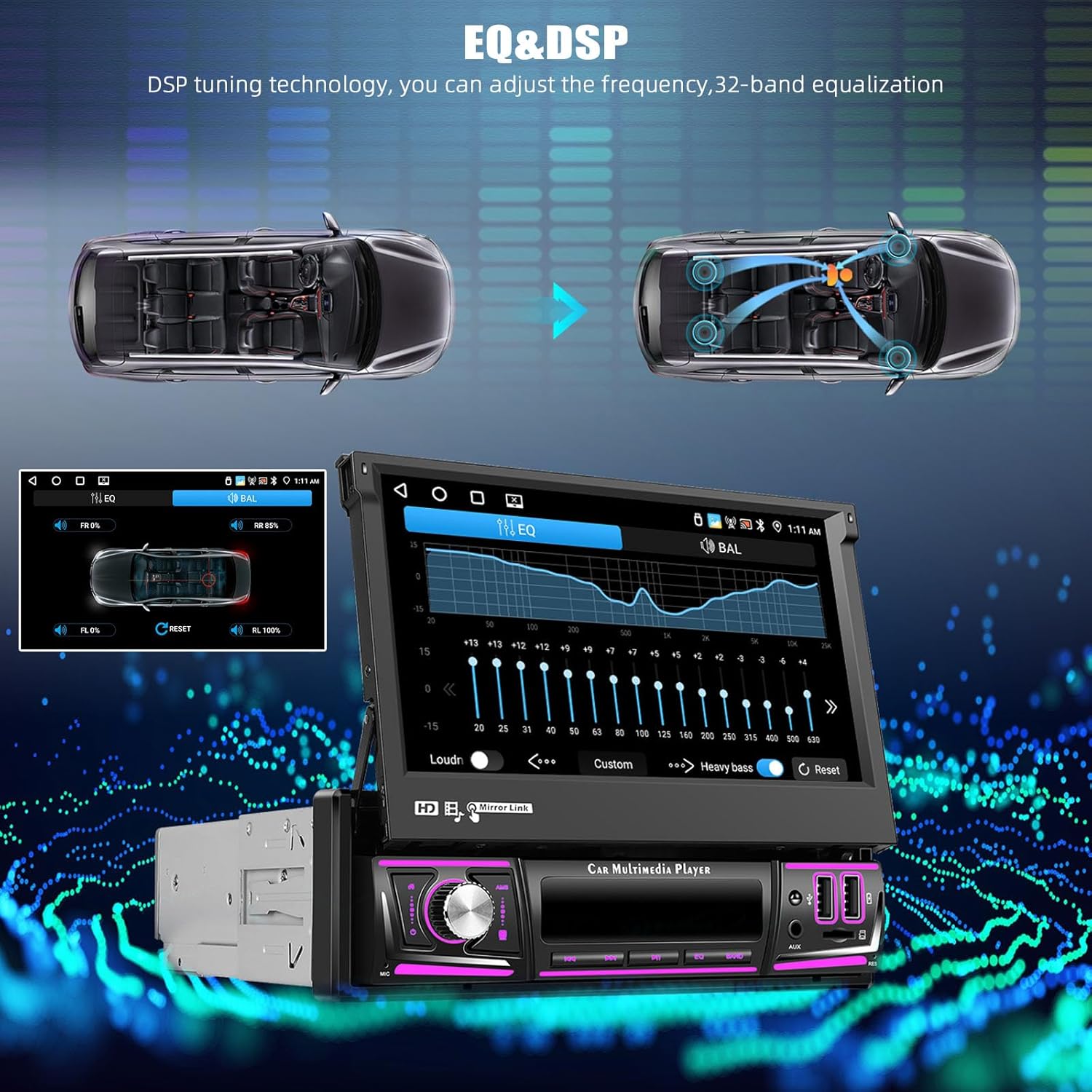
Image: Visual guide for extending and retracting the manual flip-out screen.
6.2 Wireless Carplay & Android Auto
Connect your smartphone wirelessly via Bluetooth or USB for seamless integration. This allows access to navigation, music, calls, and messages directly from the stereo's screen using voice commands (Siri/Google Assistant) or touch controls.
- Wireless Connection: Enable Bluetooth and Wi-Fi on your phone. Pair your phone with the car stereo via Bluetooth. Follow the on-screen prompts to activate Carplay or Android Auto.
- Wired Connection: Connect your phone to the stereo's USB port using a compatible cable.

Image: Demonstrates wireless Carplay and Android Auto functionality.
6.3 Mirror Link Function
Mirror Link allows you to display your phone's screen content directly onto the car stereo. Android devices connect via USB and WiFi, while iOS devices connect via WiFi only.
- Android: Connect via USB and enable USB debugging, then connect to the stereo's WiFi hotspot.
- iOS: Connect your iPhone to the stereo's WiFi hotspot.
6.4 FM/RDS Radio Receiver
Access local radio stations with clear sound quality. The RDS (Radio Data System) feature displays station information, song titles, and traffic announcements where available.
- Scanning: Use the 'Scan' function to automatically search and save available stations.
- Presets: Save your favorite stations to the 18 available preset slots for quick access.

Image: Shows the FM/RDS radio interface on the car stereo screen.
6.5 Bluetooth Hands-free Calling and Music
Pair your phone via Bluetooth for hands-free calling and wireless audio streaming.
- Pairing: Go to the Bluetooth settings on the stereo and your phone. Search for and select the stereo's Bluetooth name to pair.
- Calls: Make and receive calls directly from the stereo screen using the built-in microphone.
- Music: Stream audio from your phone's music library or streaming apps.

Image: Illustrates Bluetooth hands-free calling and music playback features.
6.6 GPS Navigation & WiFi Connection
The stereo includes a built-in WiFi module and GPS for navigation. Connect to a WiFi hotspot to download apps and use online maps.
- WiFi: Connect to a mobile hotspot or public WiFi network to access online features and download applications from the app store.
- Navigation: Use pre-installed or downloaded navigation apps (e.g., Google Maps, Waze) for turn-by-turn directions. Supports both online and offline maps.

Image: Displays GPS navigation and WiFi connectivity features, including app downloads.
6.7 USB/Type-C/AUX Connectivity
The unit supports various external media and charging options.
- USB Disk: Play audio and video files from a USB flash drive.
- Charging: Use the USB ports for fast charging compatible devices.
- AUX-IN: Connect external audio devices via the 3.5mm AUX input.
6.8 EQ Setting & DSP
Customize your audio experience with the built-in Digital Sound Processor (DSP) and Equalizer (EQ).
- EQ: Adjust the 32-band equalizer to fine-tune audio frequencies.
- DSP: Utilize DSP tuning technology to optimize sound output for your vehicle's acoustics, enhancing clarity and depth.
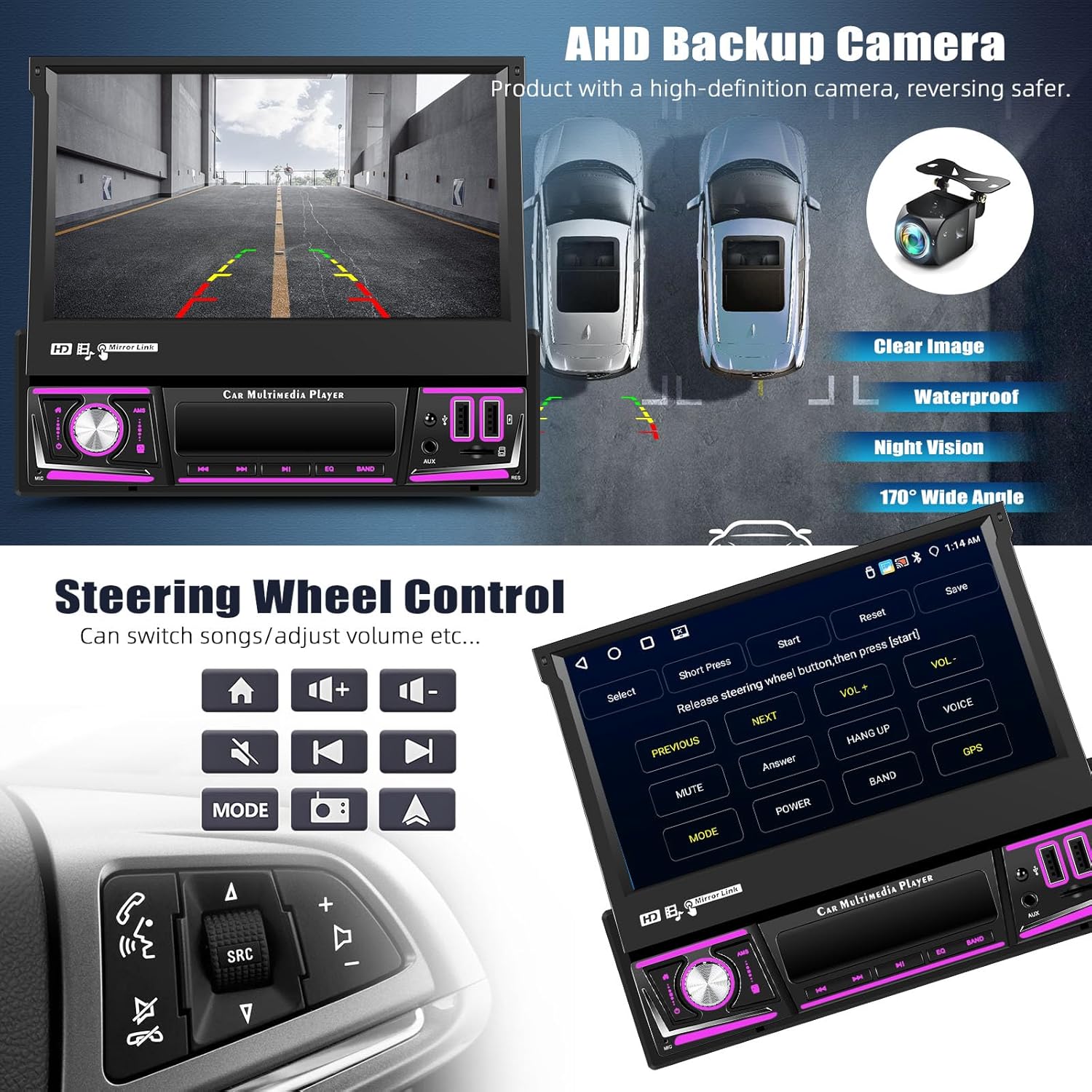
Image: Depicts the EQ and DSP settings interface for audio customization.
6.9 Steering Wheel Control
If your vehicle supports it, you can connect the stereo to your car's steering wheel controls to manage functions like volume, track skipping, and answering calls without taking your hands off the wheel.
- Configuration: Access the 'Steering Wheel Control' settings in the stereo's menu to program the buttons according to your vehicle's system.
Image: Shows the steering wheel control setup interface and a steering wheel.
6.10 Rear View Camera
The included AHD rear view camera provides a clear image when reversing. The display automatically switches to the camera feed when the vehicle is put into reverse gear.
- Features: Waterproof design, excellent night vision, and a 170° ultra-wide field of view for enhanced safety.
Image: Illustrates the AHD backup camera view on the stereo screen.
7. Maintenance
- Screen Cleaning: Use a soft, lint-free cloth to gently wipe the touchscreen. For stubborn smudges, slightly dampen the cloth with water or a screen-safe cleaner. Do not spray cleaner directly onto the screen.
- General Cleaning: Keep the unit free from dust and debris. Use a soft brush or compressed air to clean around buttons and ports.
- Software Updates: Periodically check for software updates via the system settings to ensure optimal performance and access to new features.
8. Troubleshooting
If you encounter issues with your AMprime car stereo, refer to the following common problems and solutions:
| Problem | Possible Cause | Solution |
|---|---|---|
| No power | Incorrect wiring; Blown fuse; Vehicle battery issue | Check power connections (yellow, red, black wires). Inspect vehicle fuses. Ensure battery is charged. |
| No sound | Speaker wires disconnected; Volume too low; Mute activated; Incorrect audio source | Verify speaker connections. Increase volume. Check if mute is active. Select correct audio source. |
| Bluetooth not connecting | Bluetooth not enabled; Incorrect pairing mode; Interference | Ensure Bluetooth is on for both devices. Put stereo in pairing mode. Delete previous pairings and try again. |
| GPS signal lost | GPS antenna obstructed or disconnected; Poor satellite coverage | Check GPS antenna connection and placement. Move to an open area for better signal. |
| Touchscreen unresponsive | System frozen; Screen calibration needed | Restart the unit (press reset button if available). If issue persists, check for firmware updates or contact support. |
9. Specifications
- Model: 4+64G
- Operating System: Android 13
- RAM: 4GB
- ROM: 64GB
- Screen Size: 7-inch
- Screen Type: Manual Flip Out Touch Screen
- Connectivity: Wi-Fi, Bluetooth
- Special Features: Wireless Carplay, Android Auto, Mirror Link, GPS Navigation, FM/RDS Radio, EQ, DSP, USB Music/Fast Charging, Steering Wheel Control, Rear View Camera Support
- Audio Output Mode: Stereo
- Surround Sound Channel Configuration: 5.1
- Video Encoding: H.264, H.265/HEVC
- Item Weight: 2.64 pounds
- Package Dimensions: 10.24 x 7.09 x 2.76 inches
10. Warranty and Support
AMprime products are designed for quality and reliability. For warranty information or technical assistance, please contact our customer support team.
Customer Support Email: AmprimeTechSupport@yeah.net