
PROVISION ISR DI-340IPS-MVF-G
PROVISION ISR 4MP IP PoE Camera User Manual
Model: DI-340IPS-MVF-G
1. Introduction
Thank you for choosing the PROVISION ISR 4MP IP PoE Camera. This manual provides essential information for the proper installation, operation, and maintenance of your security camera. Please read this manual thoroughly before using the product to ensure optimal performance and safety. This camera is designed for both indoor and outdoor surveillance, offering high-definition video, advanced night vision, and robust weather protection.
2. Safety Information
- Ensure the power supply meets the camera's specifications (PoE or 12V DC).
- Do not expose the camera to extreme temperatures outside its operating range (-30°C to 60°C).
- Avoid direct exposure to strong light sources, which may affect image quality.
- Do not attempt to disassemble or modify the camera. Refer all servicing to qualified personnel.
- Clean the camera lens with a soft, dry cloth. Avoid harsh chemicals.
3. Package Contents
Verify that all items are present in the package:
- PROVISION ISR 4MP IP PoE Camera Body
- Instruction Manual
4. Setup
4.1. Installation
The PROVISION ISR 4MP IP PoE Camera is designed for ceiling mount installation. Ensure the mounting surface is strong enough to support the camera's weight.
- Choose a suitable location for optimal surveillance coverage.
- Use the provided mounting template (if applicable) to mark drill holes on the ceiling.
- Drill pilot holes and insert wall anchors if necessary.
- Secure the camera base to the mounting surface using screws.
- Adjust the camera's viewing angle as needed.

Image: Simple Installation. This image shows a person installing the camera on a ceiling, demonstrating the ease of physical setup.
4.2. Connectivity
This camera supports Power over Ethernet (PoE) for simplified installation, allowing both power and data transmission over a single Ethernet cable. Alternatively, it can be powered via a 12V DC power adapter (not included).
- PoE Connection: Connect an Ethernet cable from a PoE-enabled NVR or PoE switch to the camera's Ethernet port.
- Standard Connection: Connect an Ethernet cable to the camera's Ethernet port and a 12V DC power adapter to the camera's power input.

Image: Easy Integration with PoE. This diagram illustrates how the camera integrates with an NVR system using PoE, highlighting its plug-and-play capability.
4.3. Initial Configuration
After physical installation and connection, configure the camera via its web interface or an NVR system.
- Accessing Web Interface: Use a network scanner tool to find the camera's IP address. Enter the IP address into a web browser to access the camera's login page.
- NVR Integration: Refer to your NVR's manual for instructions on adding IP cameras. The camera supports ONVIF for broad compatibility.
5. Operating
5.1. Key Features
- 4MP High Resolution: Provides clear and detailed video at 2560x1440 resolution.
- IR 40m Night Vision: Ensures clear imaging up to 40 meters in complete darkness.
- Built-in Microphone: Captures audio alongside video for comprehensive surveillance.
- AI Motion Detection: Utilizes advanced algorithms to accurately detect human movement and reduce false alarms.
- H.265+ Compression: Efficiently compresses video to save storage space without compromising quality.
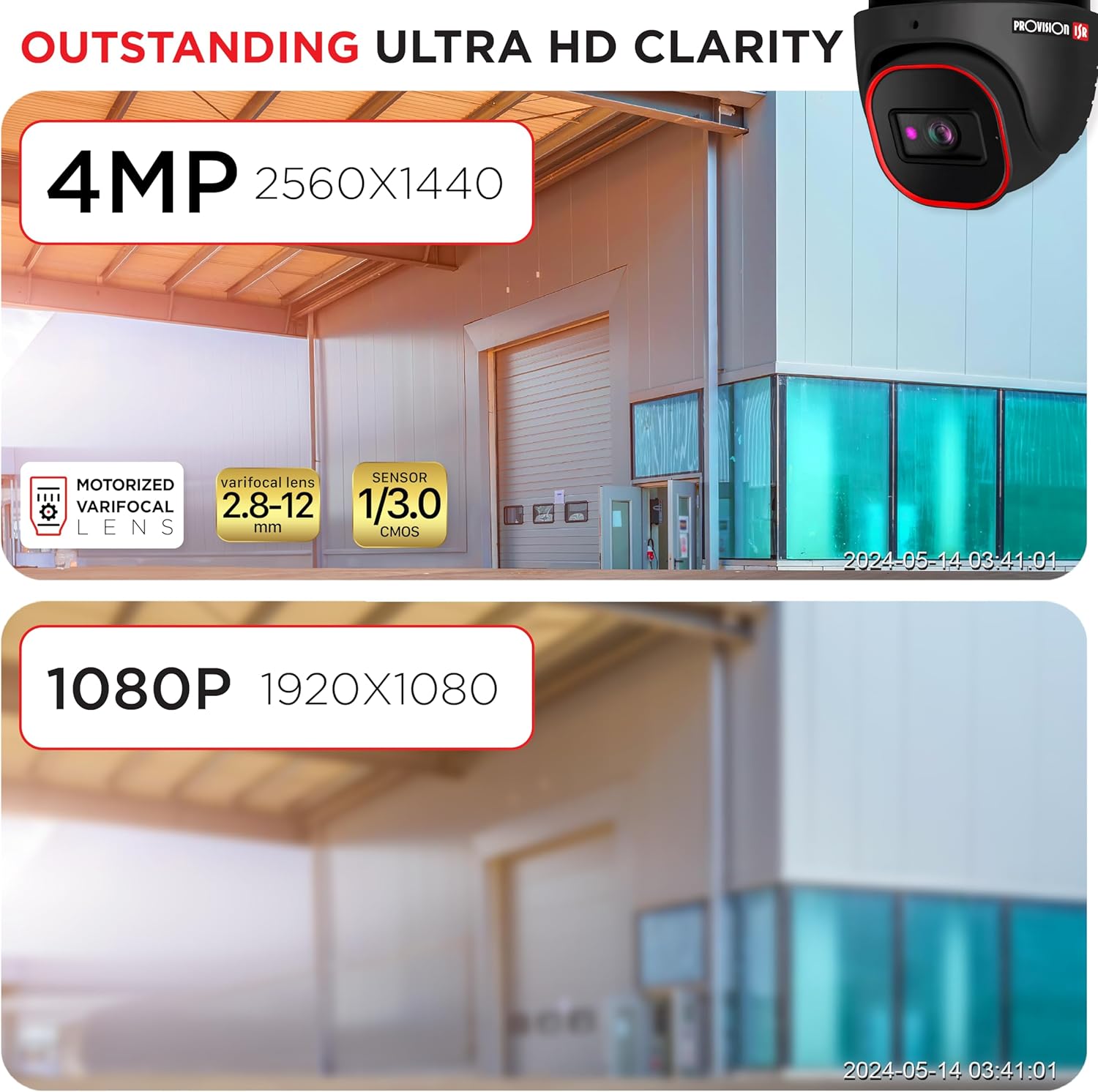
Image: Outstanding Ultra HD Clarity. This image visually compares the superior clarity of 4MP resolution (2560x1440) against 1080P (1920x1080).

Image: Built-in Microphone & Audio. This image highlights the camera's integrated microphone and audio input feature, enabling sound recording.
5.2. Remote Access
Access live footage and recordings remotely via mobile devices or PCs.
- Mobile Application: Download the official PROVISION ISR mobile app from your device's app store. Follow the in-app instructions to add and view your camera.
- PC Access: Use the IP camera web interface or dedicated VMS (Video Management Software) for comprehensive monitoring and management.

Image: Remote Access with AI-Powered Detection. This image shows a smartphone displaying multiple live camera feeds, demonstrating remote monitoring capabilities and AI detection.
5.3. Recording Modes
The camera supports various recording modes to suit your surveillance needs:
- Manual Recording: Start and stop recording manually through the web interface or NVR.
- Scheduled Recording: Set specific times or days for continuous recording.
- Line-Crossing Recording: Trigger recording when an object crosses a predefined virtual line.
- Motion Detection Recording: Record only when motion is detected, saving storage space.
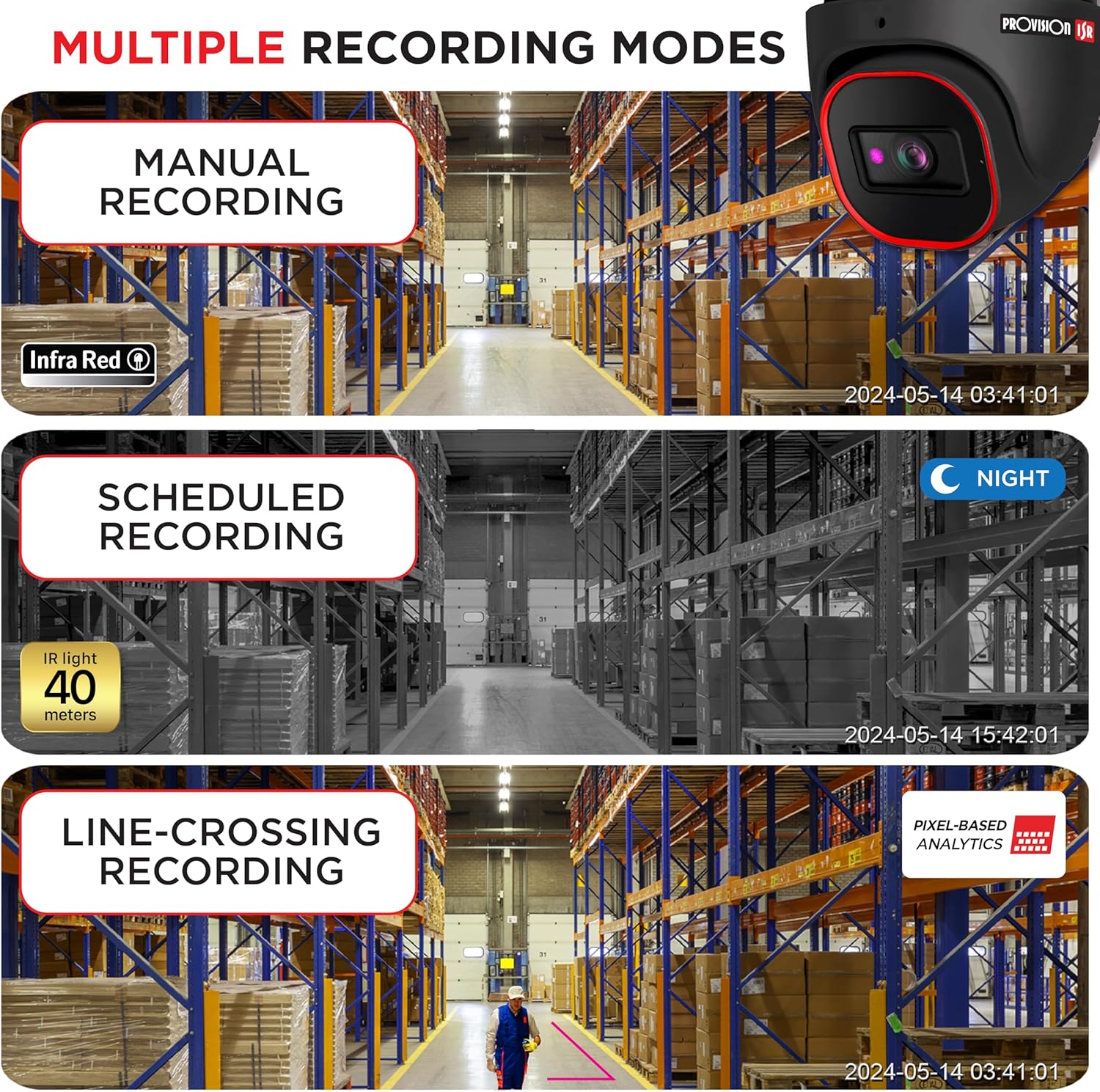
Image: Multiple Recording Modes. This image illustrates different recording options: manual, scheduled (night vision), and line-crossing triggered recording.

Image: Pixel Based Analytics. This diagram demonstrates the camera's ability to detect line crossing and sterile area intrusions using pixel-based analytics, providing real-time alerts.
6. Maintenance
Regular maintenance ensures the longevity and optimal performance of your camera.
- Cleaning: Periodically clean the camera lens and housing with a soft, damp cloth. Do not use abrasive cleaners.
- Firmware Updates: Check the PROVISION ISR website for the latest firmware updates. Keeping your firmware updated ensures access to new features and security enhancements.
- Environmental Protection: The camera has an IP67 waterproof rating, protecting it from dust and water ingress. Ensure all cable connections are properly sealed to maintain this rating.

Image: Durable Design & Waterproof. This image highlights the camera's IP67 rating, indicating its durability and resistance to water and dust, along with its operational temperature range.
7. Troubleshooting
If you encounter issues with your camera, refer to the following common problems and solutions:
| Problem | Possible Cause | Solution |
|---|---|---|
| No image/video output | No power; Network cable issue; Incorrect IP address | Check power connection; Verify Ethernet cable integrity; Ensure correct IP configuration |
| Poor image quality | Dirty lens; Insufficient lighting; Incorrect resolution settings | Clean the lens; Ensure adequate lighting or enable IR; Adjust resolution settings in web interface |
| Cannot access camera remotely | Network configuration; Firewall settings; Incorrect port forwarding | Verify network settings (router, port forwarding); Check firewall rules; Ensure stable internet connection |
| Motion detection not working | Sensitivity too low; Detection area not configured; Firmware outdated | Adjust motion detection sensitivity; Configure detection zones; Update camera firmware |
8. Specifications
Detailed technical specifications for the PROVISION ISR 4MP IP PoE Camera:
| Feature | Specification |
|---|---|
| Model Name | Security Camera |
| Indoor/Outdoor Usage | Outdoor, Indoor |
| Video Capture Resolution | 4MP (2560x1440) |
| Night Vision Range | 40 Meters |
| Connectivity Technology | Wired (Ethernet) |
| Power Source | Corded Electric (PoE supported) |
| IP Rating | IP67 Waterproof |
| Form Factor | Dome |
| Mounting Type | Ceiling Mount |
| Viewing Angle | 94 Degrees |
| Dimensions (L x W x H) | 6.25 x 5.5 x 5.5 inches |
| Color | Black |
| Compatible Devices | Desktop, NVR, Smartphone |
| Controller Type | NVR, Android |
| UPC | 619317412736 |
| Item Model Number | DI-340IPS-MVF-G |
9. Warranty and Support
For warranty information and technical support, please contact PROVISION ISR directly or refer to their official website. Protection plans may be available for extended coverage.
Manufacturer: Provision ISR
Related documentsDI-340IPS-MVF-G


Ask a question about this manual
Ask about setup, troubleshooting, compatibility, parts, safety, or missing instructions. Manuals+ will review the question and use this page’s manual context to help answer it.