1. Introduction
Welcome to the user manual for your ASUS NUC 15 Pro Tall Barebones Mini PC. This guide provides essential information for setting up, operating, maintaining, and troubleshooting your new mini PC. This barebones kit features an Intel Series 2 Core 7 240H processor, supports dual-channel DDR5 RAM, offers a dual storage design, Thunderbolt™ 4, Wi-Fi 7, Bluetooth 5.4, and toolless chassis access for easy upgrades. A VESA mount is included for flexible placement.
2. What's in the Box
- ASUS NUC 15 Pro Tall Mini PC Unit (Model: RNUC15CRHC70000U)
- VESA Mount
- AC Power Adapter
- Power Cord
3. Product Overview
Familiarize yourself with the physical layout and connectivity options of your ASUS NUC 15 Pro Tall Mini PC.
3.1 Front Panel

Image: Front panel of the ASUS NUC 15 Pro Tall Mini PC, highlighting the USB ports, audio jack, and power button.
- Power Button: To power the unit on or off.
- USB 3.2 Gen 2x2 Type-C Port: For high-speed data transfer and connecting compatible Type-C devices.
- 2x USB 3.2 Gen2 Type-A Ports: For connecting USB peripherals.
- Audio Jack: For connecting headphones or speakers.
3.2 Rear Panel

Image: Rear panel of the ASUS NUC 15 Pro Tall Mini PC, detailing the power input, display outputs, network, and additional USB/Thunderbolt ports.
- DC-In: Power input connector.
- 2x HDMI 2.1 (TMDS) Ports: For connecting displays.
- 2.5Gb Ethernet Port: For wired network connectivity.
- USB 3.2 Gen2 Type-A Port: For connecting USB peripherals.
- USB 2.0 Type-A Port: For connecting USB peripherals.
- 2x Thunderbolt™ 4 Ports: For high-speed data transfer, display output, and power delivery to compatible devices.
- Security Mechanism for Power Cable: To secure the power cable connection.
3.3 Internal Design
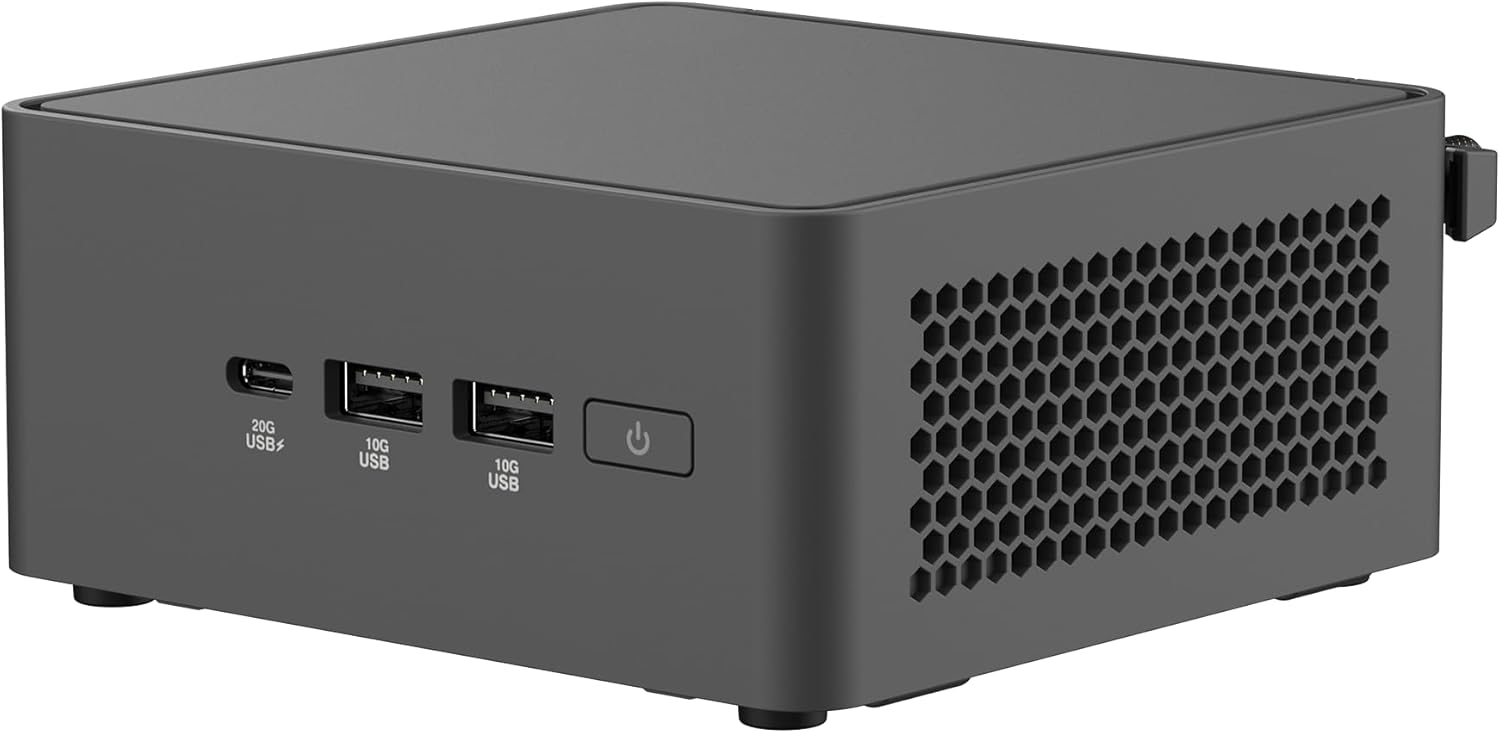
Image: The ASUS NUC 15 Pro Tall Mini PC with its top cover open, illustrating the toolless access for installing or upgrading RAM and storage components.
The chassis features a toolless design, allowing for easy access to internal components for RAM and storage upgrades. This design simplifies maintenance and customization.
4. Setup
Follow these steps for the initial setup of your ASUS NUC 15 Pro Tall Mini PC.
- Unpacking: Carefully remove all components from the packaging.
- Mounting (Optional): If using the included VESA mount, attach it to the rear of a compatible display or a wall mount. Secure the mini PC to the VESA mount. This allows for a clutter-free workspace.

Image: The ASUS NUC 15 Pro Tall Mini PC shown mounted on the back of a display, demonstrating its VESA mounting capability for flexible configuration.
- Connecting Peripherals:
- Connect your monitor(s) to the HDMI 2.1 or Thunderbolt 4 ports. The device supports up to four 4K displays.
- Connect your keyboard and mouse to the available USB ports.
- For wired network access, connect an Ethernet cable to the 2.5Gb Ethernet port.
- Connect speakers or headphones to the audio jack on the front panel.
- Power Connection: Connect the AC power adapter to the DC-In port on the rear panel, then plug the power cord into an electrical outlet.
- Initial Power On: Press the power button on the front panel to turn on the mini PC.
- Operating System Installation: As a barebones unit, an operating system (e.g., Windows) will need to be installed. Follow the operating system's installation instructions.
5. Operating
This section covers basic operation of your mini PC.
5.1 Power On/Off
Press the power button on the front panel to turn the unit on. To shut down, use the operating system's shutdown procedure. A short press of the power button can also put the system to sleep.
5.2 Display Configuration
Utilize the HDMI 2.1 and Thunderbolt 4 ports to connect multiple displays. Refer to your operating system's display settings for configuring multi-monitor setups. The device supports headless emulation and a sync power-off feature for energy efficiency.
5.3 Connectivity
- Wi-Fi 7: Connect to wireless networks for high-speed internet access.
- Bluetooth 5.4: Pair with compatible Bluetooth devices such as keyboards, mice, and audio peripherals.
- USB Ports: Use the various USB ports (USB 3.2 Gen 2x2 Type-C, USB 3.2 Gen2 Type-A, USB 2.0 Type-A) for connecting external devices and data transfer.
- Thunderbolt™ 4: For high-speed data transfer and connecting advanced peripherals.
6. Maintenance
Proper maintenance ensures the longevity and optimal performance of your mini PC.
6.1 Toolless Chassis Access for Upgrades
The mini PC features a toolless 2.0 chassis design for easy upgrades. To access internal components:
- Ensure the device is powered off and disconnected from all power sources.
- Follow the instructions in the detailed hardware guide (typically provided with barebones kits) to open the chassis.
- Install or upgrade DDR5 RAM modules (up to 96GB supported).
- Install or upgrade SSD storage drives (dual storage design).
- Close the chassis securely.
6.2 Cooling System
The advanced cooling system is designed to maintain optimal performance and reliability. Ensure proper ventilation around the unit to prevent overheating. Avoid blocking air vents.
6.3 Cleaning
Use a soft, dry cloth to clean the exterior of the mini PC. Do not use liquid cleaners or aerosols, as they may damage the components.
7. Troubleshooting
This section provides solutions to common issues you might encounter.
7.1 No Power
- Verify the power adapter and cord are securely connected to the mini PC and a working electrical outlet.
- Ensure the power button is pressed firmly.
7.2 No Display Output
- Check all display cable connections (HDMI, Thunderbolt).
- Ensure the monitor is powered on and set to the correct input source.
- If using multiple displays, try connecting only one display at a time to isolate the issue.
7.3 System Instability or Overheating
- Ensure the mini PC has adequate ventilation and its air vents are not obstructed.
- Update drivers and BIOS to the latest versions from the ASUS support website.
- If issues persist, consult the ASUS support website or contact customer service.
7.4 Connectivity Issues (Wi-Fi/Bluetooth)
- Ensure Wi-Fi and Bluetooth are enabled in your operating system settings.
- Check for updated wireless drivers.
- Verify that your router or Bluetooth device is functioning correctly and within range.
8. Specifications
| Feature | Detail |
|---|---|
| Model Name | RNUC15CRHC70000U |
| Processor | Intel Series 2 Core 7 240H (2.5 GHz) |
| RAM | Up to 96 GB DDR5 |
| Storage | Dual Storage Design (SSD, PCIE x 4 interface) |
| Graphics Coprocessor | Intel Graphics (Integrated) |
| Max Screen Resolution | 3840x2160 Pixels (4K) |
| Display Output | 2x HDMI 2.1, 2x Thunderbolt™ 4 (Supports up to 4x 4K displays) |
| Wireless Connectivity | Wi-Fi 7 (802.11.be), Bluetooth 5.4 |
| Ethernet | 2.5Gb Ethernet |
| USB Ports (Front) | 1x USB 3.2 Gen 2x2 Type-C, 2x USB 3.2 Gen2 Type-A |
| USB Ports (Rear) | 1x USB 3.2 Gen2 Type-A, 1x USB 2.0 Type-A |
| Operating System | Windows (Barebones kit, OS not included) |
| Dimensions (LxWxH) | 4.61 x 4.41 x 2.13 inches |
| Item Weight | 12.8 ounces |
| Color | Black |
9. Warranty and Support
Your ASUS NUC 15 Pro Tall Barebones Mini PC comes with a standard manufacturer's warranty. Please refer to the warranty card included with your product or visit the official ASUS support website for detailed warranty terms and conditions.
For technical assistance, driver downloads, or further support, please visit the ASUS support website. You can find the latest information and contact options at www.asus.com/support.


