
1. Introduction
This manual provides detailed instructions for the installation, operation, and maintenance of your Spider Farmer 4 Inch Smart Inline Duct Fan with GGS Controller and GGS AC5 Power Strip Kits. Please read this manual thoroughly before use to ensure proper function and safety.

Figure 1: Overview of the Spider Farmer 4 Inch Smart Inline Duct Fan, GGS Controller, and GGS AC5 Power Strip Kit components.
2. Package Contents
The package should contain the following items:
- 1 x Spider Farmer 4 Inch Inline Duct Fan
- 1 x GGS Controller
- 1 x GGS AC5 Power Strip
- Mounting hardware (e.g., hanging straps)
- User Manual
Inspect all components for any damage upon unpacking. If any items are missing or damaged, please contact Spider Farmer customer support.
3. Safety Information
Please read and follow all safety instructions to prevent injury or damage to the product.
- Ensure the power supply matches the voltage requirements of the fan and power strip.
- Do not operate the fan in wet or excessively humid environments.
- Keep hands and foreign objects away from the fan blades during operation.
- Disconnect power before performing any maintenance or cleaning.
- This product is intended for indoor use only.
- Do not attempt to disassemble or repair the unit yourself. Contact qualified personnel for service.
- Ensure proper ventilation around the power strip to prevent overheating.
4. Setup and Installation
4.1 Inline Duct Fan Installation
- Choose a suitable location for the inline duct fan within your ventilation system.
- Securely mount the fan using the provided hanging straps or other appropriate mounting hardware. Ensure it is stable and vibration-free.
- Connect the ducting to both ends of the fan, ensuring a tight seal to prevent air leaks.
4.2 GGS Controller and Power Strip Connection
- Connect the inline duct fan to the GGS Controller using the appropriate cable (usually an RJ12 cable).
- Plug the GGS AC5 Power Strip into a standard electrical outlet.
- Connect the GGS Controller to the GGS AC5 Power Strip via the SYNC port on the power strip.
- Plug your other devices (e.g., grow lights, other fans) into the independent outlets on the GGS AC5 Power Strip.

Figure 2: Connection diagram for the GGS Controller and GGS AC5 Power Strip, illustrating app control capabilities.
4.3 App Download and Initial Setup
- Download the "Spider Farmer" app from your smartphone's app store (iOS App Store or Google Play Store).
- Open the app and follow the on-screen instructions to create an account or log in.
- Add your GGS Controller and GGS AC5 Power Strip to the app by following the in-app pairing process, typically involving connecting to your home WiFi network.
5. Operating Instructions
5.1 GGS Controller Operation
The GGS Controller allows for direct control and monitoring of your fan and connected devices. Use the rotary knob and buttons to navigate the interface.
- Navigation: Rotate the knob to scroll or move through options. Press the knob to confirm selections.
- Home Button: Return directly to the home screen.
- Back Button: Return to the previous screen or menu.
- Temperature and Humidity Control: The controller displays real-time temperature and humidity readings from its integrated sensor. You can set thresholds for automatic fan adjustment based on these readings.
- Scheduling: Program specific start and end times for fan operation, along with desired operation and standby speeds.

Figure 3: GGS Controller interface for temperature, humidity, and device control.
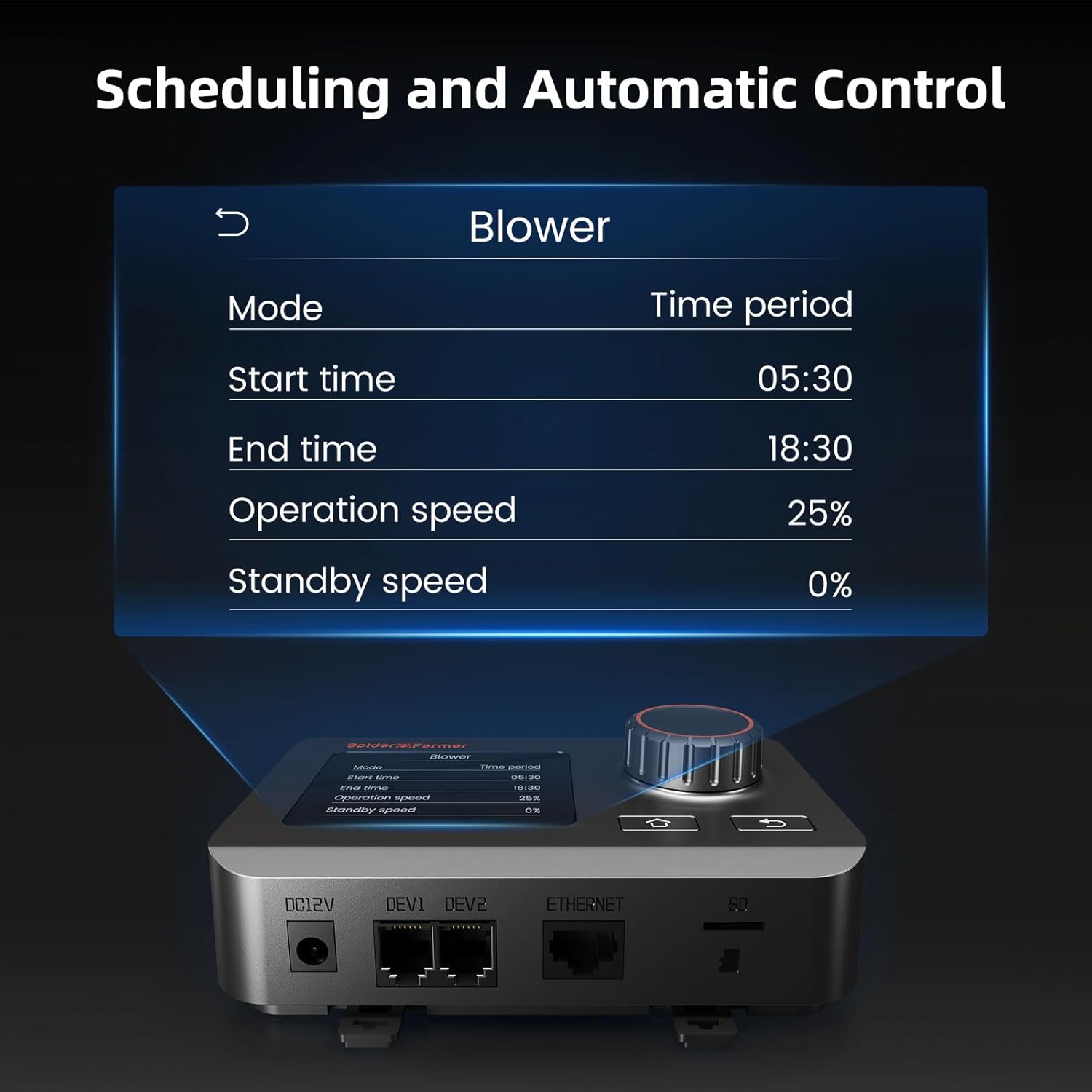
Figure 4: Scheduling and automatic control settings on the GGS Controller.
5.2 Smart App Control
The Spider Farmer app provides comprehensive remote control and automation features for your fan and connected devices.
- Remote Control: Control the fan and power strip outlets from anywhere via WiFi.
- Automatic Adjustment: Program the fan to monitor climate changes (temperature, humidity) in real-time and automatically adjust fan speed and airflow.
- Scheduling: Set precise schedules for fan operation, including standby speeds and oscillation settings (for compatible fans).
- Device Management: Remotely manage SF Series (excluding SF1000D, SF300, SF600), G Series, and SE Series LED grow lights connected to the power strip.
- Monitoring: View real-time sensor data (temperature, humidity) and device status.

Figure 5: Remote control of devices via the Spider Farmer app.
5.3 GGS AC5 Power Strip Operation
The GGS AC5 Power Strip features 5 independent outlets, allowing for granular control over multiple devices.
- Independent Control: Each of the 5 outlets can be controlled individually via the GGS Controller or the Spider Farmer app.
- Smart Modes: Utilize smart modes for each outlet, including control based on temperature, humidity, CO2 levels, time periods, and time cycles.
- Overcurrent Protection: The power strip includes a button for overcurrent protection, which can be reset if tripped.

Figure 6: GGS AC5 Power Strip with independent outlets and protection features.

Figure 7: App interface for controlling the GGS AC5 Power Strip's smart modes.
6. Product Features
- Quiet and Powerful: Mixed flow design with an EC motor powers high-quality impellers, generating up to 205 CFM airflow with a very low noise level (26.8 dB). Lightweight ABS blades increase airflow by 40%.
- Energy Efficient EC Motor: Maximizes airflow performance with minimal noise levels. Uses 30% less power compared to AC motor fans and has a longer lifespan of up to 50,000 hours.
- Smart App Control: Connect to the Spider Farmer App via WiFi for remote control, climate monitoring, and automated regulation.
- Fully Automatic Adjustment: Program the fan to monitor climate changes in real-time and automatically adjust fan switch, speed, and airflow.
- Smart Controls Outlets: The GGS AC5 power strip features 5 independent outlets for powering and controlling up to 5 devices, with precise scheduling and smart modes.

Figure 8: High airflow and low noise performance of the inline duct fan.

Figure 9: Energy-efficient EC motor technology and its benefits.
7. Maintenance
Regular maintenance ensures optimal performance and extends the lifespan of your Spider Farmer inline duct fan and accessories.
- Cleaning the Fan: Periodically disconnect power and gently wipe down the fan blades and housing with a soft, damp cloth. Ensure no moisture enters the motor or electrical components.
- Ducting Inspection: Check ducting for any tears, blockages, or loose connections that could impede airflow.
- Controller and Power Strip: Keep the controller and power strip clean and free of dust. Do not expose them to liquids.
- Cable Inspection: Regularly inspect all cables for signs of wear or damage. Replace any damaged cables immediately.
8. Troubleshooting
| Problem | Possible Cause | Solution |
|---|---|---|
| Fan not turning on. | No power; loose connection; controller issue. | Check power outlet, ensure all cables are securely connected. Verify controller settings. |
| Fan running but low airflow. | Ducting obstruction; fan speed too low; dirty blades. | Check ducting for blockages. Increase fan speed via controller/app. Clean fan blades. |
| App cannot connect to device. | WiFi issue; incorrect pairing; device offline. | Ensure strong WiFi signal. Re-pair device in app. Check if controller/power strip is powered on. |
| Power strip outlets not responding. | Overcurrent tripped; app/controller setting. | Press the overcurrent protection button on the power strip. Check app/controller settings for outlet status. |
If the problem persists after attempting these solutions, please contact Spider Farmer customer support.
9. Specifications
| Component | Specification |
|---|---|
| Fan Size | 4 Inch |
| Max Airflow | 205 CFM |
| Noise Level | 26.8 dB |
| Power Consumption | 27 Watts |
| Motor Type | EC Motor |
| Power Strip Outlets | 5 Independent Outlets |
| Connectivity | WiFi (App Control), RJ12 (Controller) |
10. Warranty and Support
Spider Farmer products are designed for durability and performance. For specific warranty details, please refer to the warranty card included with your product or visit the official Spider Farmer website.
If you encounter any issues or have questions regarding your Spider Farmer 4 Inch Smart Inline Duct Fan with GGS Controller and GGS AC5 Power Strip Kits, please contact our customer support team:
- Website: www.spider-farmer.com
- Email: Refer to website for support email.
- Phone: Refer to website for support phone number.
Please have your product model and purchase date ready when contacting support.