1. Product Overview
This manual provides instructions for the Doohoeek Wireless Illuminated Keyboard Case, designed to enhance the functionality and protection of your compatible iPad device. This keyboard case features a multi-touch trackpad, illuminated keys, and a rechargeable battery, offering a versatile and portable solution for productivity.
Compatibility:
- iPad Air 13 (2025 M3 / 2024 M2)
- iPad Pro 12.9 Inch (6th, 5th, 4th, 3rd Generation)

Image 1.1: The Doohoeek Keyboard Case with an iPad Air 13 installed, showcasing the keyboard and trackpad. The case provides comprehensive protection while allowing full access to device features.

Image 1.2: Visual representation of compatible iPad models, including iPad Air 13 M3/M2 2025/2024 and various generations of iPad Pro 12.9 Inch. Ensure your iPad model matches the listed compatibility.
2. Setup Guide
2.1 Package Contents
Before proceeding, please verify that all components are present:
- 1 x Keyboard Case for iPad Air 13 / iPad Pro 12.9 Inch
- 1 x USB Charging Cable
- 1 x User Manual (this document)
2.2 Charging the Keyboard
The keyboard features a built-in rechargeable battery. For optimal performance, fully charge the keyboard before first use.
- Locate the charging port on the keyboard (typically on the side).
- Connect the provided USB charging cable to the keyboard's charging port.
- Connect the other end of the USB cable to a standard USB power adapter (not included) or a computer's USB port.
- The charging indicator light will illuminate. A full charge typically takes 2-3 hours.
- Once fully charged, the indicator light may change color or turn off. The keyboard offers approximately 300 hours of standby time without backlight on a single charge.
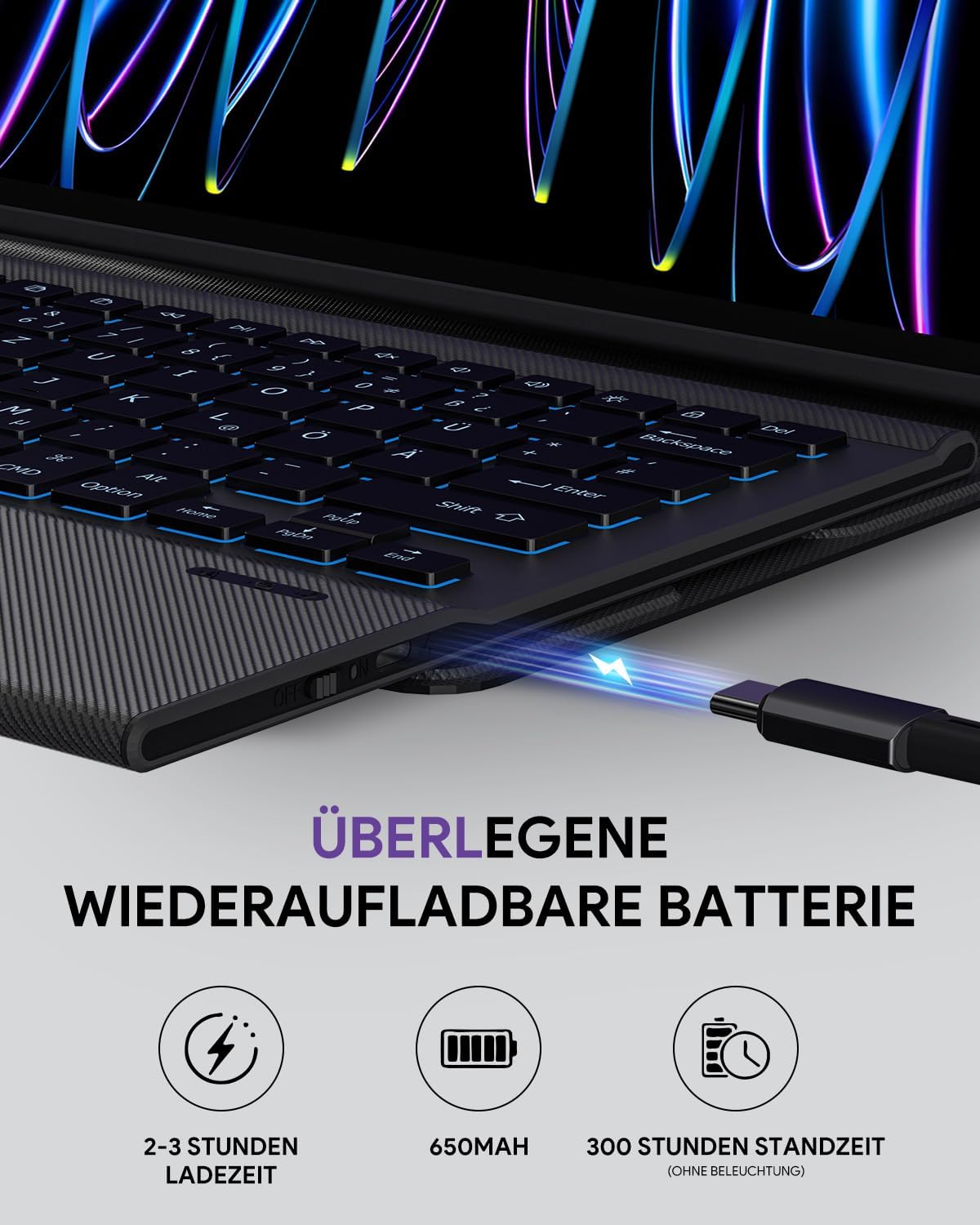
Image 2.1: The keyboard's charging port connected to a USB cable, indicating the charging process. The battery provides extended usage time.
2.3 Installing Your iPad
Carefully place your iPad into the protective case:
- Align your iPad with the cut-outs of the case.
- Gently press the iPad into the case, ensuring all edges are securely fitted.
- Verify that all ports, buttons, and cameras are accessible and unobstructed.

Image 2.2: Detail of the compact case design, showing the secure fit for the iPad and the integrated pen holder. The case is designed for protection and convenience.
2.4 Bluetooth Pairing
To connect the keyboard to your iPad via Bluetooth:
- Ensure the keyboard is charged and turn on the keyboard's power switch (usually located on the side).
- On your iPad, go to Settings > Bluetooth.
- Turn on Bluetooth. Your iPad will begin searching for nearby devices.
- On the keyboard, press the Connect button (or a combination like Fn + C, refer to keyboard markings if different) to enter pairing mode. The Bluetooth indicator light on the keyboard will flash.
- On your iPad, select "Doohoeek Keyboard" (or a similar name) from the list of available devices.
- Follow any on-screen prompts to complete the pairing process. The indicator light on the keyboard will stop flashing once successfully paired.
3. Operating Instructions
3.1 Keyboard Functions
The keyboard features a QWERTZ layout and several special functions:
- Backlight Control: The keyboard offers 7 different backlight colors and 3 adjustable brightness levels. Use the dedicated backlight key (often represented by a light bulb icon) or a function key combination (e.g., Fn + Light Bulb) to cycle through colors and adjust brightness.
- Scissor-Switch Keys: The keys utilize a scissor-switch mechanism for a comfortable and responsive typing experience.

Image 3.1: The illuminated keyboard displaying various backlight colors and brightness settings. Users can customize the lighting to suit their environment.
3.2 Multi-Touch Trackpad
The integrated multi-touch trackpad allows for precise navigation and gesture control on your iPad, similar to a laptop. It includes anti-palm mistouch technology to prevent accidental inputs during typing.
- Basic Navigation: Move the cursor by sliding your finger across the trackpad.
- Click: Press down on the trackpad or tap with one finger.
- Scroll: Use two fingers to scroll up or down.
- Zoom: Pinch with two fingers to zoom in or out.
- Other Gestures: Refer to iPadOS settings for additional multi-touch gestures supported by your iPad.

Image 3.2: The multi-touch trackpad in use, demonstrating various gestures for navigation and control on the iPad screen. The anti-palm mistouch feature is also highlighted.
3.3 Adjustable Viewing Angles
The case features a kickstand that allows for three adjustable viewing angles, providing flexibility for typing, drawing, or media consumption.
- The keyboard is magnetically attached and can be removed from the case for standalone use or to adjust the viewing angle more freely.

Image 3.3: The keyboard case demonstrating its three adjustable viewing angles (110°, 120°, 130°), allowing users to find the most comfortable position for their tasks. The removable keyboard feature is also illustrated.
4. Maintenance
To ensure the longevity and optimal performance of your keyboard case:
- Cleaning: Use a soft, damp cloth to wipe the exterior of the case and keyboard. Avoid harsh chemicals or abrasive materials. For the keyboard keys, a soft brush or compressed air can remove debris.
- Storage: When not in use for extended periods, store the keyboard case in a cool, dry place. Ensure the keyboard is turned off to conserve battery life.
- Protection: While the case offers protection, avoid dropping the device or exposing it to extreme temperatures or liquids.
5. Troubleshooting
If you encounter issues with your Doohoeek Keyboard Case, refer to the following common solutions:
- Keyboard not connecting via Bluetooth:
- Ensure the keyboard is turned on and fully charged.
- Make sure Bluetooth is enabled on your iPad.
- Forget the device in your iPad's Bluetooth settings and attempt to re-pair.
- Ensure the keyboard is in pairing mode (indicator light flashing).
- Restart both your iPad and the keyboard.
- Keys not responding:
- Check if the keyboard is connected via Bluetooth.
- Ensure the keyboard battery is not depleted.
- Clean any debris from under the keys.
- Trackpad not working:
- Ensure the keyboard is connected.
- Check iPadOS settings for trackpad functionality and gestures.
- Clean the trackpad surface.
- Backlight not working or dim:
- Ensure the keyboard is charged.
- Use the backlight control key to adjust brightness and cycle through colors.
If problems persist, please contact customer support as detailed in the Warranty and Support section.
6. Specifications
| Feature | Detail |
|---|---|
| Brand | Doohoeek |
| Compatible Devices | iPad Air 13 (2025 M3/2024 M2), iPad Pro 12.9 (6th/5th/4th/3rd Gen) |
| Connectivity Technology | Bluetooth |
| Keyboard Description | Multi Functional, QWERTZ Layout |
| Special Features | Backlit (7 colors, 3 levels), Portable, Rechargeable, Multi-Touch Trackpad, Quiet Scissor-Switch Keys, Removable Keyboard, Adjustable Kickstand |
| Battery Capacity | 650 mAh |
| Charging Time | 2-3 hours |
| Standby Time | Approx. 300 hours (without backlight) |
| Material | Plastic |
| Included Components | USB Cable |
| Package Dimensions | 32.5 x 25.4 x 3.4 cm |
| Weight | 1.08 kg |
7. Warranty and Support
The Doohoeek Keyboard Case comes with a 2-year warranty from the date of purchase.
For any questions, technical assistance, or warranty claims, please contact Doohoeek customer support through the Amazon platform where the product was purchased. Provide your order details and a clear description of the issue for prompt assistance.


