
Product Overview
The GREATEN AP 300 Pro Electronic Wind Instrument is designed for musicians of all levels, offering a versatile and expressive playing experience. It features a built-in LCD display, dual-mode Bluetooth connectivity (Audio and MIDI), OTG recording, and a wide range of 108 global tones. Its ergonomic design with adjustable components ensures comfortable playability for various users.
With 20+ years in the music industry, GREATEN designs instruments that inspire. From digital pianos to electronic wind instruments, our in-house R&D team crafts easy-to-play, expressive tools for musicians at every level. We believe music should feel simple, pure, and powerful. Play your way.

Figure 1: Front, side, and back view of the AP 300 Pro Electronic Wind Instrument.
What's in the Box
Upon unboxing your AP 300 Pro, please verify that all components are present:
- AP 300 Pro EWI Instrument
- USB Cable
- Mouthpiece Cap
- Spare Mouthpiece
- Carrying Case
- Neck Strap
- Screwdriver
- User Manual

Figure 2: Illustration of the AP 300 Pro package contents, including the instrument, cables, and accessories.
Video 1: Unboxing the Greaten AP 300 Pro, showing the instrument and its accessories being removed from the packaging.
Setup
Component Identification
Familiarize yourself with the various parts of the AP 300 Pro:

Figure 3: Detailed diagram labeling the mouthpiece, display, function buttons, rotary button, glide bar, octave roller, bank buttons, neck strap clip, thumb hook, power switch, USB port, headphone output, built-in speaker, and LINE IN port.
Powering On/Off
To power on the instrument, press and hold the power button until the light illuminates. To power off, press and hold the power button again until the light turns off.
Attaching the Neck Strap
Secure the neck strap to the neck strap clip on the instrument. Hold the instrument vertically in front of you, similar to how you would hold a saxophone or clarinet.
Adjusting Thumb Hook & Controller
For optimal comfort and performance, adjust the position of the thumb hook and thumb controller. Loosen the screw to move the thumb hook to a position that best suits your hand. The thumb controller can be pulled off, reversed, and reinstalled to adjust its position.

Figure 4: Images demonstrating how to move the thumb hook up or down, and how to reverse the thumb controller for customized fit.
Video 2: Tutorial for beginners, part 2, covering powering on/off, attaching the neck strap, and adjusting the thumb hook and controller.
Operating Instructions
Choosing Sounds
The AP 300 Pro offers 108 global tones. Use the sound selection controls to browse and choose from various instrument sounds, including tenor sax, soprano sax, violin, and English horn. A complete list of available sounds can be found in the detailed user manual.

Figure 5: A visual representation of the 108 global instrument tones available on the AP 300 Pro, ranging from various saxophones to traditional instruments.
Fingering Options
The instrument supports 8 different fingering options, allowing users with basic wind instrument experience to play immediately. For beginners, the standard fingering is recommended as it is designed for ease of use. Other options include Saxophone, Flute, Oboe, and Trumpet fingerings.
Figure 6: Illustrates the concept of numerous sounds from one instrument, highlighting multiple fingering options like Standard, Saxophone, Flute, Oboe, and Trumpet.
Playing Your First Song
To begin playing, ensure your left thumb is on the octave rollers and your right thumb is under the thumb hook. The keys are touch-sensitive, requiring only a light touch. Practice basic note sequences like "Do-Re-Mi" and simple melodies like "Jingle Bells" to familiarize yourself with the instrument's response.
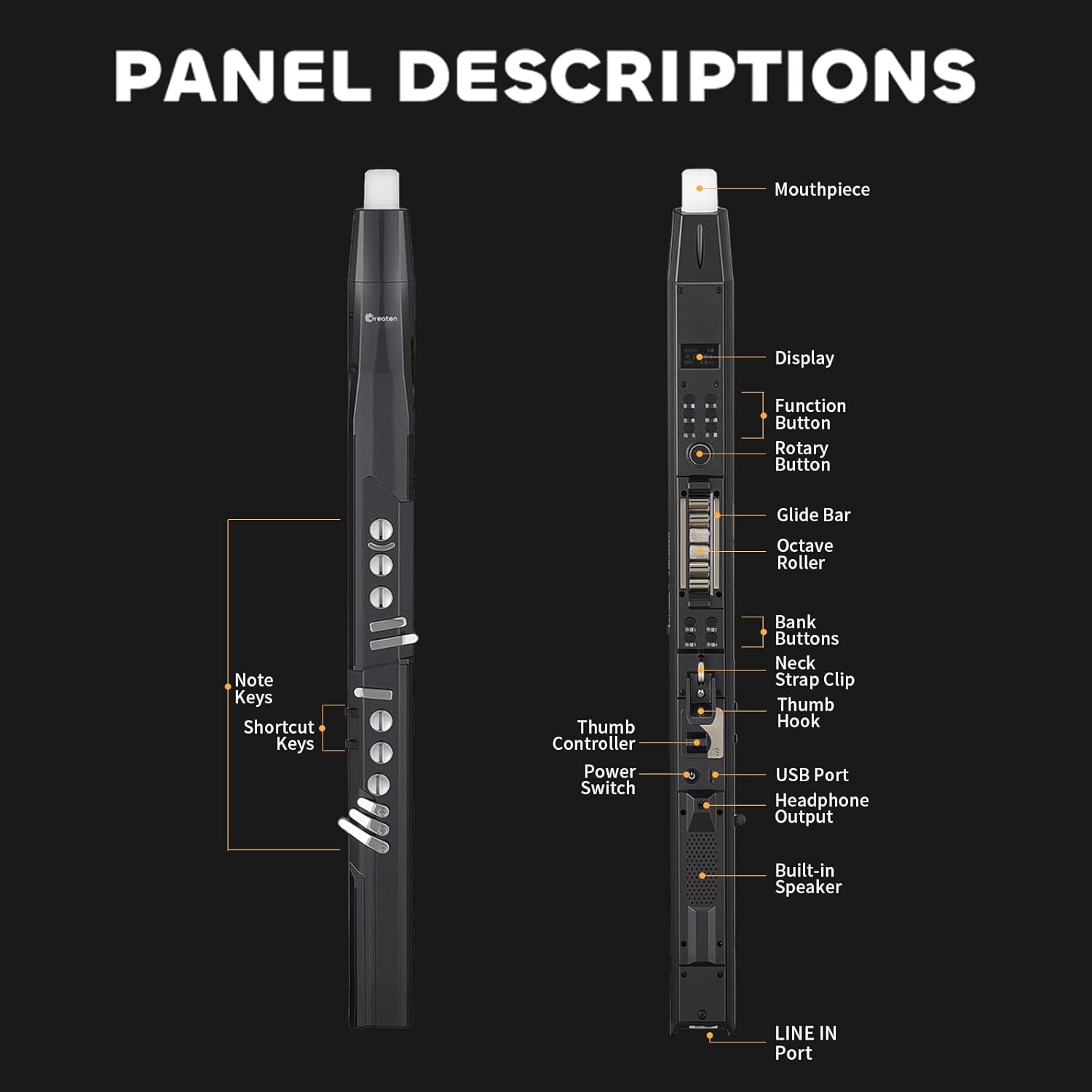
Figure 7: Close-up views of the touch-sensitive keys, built-in mouthpiece sensor, and octave roller, emphasizing ease of use.
Video 3: Tutorial for beginners, part 3, demonstrating how to choose a sound, select a fingering, and play a simple song.
Built-in OTG Recording
The AP 300 Pro features built-in OTG recording, allowing for high-quality recording by preventing external noise interference. This ensures clear captured sound, enabling direct recording to a phone without additional sound cards.

Figure 8: Image showing the easy recording function, allowing connection to a smartphone to record and share demos.
Video 4: Demonstrates the OTG recording capability of the AP 300 Pro.
Dual-Mode Bluetooth Connectivity
The instrument supports both Bluetooth Audio and Bluetooth MIDI. Connect your phone or tablet to play backing tracks with seamless, zero-latency audio. The Bluetooth MIDI feature enables wireless MIDI connections for expanded creative possibilities.

Figure 9: Shows the Bluetooth input connection feature, allowing accompaniment for practice.
LCD Display Screen
The LCD screen provides a clear and direct view of selected parameters, such as chosen tones, remaining volume, and key settings, ensuring a seamless user experience.
Video 5: Demonstrates the functionality of the AP 300 Pro's LCD display.
Storage Function
The instrument allows for four independent tone libraries, enabling users to store preferred settings for quick and easy one-touch access.

Figure 10: Shows various advanced features including Portamento (glide bar), saving customized settings (Bank buttons), Pitch Bends (thumb controller), and Vibrato modes.
Special Effects
Turn on the "Skill Set" function to enable flutter-tonguing or growling effects, adding more expressive capabilities to your performance.

Figure 11: Demonstrates how to activate the "Skill Set" function for special effects like flutter-tonguing or growling.
Portamento, Pitch Bends, and Vibrato
Utilize the glide bar for smooth portamento effects. The thumb controller allows for pitch bends, enabling you to bend notes up and down. Choose from three vibrato modes with adjustable sensitivity for added expression.
Maintenance
Mouthpiece Cleaning
Regularly clean the mouthpiece to maintain hygiene and ensure optimal performance of your instrument. Use a soft, damp cloth to wipe the mouthpiece after each use.
Troubleshooting
If you encounter any issues with your AP 300 Pro, please refer to the following common troubleshooting tips:
- No Sound: Ensure the instrument is powered on and the volume is not set to zero. Check headphone connections if applicable.
- Connectivity Issues: For Bluetooth, ensure the device is discoverable and within range. For OTG recording, verify cable connections and device compatibility.
- Keys Not Responding: Confirm proper hand placement and ensure fingers are making contact with the touch-sensitive keys.
- Battery Not Charging: Use the provided USB cable and a compatible power adapter. Ensure the charging port is clean and free of debris.
For more detailed troubleshooting or persistent issues, please contact GREATEN customer support.
Specifications
| Feature | Detail |
|---|---|
| Item Weight | 1.79 pounds |
| Product Dimensions | 25.4 x 2.36 x 2.36 inches |
| Country of Origin | China |
| Item Model Number | AP 300 Pro |
| Color Name | Black |
| Material Type | Aluminum, Plastic, Copper |
| Instrument Key | A |
| Battery Life | Up to 6 hours (6000mAh battery) |
| Tones | 108 Global Tones |
| Connectivity | Dual-Mode Bluetooth (Audio & MIDI), OTG Recording |
Warranty and Support
For any warranty claims, technical support, or product inquiries, please contact Greaten Mall, the seller of your AP 300 Pro Electronic Wind Instrument. You can visit the official GREATEN Store on Amazon for more information and contact options.
Protection plans are also available for purchase to extend coverage beyond the standard warranty period. Please refer to the product listing for details on available protection plans.


