
AZDOME M590
AZDOME M590 3 Channel Dash Cam User Manual
Model: M590
Introduction
This manual provides detailed instructions for the installation, operation, and maintenance of your AZDOME M590 3 Channel Dash Cam. Please read this manual thoroughly before using the device to ensure proper functionality and safety.

Image: The AZDOME M590 3 Channel Dash Cam, showcasing its compact design and the included 128GB TF card.
Package Contents
Verify that all items are present in your package:
- AZDOME M590 Dash Cam Unit
- Rear Camera (if applicable to bundle)
- Interior Camera (if applicable to bundle)
- 128GB TF Card
- Car Charger
- Mounting Bracket
- User Manual (this document)

Image: A close-up of the included AZDOME 128GB MicroSD card, essential for video storage.
Setup and Installation
1. Inserting the TF Card
- Ensure the dash cam is powered off.
- Locate the TF card slot on the side of the dash cam.
- Insert the provided 128GB TF card into the slot until it clicks into place.
- To remove, gently push the card in until it springs out.
2. Mounting the Dash Cam
- Clean the windshield area where you intend to mount the dash cam.
- Attach the mounting bracket to the dash cam.
- Securely attach the dash cam with the bracket to the windshield, ensuring it does not obstruct your view.
- Adjust the lens angle to capture the desired view of the road.
3. Power Connection
- Connect the car charger to the dash cam's power input port.
- Plug the other end of the car charger into your vehicle's cigarette lighter socket.
- The dash cam will automatically power on and begin recording when the vehicle's ignition is turned on.
4. Connecting Rear and Interior Cameras (if applicable)
- Connect the rear camera cable to the designated port on the main dash cam unit.
- Route the cable neatly along the vehicle's interior to the rear window and mount the rear camera.
- Connect the interior camera cable to its designated port.
- Mount the interior camera to capture the cabin view.

Image: Visual representation of the M590's 3-channel recording capability, illustrating the wide-angle views from the front, cabin, and rear cameras.
Operating Instructions
Basic Operation
- Automatic Recording: The dash cam automatically starts recording when powered on.
- Loop Recording: The device continuously records, overwriting the oldest files when the TF card is full. Important videos should be downloaded promptly.
- G-Sensor: In the event of a collision, the built-in G-sensor will detect the impact and automatically lock the current video file to prevent it from being overwritten. Sensitivity can be adjusted (High, Medium, Low).
- 24H Parking Monitor: (Requires separate hardwire kit) Provides continuous protection for your vehicle when parked.

Image: Explanations of key operational features: G-Sensor for impact detection, 24-hour parking monitoring (requires hardwire kit), and loop recording for continuous video capture.
Advanced Features
WiFi 6 Connectivity and App Control
The AZDOME M590 features built-in WiFi 6 for fast and stable connection to the AZDOME mobile application. This allows for convenient viewing, downloading, and sharing of recorded footage.
- Download the free AZDOME app from the App Store (iOS) or Google Play Store (Android).
- Enable WiFi on your dash cam and connect your smartphone to the dash cam's WiFi network.
- Open the AZDOME app to access live view, playback recordings, edit videos, and share content.

Image: The AZDOME mobile application interface, demonstrating how users can view, download, and share dash cam footage via WiFi 6 connectivity.
Built-in GPS and Speed Tracking
The integrated GPS module records your driving route, speed, and precise location in real-time. This data can be viewed using the free AZDOME GPS Player software on your computer (compatible with macOS and Windows).
- Download the AZDOME GPS Player from the official AZDOME website.
- Transfer recorded video files from the TF card to your computer.
- Open the video files with the AZDOME GPS Player to view synchronized video, map, and speed data.

Image: The AZDOME GPS Player software displaying a recorded driving route on a map, along with speed and altitude information, providing comprehensive driving records.
WDR & IR Night Vision
The M590 incorporates Wide Dynamic Range (WDR) technology to ensure balanced exposure in varying light conditions, from bright sunlight to dim environments. The interior camera is equipped with 6 infrared LED lights for clear night vision inside the vehicle.
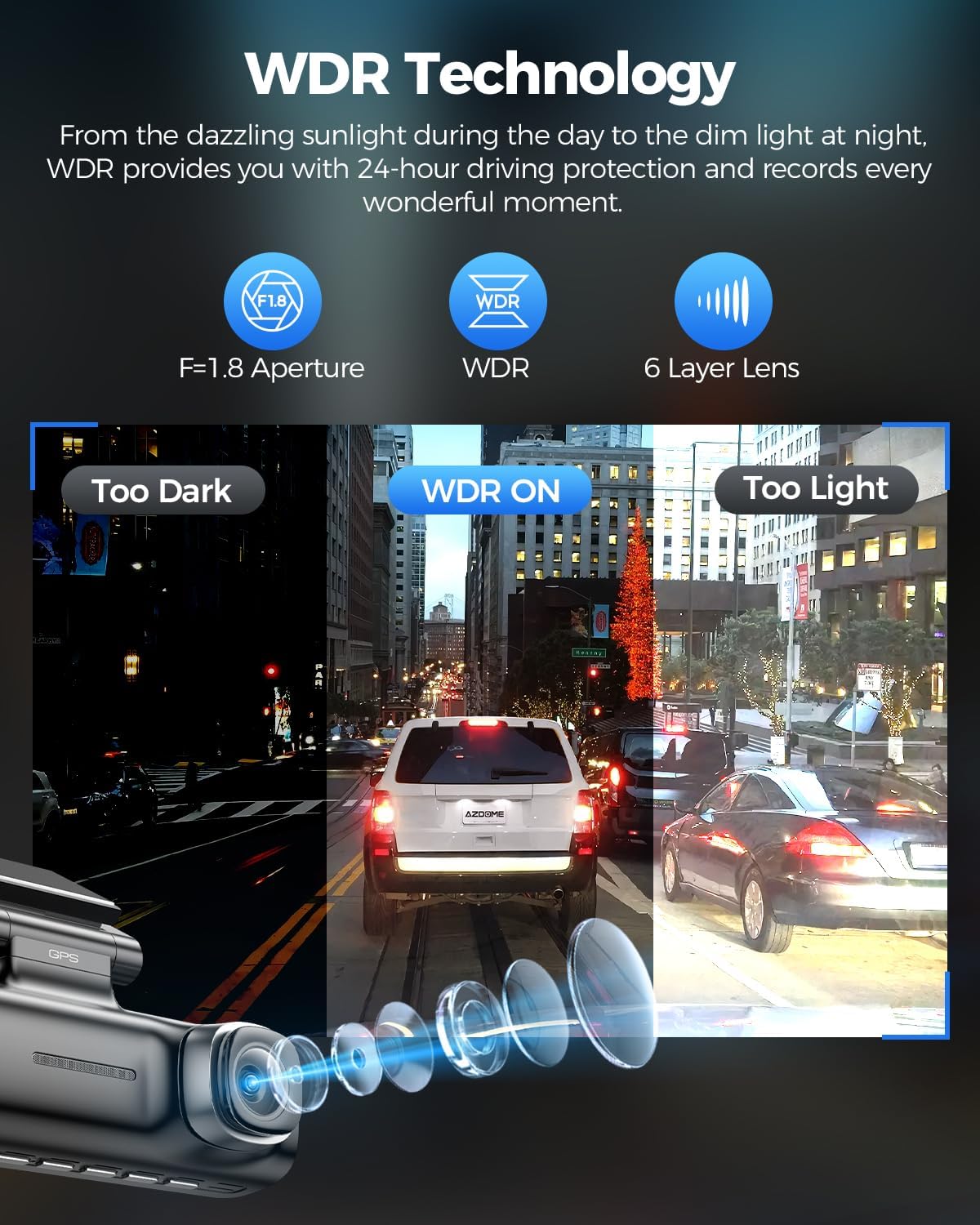
Image: A visual comparison demonstrating the effectiveness of WDR technology in balancing light exposure for clearer video recordings in both overly bright and overly dark conditions.

Image: The interior camera featuring 6 infrared LEDs, with a side-by-side comparison showing enhanced clarity of the cabin view at night when IR lights are active.
Maintenance
- TF Card Formatting: It is recommended to format the TF card regularly (e.g., once a month) within the dash cam's settings to ensure optimal performance and prevent data corruption.
- Lens Cleaning: Gently clean the camera lenses with a soft, lint-free cloth to ensure clear video recordings. Avoid abrasive materials.
- Firmware Updates: Check the official AZDOME website periodically for firmware updates. Updating firmware can improve performance and add new features.
- Storage: When not in use for extended periods, store the dash cam in a cool, dry place away from direct sunlight.
Troubleshooting
| Problem | Possible Cause | Solution |
|---|---|---|
| Dash cam does not power on. | No power from car charger; faulty cable; loose connection. | Check car charger connection and vehicle's cigarette lighter socket. Try a different power source or cable. |
| Recording stops or freezes. | TF card full or corrupted; low-quality TF card; firmware issue. | Format the TF card. Ensure you are using a high-speed (Class 10, U3, V30 or higher) TF card. Update firmware. |
| Video quality is poor. | Dirty lens; protective film still on lens; incorrect resolution settings. | Clean the lens. Remove any protective film. Check video resolution settings in the menu. |
| GPS not tracking location. | Poor GPS signal; GPS module not enabled. | Ensure the dash cam has a clear view of the sky. Check GPS settings in the menu to ensure it's enabled. |
| WiFi connection issues. | Incorrect password; too far from dash cam; app issues. | Verify WiFi password. Ensure your phone is close to the dash cam. Restart the app and dash cam. |
Specifications
- Model: AZDOME M590
- Recording Channels: 3 (Front, Interior, Rear)
- Front Camera Resolution: Up to 4K (1-channel mode), 2.5K (3-channel mode)
- Interior Camera Resolution: 1080P
- Rear Camera Resolution: 1080P
- Lens Angle: 150° Ultra-wide (Front, Interior, Rear)
- WiFi: Built-in WiFi 6
- GPS: Built-in GPS for route, speed, and location tracking
- Night Vision: WDR Technology, 6 Infrared LEDs (Interior Camera)
- Storage: Supports up to 128GB TF Card (128GB included)
- Features: G-Sensor, Loop Recording, 24H Parking Monitor (requires hardwire kit)
- ASIN: B0F18K66LN
- First Available: March 12, 2025
Warranty and Support
For warranty information, technical support, and frequently asked questions, please visit the official AZDOME website or contact their customer service directly. Keep your purchase receipt as proof of purchase for warranty claims.
AZDOME Official Website: www.azdomes.com
Important Safety Information
- Do not operate the dash cam while driving. Adjust settings only when the vehicle is safely parked.
- Ensure the dash cam is mounted securely and does not obstruct the driver's view or interfere with airbag deployment.
- Use only the original car charger and accessories provided by AZDOME to prevent damage and ensure proper operation.
- Avoid exposing the dash cam to extreme temperatures, direct sunlight for prolonged periods, or high humidity.
- Do not attempt to disassemble or repair the device yourself. Contact customer support for assistance.
Related documentsM590


Ask a question about this manual
Ask about setup, troubleshooting, compatibility, parts, safety, or missing instructions. Manuals+ will review the question and use this page’s manual context to help answer it.