
1. Introduction
The Jinvocloud Tuya Zigbee 3.0 Hub Wireless Gateway (Model WG003) serves as a central control unit for your Zigbee-enabled smart home devices. This gateway facilitates communication between various Zigbee devices and allows for control via the Tuya/Smart Life application, as well as integration with voice assistants like Amazon Alexa and Google Home Assistant. It operates on a 2.4GHz Wi-Fi network to provide stable and efficient smart home automation.

Image 1.1: Jinvocloud Tuya Zigbee 3.0 Hub Wireless Gateway (Model WG003)
2. What's in the Box
Please verify that all items are present in your package:
- 1x Jinvocloud Smart Zigbee Wireless Gateway (Model WG003)
- 1x USB Data Cable
- 1x User Manual (English)
3. Specifications
| Product Dimensions | 2.5 x 2.5 x 2.8 inches (60.5 x 60.5 x 16 mm) |
| Item Weight | 2.24 ounces (32g) |
| Power Input | DC 5V 1A (via USB cable) |
| Connectivity Technology | Zigbee 3.0 |
| Wireless Communication Standard | 802.11b/g/n (2.4GHz Wi-Fi only) |
| Frequency Band Class | Single-Band (2.4GHz) |
| Operating Temperature | -10°C ~ 55°C |
| Working Humidity | 10% ~ 90% RH (non-condensing) |
| Maximum Connections | Up to 50 devices |
| Transmission Distance | 50-100 meters (open space) |
| Compatible Apps | Tuya Smart / Smart Life App |
| Voice Control Compatibility | Amazon Alexa, Google Home Assistant |

Image 3.1: Physical dimensions of the Jinvocloud Zigbee Hub.

Image 3.2: Overview of Zigbee intelligent wireless gateway features.
4. Setup Guide
4.1. Powering On the Gateway
- Connect the provided USB data cable to the gateway's power input port.
- Plug the other end of the USB cable into a standard 5V 1A USB power adapter (not included) or a compatible USB port.
- The gateway will power on, and an indicator light will illuminate.
4.2. App Installation
- Download the Tuya Smart or Smart Life application from your mobile device's app store (Google Play Store for Android or Apple App Store for iOS).
- Register for a new account or log in if you already have one.
4.3. Network Configuration
Important: Ensure your mobile phone is connected to a 2.4GHz Wi-Fi network. The gateway does not support 5GHz Wi-Fi networks. Your phone and the gateway must be on the same Wi-Fi network during configuration.
- Open the Tuya Smart or Smart Life app.
- On the home page, tap the "+" icon to add a new device.
- Select "Add Manually" and then choose "Gateway Control" followed by "Wireless Gateway (Zigbee)".
- Follow the on-screen instructions in the app to put the gateway into pairing mode. The LED indicator on the gateway should be blinking. If it is not blinking, refer to the app for instructions on how to reset the device.
- Confirm the Wi-Fi network and enter the password if prompted.
- The app will search for and connect to the gateway. Once connected, you can rename the gateway and assign it to a room.
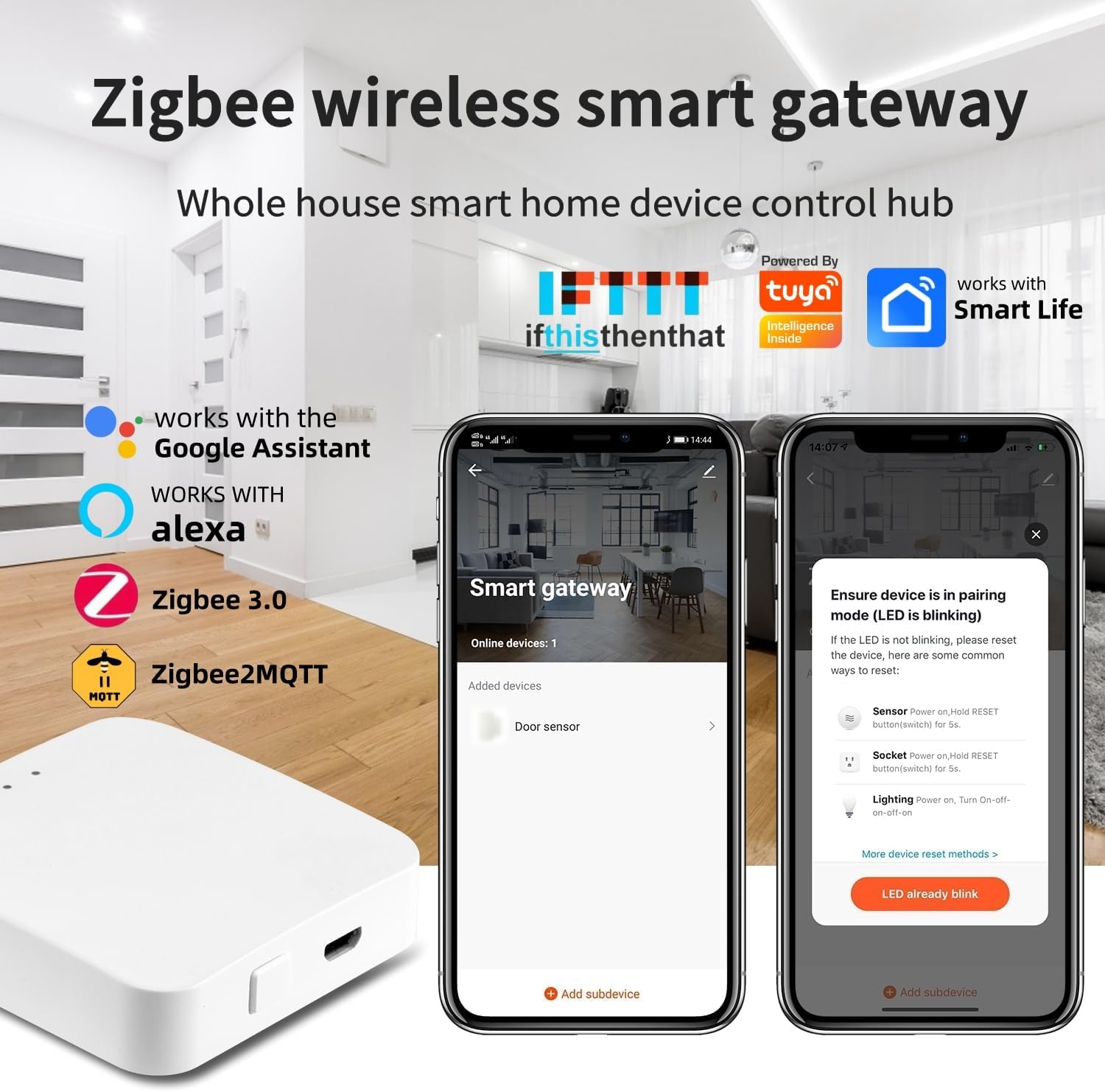
Image 4.1: App interface for pairing the Zigbee gateway.

Image 4.2: Diagram illustrating the gateway's connection to the app and cloud.
4.4. Adding Zigbee Sub-Devices
- Once the gateway is successfully added, navigate to its control panel in the Tuya Smart/Smart Life app.
- Tap "Add Subdevice" or a similar option.
- Put your Zigbee sub-device (e.g., sensor, switch, light bulb) into pairing mode according to its specific instructions.
- The gateway will detect and add the sub-device. You can then configure its settings and integrate it into your smart home scenes.

Image 4.3: The gateway's compatibility with various smart home devices.
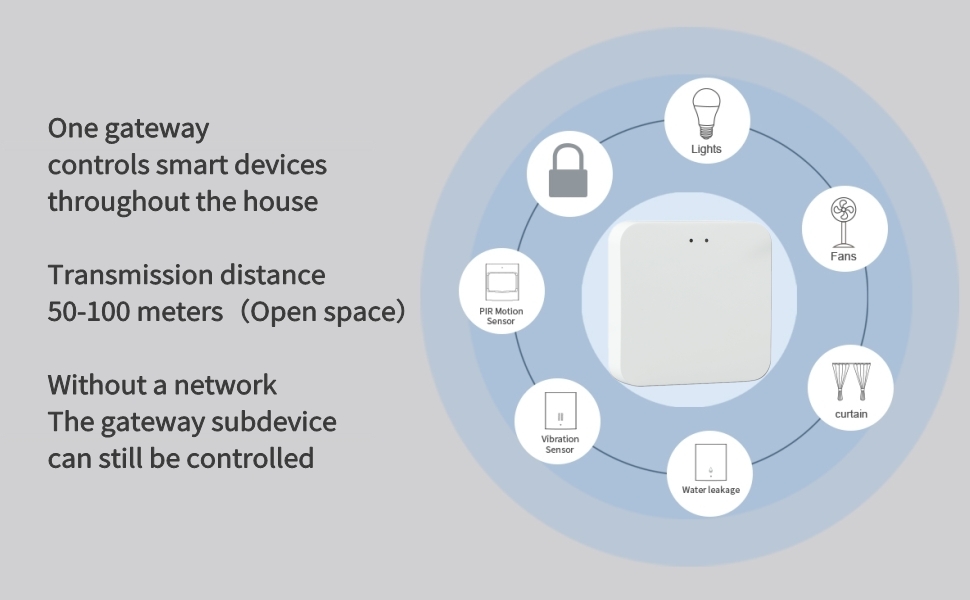
Image 4.4: Illustrates how one gateway can control multiple smart devices throughout a home.
5. Operation
5.1. App Control
The Tuya Smart/Smart Life app allows you to manage all connected Zigbee devices through the gateway. You can:
- Add/Reset Devices: Easily add new Zigbee sub-devices or reset existing ones.
- Group Devices: Organize devices into groups for simultaneous control (e.g., all lights in a living room).
- Set Schedules: Create time-based schedules for devices to turn on/off or perform specific actions.
- Remote Control: Control connected devices from anywhere using your smartphone, provided the gateway has an internet connection.
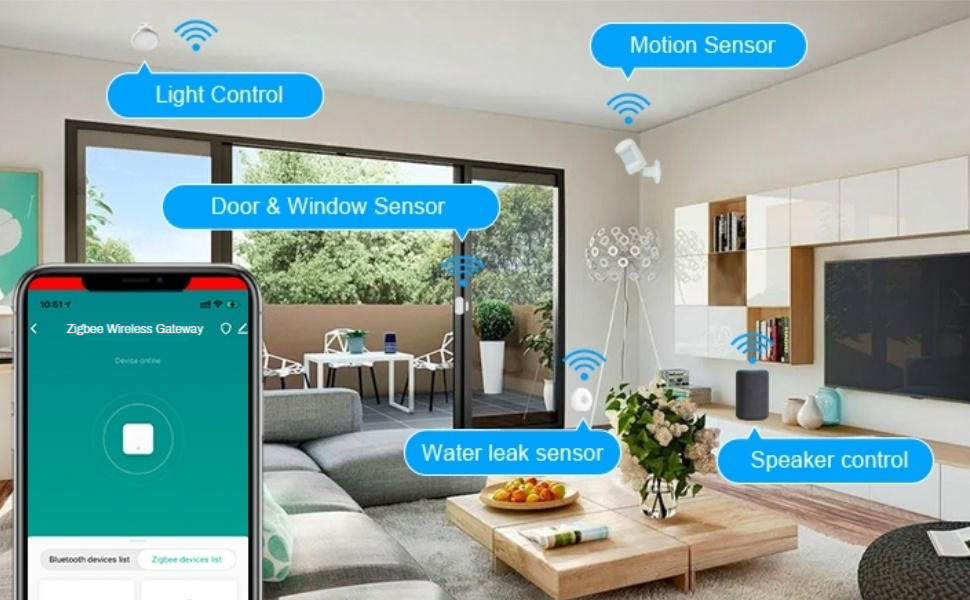
Image 5.1: Example of the Zigbee Wireless Gateway app interface controlling various devices.
5.2. Intelligent Linkage and Scene Automation
Create automation scenes within the Tuya Smart/Smart Life app to enable devices to interact with each other. For example:
- If a door sensor detects an open door, an air conditioner can automatically turn off.
- When a motion sensor detects movement, lights can turn on.
- Set up a 'Good Morning' scene to open smart curtains and turn on a coffee maker.

Image 5.2: Example of intelligent linkage: automatically turning off the air conditioner when a window is opened.
5.3. Voice Control
The gateway supports voice control through Amazon Alexa and Google Home Assistant. After linking your Tuya Smart/Smart Life account to your voice assistant, you can use voice commands to control connected devices. Examples:
- "Alexa, turn on the living room lights."
- "Hey Google, open the smart curtains."
5.4. Offline Functionality
If your internet connection is lost, the devices and tasks directly bound to the Zigbee gateway will continue to perform their automation routines as configured in the app. Remote control via the app will not be possible during an internet outage.

Image 5.3: Illustrates remote control capabilities of the gateway.

Image 5.4: Depicts the gateway's signal coverage and ability to penetrate walls.
6. Maintenance
6.1. Cleaning
To maintain optimal performance, periodically clean the exterior of the gateway with a soft, dry cloth. Avoid using liquid cleaners or abrasive materials, as these can damage the device.
6.2. Firmware Updates
The Tuya Smart/Smart Life app may occasionally prompt you to update the gateway's firmware. It is recommended to perform these updates to ensure the device has the latest features, security patches, and performance improvements. Follow the in-app instructions carefully during the update process.
7. Troubleshooting
- Gateway not connecting to Wi-Fi:
- Ensure your Wi-Fi network is 2.4GHz. The gateway does not support 5GHz Wi-Fi.
- Verify that your mobile phone is connected to the same 2.4GHz Wi-Fi network as the gateway during setup.
- Check your Wi-Fi password for accuracy.
- Ensure the gateway is within range of your Wi-Fi router.
- Try resetting the gateway by following the instructions in the app or the device's specific reset procedure. - Zigbee devices not pairing:
- Make sure the Zigbee sub-device is in pairing mode.
- Ensure the sub-device is within the gateway's Zigbee signal range.
- Check if the sub-device is compatible with the Tuya Zigbee 3.0 standard.
- Try resetting the sub-device and attempting the pairing process again. - Remote control not working:
- Verify that your gateway has an active internet connection.
- Check your mobile device's internet connectivity.
- Ensure the Tuya Smart/Smart Life app is up to date. - Voice control issues:
- Confirm that your Tuya Smart/Smart Life account is correctly linked to your Alexa or Google Home account.
- Ensure the device names in the app are recognized by your voice assistant.
- Check the internet connection for both the gateway and your voice assistant device.
8. Warranty Information
Specific warranty details for the Jinvocloud Tuya Zigbee 3.0 Hub Wireless Gateway (Model WG003) may vary. Please refer to the product packaging or contact Jinvocloud customer support for detailed warranty terms and conditions.
9. Customer Support
If you encounter any issues or have questions not covered in this manual, please contact Jinvocloud customer support through their official website or the contact information provided with your product. When contacting support, please have your product model (WG003) and purchase details ready.


