
Inateck KB01003
Inateck Ultra-Slim Bluetooth Keyboard User Manual
Model: KB01003
Introduction
Thank you for choosing the Inateck Ultra-Slim Bluetooth Keyboard. This manual provides detailed instructions on how to set up, operate, and maintain your keyboard to ensure optimal performance and a comfortable typing experience across multiple devices.
What's in the Box
- 1 x Inateck Ultra-Slim Bluetooth Keyboard
- 2 x AAA batteries (included)
- 1 x User Manual
Specifications
| Feature | Detail |
|---|---|
| Product Dimensions | 11.22 x 4.72 x 0.63 inches (285mm x 120mm x 17mm) |
| Item Weight | 13 ounces (217g) |
| Connectivity Technology | Bluetooth |
| Compatible Devices | Windows, iPadOS, Android, iOS |
| Battery Life | Up to 18 months (based on 2 hours daily use) |
| Number of Keys | 78 |
| Key Travel | 1.5mm |
| Color | Gray |
| Material | Plastic |
Setup
Battery Installation
Your keyboard comes with two AAA batteries included. To install them:
- Locate the battery compartment on the back of the keyboard.
- Open the battery compartment cover.
- Insert the two AAA batteries, ensuring correct polarity (+/-).
- Close the battery compartment cover securely.
Bluetooth Pairing
The Inateck keyboard supports connection with up to three devices simultaneously. Follow these steps to pair your keyboard:
- Turn on the keyboard using the ON/OFF switch.
- Press and hold the Fn key and one of the device keys (F1, F2, or F3) for 3-5 seconds until the corresponding indicator light (blue/orange/green) flashes rapidly. This indicates the keyboard is in pairing mode for that channel.
- On your device (e.g., iPad, laptop, smartphone), go to Bluetooth settings and search for available devices.
- Select "Inateck Keyboard" from the list of found devices.
- If prompted, enter the pairing code displayed on your device using the Inateck keyboard and press Enter.
- Once paired, the indicator light will stop flashing and turn off, indicating a successful connection.
Alternatively, you can press the dedicated CONNECT button on the keyboard to initiate pairing for the currently selected channel.

Image: Detailed steps for Bluetooth pairing and switching channels (F1, F2, F3) on the Inateck keyboard.
Smart Indicator Lights
The keyboard features colorful indicator lights to provide clear status updates:
- White Light: Caps Lock status.
- Red Light: Low Battery warning.
- Flashing (Blue/Orange/Green): Indicates the keyboard is connecting or in pairing mode.
- Off: Indicates a stable connection.

Image: Explanation of the keyboard's smart indicator lights for Caps Lock, low battery, and connection status.
Operating Instructions
Multi-Device Switching
To switch between your three connected devices, simply press Fn + F1, Fn + F2, or Fn + F3. The keyboard will seamlessly switch to the corresponding device.
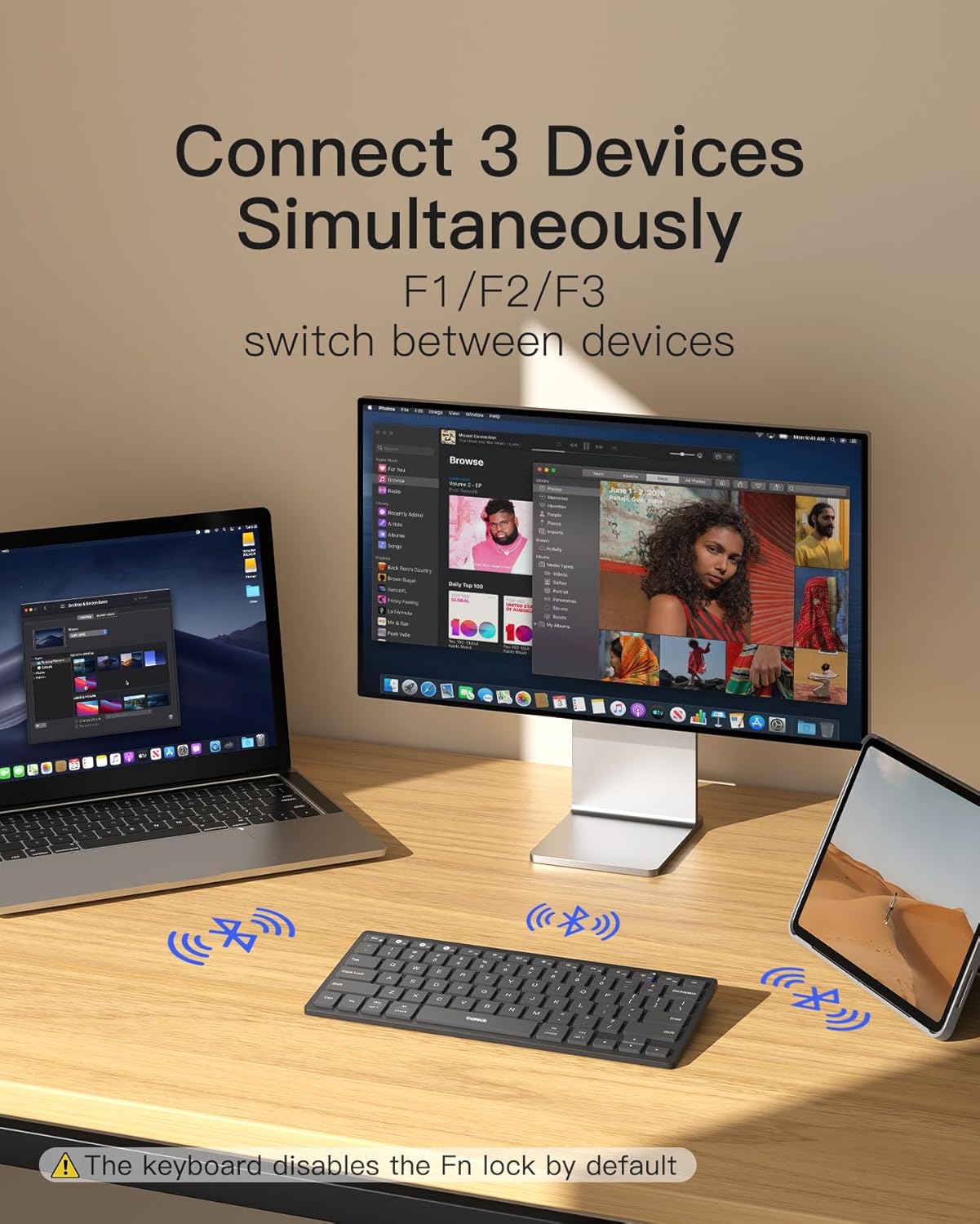
Image: The keyboard's ability to connect to and switch between three devices simultaneously, such as a laptop, desktop, and tablet.
Compatibility
The Inateck Ultra-Slim Bluetooth Keyboard is designed for broad compatibility, supporting the following operating systems:
- Windows
- iPadOS
- Android
- iOS
- Mac OS
- Fire OS

Image: Visual representation of the keyboard's compatibility with various operating systems and devices.
Ergonomic Design and Portability
The keyboard features a 1.5mm key travel and an ergonomic tilt angle for comfortable typing during extended sessions. Its ultra-slim and lightweight design (217g) makes it highly portable, fitting easily into your bag for on-the-go use.
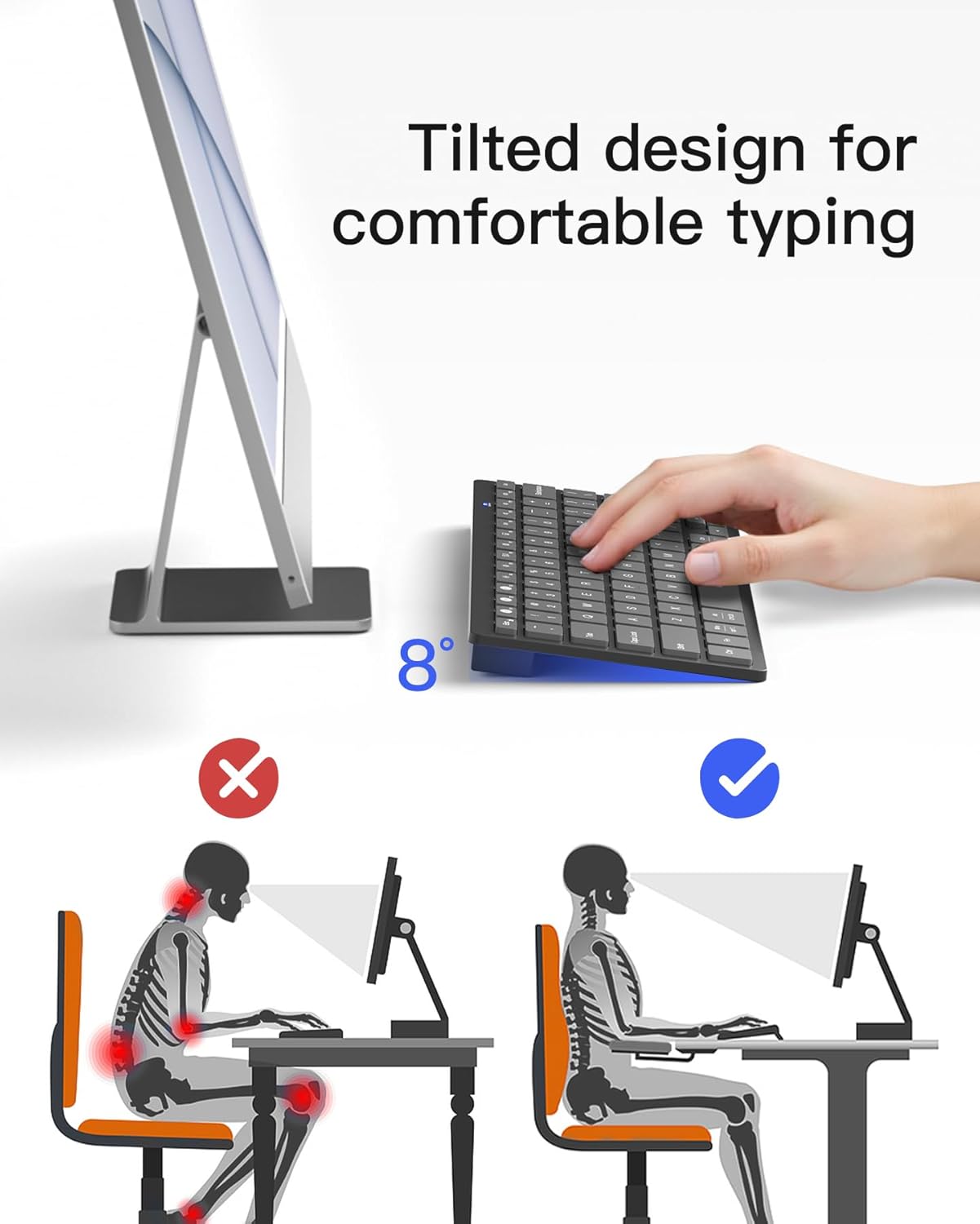
Image: Illustration demonstrating the ergonomic tilted design of the keyboard for improved typing posture and comfort.

Image: The ultra-slim and compact design of the keyboard, highlighting its portability and small footprint next to a laptop.

Image: The keyboard being used in various portable scenarios, emphasizing its lightweight and ready-to-use nature.
Battery Life
The keyboard is powered by two AAA batteries, offering an impressive battery life of up to 18 months based on 2 hours of continuous daily use. This design minimizes the need for frequent battery replacements.

Image: Visual representation of the keyboard's ultra-long battery life, powered by two AAA batteries.
Official Product Video
Video: An official product video demonstrating the Inateck Bluetooth Keyboard, highlighting its features such as multi-device switching, ergonomic design, and portability. This video is provided by the seller, TNTonline.
Maintenance
To ensure the longevity and optimal performance of your Inateck Ultra-Slim Bluetooth Keyboard, please follow these maintenance guidelines:
- Cleaning: Use a soft, dry, lint-free cloth to wipe the keyboard surface. For stubborn dirt, slightly dampen the cloth with water or a mild cleaning solution. Avoid excessive moisture.
- Dust Removal: Use compressed air to remove dust and debris from between the keys.
- Storage: When not in use for extended periods, store the keyboard in a cool, dry place away from direct sunlight and extreme temperatures.
- Battery Replacement: Replace batteries promptly when the low battery indicator (red light) appears to avoid interruption of use. Ensure to use new AAA batteries.
- Avoid Liquids: Do not expose the keyboard to liquids. In case of accidental spills, immediately turn off the keyboard, remove batteries, and allow it to dry completely before re-use.
Troubleshooting
If you encounter any issues with your Inateck Ultra-Slim Bluetooth Keyboard, please refer to the following common solutions:
| Problem | Possible Solution |
|---|---|
| Keyboard does not turn on. | Ensure the ON/OFF switch is in the 'ON' position. Check if the batteries are correctly installed and have sufficient charge. Replace batteries if necessary. |
| Unable to pair the keyboard. | Make sure the keyboard is in pairing mode (indicator light flashing). Ensure Bluetooth is enabled on your device. Move the keyboard closer to your device. Try forgetting the device on your host device's Bluetooth settings and re-pairing. |
| Keys are not responding. | Check if the keyboard is connected to the correct device channel (F1/F2/F3). Ensure the keyboard is fully charged or has fresh batteries. Restart both the keyboard and your device. |
| Connection is unstable or frequently disconnects. | Ensure there are no strong interferences (e.g., Wi-Fi routers, other Bluetooth devices) nearby. Move the keyboard closer to your device. Update Bluetooth drivers on your computer if applicable. |
| Indicator lights are not working as expected. | Refer to the 'Smart Indicator Lights' section for correct behavior. If the red light is on, replace batteries. If other lights behave erratically, try resetting the keyboard by turning it off and on. |
If the issue persists after trying these solutions, please contact Inateck customer support for further assistance.
Warranty and Support
Inateck products come with a standard manufacturer's warranty. For detailed warranty information, product support, or to register your product, please visit the official Inateck website or contact their customer service team. Keep your purchase receipt as proof of purchase for warranty claims.
You can find more information and support at: www.inateck.com
Related documentsKB01003

Ask a question about this manual
Ask about setup, troubleshooting, compatibility, parts, safety, or missing instructions. Manuals+ will review the question and use this page’s manual context to help answer it.