
LG 39GX90SA-W.AUS
LG 39GX90SA-W 39-inch Ultragear WQHD OLED Curved Gaming Monitor User Manual
Model: 39GX90SA-W.AUS
Brand: LG
1. Introduction
Welcome to your new LG UltraGear OLED Curved Gaming Monitor. This manual provides essential information for the proper setup, operation, maintenance, and troubleshooting of your monitor. Please read this manual thoroughly before using the product to ensure safe and optimal performance.
2. Important Safety Information
Always follow these basic safety precautions to reduce the risk of fire, electric shock, and injury.
- Do not open the monitor casing. There are no user-serviceable parts inside. Refer all servicing to qualified service personnel.
- Do not expose the monitor to rain or moisture.
- Ensure proper ventilation. Do not block any ventilation openings.
- Use only the power cord and adapter supplied with the monitor.
- Place the monitor on a stable, level surface to prevent it from falling.
- Unplug the monitor from the power outlet during lightning storms or when unused for long periods.
3. What's in the Box
Verify that all components are present in your package:
- Monitor
- Power Cable
- HDMI Cable
- Display Port Cable
- USB-C Cable

Image: The LG 39GX90SA-W monitor with its stand and various cables, representing the typical contents of the product box.
4. Setup
4.1. Assembly
Follow these steps to assemble the monitor stand and attach it to the display panel:
- Carefully remove the monitor and stand components from the packaging.
- Attach the stand base to the stand neck, securing it with the provided screw.
- Align the assembled stand with the mounting area on the back of the monitor panel and firmly click it into place.

Image: A rear view of the LG 39GX90SA-W monitor, showcasing the sleek white design and the attached stand, ready for use.
4.2. Connecting Your Monitor
Connect your devices to the monitor using the appropriate ports:
- HDMI: Connect an HDMI cable from your PC or console to one of the HDMI ports (HDMI1, HDMI2) on the monitor.
- DisplayPort: For optimal gaming performance, connect a DisplayPort cable from your graphics card to the DisplayPort (DP) on the monitor.
- USB Type-C: Connect a USB-C cable for video, data, and power delivery (up to 65W) to compatible devices.
- USB 3.0: Use the USB upstream port to enable the downstream USB 3.0 ports for connecting peripherals.
- Headphone Out: Connect your headphones or external speakers.

Image: A detailed view of the monitor's rear input panel, showing HDMI, DisplayPort, USB-C, and USB 3.0 ports for various connectivity options.
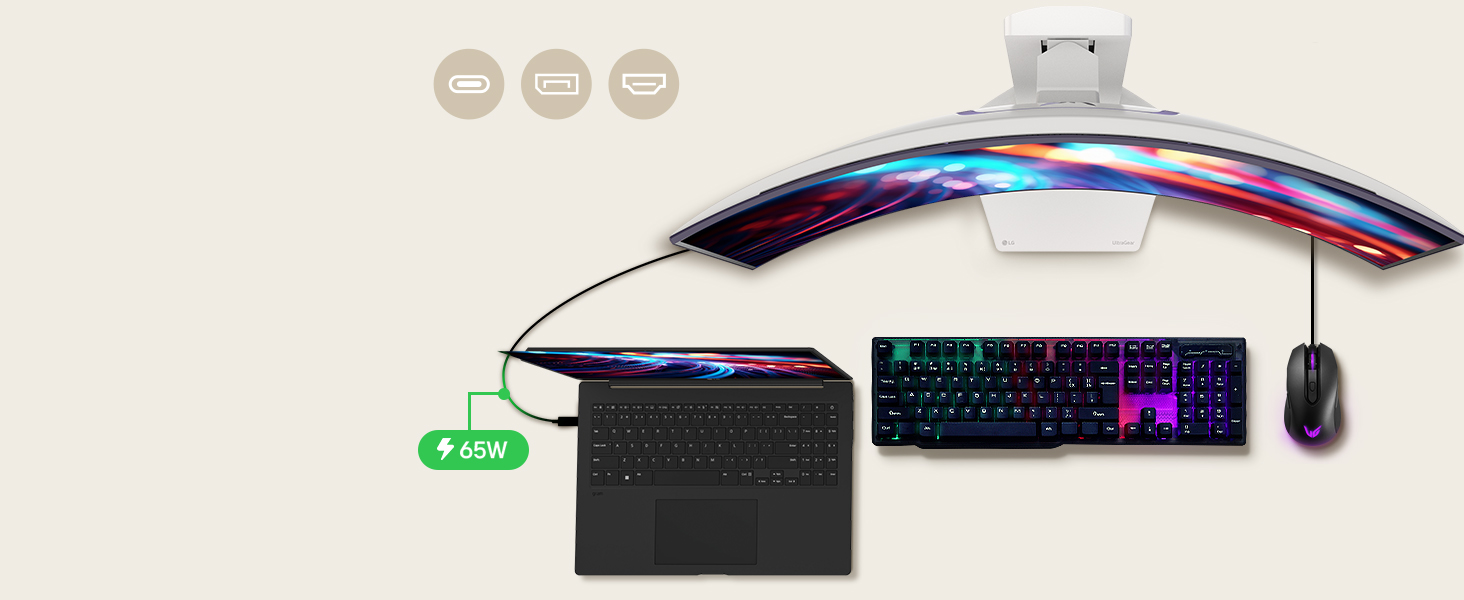
Image: A diagram illustrating how a laptop can connect to the monitor via USB-C, providing video, data, and 65W power delivery, while also connecting to a keyboard and mouse.
5. Operating Your Monitor
5.1. Powering On/Off
Press the power button located on the bottom center of the monitor to turn it on or off. The monitor will automatically detect the input source.
5.2. Navigating webOS
Your LG UltraGear monitor features webOS, allowing direct access to streaming services and cloud gaming without a separate PC or console.
- Use the included remote control to navigate the webOS home screen.
- Access popular streaming apps like Netflix, Prime Video, Disney+, and HBO Max.
- Connect to cloud gaming services such as NVIDIA GeForce NOW, Amazon Luna, and Blacknut directly.

Image: The LG 39GX90SA-W monitor showcasing its webOS smart platform, with various streaming and gaming app icons visible on the home screen.
5.3. Gaming Features
The LG UltraGear monitor is designed for an immersive gaming experience with advanced features:
- Outrageous OLED Gaming Speed: Experience ultra-fast 240Hz refresh rate and a near-instantaneous 0.03ms (GtG) response time for smooth, lag-free gameplay.

Image: A dynamic scene of motorcycles racing on the monitor, highlighting the 240Hz refresh rate and 0.03ms response time for incredibly fluid motion.
- Ultimate Frame Sync: AMD FreeSync Premium and NVIDIA G-SYNC compatibility eliminate screen tearing and stutter for seamless visuals across PC and console gaming.

Image: A racing game displayed on the monitor, with prominent NVIDIA G-SYNC and AMD FreeSync Premium logos, indicating smooth, tear-free gameplay.
- Stunning OLED Picture: Enjoy vivid visuals with up to 98.5% DCI-P3 color coverage, a 1.5M:1 contrast ratio, and VESA DisplayHDR True Black 400 for deep blacks and brilliant highlights.

Image: A fantasy game scene with rich colors and deep blacks, demonstrating the superior picture quality of the OLED panel, including DCI-P3 color and HDR True Black 400.
- The 800R Curve: The steep 800R curvature extends your peripheral vision, pulling you deeper into the game for a more intense and immersive experience.

Image: A top-down perspective of the curved monitor on a desk with a keyboard and mouse, visually representing the immersive 800R curvature.
- Low Glare, More Focus: The anti-glare surface minimizes reflections, allowing you to stay focused on the action without distractions.

Image: The monitor on a desk, displaying a game scene, with certifications for flicker-free, discomfort glare-free, and low blue light, emphasizing eye comfort.
- webOS Gaming AI Tools: Utilize AI tools like Dynamic Tone Mapping, AI Picture, and AI Personalized Picture Wizard to customize and enhance your gaming visuals and audio.
Image: A split image showing a game scene with AI Picture 'OFF' on the left and 'ON' on the right, demonstrating the visual enhancement provided by the AI tools.
- Advanced Gaming Features: Includes Dynamic Action Sync (reduces input lag), Black Stabilizer (brightens dark scenes), FPS Counter (real-time frame rate display), and Crosshair (enhances aiming precision).
6. Maintenance
6.1. Cleaning the Monitor
To clean the monitor screen and casing:
- Always unplug the monitor before cleaning.
- Use a soft, lint-free cloth lightly dampened with water or a specialized screen cleaner.
- Do not spray cleaner directly onto the screen.
- Avoid using abrasive cleaners, waxes, or solvents.
6.2. OLED Panel Care
To maintain the longevity and performance of your OLED panel, utilize the built-in OLED Care tools:
- Pixel Cleaning: This feature helps to refresh the pixels and prevent image retention. It can be run manually or automatically.
- Screen Move: Slightly shifts the screen image periodically to prevent static image burn-in.
- Screen Saver: Activates when a static image is displayed for a prolonged period.
Refer to the monitor's on-screen display (OSD) menu for detailed instructions on accessing and utilizing these OLED Care features.
7. Troubleshooting
If you encounter issues with your monitor, refer to the table below for common problems and solutions:
| Problem | Possible Cause | Solution |
|---|---|---|
| No power | Power cable not connected; Power outlet not working | Ensure power cable is securely connected to monitor and outlet; Test outlet with another device. |
| No signal | Input cable not connected; Incorrect input source selected | Check HDMI/DisplayPort/USB-C cable connections; Select correct input source via monitor menu. |
| Fuzzy text / Blurry image | Incorrect resolution; Cable issue | Set display resolution to 3440x1440; Try a different cable. |
| Screen tearing / Stuttering | Adaptive Sync not enabled; Graphics card driver issue | Ensure FreeSync Premium/G-SYNC is enabled in monitor settings and graphics card control panel; Update graphics drivers. |
| Image retention / Burn-in | Static images displayed for too long | Run Pixel Cleaning from OLED Care menu; Enable Screen Move and Screen Saver. |
If the problem persists after trying these solutions, please contact LG customer support.
8. Specifications
Key technical specifications for the LG 39GX90SA-W monitor:
| Feature | Detail |
|---|---|
| Screen Size | 39 Inches |
| Panel Type | OLED |
| Resolution | 3440 x 1440 (WQHD) |
| Aspect Ratio | 21:9 |
| Curvature | 800R |
| Refresh Rate | Up to 240Hz |
| Response Time | 0.03ms (GtG) |
| Brightness (Peak) | 1300 nits (APL 1.5%) |
| Contrast Ratio | 1,500,000:1 |
| Color Gamut | 98.5% DCI-P3 |
| HDR Support | VESA DisplayHDR True Black 400 |
| Adaptive Sync | AMD FreeSync Premium, NVIDIA G-SYNC Compatible |
| Smart Features | webOS24 (Streaming, Cloud Gaming) |
| Connectivity | 2x HDMI, 1x DisplayPort, 1x USB Type-C (65W PD), 2x USB 3.0 (downstream), 1x Headphone Out |
| Dimensions (WxHxD) | 34.95 x 23.85 x 12.71 inches (with stand) |
| Weight | 25.2 pounds (with stand) |
9. Warranty and Support
9.1. Limited Warranty
Your LG UltraGear OLED monitor comes with a 2-year limited warranty that covers key components, including the OLED panel. Please refer to the warranty card included with your product or visit the official LG website for full warranty details and terms and conditions.
9.2. Customer Support
For technical assistance, product inquiries, or warranty claims, please contact LG customer support:
- Online Support: Visit the official LG Support website for FAQs, driver downloads, and service requests.
- User Manual (PDF): A comprehensive user manual in PDF format is available for download at: https://manuals.plus/m/6b357263cb2dbd0d27972db49196103e272aab7b2b48b2dbd080e3a951fd50af