
1. Introduction
The H96 Max Android 14.0 TV Box is a powerful streaming media player designed to transform your television into a smart entertainment hub. Featuring the latest Android 14.0 OS and an Amlogic S905L3 processor, it delivers smooth performance for streaming 4K content, playing games, and running various applications. With dual-band Wi-Fi, Bluetooth 5.x, and multiple connectivity options, it offers a versatile and immersive viewing experience.

Image: The H96 Max Android TV Box, a compact black device, shown alongside its black remote control. The TV box features an 'androidtv' logo on top.
This manual provides detailed instructions for setting up, operating, and maintaining your H96 Max TV Box to ensure optimal performance and longevity.
2. What's in the Box
Please check the package contents to ensure all items are present:
- H96 Max TV Box
- HD Cable
- Remote Control
- AC Adapter
- User Guide

Image: A visual representation of the H96 Max TV Box package contents, including the TV box, remote control, power adapter, HDMI cable, and user manual.
3. Setup Guide
Follow these simple steps to get your H96 Max TV Box up and running:
- Connect TV Box to TV: Connect one end of the provided HD cable (HDMI) to the HDMI port on your H96 Max TV Box and the other end to an available HDMI input on your television.
- Connect Power: Plug the AC adapter into the DC port on the TV Box and then into a power outlet. The device will typically power on automatically or can be turned on using the remote control.
- Connect to Internet: Once powered on, navigate through the initial setup wizard on your TV screen. Select your preferred language and connect to your home network via Wi-Fi or Ethernet. For Wi-Fi, select your network and enter the password. For Ethernet, simply connect an Ethernet cable from your router to the TV Box's Ethernet port.
- Start Streaming: After successful internet connection, you can begin exploring the Android 14.0 interface, download apps from the Google Play Store, and enjoy your favorite streaming content.

Image: A diagram illustrating the three main setup steps: 1. Connect TV Box to TV, 2. Connect to internet (via Wi-Fi symbol), and 3. Start streaming, showing the TV Box connected to a TV and displaying the Android TV interface.
4. Operating Instructions
4.1 Basic Navigation
Use the provided remote control to navigate the Android TV interface. The directional pad (up, down, left, right) moves the cursor, and the 'OK' button confirms selections. The 'Back' button returns to the previous screen, and the 'Home' button takes you to the main menu.

Image: The H96 Max TV Box and its remote control positioned in front of a television screen displaying popular streaming service logos like Google and Netflix, indicating media consumption capabilities.
4.2 Connectivity
The H96 Max TV Box supports various connectivity options:
- Wi-Fi: Supports 2.4G and 5G dual-band Wi-Fi (Wi-Fi 6 compatible) for stable and fast wireless internet access.
- Ethernet: A 100M Ethernet port provides a reliable wired connection for high-bandwidth activities.
- Bluetooth 5.x: Connect wireless peripherals such as keyboards, mice, gamepads, and Bluetooth speakers for enhanced usability.
- USB Ports: Two USB 2.0 ports allow connection of external storage devices (USB drives, external hard drives) for media playback or additional storage.

Image: A graphic highlighting the product's support for 2.4G and 5G Wi-Fi with 2T2R technology, emphasizing faster speeds and reduced network congestion, set against a background of a racing car to symbolize speed.
4.3 Media Playback and Display
Experience stunning visuals and immersive audio with the H96 Max TV Box:
- 4K Ultra HD: Supports 4K H.265 HDR10 content, delivering crystal-clear resolution and vibrant colors.
- 3D Playback: Enjoy 3D movies at home for a cinematic experience.
- AV1 Decoding: Efficiently decodes AV1 video format for high-quality streaming with less bandwidth.
- Supported Services: Access popular streaming services like Netflix, YouTube, and more through the pre-installed apps or by downloading from the Google Play Store.

Image: A television screen displaying a vibrant 4K Ultra HD image of a flamingo, with the H96 Max TV Box and remote control in the foreground, illustrating the device's 4K capabilities.

Image: A scene depicting people snowboarding, with a 3D effect, displayed on a large television screen, accompanied by the H96 Max TV Box and remote, highlighting its 3D playback support.
4.4 Mirroring Cast (Chromecast, DLNA, Miracast)
The H96 Max TV Box supports multi-screen interaction, allowing you to cast content from your mobile devices to your TV:
- Chromecast Built-in: Easily cast videos, photos, and apps from your compatible smartphone or tablet directly to your TV.
- DLNA & Miracast: Supports other popular mirroring protocols for broader device compatibility.
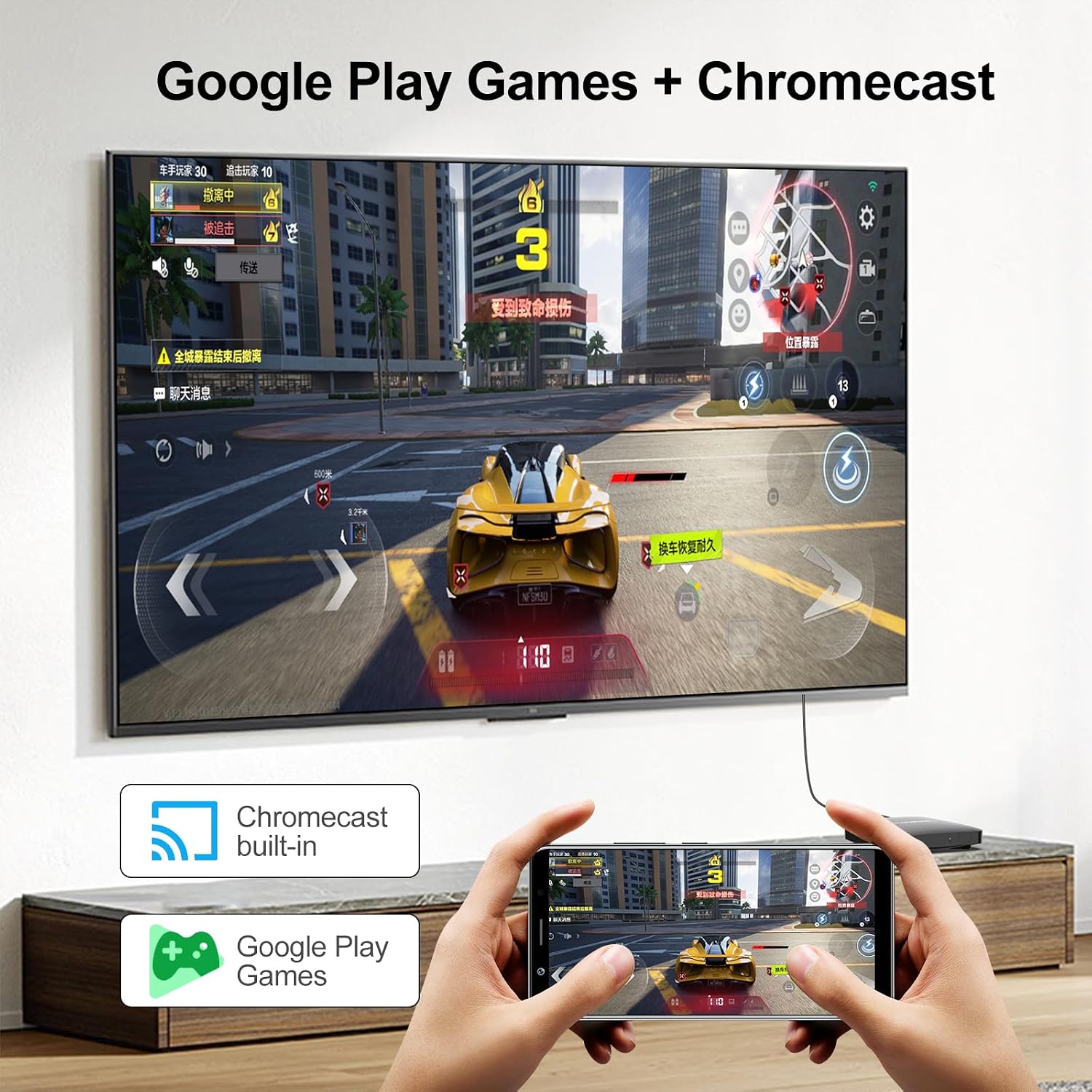
Image: A person holding a smartphone mirroring a racing game to a large TV screen, with icons for 'Chromecast built-in' and 'Google Play Games', demonstrating the device's casting capabilities for gaming.
5. Maintenance
To ensure the longevity and optimal performance of your H96 Max TV Box, follow these maintenance guidelines:
- Cleaning: Use a soft, dry cloth to clean the exterior of the device. Do not use liquid cleaners or aerosols.
- Ventilation: Ensure the TV Box is placed in a well-ventilated area to prevent overheating. Do not block any ventilation openings.
- Power Off: When not in use for extended periods, it is recommended to power off the device and unplug it from the power outlet.
- Software Updates: Periodically check for and install system updates to ensure you have the latest features and security patches.
- Avoid Liquids: Keep the device away from water and other liquids to prevent damage.
6. Troubleshooting
If you encounter issues with your H96 Max TV Box, refer to the following common problems and solutions:
| Problem | Possible Cause / Solution |
|---|---|
| No power | Ensure the power adapter is securely connected to the TV Box and a working power outlet. Try a different outlet. |
| No picture on TV | Check HDMI cable connections. Ensure the TV is set to the correct HDMI input source. Restart the TV Box. |
| Remote control not working | Check battery orientation and replace batteries if necessary. Ensure no obstructions between the remote and the TV Box. |
| Wi-Fi connection unstable or slow | Move the TV Box closer to your Wi-Fi router. Restart your router and the TV Box. Ensure no interference from other devices. Consider using an Ethernet cable for a more stable connection. |
| Apps freezing or crashing | Close background applications. Clear app cache (Settings > Apps > [App Name] > Clear cache). Restart the TV Box. Ensure sufficient storage space. |
| 4K content not displaying correctly | Ensure your TV supports 4K resolution and is connected via an HDMI 2.0 or higher cable. Check display settings on the TV Box (Settings > Display). |
7. Technical Specifications
Key technical specifications for the H96 Max Android 14.0 TV Box:
| Feature | Specification |
|---|---|
| Operating System | Android 14.0 |
| Processor | Amlogic S905L3 |
| RAM | 2GB |
| Internal Storage | 16GB ROM (Expandable via TF card/USB) |
| Wi-Fi | Dual-band 2.4G/5G (Wi-Fi 6) |
| Ethernet | 10/100Mbps |
| Bluetooth | BT 5.x |
| Video Output | HDMI (Supports 4K H.265 HDR10, 3D) |
| USB Ports | 2 x USB 2.0 |
| Special Features | Chromecast, DLNA, Miracast, AV1 Decoding |
| Dimensions | 3.06 x 1.2 x 1.2 inches (approx.) |
| Weight | 8.8 ounces (approx.) |

Image: A detailed diagram of the H96 Max TV Box showing its dimensions (110mm, 108mm, 26mm) and labeled ports including USB, Ethernet, HD (HDMI), AV, DC, and ON/OFF button.
8. Warranty and Support
Information regarding product warranty and customer support is not provided within this manual. Please refer to the product packaging or the seller's website for details on warranty coverage and how to contact customer support for technical assistance or service inquiries.
For further assistance, you may also visit the official product page on Amazon: H96 Max Android 14.0 TV Box on Amazon


