
Avylet RC08HL
Avylet 7" Wireless Apple Carplay Screen User Manual
Model: RC08HL
1. Introduction
Thank you for choosing the Avylet 7" Wireless Apple Carplay Screen. This portable car stereo system is designed to enhance your driving experience by providing seamless access to navigation, music, calls, and more, compatible with both Apple CarPlay and Android Auto. This manual provides detailed instructions for setup, operation, and maintenance to ensure optimal performance and longevity of your device.
Important Notices:
- The Avylet Carplay (rear camera not included) is not compatible with Huawei models.
- Both the Avylet dash cam and the car screen require a Wi-Fi connection to the phone; therefore, the same phone cannot be connected to both devices at the same time.
- To use CarPlay, ensure your iPhone runs iOS 9 or later.
- To use Android Auto, ensure your phone runs Android 11.0 or later.
2. What's in the Box
Verify that all items are present before proceeding with installation.
- 7" Portable Car Screen (rear camera not included)
- Car Charger (11.5ft)
- Aux Audio Cable (5ft)
- Installation Accessories
- WireClip *4
- Magnetic Mount
- Steel Gasket for Magnetic Mount
- User Manual

Image: Package contents of the Avylet 7" Portable Car Screen.
3. Product Features
- 7-inch HD Touchscreen: Designed to avoid blocking the driver’s line of sight, ensuring safety and clarity. Features a 1024*600 resolution and responsive touch interface.
- Wireless Apple CarPlay & Android Auto: Seamlessly connect your smartphone for navigation, music, calls, and more. The system auto-reconnects after initial setup.
- Portrait & Landscape Mode Support: Flexible switching between display orientations for optimal visibility.
- Smart Voice Control & Live GPS Navigation: Utilize Siri or Google Assistant for hands-free control of navigation, calls, messaging, and multimedia. Syncs with Apple Maps, Google Maps, and Waze.
- Effortless Magnetic Mount: Easy to install without removing your existing radio. Features 360° rotation and 180° tilt for optimal viewing angles.
- OTA Upgrade: Over-the-Air updates for regular firmware enhancements, new features, and performance improvements.
- 4 Audio Output Options: Use built-in speakers, Bluetooth, FM sync, or AUX input for versatile sound delivery.
- Custom Boot Animation: Personalize your device with custom images or logos for the startup screen.
- Wide Vehicle Compatibility: Compatible with 12-32V vehicles, including cars, RVs, trucks, SUVs, and pickups.
- Power-Saving Screen Saver: Screen goes black after a set time of inactivity to conserve vehicle battery.
- Split-Screen CarPlay: Allows simultaneous use of multiple applications for enhanced convenience.

Image: Avylet 7" Portable Car Screen in portrait mode.

Image: Flexible landscape and portrait screen modes.

Image: Wireless Apple CarPlay, Android Auto, and Mirror Link capabilities.
4. Setup and Installation
4.1 Magnetic Mount Installation
- Clean the Surface: Ensure the installation area on your dashboard is clean, dry, and free from dust, oil stains, or moisture.
- Attach Steel Gasket: Remove the white protective film from the steel gasket and position it on the cleaned area. Press firmly and let it sit for 24 hours to enhance adhesion and stability.
- Prepare Magnetic Mount: Peel off the red protective film from the magnetic mount.
- Align and Attach Mount: Align the magnetic mount with the steel gasket and press gently to secure it. Ensure the curve of the mount fits the dashboard tightly. Let it set for 12-24 hours before use for optimal stability.
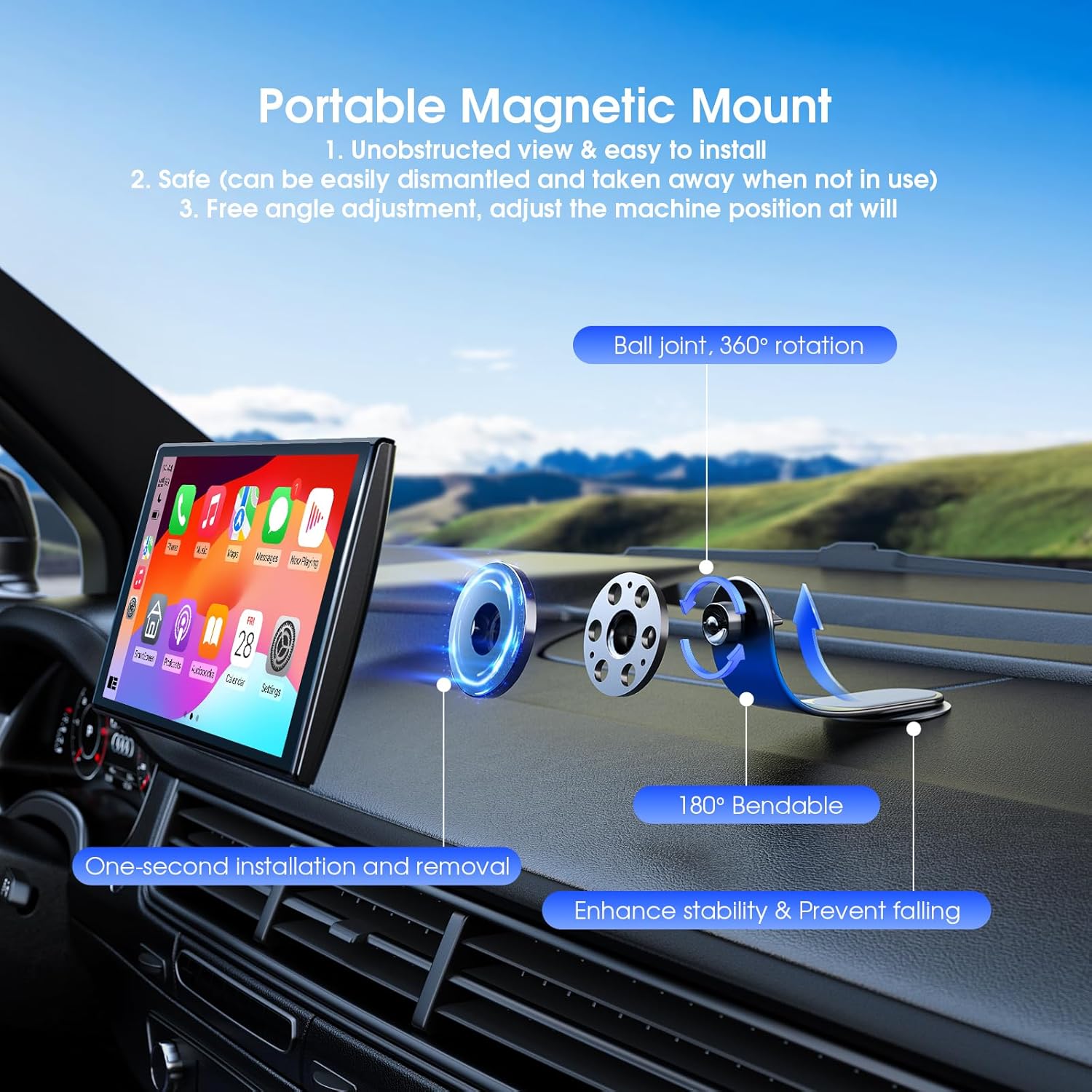
Image: Steps for installing the magnetic mount.
Video: How to Install the Magnetic Mount (Key Tips). This video demonstrates the process of installing the magnetic mount, including cleaning the surface, attaching the steel gasket, and securing the magnetic mount for stable placement of the car screen.
4.2 Power Connection
Connect the included car charger to the device and plug it into your vehicle's cigarette lighter socket. The device is compatible with 12-32V vehicle power systems.
5. Operating Instructions
5.1 Initial Power On
Once connected to power, the device will automatically power on and display the Avylet boot logo. The main interface will then appear.
5.2 Switching Screen Orientation
The device supports both landscape and portrait modes. To switch, tap the screen rotation icon on the interface. Confirm the change when prompted; the device will restart to apply the new orientation.

Image: Main interface of the Avylet car screen.
5.3 Voice Control
Activate Siri (for Apple CarPlay) or Google Assistant (for Android Auto) to control navigation, make calls, send messages, and play music hands-free. Ensure your phone's voice wake-up function is enabled.

Image: Voice control features for navigation and calls.
5.4 Audio Output Options
The device offers four ways to output audio:
- Built-in Speaker: For private listening.
- Bluetooth Connection: Stream audio wirelessly to your car's speakers.
- FM Transmitter: Sync with your car's FM radio (ensure your car is in radio mode).
- AUX Connection: Connect directly to your car's AUX input using the provided cable for lossless audio.

Image: Four audio output options.
6. Connectivity
6.1 Wireless Apple CarPlay Connection
- Switch the car screen to 'CarPlay' mode.
- On your iPhone, turn on Bluetooth and Wi-Fi.
- Select the device named "T86xxxx" (or similar) for connection and pair it.
- Once paired, CarPlay will connect automatically.
6.2 Wireless Android Auto Connection
- Switch the car screen to 'Android Auto' mode.
- On your Android phone, turn on Bluetooth and Wi-Fi.
- Make sure your device is in pairing mode and visible to nearby devices.
- Select the device named "T86xxxx" (or similar) for connection and pair it.
- Once paired, Android Auto will connect automatically.
6.3 Wireless Airplay Connection (for iOS)
- Switch the car screen to 'Airplay' mode.
- On your iPhone, turn on Bluetooth and Wi-Fi.
- Connect to the Wi-Fi network named "AIRPLAY-xxxxxx".
- Turn on screen mirroring on your iPhone.
- Connection successful.
6.4 Wireless Super Link Connection (for iPhone/Android)
- Switch the car screen to 'Super Link' mode (iPhone or Android).
- Scan the QR code displayed on the screen to download the 'EveLink' app.
- On your phone, turn on Wi-Fi.
- Open the 'EveLink' app and connect to the Wi-Fi network named "EVELINK-xxxxxx".
- Turn on screen mirroring (if applicable for your device).
- Connection successful.
7. Maintenance
- Cleaning: Use a soft, dry cloth to clean the screen and exterior of the device. Avoid using abrasive cleaners or solvents.
- Software Updates (OTA): Regularly check for Over-the-Air (OTA) updates to ensure your device has the latest features and performance enhancements. Activate Super Link mode to seamlessly upgrade your system.
- Storage: If storing the device for an extended period, disconnect it from power and store it in a cool, dry place.
- Magnetic Mount Care: Ensure the magnetic mount and steel gasket remain clean and free of debris to maintain strong adhesion.
8. Troubleshooting
| Problem | Possible Cause | Solution |
|---|---|---|
| Device does not power on. | No power, loose connection, or faulty car charger. | Check car charger connection to the device and cigarette lighter. Ensure vehicle's power outlet is functional. |
| Cannot connect to Apple CarPlay/Android Auto wirelessly. | Bluetooth/Wi-Fi off on phone, incorrect pairing, or phone OS version is too old. | Ensure Bluetooth and Wi-Fi are enabled on your phone. Re-pair the device. Verify your phone meets the minimum OS requirements (iOS 9+ for CarPlay, Android 11+ for Android Auto). Ensure only one device is connected to your phone's Wi-Fi if using a dash cam. |
| Magnetic mount is not holding securely. | Improper installation, dirty surface, or insufficient curing time for adhesive. | Re-clean the dashboard surface. Ensure the steel gasket was pressed firmly and allowed to sit for 24 hours. Allow 12-24 hours for the magnetic mount adhesive to cure before use. Contact support for alternative brackets if issues persist. |
| Audio quality is poor via FM. | Interference or car radio not in FM mode. | Switch your car to radio mode before using FM. Try a different FM frequency. Consider using Bluetooth or AUX connection for better audio quality. |
| Screen does not rotate. | Software glitch or setting issue. | Ensure you are tapping the screen rotation icon and confirming the prompt. Restart the device if necessary. |
9. Specifications
| Feature | Detail |
|---|---|
| Product Dimensions | 6.89 x 0.83 x 4.33 inches |
| Item Weight | 10.8 ounces |
| Model Number | RC08HL |
| Operating System Compatibility | iOS (9 or later), Android (11.0 or later) |
| Connectivity Technologies | Bluetooth, Auxiliary, Wi-Fi, FM |
| Display Resolution | 1024x600 |
| Color | Black |
| Mounting Type | Magnetic Mount |
| Vehicle Compatibility | 12-32V (Cars, RVs, Trucks, SUVs, Pickups) |
10. Warranty and Support
The Avylet 7" Wireless Apple Carplay Screen comes with a two-year warranty. If any issues arise during this period, please reach out to our support team for swift technical assistance or a replacement.
For custom boot animation requests, please send your preferred images (brands, family, scenery, pets, etc.) to our official email, as provided on the product packaging.
For further assistance or inquiries, please refer to the contact information provided in your product packaging or visit the official Avylet store online.
Visit the Avylet Store: Avylet Store
Ask a question about this manual
Ask about setup, troubleshooting, compatibility, parts, safety, or missing instructions. Manuals+ will review the question and use this page’s manual context to help answer it.