
1. Introduction
Welcome to the DOOGEE Tab A9 Pro user manual. This guide provides essential information to help you set up, operate, and maintain your new Android tablet. Please read this manual thoroughly before using the device to ensure proper functionality and safety.
2. What's in the Box
The DOOGEE Tab A9 Pro package includes the following items:
- 1 x DOOGEE Tab A9 Pro Tablet
- 1 x USB Type-C Cable
- 1 x Charger
- 1 x SIM Ejector Pin
- 1 x Packaging Box
- 1 x User Manual
- 1 x Warranty Card
- 1 x Screen Protector (pre-applied)
3. Product Overview
The DOOGEE Tab A9 Pro features a sleek design and powerful components for an optimal user experience.
Key Features:
- Display: 10.1-inch IPS HD Ultra-Clear Display (1280x800 pixels, 16.7 million colors, 16:10 aspect ratio, 1200:1 contrast, 2.5D cover glass).
- Processor: Unisoc T310 Quad-core, 2 GHz.
- Memory & Storage: 20GB RAM (4GB base + 16GB virtual), 128GB ROM, expandable up to 2TB with microSD.
- Battery: 6580 mAh Lithium battery for extended use.
- Cameras: 8MP Rear Camera, 5MP Front Camera.
- Operating System: Android 15.
- Connectivity: Wi-Fi (2.4G/5G), Bluetooth 5.0.
- Audio: Dual 1217 BOX Speakers, 3.5mm Audio Jack.
- Security: Face Unlock.
- Dimensions: 24.53 x 16.33 x 0.99 cm; 478 grams.
Physical Components:
Familiarize yourself with the tablet's physical layout.
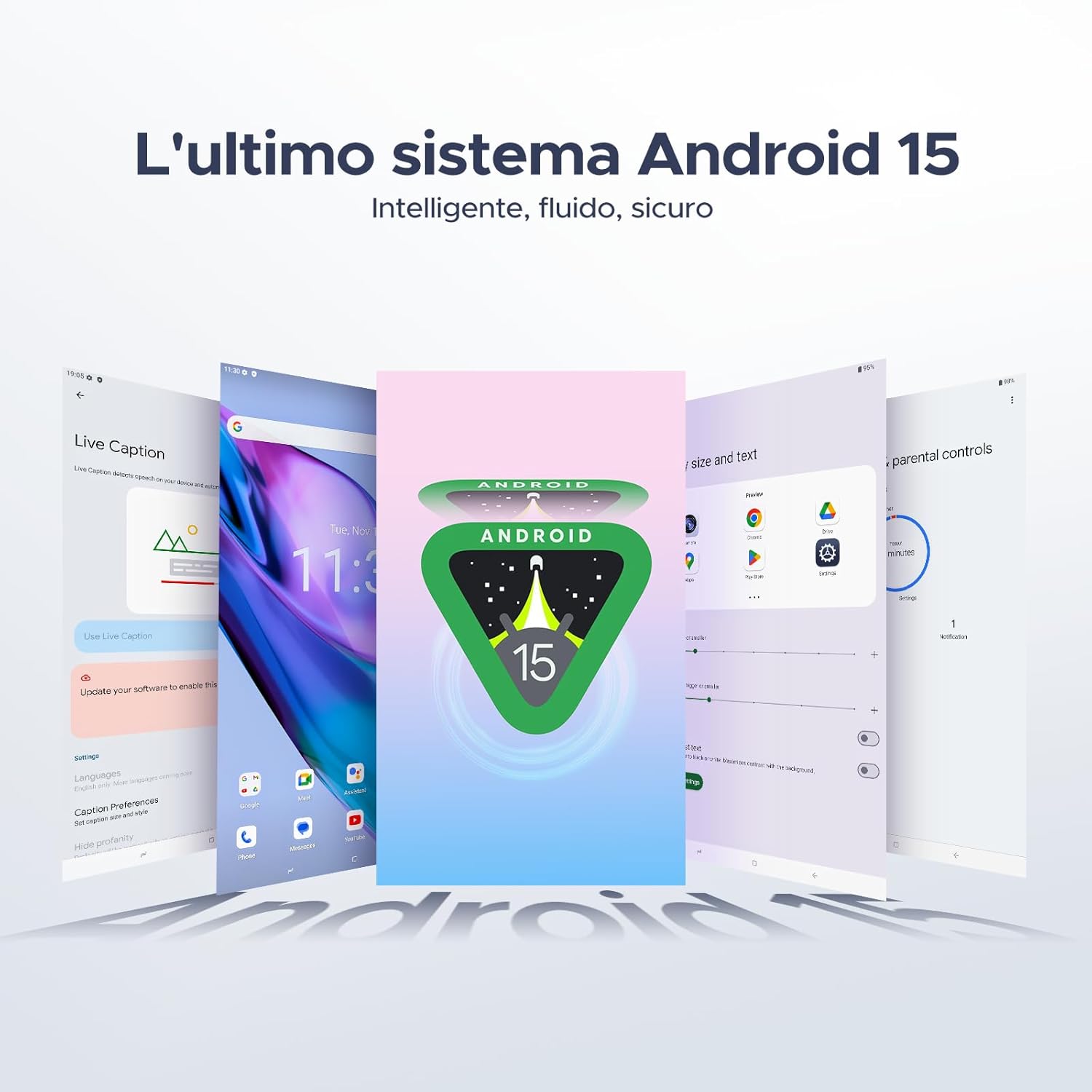
Figure 3.1: Front and back view of the DOOGEE Tab A9 Pro Tablet.

Figure 3.2: Side view showing power button, volume controls, and ports.

Figure 3.3: Available color options for the DOOGEE Tab A9 Pro Tablet.
4. Setup
4.1 Initial Power On
- Press and hold the Power button located on the side of the tablet until the DOOGEE logo appears.
- Follow the on-screen prompts to select your language, connect to a Wi-Fi network, and set up your Google account.
4.2 Charging the Battery
Before first use, fully charge the tablet's battery.
- Connect the USB Type-C cable to the tablet's charging port.
- Connect the other end of the cable to the provided charger, then plug the charger into a power outlet.
- The charging indicator will appear on the screen.

Figure 4.1: Illustration of the 6580 mAh high-capacity battery.
4.3 Inserting a MicroSD Card
To expand storage, insert a microSD card (sold separately).
- Locate the SIM/microSD card tray on the side of the tablet.
- Insert the SIM ejector pin into the small hole next to the tray to open it.
- Place the microSD card into the designated slot on the tray.
- Gently push the tray back into the tablet until it clicks into place.

Figure 4.2: Storage capacity details, including expandable memory.
5. Operating Instructions
5.1 Navigating Android 15
Your tablet runs on the latest Android 15 system, offering an intelligent, fluid, and secure experience.

Figure 5.1: The Android 15 operating system interface.
5.2 Display Features
The 10.1-inch IPS HD display provides a wide visual field. Utilize features like Eye-Caring Mode and Dark Mode for enhanced viewing comfort.

Figure 5.2: Details of the 10.1-inch IPS HD Ultra-Clear Display.

Figure 5.3: Eye-Caring Mode and Dark Mode for visual comfort.
5.3 Camera Usage
Capture moments with the 8MP main camera and take clear selfies or video calls with the 5MP front camera. The tablet also supports Beauty Mode and Google Smart Camera features.

Figure 5.4: The 8MP main camera for clear photos.

Figure 5.5: The 5MP front camera for selfies and video calls.

Figure 5.6: Beauty Mode for enhancing photos.

Figure 5.7: Google Smart Camera features for enhanced photography.
5.4 Audio and Connectivity
Enjoy clear audio through the dual 1217 BOX speakers or connect headphones via the 3.5mm audio jack. The tablet supports Wi-Fi 5 (2.4G/5G) for stable and fast internet access.

Figure 5.8: Dual 1217 BOX speakers for crystal clear audio.

Figure 5.9: Standard 3.5mm audio jack for stable, distortion-free transmission.

Figure 5.10: Wi-Fi 5 for seamless connectivity.
5.5 Security and Privacy
Unlock your tablet effortlessly using Face Unlock. Android 15 also provides enhanced privacy features, including precise permission control, robust data encryption, and proactive app screening.

Figure 5.11: Face recognition unlock for easy access.

Figure 5.12: Enhanced privacy shield features of Android 15.
5.6 Productivity Features
The tablet supports efficient split-screen multitasking and comes with WPS Office integrated for productivity on the go.

Figure 5.13: Efficient split-screen multitasking.

Figure 5.14: WPS Office integrated for PC-level productivity.
5.7 Additional Features
The tablet offers Sleep Mode, Multi-user System, and Parental Control features for a versatile user experience.

Figure 5.15: Discover more with Android 15 features.
5.8 Product Videos
Watch these official videos for a visual guide to the DOOGEE Tab A9 Pro's features.
Video 5.1: DOOGEE Tab A9 Pro product overview (Preview).
Video 5.2: DOOGEE Tab A9 Pro features highlight (Preview).
Video 5.3: DOOGEE Tab A9 Pro design and performance (Preview).
6. Maintenance
6.1 Cleaning the Tablet
- Use a soft, lint-free cloth to clean the screen and body of the tablet.
- Avoid using harsh chemicals or abrasive materials, as they may damage the surface.
6.2 Battery Care
- Avoid exposing the tablet to extreme temperatures.
- For optimal battery life, avoid fully discharging the battery frequently.
6.3 Software Updates
Regularly check for and install software updates to ensure your tablet has the latest features and security enhancements. Go to Settings > System > System update to check for updates.
7. Troubleshooting
If you encounter issues with your DOOGEE Tab A9 Pro, refer to the following common solutions:
| Problem | Solution |
|---|---|
| Tablet does not turn on | Ensure the battery is charged. Connect the charger and wait a few minutes before attempting to power on again. If it still doesn't turn on, press and hold the power button for 10-15 seconds to force a restart. |
| Screen is unresponsive | Restart the tablet. If the issue persists, perform a factory reset (note: this will erase all data). |
| Wi-Fi connection issues | Restart your Wi-Fi router and the tablet. Forget the network in tablet settings and reconnect. Ensure you are within range of the Wi-Fi signal. |
| Apps crashing or freezing | Clear the cache and data for the problematic app (Settings > Apps > [App Name] > Storage > Clear Cache/Clear Data). If the issue continues, uninstall and reinstall the app. Ensure your tablet's software is up to date. |
| Battery drains quickly | Reduce screen brightness, close unused apps running in the background, disable Wi-Fi/Bluetooth when not in use, and check for power-intensive apps in battery usage settings. |
If these solutions do not resolve the issue, please contact customer support.
8. Specifications
Detailed technical specifications for the DOOGEE Tab A9 Pro:
| Feature | Specification |
|---|---|
| Brand | DOOGEE |
| Model Number | Tab A9 PRO |
| Operating System | Android 15 |
| Processor | Unisoc T310 Quad-core, 2 GHz |
| RAM | 20 GB (4GB base + 16GB virtual) |
| Internal Storage (ROM) | 128 GB |
| Expandable Storage | Up to 2 TB via microSD card (sold separately) |
| Screen Size | 10.1 Inches |
| Screen Resolution | 1280 x 800 pixels |
| Rear Camera | 8 MP |
| Front Camera | 5 MP |
| Connectivity | Wi-Fi (802.11ac, 2.4G/5G), Bluetooth 5.0 |
| Battery Capacity | 6580 Milliamper-hour (mAh) |
| Product Dimensions | 24.53 x 16.33 x 0.99 cm |
| Item Weight | 478 grams |
| Color | BLACK (also available in Glacier Blue, Meteorite Gray) |
9. Warranty and Support
Your DOOGEE Tab A9 Pro comes with a manufacturer's warranty. Please refer to the included Warranty Card for details on coverage and terms. For technical support, troubleshooting assistance beyond this manual, or warranty claims, please contact DOOGEE customer service through their official website or the retailer where the product was purchased.
For more information, visit the DOOGEE Store on Amazon.


