1. Introduction
This manual provides essential information for the setup, operation, and maintenance of your HUION KAMVAS Slate 11 standalone drawing tablet. The KAMVAS Slate 11 is designed for digital artists and creative professionals, offering a portable and versatile platform for drawing, note-taking, and general Android tablet usage.
The device operates on Android 14, features a 10.95-inch anti-glare screen, and comes with a high-precision H-Pencil stylus. Please read this manual thoroughly to ensure optimal performance and longevity of your device.
Video Description: An overview of the HUION KAMVAS Slate 11 & 13 standalone drawing tablets, highlighting their features and portability for creative work.
2. What's in the Box
Verify that all items listed below are included in your product packaging:
- Android Tablet
- H-Pencil Pen
- Pen Nibs x 3
- USB-C to USB-A Power Cable
- Leather Case
- Palm Rejection Artist Glove
- Card Eject Tool
- Quick Start Guide
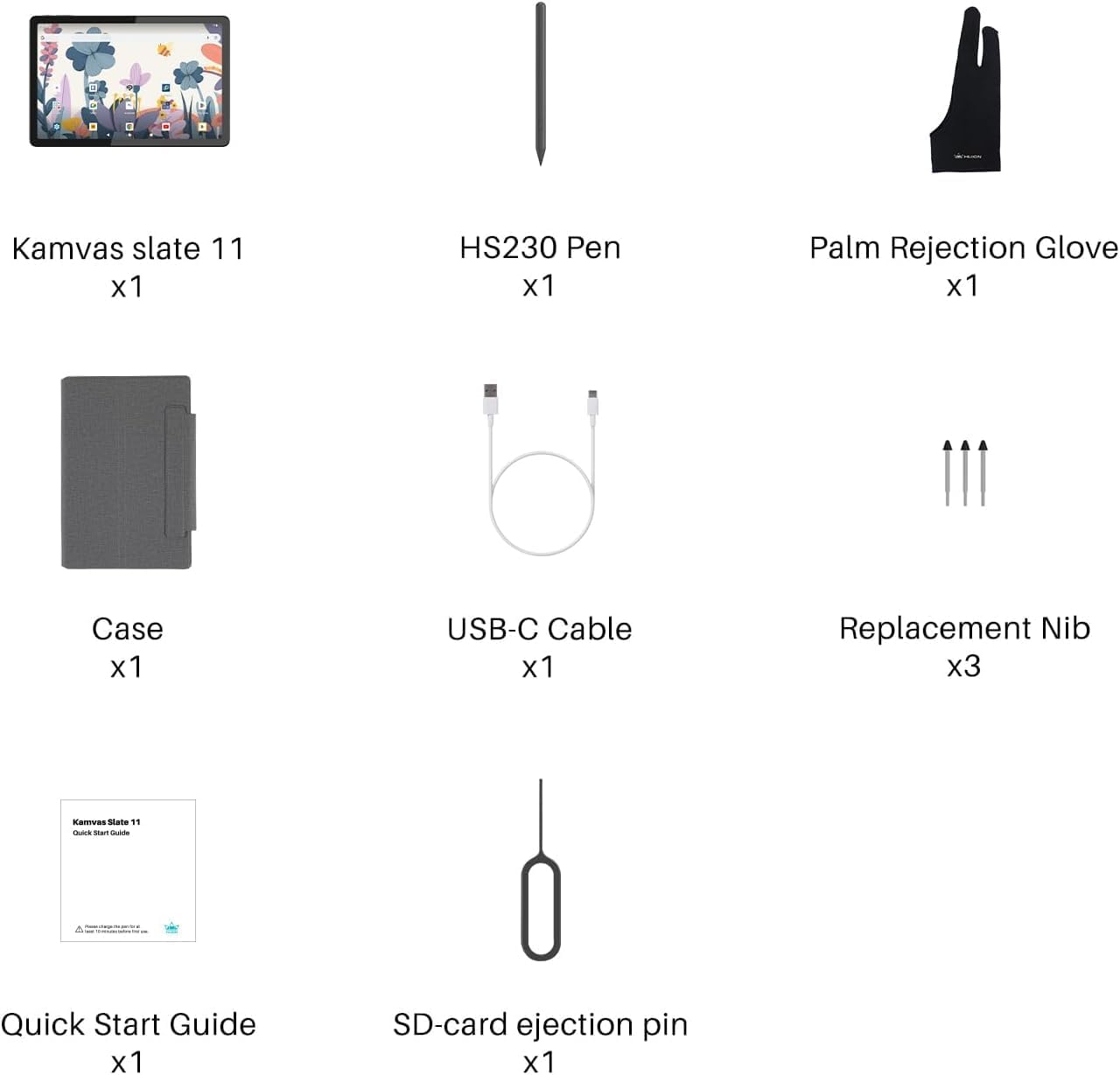
Image Description: A visual representation of all components included in the HUION KAMVAS Slate 11 package, neatly arranged in their box.
3. Product Features
The HUION KAMVAS Slate 11 offers a range of features designed to enhance your creative and digital experience:
- Standalone Operation: No computer connection required, allowing immediate use.
- 10.95-inch Full HD Display: Features a 1920x1200 resolution (207 PPI) with 99% sRGB color gamut for sharp and accurate visuals.
- Smooth 90Hz Refresh Rate: Ensures fluid visuals and a responsive creative experience.
- Full-Laminated Anti-Glare Screen: Nano-etched matte surface reduces glare and provides a paper-like texture, minimizing parallax and eye strain.
- High-Precision H-Pencil: Offers 4096 levels of pressure sensitivity and 60° tilt recognition for a natural writing and drawing feel.
- Powerful Performance: Equipped with an 8-core CPU, 8GB RAM, and 128GB storage (expandable up to 1TB via Micro SD card).
- Long Battery Life: An 8000mAh battery provides up to 11 hours of continuous use.
- Android 14 OS: Runs on the latest Android operating system, supporting Google Play apps.
- Pre-installed Drawing Apps: Comes with Clip Studio Paint and ibisPaint X (including up to 3 months of free memberships for new users).
- Integrated Cameras: Features an 8MP front camera and a 13MP rear camera with flash.

Image Description: This image illustrates the smooth 90Hz refresh rate and high-resolution display of the tablet.
Video Description: A comparison demonstrating the anti-glare properties of the Kamvas Slate 11's matte screen versus a reflective screen under direct light.

Image Description: Details the features of the H-Pencil, including its precision and pressure sensitivity.
4. Setup
Follow these steps for initial setup of your KAMVAS Slate 11:
- Unboxing: Carefully remove all components from the packaging.
- Initial Charge: Connect the tablet and H-Pencil to the USB-C cable and a power adapter (not included) to fully charge them before first use.
- Power On: Press and hold the power button located on the side of the tablet until the HUION logo appears.
- Language & Region: Follow the on-screen prompts to select your preferred language and region.
- Wi-Fi Connection: Connect to a stable Wi-Fi network to access online features and app downloads.
- Google Account: Sign in with your Google account to access Google Play Store and synchronize your data.
Video Description: This video guides users through the unboxing process, initial setup, and basic usage of pre-installed software on the tablet.
5. Operating Instructions
Your KAMVAS Slate 11 is a versatile device. Here's how to get started with its main functions:
5.1 Using the H-Pencil
- Drawing & Writing: The H-Pencil offers precise input for drawing and writing. Its 4096 pressure levels and 60° tilt recognition simulate a natural pen-on-paper feel.
- Programmable Button: The button on the H-Pencil can be customized for functions like undo, erase, or brush switching within compatible applications.
- Palm Rejection: Wear the included artist glove to prevent unintended marks from your palm while drawing.
5.2 Pre-installed Applications
- HiPaint & ibisPaint X: These are powerful drawing applications pre-installed for immediate creative work. Explore their features for sketching, painting, and digital art.
- HiNote: Use HiNote for digital note-taking, annotating documents, and organizing your thoughts.
- Google Play: Access the Google Play Store to download additional apps, games, and content.
Video Description: This video demonstrates various activities possible on the Kamvas Slate 11, including drawing, gaming, and general app usage.
Video Description: This video showcases the book reading and note-taking experience on the Kamvas Slate 11, highlighting its suitability for academic and personal use.
6. Maintenance
Proper care ensures the longevity and performance of your tablet:
- Screen Cleaning: Use a soft, lint-free cloth to gently wipe the screen. Avoid harsh chemicals. The anti-fingerprint matte surface is designed to reduce smudges.
- Battery Care: To prolong battery life, avoid fully discharging the tablet frequently. Charge it regularly using the provided USB-C cable.
- Stylus Nibs: Replace the H-Pencil nibs when they show signs of wear to maintain optimal drawing precision. Extra nibs are included in the package.
- Storage: When not in use, store the tablet in its leather case to protect it from dust and scratches.
7. Troubleshooting
If you encounter issues, try these common solutions:
- Tablet Not Responding: Restart the tablet by holding the power button. If unresponsive, perform a forced restart (refer to the Quick Start Guide for specific instructions).
- H-Pencil Not Working: Ensure the H-Pencil is charged. Check if the nib is properly inserted. If issues persist, try replacing the nib.
- Screen Flickering: Ensure the tablet's software is up to date. If the issue continues, contact customer support.
- Connectivity Issues: For Wi-Fi or Bluetooth problems, try restarting the tablet and your router/Bluetooth device.
- App Performance: Close background applications to free up RAM. Ensure apps are updated to their latest versions.
8. Specifications
| Feature | Specification |
|---|---|
| Product Dimensions | 10.11 x 6.63 x 0.1 inches |
| Item Weight | 1.12 pounds |
| Item Model Number | KT1101 |
| Batteries | 1 9V batteries required (included) |
| Brand | HUION |
| Connectivity Technology | Bluetooth, Wi-Fi |
| Pressure Sensitivity | 4096 Levels |
| Operating System | Android 14 |
| Special Features | 8-core CPU, 8GB + 128GB, 8000mAh Battery, 90Hz Refresh Rate, Anti-Glare Glass, Front Facing Camera and Rear Camera, Full Lamination |
9. Warranty and Support
For warranty information and technical support, please refer to the official HUION website or contact their customer service directly. Protection plans are available for extended coverage.


