
HiBy R1
HiBy R1 HiFi MP3 Player User Manual
Model: R1
1. Introduction
The HiBy R1 is a compact and versatile HiFi MP3 player designed for high-resolution audio playback. It features a built-in CS43131 DAC chip, supporting DSD 256 native and PCM 384kHz audio formats. With Bluetooth 5.1, Wi-Fi connectivity, and a 3-inch touchscreen, the R1 offers a comprehensive portable music experience, including streaming from services like Tidal and Qobuz.

Image: Front view of the HiBy R1 MP3 player showing its touchscreen interface during music playback.

Image: Overview of the HiBy R1 in various colors, highlighting its compact design and key features like Hi-Res certification, Tidal/Qobuz support, DSD/PCM, and Bluetooth 5.1.
2. Setup Guide
2.1. Unboxing and Package Contents
Carefully unbox your HiBy R1 player. Verify that all components are present:
- HiBy R1 Player
- USB2.0 data cable
- Pouch
- Strap
- Needle (for SIM tray/reset)
- User manual
- Warranty card
- Certificate
- Protective film
Note: The 'Set Version' may include additional accessories such as a 32GB Micro SD Card, Yves Earphones, and ear-tips.

Image: Comparison of package contents for the Standard and Set versions of the HiBy R1, showing the player, cables, pouch, and additional accessories for the Set version.
2.2. Initial Charging
Before first use, fully charge the HiBy R1 using the provided USB cable and a compatible USB power adapter (not included). The charging indicator will show progress and turn off when fully charged.
2.3. Powering On/Off
- To Power On: Press and hold the Power button until the screen illuminates.
- To Power Off: Press and hold the Power button, then select 'Power Off' on the screen.
2.4. Micro SD Card Installation
The HiBy R1 supports TF cards (Micro SD) up to 2TB in FAT32, NTFS, and EXFAT formats. Locate the Micro SD card slot on the device. Insert the card gently until it clicks into place. To remove, push the card in slightly until it springs out.
2.5. Firmware Update
It is highly recommended to update the firmware before initial use to ensure optimal performance, bug fixes, and enhanced features.
Connect the HiBy R1 to a Wi-Fi network. Navigate to 'Settings' > 'About device' > 'System update' to check for and install the latest firmware.
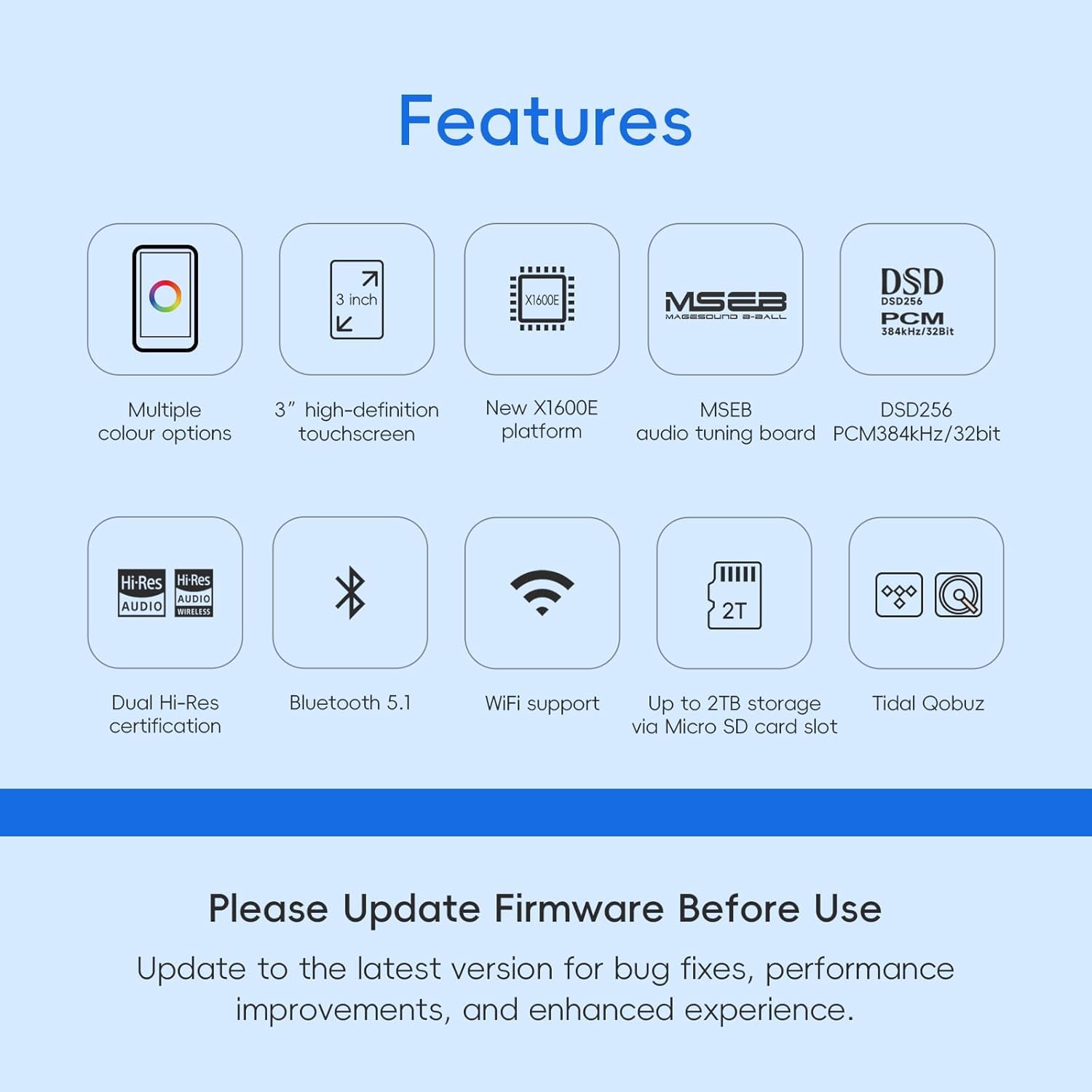
Image: An overview of the HiBy R1's key features, including a prominent reminder to update firmware before use for bug fixes and performance improvements.
3. Operating Instructions
3.1. Basic Navigation
The HiBy R1 features a 3-inch HD touchscreen with 800x480 resolution. Navigate the interface by tapping, swiping, and using the physical control buttons on the side of the device.

Image: Close-up of the HiBy R1's 3-inch IPS touchscreen, highlighting its 800x480 resolution.
3.2. Music Playback
The R1 supports a wide range of high-resolution lossless audio formats, including MP3, WAV, APE, FLAC, DSF, DFF, ISO, CUE, WMA, OGG, AAC, Opus, and AIFF. After inserting a Micro SD card with music files, the device will scan and organize your library.

Image: Diagram illustrating the HiFi DAC CS43131 chip and the various audio formats it supports, including DSD256 native and PCM 384kHz/32bit.
3.3. Bluetooth Connectivity
The HiBy R1 features Bluetooth 5.1 with support for LDAC, aptX, AAC, and SBC codecs, ensuring high-quality wireless audio output. It holds dual certifications for Hi-Res AUDIO and Hi-Res AUDIO WIRELESS.
- Pairing: Go to 'Settings' > 'Bluetooth', turn Bluetooth on, and select your desired device from the list to pair.

Image: The HiBy R1 player demonstrating its Bluetooth 5.1 and Wi-Fi music transfer capabilities, showing various Bluetooth codecs like LDAC, aptX, AAC, and SBC.
3.4. Wi-Fi Connectivity and Streaming
The R1 supports Wi-Fi for music transfer and streaming services. The HiByOS player, powered by the X1600E CPU, allows direct streaming from Tidal and Qobuz, as well as internet radio playback.
- Connecting to Wi-Fi: Go to 'Settings' > 'Wi-Fi', turn Wi-Fi on, and select your network.
- Streaming: Access Tidal or Qobuz applications directly from the player's interface.
- Wi-Fi Music Transfer: Transfer songs to the device over Wi-Fi without needing a cable.

Image: The HiBy R1 screen displaying options for streaming music from Tidal and Qobuz.
3.5. MSEB Tuning
The HiBy R1 features an MSEB (MageSound 8-Ball) mixer for easy sound tuning. This allows users to adjust various audio parameters to customize their listening experience.
- Accessing MSEB: Navigate through the HiByOS interface to find the MSEB settings.
- Adjustments: Modify parameters such as 'Overall Temperature' (Cool/Bright to Warm/Dark), 'Bass extension', 'Bass texture', 'Note thickness', 'Vocals', 'Recessed/Crisp', 'Female overtones', 'Sibilance', and 'Detox/Vivid'.

Image: The HiBy R1 displaying its MSEB (MageSound 8-Ball) audio tuning interface, alongside options for streaming services like Tidal and Qobuz.
3.6. USB DAC Output
The HiBy R1 can function as a USB DAC, allowing it to process audio from a computer or other compatible device and output it through its 3.5mm port.
- Connect the R1 to your computer using the USB-C cable.
- Select the USB DAC mode on the R1 if prompted.
- Select the HiBy R1 as the audio output device on your computer.
4. Maintenance
4.1. Battery Care
- Avoid fully discharging the battery frequently.
- Charge the device regularly, even if not in use, to maintain battery health.
- Store the device in a cool, dry place if not used for extended periods.
4.2. Cleaning
- Use a soft, dry, lint-free cloth to clean the screen and body of the player.
- Do not use abrasive cleaners, alcohol, or chemical solvents.
- Keep the ports free of dust and debris.
4.3. Storage
When not in use, store the HiBy R1 in its pouch to protect it from scratches and dust. Avoid exposing the device to extreme temperatures, direct sunlight, or high humidity.
5. Troubleshooting
5.1. Device Not Turning On
- Ensure the battery is charged. Connect the player to a power source for at least 30 minutes.
- Press and hold the Power button for 10-15 seconds to perform a forced restart.
5.2. No Sound Output
- Check the volume level on the device and connected headphones/speakers.
- Ensure headphones are properly plugged into the 3.5mm port.
- If using Bluetooth, ensure the device is correctly paired and connected. Try re-pairing.
- Test with different headphones or audio files.
5.3. Connectivity Issues (Bluetooth/Wi-Fi)
- Ensure Bluetooth/Wi-Fi is enabled in settings.
- Move closer to the Wi-Fi router or Bluetooth device.
- Forget the network/device and try reconnecting.
- Restart the HiBy R1 and the other device.
5.4. Micro SD Card Not Recognized
- Ensure the card is inserted correctly and fully.
- Check if the card is formatted to FAT32, NTFS, or EXFAT.
- Try a different Micro SD card to rule out card issues.
- Restart the device.
6. Specifications
| Feature | Detail |
|---|---|
| Model Name | R1 |
| DAC Chip | CS43131 |
| Supported Audio Formats | MP3, WAV, APE, FLAC, DSF, DFF, ISO, CUE, WMA, OGG, AAC, Opus, AIFF |
| Max Resolution | DSD 256 native, PCM 384kHz/32bit |
| Bluetooth Version | 5.1 |
| Bluetooth Codecs | LDAC, aptX, AAC, SBC |
| Display | 3-inch IPS Touchscreen |
| Display Resolution | 800x480 |
| CPU | X1600E |
| Memory Storage Capacity | Supports up to 2TB via Micro SD card |
| Battery | 1150mAh Lithium Ion (included) |
| Music Playback Time | Approx. 15 hours |
| Standby Time | Approx. 400+ hours |
| Connectivity Technology | Bluetooth, Wi-Fi, USB-C |
| Item Weight | 2.47 ounces |
| Package Dimensions | 6 x 4 x 2 inches |
7. Warranty and Support
For warranty information and technical support, please refer to the warranty card included in your package or visit the official HiBy website. You can also find additional support and product information on the HiBy Store on Amazon.
HiBy is dedicated to providing excellent customer service. If you have any questions or require assistance with your HiBy R1, please do not hesitate to contact their support team.
Related Documents - R1
 |
HiBy R1 Common Connection Issues Troubleshooting Guide A comprehensive guide to troubleshooting common connection issues with the HiBy R1 HiFi MP3 Player, covering Bluetooth and USB connectivity. |
 |
HiBy R1 Portable Digital Audio Player User Guide User guide for the HiBy R1 portable digital audio player, detailing its features, buttons, ports, audio format support, wireless connectivity, file transfer, firmware upgrades, and important cautions. |
 |
HIFI WALKER H2 Digital Audio Player User Manual User manual for the HIFI WALKER H2 portable lossless music player, covering setup, operation, settings, specifications, and troubleshooting. |
 |
HiBy Music User Manual: Comprehensive Guide to Features and Settings Detailed user manual for the HiBy Music app, covering features like music import, scanning, equalizer, MSEB, plugins, playback settings, HiBy Link, lyrics display, artwork, and more. Optimized for SEO and accessibility. |
 |
HiBy M300 Portable Android Music Player User Guide User guide for the HiBy M300, a high-performance portable Android digital audio player supporting various hi-res audio formats. Learn about its features, buttons, ports, operating system, connectivity, and firmware upgrades. |
 |
HIFI WALKER H2 Digital Audio Player Quick Guide and FAQ A quick guide and frequently asked questions for the HIFI WALKER H2 Digital Audio Player, covering button functions, troubleshooting, and Bluetooth pairing. |
Ask a question about this manual
Ask about setup, troubleshooting, compatibility, parts, safety, or missing instructions. Manuals+ will review the question and use this page’s manual context to help answer it.