
1. Introduction
The diymore USB C Tester Power Meter is a versatile digital multimeter designed for monitoring USB Type-C power delivery. It accurately measures voltage, current, power, capacity, and working time, providing essential data for evaluating USB-C chargers, cables, power banks, and connected devices. This manual provides instructions for safe and effective use of your device.
2. Safety Information
- Do not expose the device to moisture or extreme temperatures.
- Avoid dropping or subjecting the device to strong impacts.
- Do not attempt to disassemble or modify the device. This will void the warranty and may cause damage or injury.
- Ensure proper connection of the tester to avoid short circuits or damage to connected devices.
- Keep out of reach of children.
3. Product Features
- Real-time Monitoring: Displays voltage (V), current (A), power (W), accumulated capacity (mAh), energy (mWh), resistance (Ω), and temperature (°C).
- USB Type-C Compatibility: Designed for use with USB-C power sources and devices.
- LED Display: Clear and bright display for easy reading of measurements.
- Data Storage: Retains accumulated capacity and energy data until manually reset or power cycle.
4. Package Contents
Please check the package for the following items:
- diymore USB C Tester Power Meter
- User Manual (this document)
5. Product Overview
Familiarize yourself with the components of your USB C Tester.
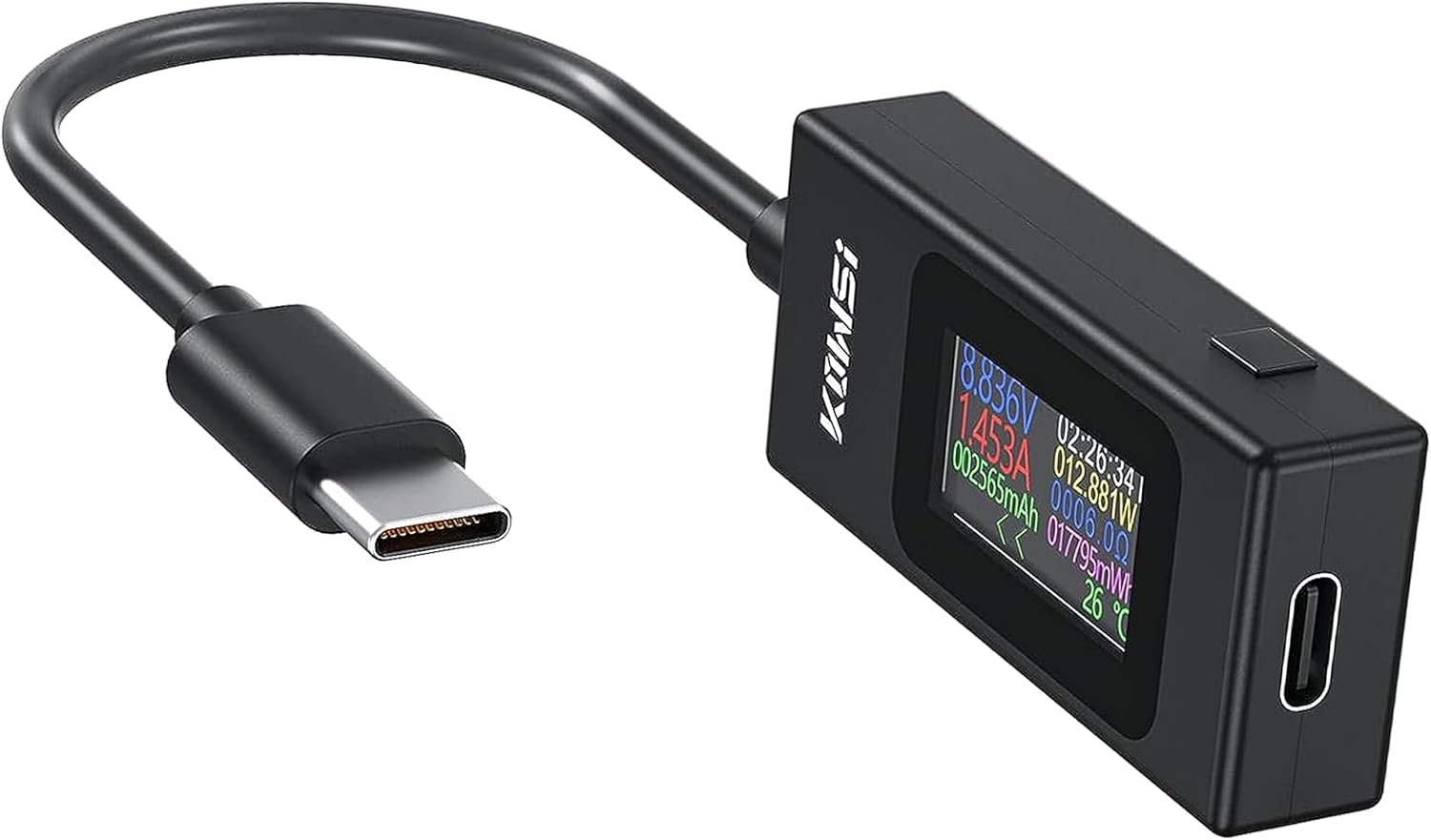
Figure 1: diymore USB C Tester Power Meter. This image shows the diymore USB C Tester Power Meter. It features a compact design with a USB-C male connector for input and a USB-C female port for output. The integrated LED display shows various measurement parameters.
- USB-C Male Connector: Input port for connecting to a charger or power source.
- USB-C Female Port: Output port for connecting to the device being charged/tested.
- LED Display: Shows real-time measurement data.
6. Setup and Connection
To begin using the USB C Tester, follow these steps:
- Connect the USB-C male connector of the tester into the USB-C port of your charger, power bank, or power source.
- Connect your device (e.g., smartphone, tablet, laptop) to the USB-C female port on the tester using a compatible USB-C cable.
- Once connected, the tester's LED display will illuminate and begin showing real-time measurement data.

Figure 2: Connection Diagram. This diagram illustrates the connection method for the USB C Tester. It is inserted inline between a USB charger (e.g., PD charger or standard USB charger) and the device being charged (e.g., smartphone or tablet) via the Type-C interface.
7. Operating Instructions
7.1 Understanding the Display
The LED display provides multiple parameters simultaneously. Refer to the image below for an example of the display layout:

Figure 3: LED Display Details. A detailed view of the USB C Tester's LED display. It presents real-time data including voltage (V), current (A), power (W), accumulated capacity (mAh), energy (mWh), resistance (Ω), and temperature (°C).
- Voltage (V): The electrical potential difference.
- Current (A): The rate of flow of electric charge.
- Power (W): The rate at which electrical energy is transferred (Voltage x Current).
- Capacity (mAh): Accumulated milliampere-hours, indicating the total charge transferred.
- Energy (mWh): Accumulated milliwatt-hours, indicating the total energy transferred.
- Resistance (Ω): Calculated resistance of the connected load.
- Working Time: Duration of the current measurement session.
- Temperature (°C): Internal temperature of the tester or ambient temperature.
7.2 Resetting Data
To reset the accumulated capacity (mAh) and energy (mWh) data, typically a button on the device needs to be pressed and held for a few seconds. Refer to the specific button layout on your device for the 'Reset' or 'Function' button. If no specific button is indicated, disconnecting and reconnecting the tester will usually reset the accumulated data.
8. Specifications
Specific technical specifications for this model are typically found on the product packaging or product listing. General operating ranges for USB C testers often include:
- Voltage Measurement Range: Typically 4V - 30V
- Current Measurement Range: Typically 0A - 5A
- Accuracy: Usually within ±1%
- Display Type: LED
- Input/Output Interface: USB Type-C
For precise values, please consult the product's retail packaging or the official diymore product page.
9. Troubleshooting
- No Display:
- Ensure the tester is correctly connected to a working USB-C power source.
- Check if the power source is active and providing voltage.
- Try a different USB-C cable or power source.
- Incorrect Readings:
- Ensure all connections are secure and free from debris.
- Test with a known good charger and device to verify accuracy.
- Avoid using excessively long or low-quality USB-C cables, which can affect readings.
- Device Not Charging:
- Verify that the charger and cable are functional without the tester.
- Ensure the device being charged is compatible with the power source.
- The tester itself should not prevent charging if properly connected.
10. Maintenance
- Clean the device with a soft, dry cloth. Do not use liquid cleaners or solvents.
- Keep the USB-C ports free of dust and debris to ensure proper connection.
- Store the tester in a cool, dry place when not in use.
11. Warranty and Support
diymore products are designed for reliability and performance. For warranty information, technical support, or service inquiries, please refer to the warranty card included with your purchase or visit the official diymore website. Please have your product model (USB C Tester Power Meter B0F139HWQK) and purchase details ready when contacting support.