Introduction
This manual provides detailed instructions for the installation, operation, and maintenance of the CO-Z WAM1 Remote Control. This device enables control of gate and garage door openers via WiFi and Bluetooth using a smartphone application, offering enhanced convenience and monitoring capabilities.

Image: The CO-Z WAM1 Remote Control unit, a compact black device designed for smart gate and garage door control.
Safety Information
- Ensure power is disconnected from the gate or garage door opener before attempting any installation or maintenance procedures.
- If you are unsure about any wiring or electrical connections, consult a qualified electrician or technician.
- Keep hands, clothing, and other objects clear of moving gate or garage door parts to prevent injury.
- Do not allow children to operate the gate opener or play near the gate area.
- Regularly inspect the gate opener system for proper function, signs of wear, or damage to ensure safe operation.
Package Contents
- CO-Z WAM1 Remote Control Unit
- Wiring Harnesses (for output, position feedback, and power)
- Mounting Accessories (e.g., 3M double-sided adhesive tape)
- Instruction Manual (this document)

Image: The CO-Z WAM1 controller shown alongside a piece of 3M double-sided adhesive tape, indicating a common mounting method.
Specifications
| Manufacturer | CO-Z |
| Item Weight | 3.52 ounces |
| Package Dimensions | 4.29 x 3.94 x 2.05 inches |
| Batteries Included | No |
| Batteries Required | No |
| ASIN | B0F12V28GQ |
| Date First Available | March 11, 2025 |
Setup
Wiring the Controller
The CO-Z WAM1 controller requires connection to your existing gate or garage door opener's control board. Ensure the power to your gate opener is OFF before proceeding with any wiring.
- Identify the "Output" terminals on the WAM1 controller. These are typically for triggering the gate opener's open/close function.
- Connect the white wires from the WAM1 controller to the corresponding trigger input terminals on your gate opener's control board. Refer to your gate opener's manual for specific terminal identification (e.g., "Open/Close," "Start," "Trigger").
- Identify the "Position Feedback" terminals on the WAM1 controller. These are for sensing the gate's open/closed status.
- Connect the green wires from the WAM1 controller to the gate opener's status feedback terminals. These typically close a circuit when the gate is in a specific position (e.g., closed).
- Identify the "AC/DC 12-24V" power input terminals on the WAM1 controller.
- Connect the red and black wires from the WAM1 controller to a 12-24V AC/DC power source on your gate opener's control board. Ensure correct polarity if DC power is used.

Image: Close-up view of the CO-Z WAM1 controller's wiring terminals, showing the green connector for output and position feedback wires.

Image: The CO-Z WAM1 controller with all wiring harnesses (white, green, red, black) securely connected, illustrating a completed wiring setup.
Installation Video Guide
Video: A detailed video demonstrating the step-by-step installation process for the CO-Z WAM1 Remote Control, including wiring connections to a gate opener's control board.
App Pairing and Configuration
To control your gate opener via smartphone, download the "Smart Life" or "Tuya Smart" app from your device's app store (available on iOS and Android).
- Power on the WAM1 controller. The LED indicator should blink, indicating it's in pairing mode. If the LED is not blinking, press and hold the "SET" button on the controller until the LED begins to blink rapidly.
- Open the Smart Life or Tuya Smart app on your smartphone and follow the in-app instructions to add a new device. Select "Garage Door Opener" or a similar category from the device list.
- Confirm within the app that the LED indicator on the WAM1 controller is blinking rapidly to proceed with the pairing process.
- Once successfully paired, you can customize the device name and configure various settings within the app, such as automation rules or schedules.

Image: A smartphone screen displaying the "Smart Life" or "Tuya Smart" app interface, showing the virtual garage door opener control with 'Open' and 'Closed' status indicators.

Image: The CO-Z WAM1 controller positioned next to a smartphone displaying the Smart Life app, illustrating the connection between the physical device and its digital control interface.
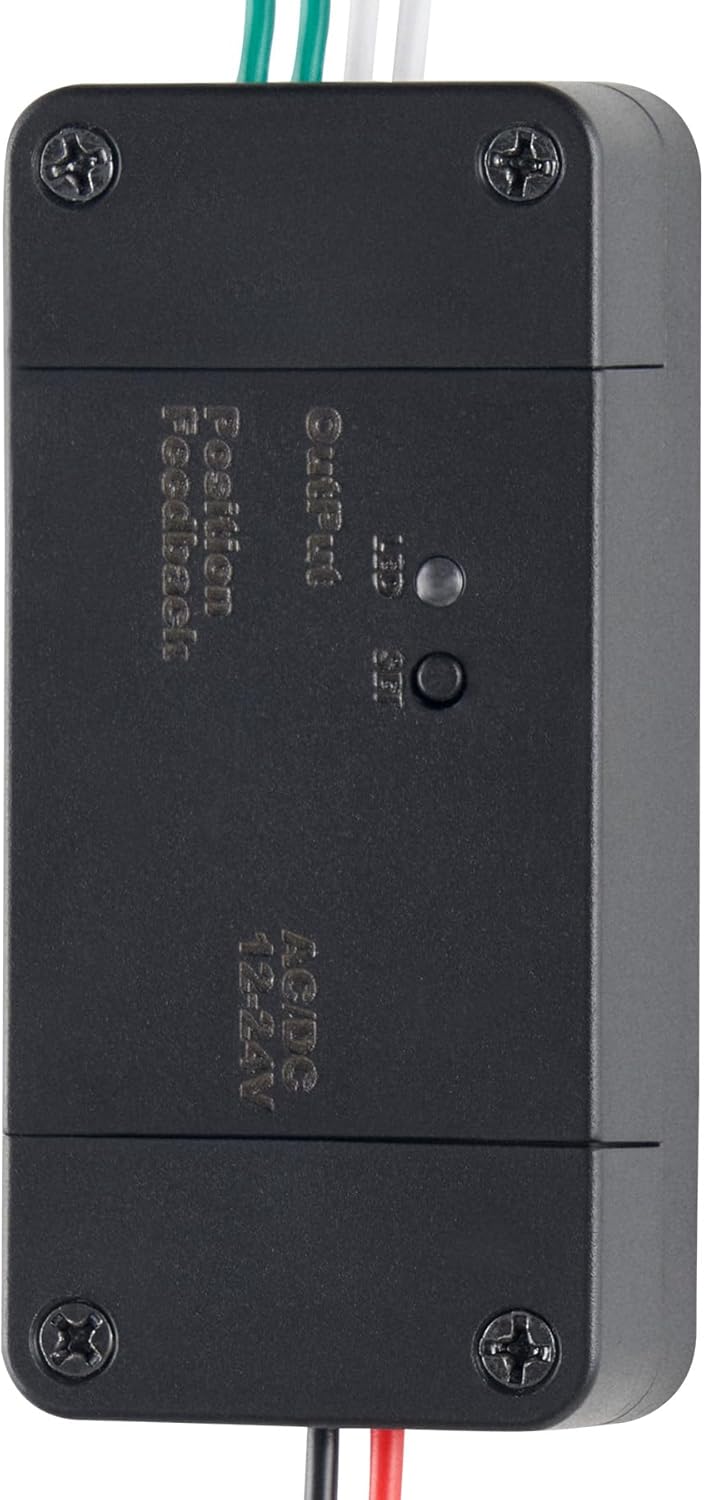
Image: A close-up of the CO-Z WAM1 controller, highlighting the LED indicator and the 'SET' button used for pairing and status indication.
Operation
Using the Smartphone App
After successful pairing, open the Smart Life or Tuya Smart app to control and monitor your gate.
- Open/Close: Tap the designated button within the app interface to remotely open or close your gate.
- Status Monitoring: The app provides real-time feedback on the current status of your gate (e.g., open, closed, opening, closing).
- History: Access a log of past gate operations, including timestamps.
- Schedules: Set up automated routines for your gate to open or close at specific times.
- Countdown: Utilize the countdown feature to set a timer for the gate to perform an action (open or close) after a specified duration.

Image: A gate opener system with the CO-Z WAM1 controller installed, demonstrating its integration into a typical gate setup.
Bluetooth and WiFi Connectivity
The WAM1 controller offers flexible connectivity options to ensure reliable operation.
- WiFi: Provides remote control functionality, allowing you to operate your gate from any location with an internet connection.
- Bluetooth: Enables local control within a range of up to 98 feet (30 meters). This mode is particularly useful if your WiFi signal is temporarily unavailable or disconnected after initial setup. The device will automatically default to Bluetooth connectivity if WiFi is not detected.
Maintenance
- Periodically inspect all wiring connections to the WAM1 controller and the gate opener's control board to ensure they are secure and free from corrosion or damage.
- If the controller is installed in an outdoor environment, ensure it is housed within a suitable weather-resistant enclosure to protect it from moisture and extreme temperatures.
- Keep the Smart Life or Tuya Smart app updated to the latest version to benefit from new features, performance improvements, and security updates.
Troubleshooting
- Device not pairing: Ensure the LED indicator on the WAM1 controller is blinking rapidly. Verify your WiFi network is active and has a strong signal. Try resetting the device by holding the SET button for several seconds until the LED behavior changes, then attempt pairing again.
- Gate not responding to app commands: Double-check all wiring connections between the WAM1 controller and your gate opener's control board. Confirm that the gate opener itself is functioning correctly using its original controls. Ensure the WAM1 controller is receiving power.
- Intermittent connection or slow response: This may indicate a weak WiFi signal. Consider repositioning your WiFi router or the WAM1 controller to improve signal strength. If the controller is inside a metal enclosure, this can interfere with wireless signals; consider an external antenna if supported or relocating the unit.
- Random gate opening/closing: If the gate operates without an explicit command, immediately disconnect the WAM1 controller from power. Review your app settings for any unintended schedules, automations, or shared access. Contact CO-Z customer support if the issue persists after disconnecting and re-evaluating settings.
Warranty and Support
For detailed warranty information regarding your CO-Z WAM1 Remote Control, please refer to the product packaging or the official CO-Z website. Warranty terms and conditions may vary.
For technical assistance, troubleshooting guidance, or any further inquiries, please visit the official CO-Z website or contact their dedicated customer service department. Contact information can typically be found on the product packaging or the brand's website.


