1. Product Overview
The FUWANG Keyboard Case is designed to enhance your iPad experience, transforming it into a versatile laptop-like device. It features a detachable wireless Bluetooth keyboard with 7-color backlighting, multiple viewing angles, and a protective case with an integrated pencil holder. The case is crafted from durable synthetic leather with a unique marble pattern and a soft TPU inner shell for comprehensive protection.
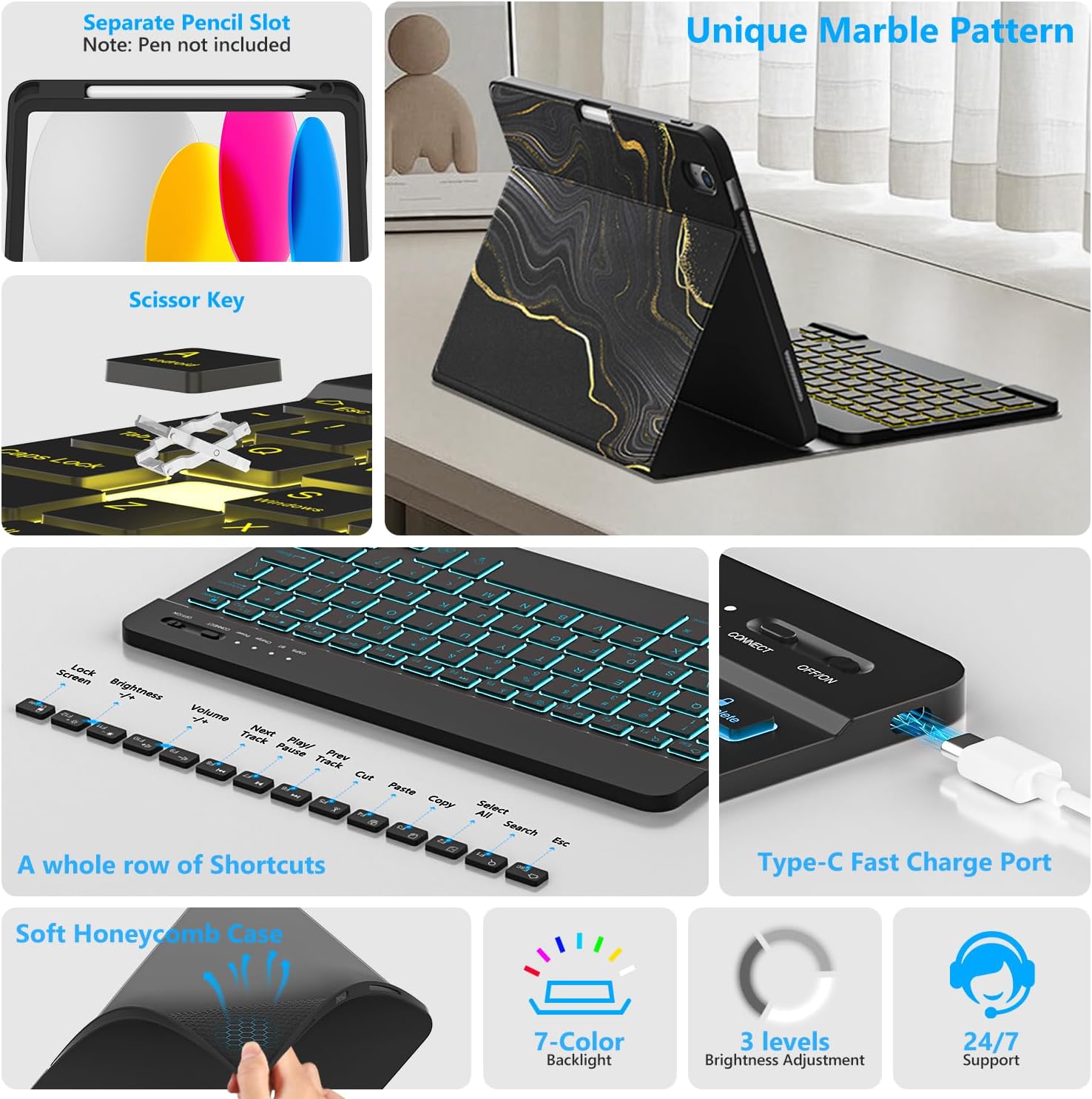
Image 1.1: Overview of FUWANG Keyboard Case features, highlighting the pencil slot, scissor-key mechanism, keyboard shortcuts, Type-C charging port, and the soft honeycomb case for heat dissipation.
2. Package Contents
- 1 x FUWANG iPad Case (for A16 11th/10th Generation)
- 1 x Wireless Backlit Bluetooth Keyboard
- 1 x Type-C Charging Cable
- 1 x User Manual
Note: iPad tablet and stylus are not included.
3. Compatibility
This keyboard case is specifically designed for the following iPad models:
- iPad A16 11th Generation 11" 2025: Model Numbers A3354, A3355, A3356
- iPad 10th Generation 10.9" 2022: Model Numbers A2696, A2757, A2777, A3162
To verify your iPad model, please check the back of your tablet for a model number starting with "A". This case is not compatible with other iPad models.
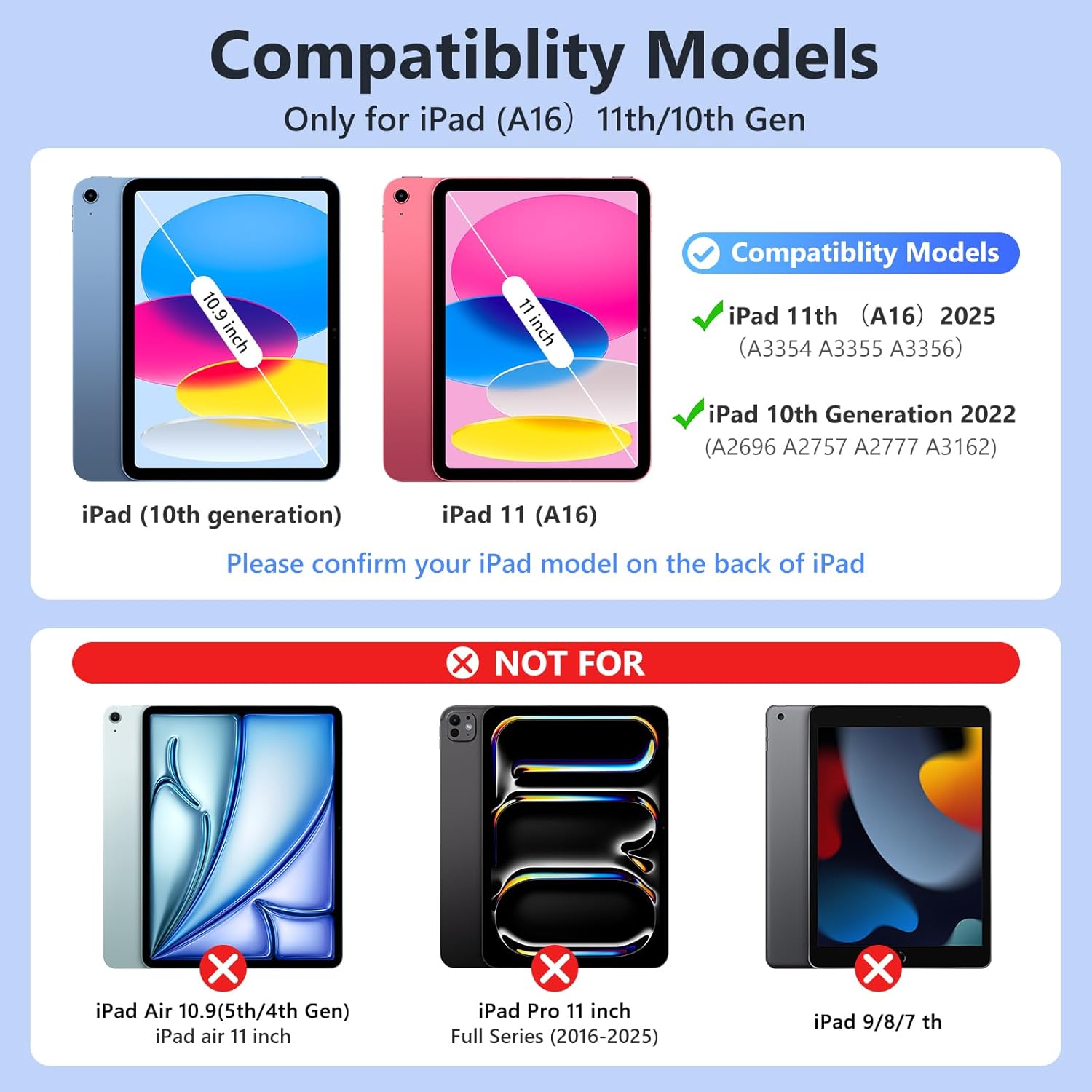
Image 3.1: Visual guide for iPad model compatibility. Please confirm your iPad model number on the back of your device.
4. Setup Instructions
4.1 Initial Charging of the Keyboard
Before first use, fully charge the keyboard for 2 to 3 hours using the provided Type-C charging cable. Connect the cable to the keyboard's Type-C port and a USB power source. The power indicator light will flash during charging and turn off when fully charged.

Image 4.1: Keyboard charging via Type-C port. Initial charge takes 2-3 hours.
4.2 Pairing the Bluetooth Keyboard
- Ensure the keyboard is charged.
- Turn on the keyboard by sliding the power switch to the "ON" position. The power indicator will flash for approximately 3 seconds and then turn off.
- On your iPad, go to Settings > Bluetooth and turn Bluetooth ON.
- The iPad will search for available devices. Select "Bluetooth Keyboard" (or similar name) from the list.
- If prompted, enter the pairing code displayed on your iPad onto the keyboard and press Enter.
- Once paired, the keyboard's indicator light will turn off, and your iPad will show the keyboard as "Connected".
For subsequent uses, simply turn on your iPad's Bluetooth and the keyboard's power. Press any key on the keyboard, and it should automatically reconnect.
4.3 Installing the iPad into the Case
Gently insert your iPad into the soft TPU inner shell of the case. Ensure all cutouts for the camera, speakers, and volume buttons align perfectly. The case provides full protection against drops and scratches.
5. Operating Instructions
5.1 Using the Backlit Keyboard
The keyboard features 7-color backlighting with 3 adjustable brightness levels.
- To change backlight colors: Press the Light bulb icon key (often next to the Spacebar or Function keys).
- To adjust brightness: Press the Light bulb icon key + Up/Down arrow keys or a dedicated brightness key (if available).

Image 5.1: Demonstrating the 7-color backlit keyboard with adjustable brightness settings.
5.2 Adjusting Viewing Angles
The case is designed with three anti-slip grooves, allowing you to adjust your iPad to multiple viewing angles (e.g., 110°, 120°, 130°) for comfortable typing, viewing, or drawing.
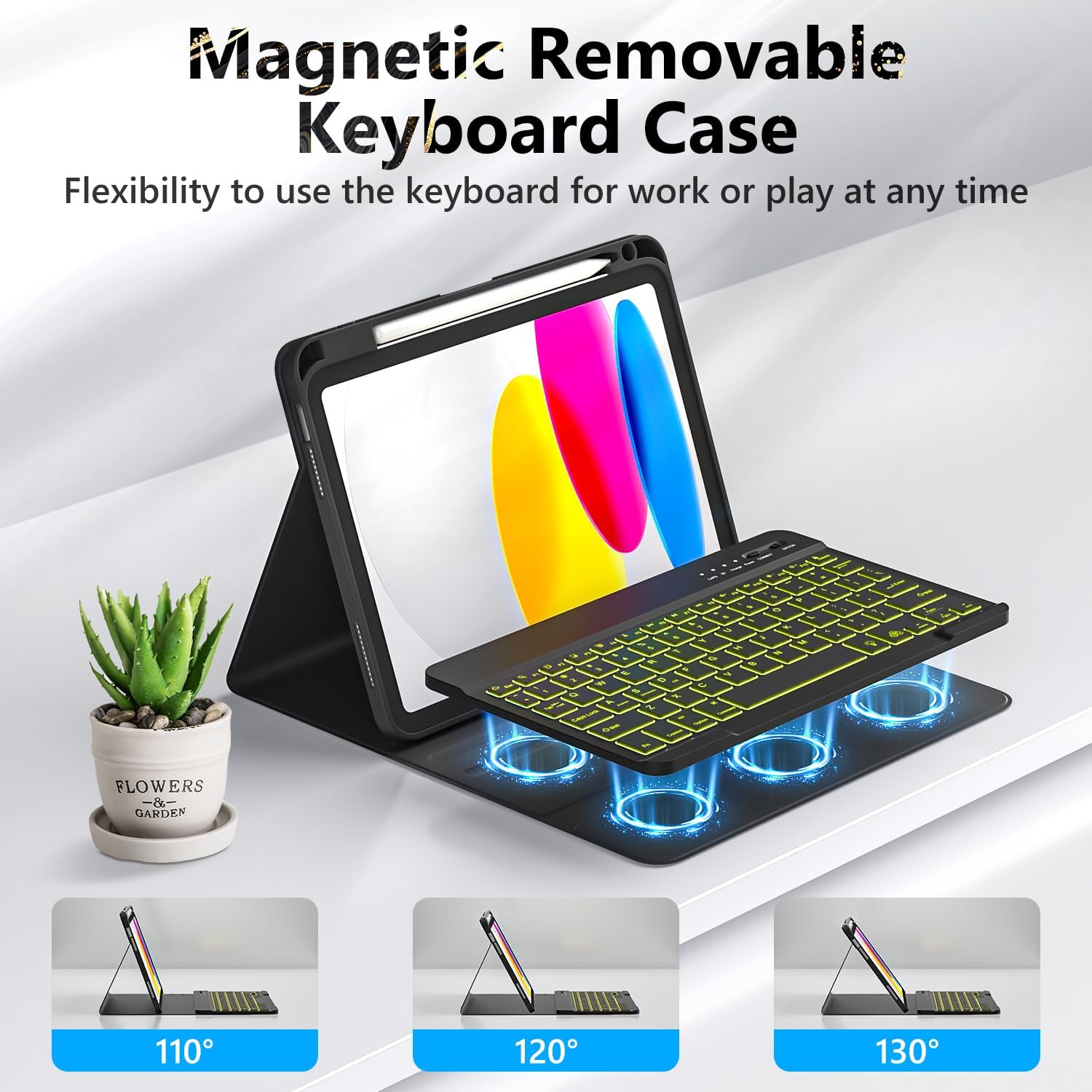
Image 5.2: The magnetic removable keyboard case offers flexible viewing angles for various tasks.
5.3 Keyboard Shortcuts
The keyboard includes a row of dedicated function keys and shortcuts for quick access to iPad features:
- Lock Screen
- Brightness Adjustment
- Volume Control
- Media Playback Controls (Previous Track, Play/Pause, Next Track)
- Copy, Cut, Paste
- Select All
- Search
- Home
5.4 Auto Sleep/Wake Function
The case supports the iPad's automatic sleep/wake function, preserving battery life. When closing the case, the iPad will go to sleep; opening it will wake the iPad. For optimal performance of this feature, it is recommended to remove the wireless Bluetooth keyboard from the case, as the keyboard's magnetic components can interfere with the iPad's magnets.
5.5 Using the Pencil Holder
The integrated pencil holder securely stores your stylus, keeping it accessible and preventing loss. Simply slide your stylus into the designated slot.
6. Maintenance
- Cleaning the Case: Wipe the synthetic leather case with a soft, damp cloth. Avoid harsh chemicals or abrasive cleaners.
- Cleaning the Keyboard: Use a soft, dry cloth to clean the keyboard keys. For stubborn dirt, a slightly damp cloth can be used, ensuring no moisture enters the keyboard.
- Battery Care: To prolong battery life, avoid fully discharging the keyboard frequently. Charge it regularly, especially if not used for extended periods.
7. Troubleshooting
- Keyboard Not Connecting:
- Ensure the keyboard is fully charged.
- Make sure the keyboard's power switch is ON.
- Verify Bluetooth is enabled on your iPad.
- Forget the device in your iPad's Bluetooth settings and attempt to re-pair.
- Restart both your iPad and the keyboard.
- Backlight Not Working/Changing:
- Ensure the keyboard is powered on.
- Press the backlight control key (light bulb icon) to cycle through colors and brightness levels.
- If the battery is low, backlighting may be disabled to conserve power. Charge the keyboard.
- Keys Not Responding:
- Check if the keyboard is connected via Bluetooth.
- Ensure the keyboard is charged.
- Clean any debris from around the keys.
- Auto Sleep/Wake Function Issues:
- Ensure the iPad is correctly seated in the case.
- Remove the detachable keyboard from the case when closing the cover, as its magnets can interfere with the auto sleep/wake feature.
8. Specifications
| Brand | FUWANG |
| Model Numbers | A3354, A3355, A3356, A2696, A2757, A2777 |
| Connectivity | Bluetooth |
| Keyboard Type | Detachable, Backlit (7 colors, 3 brightness levels) |
| Battery Capacity | 500 mAh Lithium-ion (rechargeable) |
| Charging Time | 2-3 hours |
| Working Time | Approx. 120 hours (without backlight) |
| Standby Time | > 130 days |
| Operating Distance | Up to 3 meters |
| Material | Premium Synthetic Leather, Thermoplastic Polyurethane (TPU) |
| Special Features | Pencil holder, Full protection, Multiple viewing angles, Auto sleep/wake function |
9. Warranty and Support
For any questions or issues regarding your FUWANG Keyboard Case, please refer to the contact information provided with your purchase or reach out to the seller directly. Specific warranty details may vary by region and retailer.


