
Truman TM-I VISION PRO
Truman TM-I VISION PRO Satellite Receiver User Manual
Model: TM-I VISION PRO | Brand: Truman
1. Introduction
1.1 Product Overview
The Truman TM-I VISION PRO is a Full HD digital satellite receiver designed to provide a comprehensive entertainment experience. It features a powerful Sunplus 1506HV processor, ensuring smooth performance and high-quality video output. With multiple connectivity options including USB, HDMI, and Ethernet, it offers versatility for various home entertainment setups. The device supports Full HD resolution, multi-language interfaces, and includes parental control features for a family-friendly viewing environment. It also comes with a one-year activated IPTV service.

Figure 1.1: Front view of the Truman TM-I VISION PRO Satellite Receiver, showing its compact design and front-facing USB ports.
1.2 Package Contents
Please verify that all items listed below are included in your package:
- Truman TM-I VISION PRO Satellite Receiver
- Power Adapter
- Standard Remote Control
- Digital LED Lens
- HDMI Cable
- Instruction Manual

Figure 1.2: Marketing image highlighting key features such as Wi-Fi, Ultra HD support, ISO 9001 certification, and 5G compatibility.
2. Safety Information
To ensure safe operation and prevent damage, please read and adhere to the following safety guidelines:
- Do not expose the device to water or moisture.
- Avoid placing the receiver in direct sunlight or near heat sources.
- Ensure proper ventilation around the device to prevent overheating.
- Use only the provided power adapter.
- Do not attempt to open or repair the device yourself. Refer to qualified service personnel.
- Keep the device and accessories out of reach of children.
- Disconnect the power plug during lightning storms or when unused for long periods.
3. Setup
3.1 Connecting the Receiver
- Connect the Satellite Antenna: Connect your satellite dish cable to the "LNB IN" port on the back of the receiver.
- Connect to TV (HDMI): Use the provided HDMI cable to connect the receiver's HDMI OUT port to an available HDMI IN port on your television.

Figure 3.1: The included HDMI cable for connecting the receiver to your television.
- Connect Power: Connect the power adapter to the DC IN port on the receiver, then plug the adapter into a wall outlet.
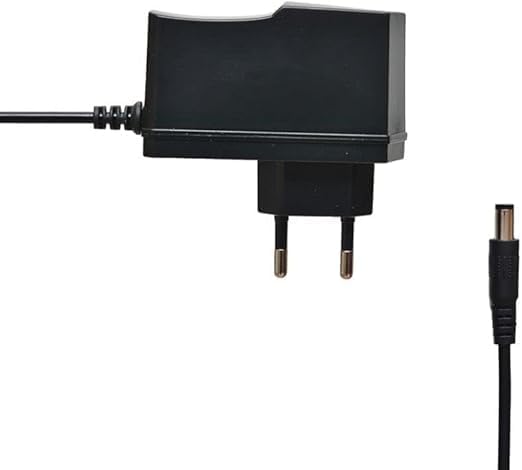
Figure 3.2: The power adapter supplied with the receiver.
- Connect Digital LED Lens: Plug the digital LED lens into its dedicated port on the receiver. This lens displays channel numbers and receives remote control signals.
- Optional: Connect Ethernet/USB: If you plan to use wired internet or external storage, connect an Ethernet cable to the LAN port or a USB drive to one of the USB ports.

Figure 3.3: Rear view of the receiver showing the LNB IN, HDMI OUT, USB, Ethernet, and DC IN ports.
3.2 Initial Setup Wizard
Upon first power-on, the receiver will guide you through an initial setup wizard:
- Language Selection: Choose your preferred language for the on-screen display.
- Time Zone Setting: Set the correct time zone for your region.
- Antenna Setup: Select your satellite (e.g., Nilesat, Hotbird) and configure LNB settings if necessary.
- Channel Scan: Perform an automatic or manual channel scan to find available TV and radio channels.
- Network Setup (Optional): Configure Wi-Fi or Ethernet connection for internet-based features like IPTV.
4. Operating Instructions
4.1 Basic Functions
- Power On/Off: Press the POWER button on the remote control.
- Channel Navigation: Use the CH+/CH- buttons to change channels sequentially, or enter the channel number directly using the numeric keypad.
- Volume Control: Use the VOL+/VOL- buttons to adjust the volume.
- Mute: Press the MUTE button to silence the audio.
- Menu Access: Press the MENU button to access the main menu for settings and features.
- OK Button: Confirms selections in menus or displays channel information during viewing.
- Exit: Press the EXIT button to return to the previous screen or live TV.
4.2 Advanced Features
- Parental Control: Access the Parental Control menu to set age restrictions for channels or lock specific programs. A default PIN (usually 0000 or 1234) may be required.
- Multi-language Support: Change audio languages (if available) or subtitle languages via the audio/subtitle options in the menu.
- IPTV: The receiver includes a pre-activated IPTV service for one year. Access this feature through the main menu. Ensure your receiver is connected to the internet for IPTV functionality.
- USB Media Playback: Insert a USB drive into one of the USB ports to play media files (videos, music, photos) or record TV programs.
- Software Update: Regularly check for software updates via USB or network to ensure optimal performance and access to new features. (Refer to Section 5.2 for details).
5. Maintenance
5.1 Cleaning
To clean the receiver, disconnect it from the power supply. Use a soft, dry cloth to wipe the exterior. Do not use liquid cleaners or abrasive materials.
5.2 Software Updates
Keeping your receiver's software updated is crucial for performance and security. Updates can be performed via USB or over the network (if connected to the internet).
- USB Update: Download the latest firmware (.bin file) from the official Truman website to a USB flash drive. Insert the USB drive into the receiver and navigate to the "System Update" or "Software Upgrade" option in the menu. Follow the on-screen instructions.
- Network Update: If your receiver is connected to the internet, navigate to the "Network Upgrade" or "Online Update" option in the system settings. The receiver will check for available updates and prompt you to install them.
Caution: Do not power off the receiver during a software update, as this may cause permanent damage.
6. Troubleshooting
If you encounter issues with your Truman TM-I VISION PRO, refer to the following common problems and solutions:
| Problem | Possible Cause | Solution |
|---|---|---|
| No Power | Power adapter not connected; Power outlet faulty. | Ensure power adapter is securely connected to the receiver and a working power outlet. |
| No Signal / Black Screen | Antenna cable loose; Incorrect satellite selected; TV input not set to HDMI. | Check antenna cable connection. Verify satellite settings in menu. Ensure TV input is set to the correct HDMI port. |
| Remote Control Not Working | Batteries low/dead; Obstruction between remote and receiver's LED lens. | Replace remote control batteries. Ensure clear line of sight to the digital LED lens. |
| Frozen Picture / Lagging | Weak signal; Overheating; Software issue. | Check signal strength in menu. Ensure proper ventilation. Try a software update or factory reset (last resort). |
| IPTV Not Working | No internet connection; IPTV service expired. | Verify internet connection (Ethernet or Wi-Fi). Contact support if service is within the one-year period and still not working. |
7. Specifications
| Feature | Detail |
|---|---|
| Model | TM-I VISION PRO |
| Processor | Sunplus 1506HV |
| Box Type | Full HD Digital |
| Flash Memory | 4 MB (SPI SOP8/SOIC8) |
| Video Output | HDMI (Full HD Resolution Support) |
| Audio Output Mode | Stereo (Dolby Digital, DTS, PCM supported) |
| Connectivity | USB, HDMI, Ethernet |
| Compatible Devices | Television, Personal Computer |
| Special Features | User-friendly display, Remote Control, Multi-language support, Parental Control, 1-year IPTV activation. |
| Item Weight | 10 grams |
| Manufacturer | Truman |
8. Warranty and Support
For warranty information, please refer to the warranty card included with your product or contact your point of purchase. The receiver includes a 1-year activated IPTV service.
For technical support or further assistance, please contact Truman customer service or visit their official website. Contact details are typically provided in the product packaging or on the manufacturer's website.
Related documentsTM-I VISION PRO

Ask a question about this manual
Ask about setup, troubleshooting, compatibility, parts, safety, or missing instructions. Manuals+ will review the question and use this page’s manual context to help answer it.