
Emerson EVP-2002
Emerson EVP-2002 Home Theater LCD Projector User Manual
Model: EVP-2002
Introduction
Thank you for choosing the Emerson EVP-2002 Home Theater LCD Projector. This manual provides essential information for setting up, operating, and maintaining your projector to ensure optimal performance and longevity. Please read this manual thoroughly before using the product and retain it for future reference.
What's in the Box
Upon unpacking, please ensure all the following items are present:
- Emerson EVP-2002 Projector
- UL Approved Power Adaptor
- Remote Control
- Projector Lens Cover
- User Manual (this document)
Product Overview
The Emerson EVP-2002 is designed to deliver an immersive home theater experience with its advanced LCD technology and versatile connectivity options.

Image: Front view of the Emerson EVP-2002 projector, showcasing the lens and ventilation. This compact projector is designed for home entertainment.
Key Features:
- Immersive Entertainment: Transforms your space into a theater for sports, movies, and TV shows.
- Bluetooth Connectivity: Allows easy pairing with external audio devices.
- Effortless Media Streaming: Compatible with streaming devices like Amazon Fire Stick, Roku, or Google Chromecast (not included).
- Vivid Visuals: Advanced LCD projector delivers high-quality resolution with clarity and color vibrancy.
- Versatile Multi-Media Functionality: Supports HDMI and USB flash drives for various video, audio, and photo formats.
- Long-Lasting LED Bulb: Durable LED bulb with up to 30,000 hours of lifespan.
- Powerful Built-In Speakers: Delivers clear, full-bodied sound.

Image: Side view of the Emerson EVP-2002 projector, showing its compact cylindrical design and adjustable stand.
Product Dimensions and Weight:
- Dimensions: 6.75 x 4.12 x 4.98 inches
- Weight: 1.43 pounds

Image: Diagram illustrating the dimensions (6.75 in. length, 4.12 in. width, 4.98 in. height) and weight (1.43 lbs) of the Emerson EVP-2002 projector.
Setup Guide
1. Placement
Position the projector on a stable, flat surface. Ensure there is adequate ventilation around the unit. The distance from the screen or wall will determine the image size. Adjust the projector's angle using its stand for optimal projection.
2. Power Connection
- Connect the UL Approved Power Adaptor to the DC IN port on the projector.
- Plug the power adaptor into a standard electrical outlet.
- The power indicator light should illuminate.
3. Connecting Input Sources
The EVP-2002 offers multiple input options:
- HDMI: Connect an HDMI cable from your source device (e.g., laptop, game console, streaming stick) to the HDMI port on the projector.
- USB: Insert a USB flash drive into the USB port to play media files directly.
- 3.5mm Audio: Connect external speakers or headphones using a 3.5mm audio cable to the AUX OUT port.

Image: Rear view of the Emerson EVP-2002 projector, showing the various input ports including HDMI, USB, and DC power input.
Operating Instructions
1. Power On/Off
- To power on, press the Power button on the projector or the remote control.
- To power off, press the Power button again. The projector will enter standby mode.
2. Adjusting Focus
Rotate the focus ring located near the lens until the projected image appears clear and sharp.
3. Source Selection
Use the "Source" button on the remote control or the projector's control panel to cycle through available input sources (HDMI, USB, etc.).
4. Bluetooth Connectivity
- Ensure Bluetooth is enabled on your external audio device (e.g., speaker, headphones).
- On the projector, navigate to the Bluetooth settings (refer to on-screen menu if available, or press the dedicated Bluetooth button if present).
- Select your device from the list of available devices to pair.
- Once paired, audio will be routed through the connected Bluetooth device.
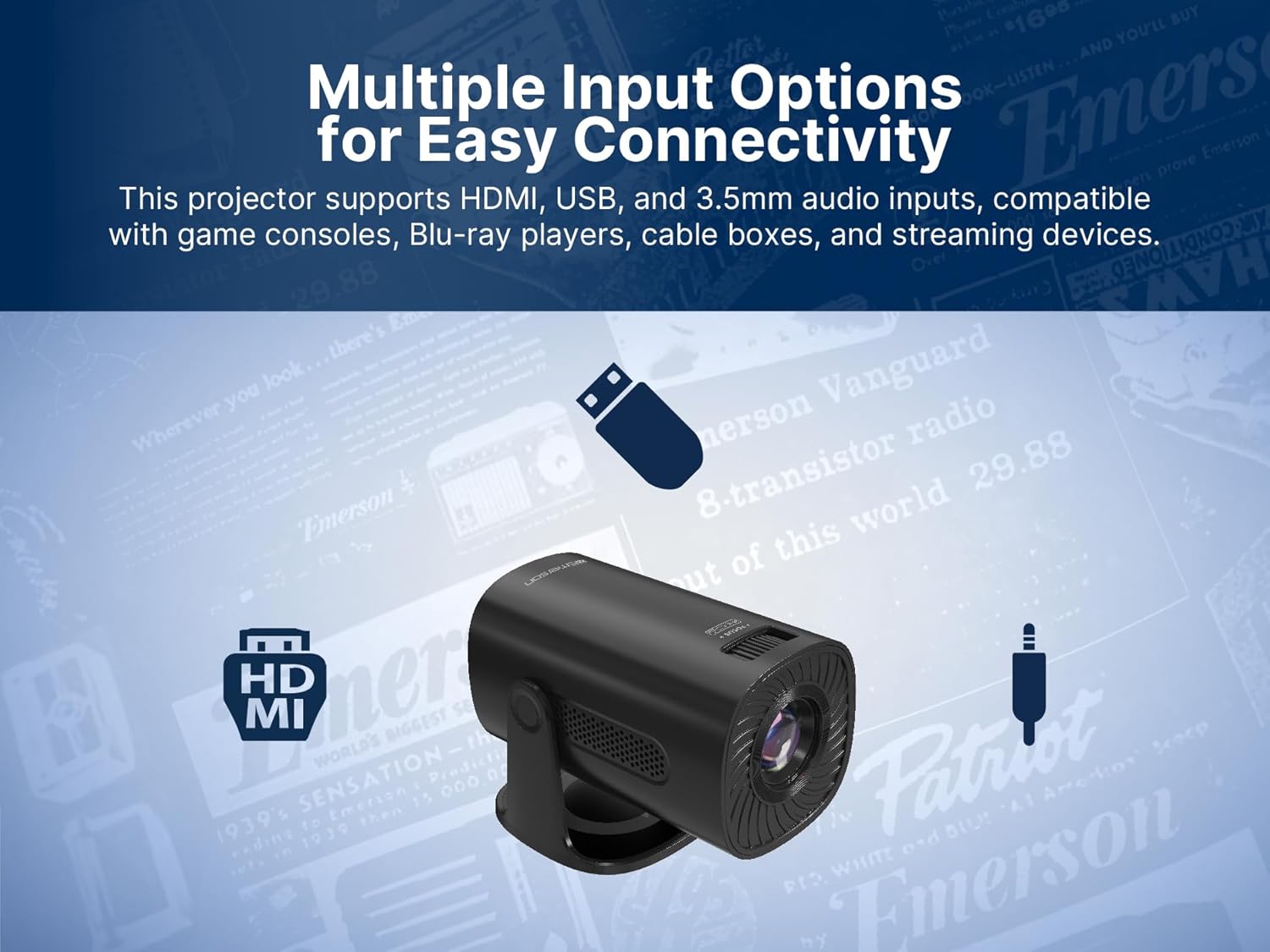
Image: The Emerson EVP-2002 projector displaying a Bluetooth icon, indicating its wireless audio connectivity feature.
5. Media Playback (USB)
- Insert a USB flash drive containing compatible media files into the USB port.
- Select "USB" as the input source.
- Navigate through the folders and files using the remote control or projector buttons.
- Select a file to begin playback.

Image: The Emerson EVP-2002 projector connected to a USB drive, illustrating its capability to play various media formats directly.
Maintenance
Proper maintenance ensures the longevity and optimal performance of your projector.
1. Cleaning the Lens
- Always power off and unplug the projector before cleaning.
- Use a soft, lint-free cloth specifically designed for optical lenses.
- Gently wipe the lens in a circular motion. Avoid harsh chemicals or abrasive materials.
- Replace the lens cover when the projector is not in use to protect it from dust.
2. Cleaning the Projector Body
- Wipe the exterior with a soft, dry cloth.
- Do not use liquid cleaners or sprays directly on the projector.
3. Ventilation
- Ensure the ventilation vents are not blocked to prevent overheating.
- Periodically check and gently clean any dust accumulation on the vents using a soft brush or compressed air.
Troubleshooting
If you encounter issues with your projector, refer to the following common problems and solutions:
| Problem | Possible Cause | Solution |
|---|---|---|
| No image projected |
|
|
| Image is blurry |
|
|
| No sound |
|
|
| Projector overheats |
|
|
Specifications
| Feature | Detail |
|---|---|
| Model Number | EVP-2002 |
| Brand | Emerson |
| Product Dimensions | 6.75 x 4.12 x 4.98 inches |
| Item Weight | 1.43 pounds |
| Display Resolution | 1280 x 720 |
| Connectivity Technology | Bluetooth |
| Special Feature | Built-In Speaker |
| Recommended Uses | Business, Education, Gaming, Home Cinema |
| Manufacturer | Naxa Electronics, Inc. |
Product Videos
Emerson EVP-2002 Product Video - 360 Spin
Video: A 360-degree view of the Emerson EVP-2002 projector, showcasing its design and various angles. This video provides a comprehensive visual overview of the product's exterior.
Warranty and Support
Warranty Information
For detailed warranty information, please refer to the warranty card included with your product or visit the official Emerson website. Keep your purchase receipt as proof of purchase for any warranty claims.
Customer Support
If you require further assistance, technical support, or have questions not covered in this manual, please contact Emerson customer support. Contact details can typically be found on the product packaging, the official Emerson website, or the warranty card.
Related documentsEVP-2002


Ask a question about this manual
Ask about setup, troubleshooting, compatibility, parts, safety, or missing instructions. Manuals+ will review the question and use this page’s manual context to help answer it.