
NETGEAR RS140-100NAS
Contents
NETGEAR Nighthawk Dual-Band WiFi 7 Router (RS140)
Model: RS140-100NAS | Brand: NETGEAR
1. Introduction
The NETGEAR Nighthawk Dual-Band WiFi 7 Router (RS140) is designed to provide blazing-fast internet speeds and extensive coverage for your home or office. Leveraging the latest WiFi 7 technology, this router offers enhanced performance for demanding applications such as 4K streaming, online gaming, and video conferencing, while supporting a large number of connected devices.
Key Features:
- Blazing-fast WiFi 7 speeds up to 5.0 Gbps.
- 1.2x faster speeds than WiFi 6 for optimized device performance.
- Covers up to 2,250 sq. ft. and supports up to 80 devices.
- Equipped with a 2.5 Gig internet port and three 1 Gig Ethernet LAN ports for multi-gig wired connections.
- Includes NETGEAR Armor for advanced security features and automatic firmware updates.
- Sleek, space-saving design with high-performance internal antennas.

Figure 1: Front view of the NETGEAR Nighthawk Dual-Band WiFi 7 Router (RS140).
2. What's in the Box
Verify that all items are present in your product packaging:
- One (1) WiFi 7 Dual-Band Router (RS140)
- One (1) 2m Ethernet cable
- One (1) 12V/2.5A power adapter
- Quick start guide
3. Setup Guide
Follow these steps to set up your NETGEAR Nighthawk RS140 Router:
- Position Your Router: Place the router in a central location in your home, away from obstructions and other electronic devices that might cause interference.
- Connect to Power: Connect the provided 12V/2.5A power adapter to the router's power port and plug it into a wall outlet. Wait for the power LED on the front of the router to turn solid white.
- Connect to Modem: Use the included Ethernet cable to connect the 2.5 Gig Internet port (yellow) on the back of the router to your existing modem's Ethernet port. Ensure your modem is powered on and connected to your internet service.
- Connect Devices:
- Wired Connection: For wired devices like computers or gaming consoles, use standard Ethernet cables to connect them to any of the three 1 Gig Ethernet LAN ports (black) on the back of the router.
- Wireless Connection: For wireless devices, locate the default WiFi network name (SSID) and password on the label of your router. Connect your devices to this network.
- Install Nighthawk App: Download the NETGEAR Nighthawk app from your mobile device's app store (App Store for iOS or Google Play Store for Android). The app will guide you through the remaining setup steps, including customizing your WiFi network name and password, and accessing advanced features.
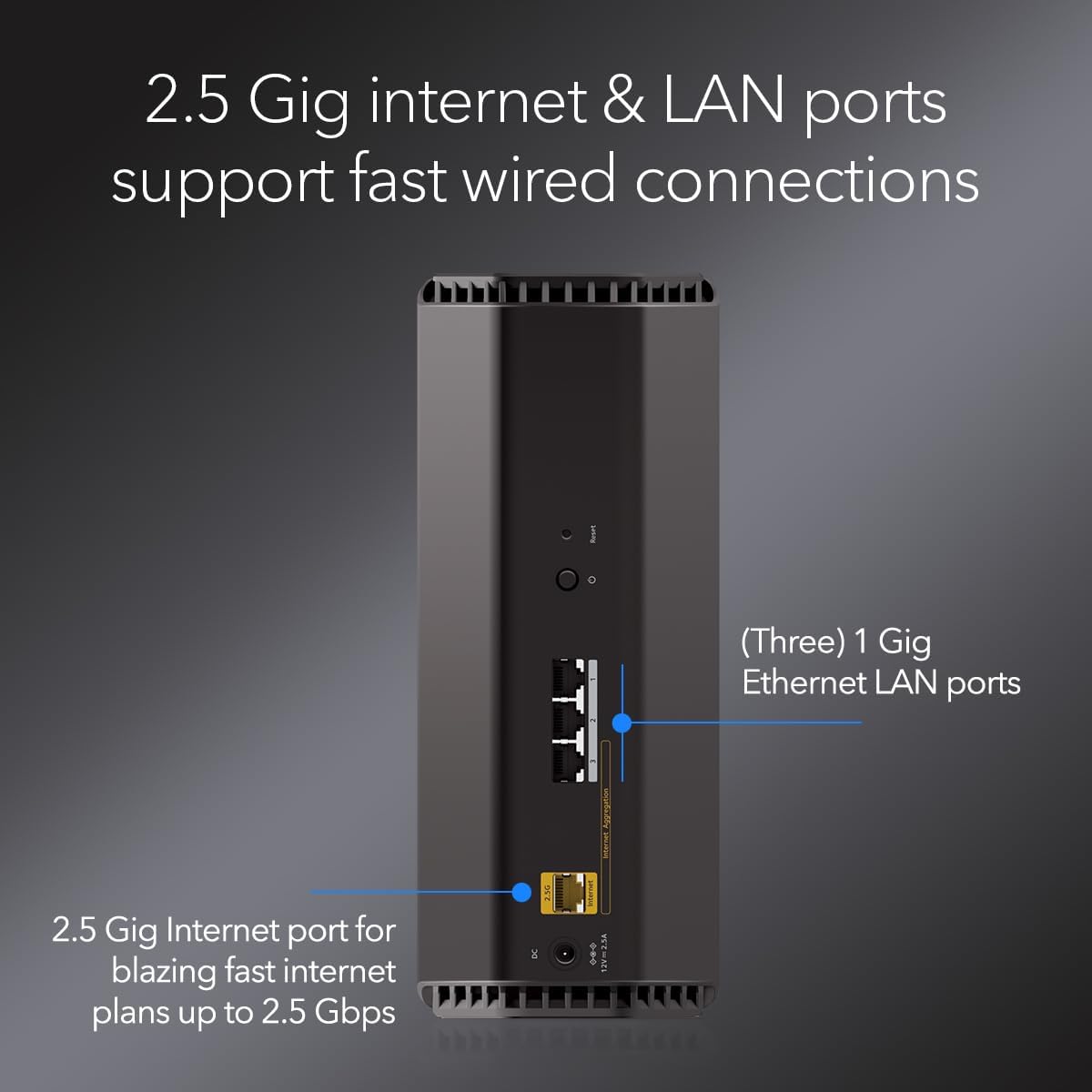
Figure 2: Rear view of the Nighthawk RS140, highlighting the 2.5 Gig Internet port and 1 Gig LAN ports.

Figure 3: The NETGEAR Nighthawk App provides easy setup and management of your WiFi network.
4. Operating Your Router
Once set up, your Nighthawk RS140 Router operates automatically to provide a stable and fast WiFi connection. Here are some operational aspects:
- WiFi Bands: The router supports Dual-Band WiFi 7, utilizing 2.4 GHz, 5 GHz, and 6 GHz frequencies for optimal performance across various devices and distances.
- Device Connectivity: Connect up to 80 devices simultaneously without significant performance degradation. The router intelligently manages traffic to ensure smooth operation for all connected devices.
- Guest Network: Create a separate guest WiFi network through the Nighthawk app to provide internet access to visitors without sharing your main network password.
- LED Indicators: The front panel features LED indicators for power, internet connectivity, and individual Ethernet ports, providing a quick visual status of your network.

Figure 4: The Nighthawk RS140 provides blazing-fast speeds for smooth streaming and interactive gaming.
5. Maintenance and Security
To ensure optimal performance and security for your network, regular maintenance is recommended:
- Firmware Updates: The router is designed to receive automatic firmware updates, ensuring you always have the latest features, performance enhancements, and security patches. You can also manually check for updates via the Nighthawk app.
- NETGEAR Armor: This powerful suite of security tools, powered by Bitdefender, provides an automatic shield for all connected devices. It offers enhanced protection against hackers, malware, and identity theft. A 30-day trial is included.
- Parental Controls: Utilize NETGEAR Smart Parental Controls to manage your children's online time, filter content, and build healthy internet habits across their devices.
- Regular Reboots: Periodically restarting your router (unplugging it for 10 seconds and plugging it back in) can help clear its memory and resolve minor connectivity issues.

Figure 5: NETGEAR emphasizes performance and trusted security features.
6. Troubleshooting
If you encounter issues with your Nighthawk RS140 Router, try the following common troubleshooting steps:
- No Internet Connection:
- Check the Internet LED on the router. If it's not solid white, ensure the Ethernet cable from your modem is securely connected to the yellow Internet port.
- Reboot your modem and then your router. Wait for both devices to fully power on and establish connections.
- Verify your internet service provider (ISP) is not experiencing an outage.
- Slow WiFi Speeds:
- Ensure your devices are connected to the appropriate WiFi band (5 GHz or 6 GHz for closer, faster connections; 2.4 GHz for longer range).
- Minimize interference by moving the router away from other electronics (microwaves, cordless phones).
- Check for active downloads or streaming on other devices that might be consuming bandwidth.
- Devices Not Connecting:
- Verify you are using the correct WiFi password.
- Restart the problematic device.
- If using the Nighthawk app, check the Device Manager to ensure the device isn't paused or blocked.
- Router Lights Off: Ensure the power adapter is securely connected to both the router and a working power outlet.
7. Specifications
| Feature | Detail |
|---|---|
| Brand | NETGEAR |
| Model Name | RS140 |
| Item Model Number | RS140-100NAS |
| Wireless Type | 802.11.be (WiFi 7) |
| Frequency Band Class | Dual-Band (2.4 GHz, 5 GHz, 6 GHz) |
| Max Wireless Speed | Up to 5.0 Gbps |
| WiFi Coverage | Up to 2,250 sq. ft. |
| Device Capacity | Up to 80 devices |
| Internet Port | One (1) 2.5 Gig Ethernet WAN port |
| LAN Ports | Three (3) 1 Gig Ethernet LAN ports |
| USB Ports | One (1) USB 3.0 port (for storage) |
| Operating System | Linux |
| Item Weight | 3.34 pounds |
| Package Dimensions | 10.87 x 7.13 x 7.13 inches |
| Power Adapter | 12V/2.5A |
8. Warranty and Support
NETGEAR products typically come with a limited hardware warranty. For specific warranty details, registration, and technical support, please refer to the official NETGEAR website or the documentation included with your product.
You can find additional support resources, FAQs, and community forums on the NETGEAR Support Page.
Ask a question about this manual
Ask about setup, troubleshooting, compatibility, parts, safety, or missing instructions. Manuals+ will review the question and use this page’s manual context to help answer it.