
VIBOX VIII-211
Contents
Vibox VIII-211 Gaming PC User Manual
Model: VIII-211
1. Introduction
Thank you for choosing the Vibox VIII-211 Gaming PC. This manual provides essential information for setting up, operating, maintaining, and troubleshooting your new computer. Please read this manual carefully before using your PC to ensure optimal performance and longevity.
What's in the Box
- Vibox VIII-211 Gaming PC Tower
- Power Cable
- USB Wi-Fi 6 AX900 and Bluetooth 5.4 Adapter
- Documentation (Quick Start Guide, Warranty Information)

Figure 1.1: Internal view of the Vibox VIII-211 Gaming PC, showcasing the CPU, GPU, RAM, SSD, cooling fans, and liquid cooling system.
2. Safety Information
Please observe the following safety precautions to prevent damage to your PC and ensure your personal safety:
- Power Supply: Use only the provided power cable and connect it to a grounded electrical outlet. Do not overload power strips.
- Ventilation: Ensure adequate airflow around the PC. Do not block ventilation openings. Maintain at least 10 cm (4 inches) of clear space around all sides.
- Environment: Operate the PC in a dry, stable environment away from direct sunlight, heat sources, excessive dust, and moisture.
- Liquid: Keep liquids away from the PC. In case of accidental spill, immediately disconnect power and contact support.
- Servicing: Do not attempt to open or service the PC yourself. Refer all servicing to qualified personnel.
- Handling: Handle the PC with care. Avoid dropping or subjecting it to strong impacts.
3. Initial Setup
3.1 Unboxing
- Carefully remove the PC from its packaging.
- Remove any protective films or internal packing materials.
- Place the PC on a stable, flat surface with good ventilation.
3.2 Connecting Peripherals
Connect your monitor, keyboard, mouse, and other devices to the appropriate ports on the rear and top of the PC.

Figure 3.1: Top panel connectivity ports, including USB 2.0, USB 3.0, headphone jack, RGB change button, reset button, and power button.
- Monitor: Connect your monitor to the graphics card's HDMI or DisplayPort output. Ensure it's connected to the dedicated graphics card (lower ports), not the motherboard's integrated graphics (upper ports).
- Keyboard & Mouse: Connect to any available USB ports.
- Audio: Connect speakers or headphones to the audio jacks.
- Network: For wired internet, connect an Ethernet cable to the LAN port. For wireless, install the provided USB Wi-Fi adapter into an available USB port.
3.3 Power Connection
- Connect the power cable to the power supply unit (PSU) input on the rear of the PC.
- Plug the other end of the power cable into a grounded electrical outlet.
- Flip the power switch on the PSU to the 'ON' position (usually marked with 'I').
4. Operating Your PC
4.1 First Boot
- Press the power button on the front or top of the PC.
- The PC will boot up, and you will see the Windows 11 setup screen.
- Follow the on-screen instructions to complete the Windows 11 initial setup, including language, region, network connection, and user account creation.
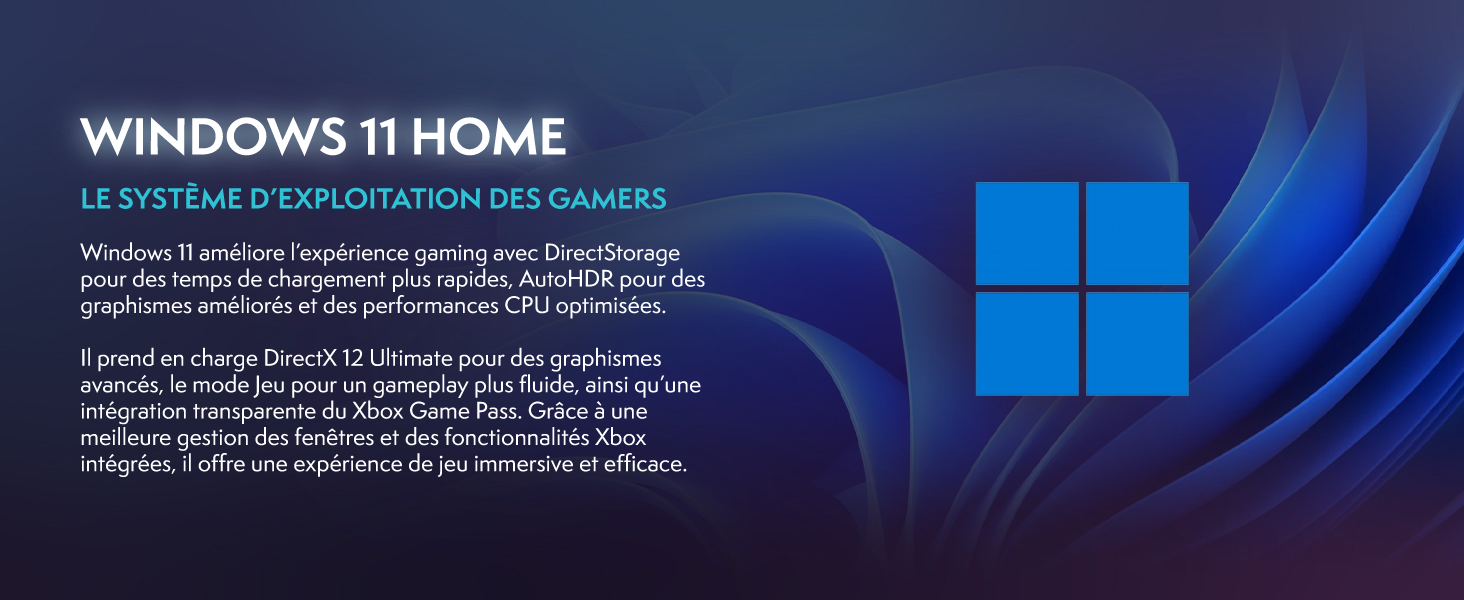
Figure 4.1: Windows 11 Home operating system, optimized for gaming with features like DirectStorage and Auto HDR.
4.2 Drivers and Software
Your Vibox PC comes with Windows 11 Home pre-installed and essential drivers for core components. It is recommended to periodically check for updates:
- Windows Updates: Go to Settings > Windows Update to check for and install the latest operating system updates.
- Graphics Drivers: For optimal gaming performance, regularly update your AMD Radeon graphics drivers. Visit the official AMD website to download the latest drivers for your RX 9070 GPU.
- Other Drivers: For motherboard, chipset, and other component drivers, visit the respective manufacturer's websites if needed.
5. Maintenance
5.1 Cleaning
- Exterior: Use a soft, damp cloth to clean the exterior surfaces. Avoid abrasive cleaners.
- Dust: Periodically clean dust from the PC's interior, especially from fans and heatsinks, using compressed air. Ensure the PC is powered off and unplugged before cleaning.
- Airflow: Ensure all ventilation openings are clear of obstructions to maintain proper airflow and cooling.

Figure 5.1: Inverted airflow design for enhanced cooling efficiency, showing air intake and exhaust paths.
5.2 Software Maintenance
- Regularly perform Windows Updates and driver updates as described in Section 4.2.
- Keep your antivirus software up-to-date and perform regular scans.
- Manage your storage by deleting unnecessary files and uninstalling unused programs to maintain performance.
6. Troubleshooting
This section covers common issues and their solutions. If you encounter problems not listed here, please contact customer support.
| Problem | Possible Solution |
|---|---|
| PC does not power on |
|
| No display on monitor |
|
| PC is running slow |
|
| No internet connection |
|
7. Specifications
Detailed technical specifications for the Vibox VIII-211 Gaming PC:
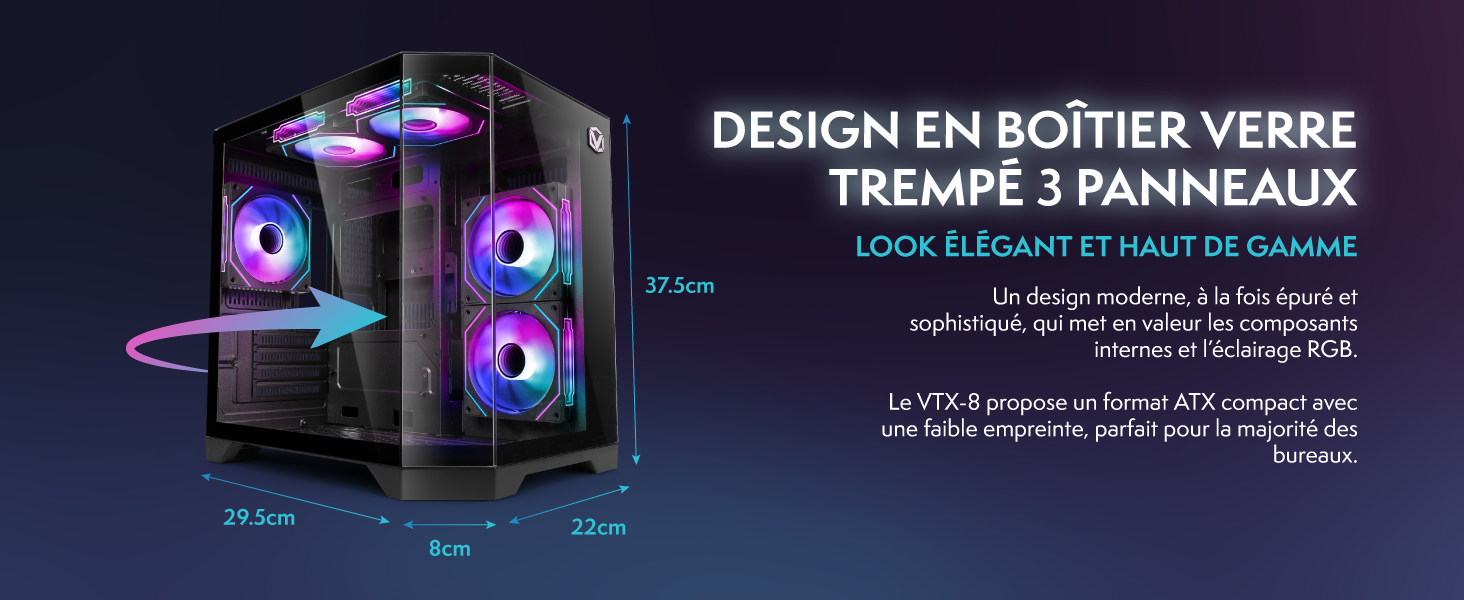
Figure 7.1: Vibox PC Gamer case with tempered glass panels and approximate dimensions: Height 37.5cm, Width 22cm, Depth 41cm.
| Feature | Detail |
|---|---|
| Model Number | VIII-211 |
| Operating System | Windows 11 Home |
| Processor | Intel Core i9-12900KF (16 Cores, up to 5.2 GHz) |
| Graphics Card | AMD Radeon RX 9070 (16 GB GDDR6) |
| RAM | 16 GB DDR4 (Expandable up to 128 GB) |
| Storage | 1 TB SSD |
| Cooling | Water Cooling (AIO 120mm) |
| Connectivity | HDMI, DisplayPort, USB, Ethernet, Wi-Fi 6 AX900, Bluetooth 5.4 |
| Dimensions (L x W x H) | 35 x 28 x 38 cm (Approximate) |
| Color | Black |
8. Warranty Information
Your Vibox VIII-211 Gaming PC comes with a comprehensive warranty:
- Parts: 2 Years
- Labor: Lifetime
Please retain your proof of purchase for warranty claims. The warranty covers manufacturing defects and hardware failures under normal use. It does not cover damage caused by misuse, accidents, unauthorized modifications, or improper maintenance.
9. Customer Support
If you require further assistance, technical support, or have warranty inquiries, please contact Vibox customer service:
- Website: Visit the official Vibox Gaming website for support resources, FAQs, and contact information.
- Documents: Refer to any additional documentation provided with your PC for specific contact details.
Vibox Gaming is committed to providing high-quality products and excellent customer service.
Documents and downloads
Ask a question about this manual
Ask about setup, troubleshooting, compatibility, parts, safety, or missing instructions. Manuals+ will review the question and use this page’s manual context to help answer it.