
Introduction
The Intuitive Instruments Exquis is an innovative musical instrument designed to redefine the art of composition. This user manual provides essential information for setting up, operating, and maintaining your Exquis 61-Key MPE MIDI Controller, ensuring you can produce, perform, and learn music effectively.
What's in the Box
- 1x Intuitive Instruments Exquis 61-Key MPE MIDI Controller
- 1x Power Supply
- 2 x 3.5mm to 5-Pin DIN Adapter
Key Features
- Redefines the Art of Expression: Create Melodies, Harmonies, and Chords
- 61 Hexagonal Backlit Keys: MIDI I/O + CV/Gate/Mod Outputs
- MIDI Polyphonic Expression (MPE): Independent Velocity and Pressure
- Backlit Display for Music Scales: 4 x Endless Encoders, 10 Buttons
- 6-Zone or 1 Continuous Slider: USB Cable and Two MIDI Adapters
Setup
The Exquis controller is designed for easy integration with your music production setup. Follow these steps to get started:
- Power Connection: Connect the provided power supply to the Exquis controller and a power outlet. The Exquis is also USB-C powered, allowing for flexible power options.
- Computer Connection: Use a USB cable to connect the Exquis controller to your PC or Mac. This connection facilitates MIDI communication with your music production software.
- MIDI & CV/Gate Connections: For connecting to external MIDI synthesizers, modular synthesizers, or other hardware, use the included 3.5mm to 5-Pin DIN adapters for MIDI I/O. The controller also features CV/Gate/Mod outputs for advanced integration.

Image: Close-up view of the Exquis controller's USB-C port and MIDI connections.
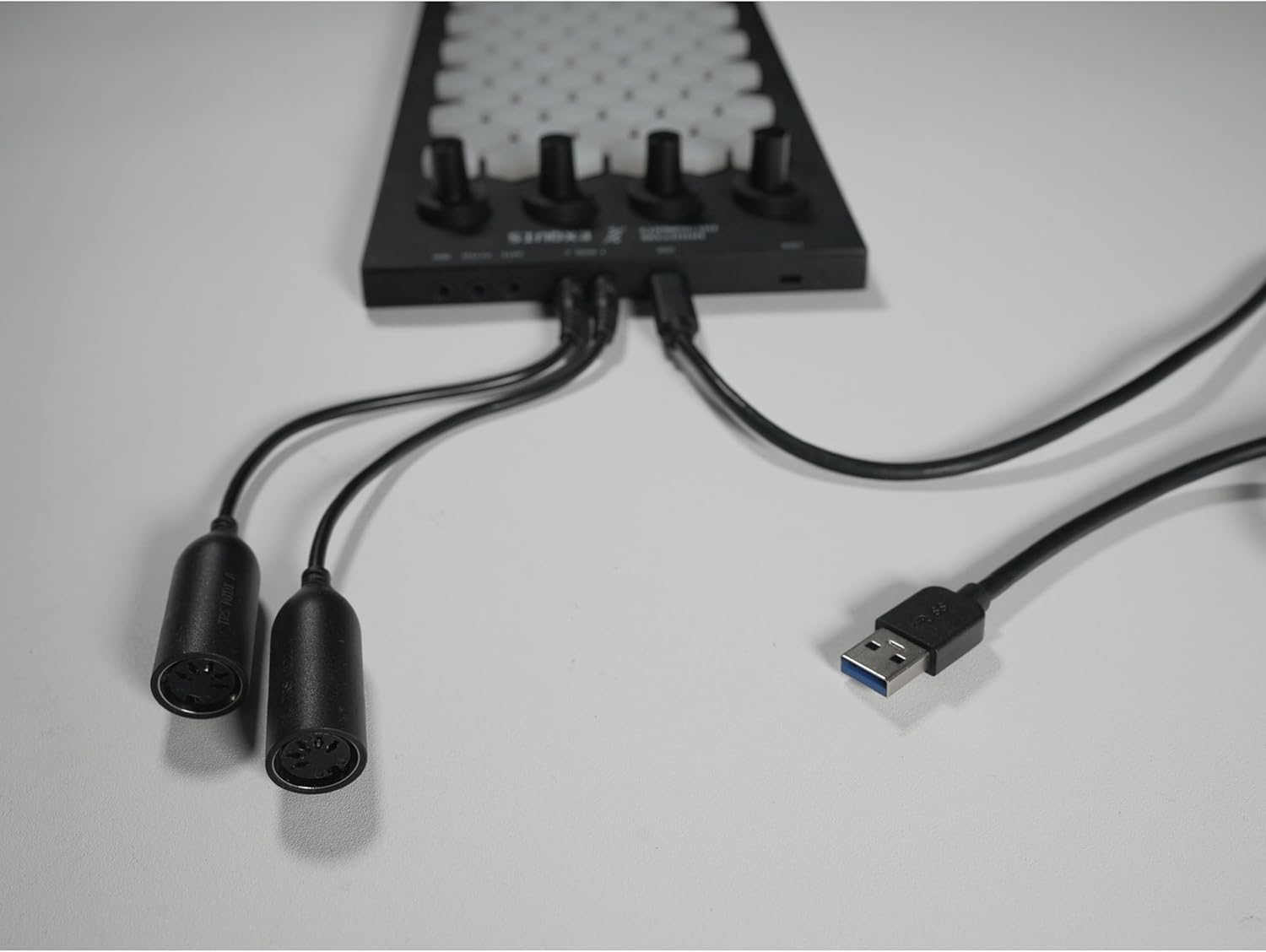
Image: The various cables and adapters supplied with the Exquis controller for versatile connectivity.
Operating Instructions
The Exquis controller is designed for intuitive music creation. Here's how to leverage its features:
- Expressive Playability: Utilize the 61 hexagonal backlit keys, which support MIDI Polyphonic Expression (MPE). This allows for individual control over each note's velocity and pressure, enabling nuanced and dynamic performances.
- Harmony Layout: The ergonomic harmony layout simplifies the creation of melodies and chords, making it accessible for musicians of all skill levels.
- Sound Control: Use the 4 endless encoders and 10 buttons to control various parameters within your dedicated app or music software. The backlit display provides visual feedback for music scales and settings.
- Continuous Control: The 6-zone or 1 continuous slider offers flexible control over effects, modulation, or other assignable parameters.
- App Integration: Optimize your workflow by using the Exquis with its dedicated app, which provides easy access to sound control, harmony, and melody features.

Image: The Exquis controller showcasing its unique hexagonal backlit keys and control layout.

Image: A detailed view of the Exquis controller's buttons, sliders, and illuminated keys.

Image: The Exquis controller in use, connected to a laptop running music production software.
Maintenance
To ensure the longevity and optimal performance of your Intuitive Instruments Exquis controller, follow these maintenance guidelines:
- Cleaning: Use a soft, dry cloth to wipe down the surface of the controller. Avoid abrasive cleaners or solvents that could damage the finish or electronic components.
- Storage: Store the controller in a cool, dry place away from direct sunlight, extreme temperatures, and excessive humidity. If transporting, consider using a protective case to prevent damage to the keys and controls.
- Handling: Handle the controller with care. While designed to be durable, avoid dropping it or applying excessive force to the keys, encoders, or sliders.
Troubleshooting
If you encounter any issues with your Exquis controller, try the following troubleshooting steps:
- No Power: Ensure the power supply is securely connected to both the controller and a working power outlet. If using USB power, confirm the USB-C cable is properly connected to a powered USB port on your computer.
- Not Recognized by Computer: Try a different USB port or cable. Ensure your operating system and music software are up to date. Restart your computer and the Exquis controller.
- Keys Not Responding: Check the connection to your computer or hardware. Verify that the correct MIDI input is selected in your music software. Ensure the controller's firmware is up to date.
- Inconsistent MPE Response: Calibrate the MPE settings within your music software or the dedicated Exquis app if available. Ensure the keys are clean and free from debris.
- Sound Issues: Confirm that your audio interface and speakers/headphones are properly connected and configured. Check the volume levels on both the Exquis controller (if applicable) and your software/hardware.
If problems persist after attempting these steps, please refer to the support information provided in the Warranty & Support section.
Specifications
| Item Weight | 1.72 pounds |
| Product Dimensions | 13.31 x 7.95 x 2.56 inches |
| Item Model Number | INT-EXQ |
| Color Name | Black |
| Compatible Devices | PC, Mac, Music Production Software (via USB) |
| Connector Type | USB |
| Number of Keyboard Keys | 61 |
| Proficiency Level | All |
| Hardware Platform | PC/Mac |
| Connectivity Technology | USB |
| Special Feature | Hexagonal Backlit Keys |
Warranty & Support
For warranty information and technical support, please refer to the documentation included with your product or visit the official Intuitive Instruments website. Keep your proof of purchase for warranty claims.