Introduction
This manual provides essential information for setting up, operating, maintaining, and troubleshooting your Vibox II-146 Gaming PC. Please read these instructions carefully before using your new computer to ensure optimal performance and longevity.
The Vibox II-146 is a complete gaming PC bundle designed for an immersive gaming experience at 1080p and 1440p resolutions. It features a powerful multi-core processor and a dedicated graphics card, making it suitable for popular games and demanding applications.
Package Contents
Before proceeding with the setup, ensure all components listed below are present in your package:
- Vibox II-146 Gaming PC Tower
- 23-inch Monitor
- Gaming Keyboard
- Gaming Mouse
- Gaming Headset
- LED Mouse Pad
- 300 Mbps Wi-Fi Adapter
- Power Cables for PC and Monitor
- Display Cable (HDMI or DisplayPort)
- User Manual (this document)
Setup Instructions
1. Unpacking and Placement
- Carefully remove all components from their packaging.
- Place the PC tower on a stable, flat surface with adequate ventilation. Ensure there is clear space around the air intake and exhaust vents.
- Position the monitor on a stable surface at a comfortable viewing height.
2. Connecting Peripherals
- Monitor Connection: Connect one end of the display cable (HDMI or DisplayPort) to the graphics card port on the back of the PC tower and the other end to the corresponding port on the monitor.
- Keyboard and Mouse: Connect the USB cables of the gaming keyboard and mouse to any available USB ports on the back of the PC.
- Headset: Plug the headset into the audio jacks (headphone and microphone) on the front or back of the PC.
- Wi-Fi Adapter: Insert the 300 Mbps Wi-Fi adapter into an available USB port.
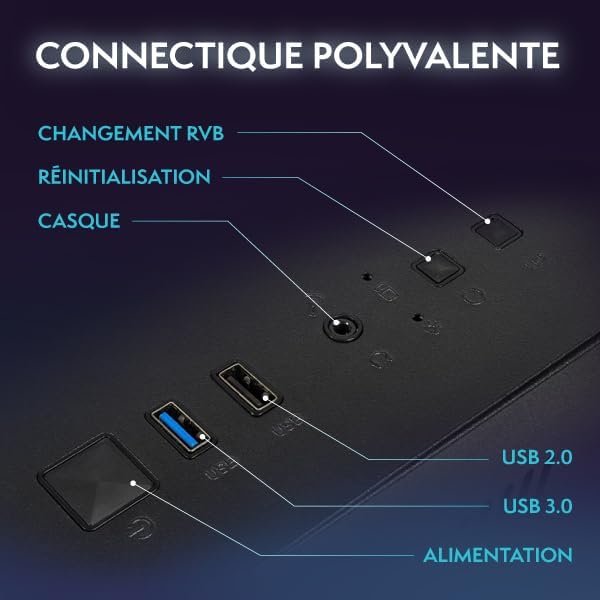
Image: Rear view of the Vibox II-146 PC tower, highlighting various connectivity ports including USB, HDMI, and DisplayPort.

Image: Internal view of the Vibox II-146 PC, showcasing the components and RGB lighting from the fans.
3. Power Connection
- Connect the PC power cable to the power supply unit on the back of the PC and then to a wall outlet.
- Connect the monitor power cable to the monitor and then to a wall outlet.
4. Initial Boot
- Press the power button on the PC tower.
- Press the power button on the monitor.
- The system will boot into Windows 11 Home. Follow the on-screen instructions for initial setup, including language, region, and network connection.
Operating Instructions
Windows 11 Home
Your Vibox II-146 PC comes pre-installed with Windows 11 Home, offering a modern and optimized operating system for gaming and productivity. Key features include:
- Faster loading times with DirectStorage.
- AutoHDR for enhanced graphics in supported games.
- Seamless integration with Xbox Game Pass.
- Optimized CPU performance.

Image: Visual representation of Windows 11 Home features, including faster loading, AutoHDR, Xbox Game Pass integration, and optimized CPU performance.
Gaming Performance
The AMD Radeon RX 9070 graphics card with 16GB GDDR6 RAM and Intel Core i5-10400F processor provide excellent performance for modern games. Ensure your graphics drivers are up to date for the best gaming experience. You can download the latest drivers from the official AMD website.
Connectivity
Your PC offers versatile connectivity options:
- USB Ports: Multiple USB 2.0 and USB 3.0 ports for peripherals.
- Display Outputs: HDMI 2.1b and DisplayPort 2.1a for connecting displays.
- Wi-Fi: Integrated Wi-Fi via the included adapter for wireless internet access.
- Audio Jacks: Dedicated ports for headphones and microphones.
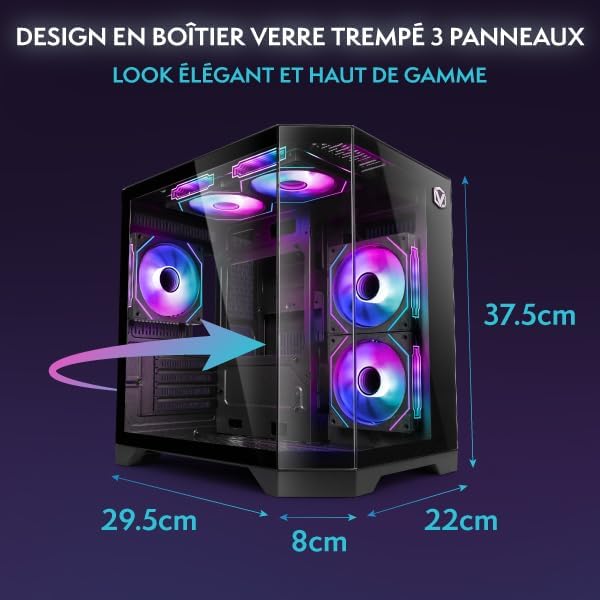
Image: Diagram showing the dimensions of the Vibox II-146 PC tower: 37.5cm height, 29.5cm depth, 22cm width, and 8cm base width.
Maintenance
General Care
- Dust Management: Regularly clean the exterior of the PC with a soft, dry cloth. Use compressed air to clear dust from vents and internal components (fans, heatsinks) every few months to prevent overheating.
- Ventilation: Ensure the PC is placed in an area with good airflow. Avoid blocking any vents.
- Cable Management: Keep cables tidy to improve airflow and prevent accidental disconnections.

Image: Diagram illustrating the optimized reverse airflow design for next-generation cooling within the Vibox II-146 PC case.
Software Updates
- Windows Updates: Regularly check for and install Windows updates to ensure system stability and security.
- Driver Updates: Keep your graphics card drivers (AMD Radeon) and other component drivers updated. Visit the manufacturer's websites for the latest versions.

Image: Close-up of Vibox Hex RGB Infinity 120mm fans, showcasing various customizable color and RGB modes.
Troubleshooting
This section addresses common issues you might encounter. For more complex problems, please contact customer support.
| Problem | Possible Cause | Solution |
|---|---|---|
| No power | Power cable disconnected, power supply switch off, faulty outlet. | Check all power connections. Ensure the power supply switch on the back of the PC is in the 'ON' position. Try a different power outlet. |
| No display on monitor | Monitor not powered, display cable loose or incorrect port, incorrect input source on monitor. | Ensure monitor is powered on. Check display cable connections at both ends. Verify the display cable is connected to the graphics card (not motherboard) and the monitor's input source is correctly selected. |
| No internet connection (Wi-Fi) | Wi-Fi adapter not installed, drivers missing, incorrect network settings. | Ensure the Wi-Fi adapter is securely plugged into a USB port. Check Windows Device Manager for driver status. Reconfigure Wi-Fi network settings in Windows. |
| System is slow or freezing | Too many applications running, insufficient RAM, overheating, malware. | Close unnecessary applications. Check task manager for resource usage. Ensure proper ventilation and clean dust. Run a full system scan for malware. |
Specifications
| Component | Detail |
|---|---|
| Model Number | II-146 |
| Processor | Intel Core i5-10400F (6 Cores, up to 4.3 GHz) |
| Graphics Card | AMD Radeon RX 9070 (16 GB GDDR6) |
| RAM | 16 GB DDR4 (Dual Channel, 3200 MHz) |
| Storage | 1 TB SSD (Solid State Drive) |
| Operating System | Windows 11 Home |
| Monitor | 23-inch, 1920 x 1080 Resolution |
| Connectivity | Wi-Fi (300 Mbps adapter included), 3x USB 2.0, 3x USB 3.0, 1x HDMI 2.1b, DisplayPort 2.1a |
| Dimensions (PC Tower) | 35 x 28 x 38 cm (approx. 13.8 x 11 x 15 inches) |
| Weight (PC Tower) | 19.17 kg (approx. 42.26 lbs) |
Warranty and Support
Warranty Information
Your Vibox II-146 Gaming PC is covered by a manufacturer's warranty. Please refer to the warranty card included with your product for specific terms and conditions, including warranty duration and coverage details. Keep your proof of purchase for warranty claims.
Customer Support
For technical assistance, troubleshooting beyond this manual, or warranty inquiries, please contact Vibox customer support. You can typically find contact information on the manufacturer's website or on the packaging materials.
When contacting support, please have your product model number (II-146) and proof of purchase readily available.


