
Introduction
This manual provides essential information for setting up, operating, maintaining, and troubleshooting your Google Pixel 9 smartphone. The Pixel 9 is designed to offer a powerful and intuitive user experience, powered by the Google Tensor G4 processor and running on Android 14.
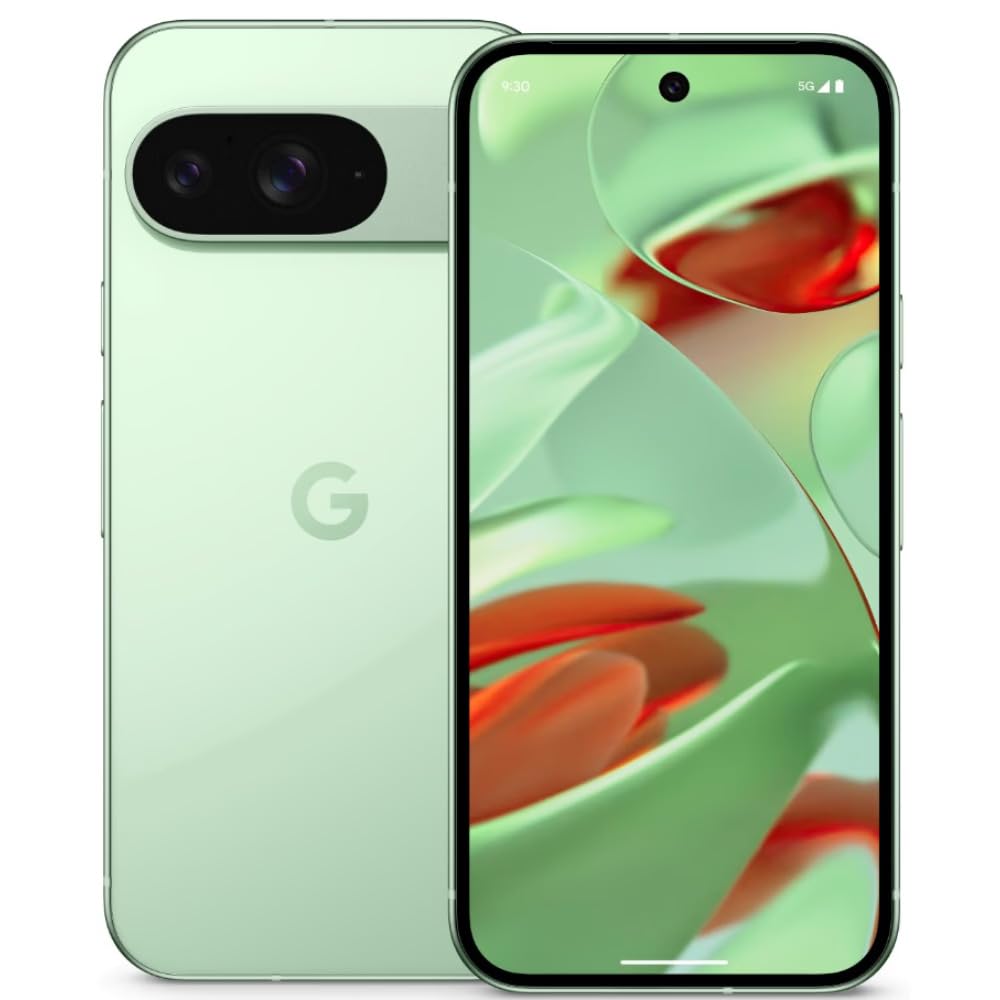
Image: Google Pixel 9 smartphone, rear view, in Wintergreen color.
What's in the Box
Upon unboxing your Google Pixel 9, verify that all standard components are present:
- Google Pixel 9 Smartphone
- USB-C to USB-C Cable
- SIM Tray Ejector Tool

Image: Contents of the Google Pixel 9 retail box.
Setup
1. Inserting the SIM Card
- Locate the SIM card tray on the side of your Pixel 9.
- Insert the SIM tray ejector tool into the small hole next to the tray and press firmly until the tray pops out.
- Place your Nano SIM card(s) into the tray with the gold contacts facing down. The Pixel 9 supports Dual SIM functionality.
- Carefully push the tray back into the slot until it is flush with the phone's side.
2. Powering On/Off
- To Power On: Press and hold the Power button (located on the right side) until the Google logo appears.
- To Power Off: Press and hold the Power button and Volume Up button simultaneously, then tap 'Power off' on the screen. Alternatively, swipe down from the top of the screen twice to open Quick Settings, then tap the power icon and select 'Power off'.
3. Initial Device Setup
Follow the on-screen prompts to complete the initial setup process. This includes connecting to Wi-Fi, signing in with your Google account, setting up security features (Face Recognition), and transferring data from an old device.
Operating Your Pixel 9
Display Features
The Pixel 9 features a 6.3-inch OLED display with a 1080 x 2424 pixel resolution and a dynamic refresh rate up to 120Hz for smooth visuals. It offers up to 1800 nits brightness in HDR mode and peaks at 2700 nits for clear visibility in various lighting conditions.
Camera Usage
The device is equipped with a dual rear camera system: a 50 MP main sensor and a 48 MP ultrawide lens (123° field of view). The front camera is 10.5 MP. Advanced AI features enhance photography, allowing for detailed and expansive images.

Image: AI-enhanced camera features of the Google Pixel 9.
Performance
Powered by Google's Tensor G4 processor and 12 GB of RAM, the Pixel 9 ensures efficient multitasking and fast performance for applications and gaming. It runs on Android 14, providing a secure and up-to-date operating environment.
Battery and Charging
The Pixel 9 includes a 4700 mAh battery. It supports 45W USB-PD fast charging and 15W wireless charging for convenient power replenishment. Average battery life is approximately 24 hours, with up to 26.5 hours of phone talk time.
AI Features
Leverage integrated AI features such as Gemini for assistance, Real Screenshots for enhanced screen capture, and Circle to Search for quick information retrieval directly from your screen.

Image: Google Pixel 9 showcasing AI capabilities.
Maintenance
Durability
The Pixel 9 is built with Corning Gorilla Glass Victus 2 for display protection and features a water-resistant design, offering protection against spills and dust.
Software Updates
Google provides a commitment of seven years of OS and security updates for the Pixel 9, ensuring long-term support and access to the latest features and security enhancements.
Cleaning Your Device
To clean your Pixel 9, use a soft, lint-free cloth. Avoid abrasive materials or harsh chemicals. For stubborn smudges, slightly dampen the cloth with water. Ensure all ports are dry before charging.
Troubleshooting
If you encounter issues with your Pixel 9, consider the following general troubleshooting steps:
- Restart the Device: A simple restart can resolve many minor software glitches.
- Check for Software Updates: Ensure your device is running the latest software version. Go to Settings > System > System update.
- Clear App Cache: If a specific app is causing issues, try clearing its cache (Settings > Apps > See all apps > [App Name] > Storage & cache > Clear cache).
- Factory Reset: As a last resort, if problems persist, you may need to perform a factory reset. Warning: This will erase all data on your device. Back up important data before proceeding. (Settings > System > Reset options > Erase all data (factory reset)).
- Overheating: The device may experience increased temperature during intensive use or charging. If overheating becomes excessive or persistent, reduce usage of demanding applications and ensure proper ventilation.
Specifications
| Feature | Specification |
|---|---|
| Brand | |
| Model | Pixel 9 |
| Operating System | Android 14 |
| Processor | Google Tensor G4 |
| RAM | 12 GB |
| Internal Storage | 256 GB |
| Display | 6.3-inch OLED, 1080 x 2424 pixels, 120Hz Refresh Rate |
| Rear Camera | 50 MP Main, 48 MP Ultrawide |
| Front Camera | 10.5 MP |
| Battery Capacity | 4700 mAh |
| Charging | 45W USB-PD Fast Charging, 15W Wireless Charging |
| SIM Card Type | Nano SIM (Dual SIM) |
| Connectivity | 5G, Wi-Fi, Bluetooth, GSM, LTE |
| Security | Face Recognition |
| Durability | Corning Gorilla Glass Victus 2, Water Resistant |
| Dimensions | 7.2 x 0.8 x 15.2 Centimeters |
| Weight | 198 Grams |
Warranty and Support
Warranty Information
The Google Pixel 9 comes with a 1-year manufacturer's warranty. This warranty covers defects in materials and workmanship under normal use. Please retain your proof of purchase for warranty claims.
Customer Support
For further assistance, technical support, or warranty claims, please visit the official Google Support website or contact Google customer service. Refer to the documentation included with your device for specific contact details in your region.
Online Support: support.google.com/pixelphone


