
1. Introduction
This manual provides detailed instructions for the setup, operation, and maintenance of your DOOGEE Tab E3 Android 15 Tablet. Please read this manual thoroughly before using your device to ensure proper functionality and to maximize its features.
The DOOGEE Tab E3 is an 11-inch Android 15 tablet featuring a Helio G100 octa-core processor, Gemini AI capabilities, 32GB RAM, 256GB internal storage (expandable up to 2TB), and an 8800mAh battery. It includes support for 4G LTE dual SIM, PC-mode compatibility, and OTG reverse charging.
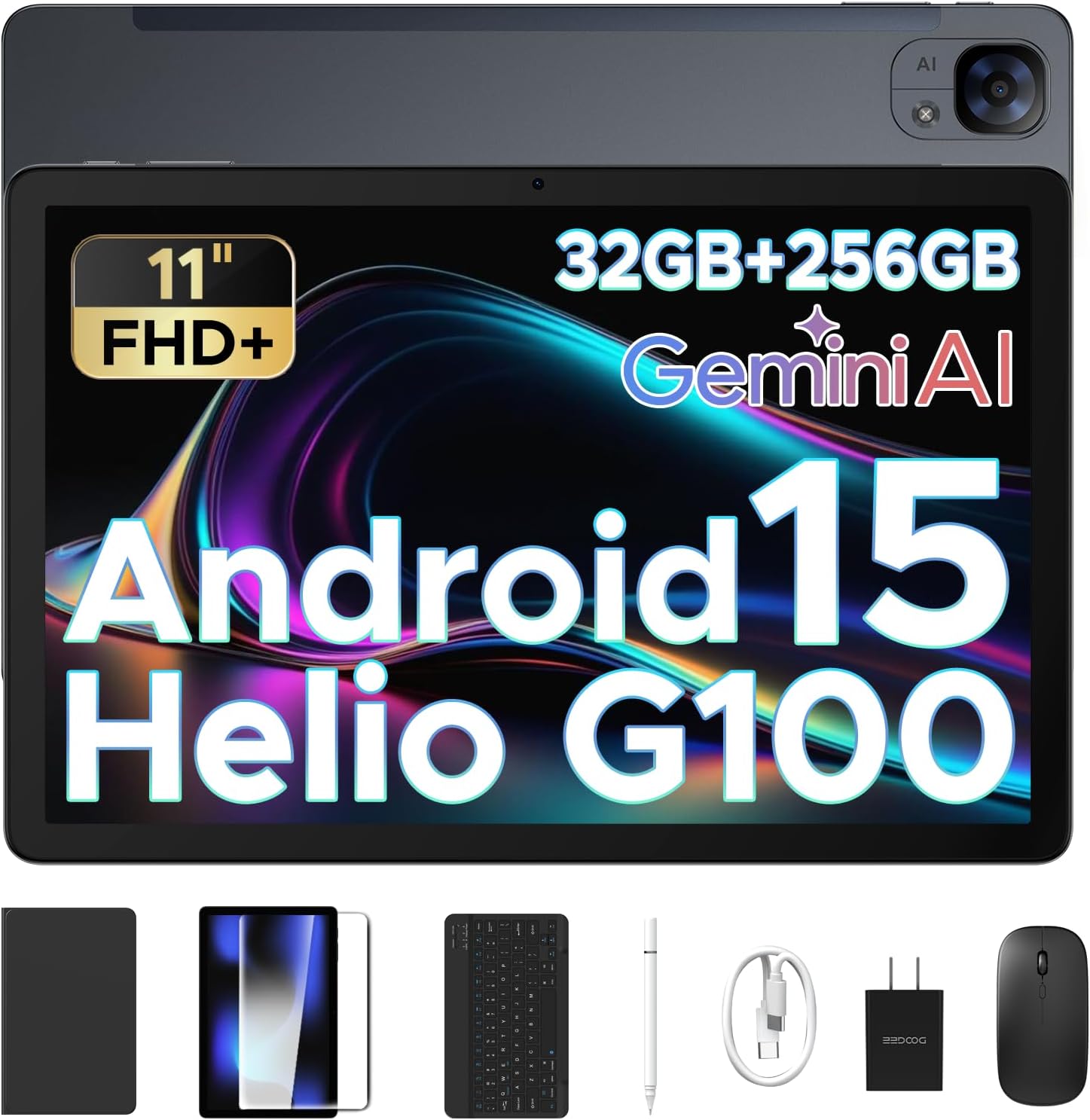
Image 1.1: The DOOGEE Tab E3 tablet shown with its included accessories: keyboard, mouse, and stylus.
2. Package Contents
Verify that all items listed below are present in your product package:
- 1 x DOOGEE Tab E3 Android 15 Tablet
- 1 x Keyboard
- 1 x Mouse
- 1 x Stylus Pen
- 1 x Charger
- 1 x Type-C USB Cable
- 1 x User Manual (this document)
- 1 x Warranty Card
3. Product Overview
3.1 Physical Components
The DOOGEE Tab E3 features a slim metal body with an 11-inch display. Key physical components include:
- Display: 11-inch FHD+ IPS display with 90Hz refresh rate.
- Front Camera: Located on the front bezel.
- Rear Camera: 13MP main camera located on the back.
- Power Button: Typically located on the side or top edge.
- Volume Buttons: Adjust audio levels, usually adjacent to the power button.
- USB-C Port: For charging and data transfer.
- 3.5mm Headphone Jack: For wired audio accessories.
- SIM/MicroSD Card Slot: For 4G LTE connectivity and storage expansion.
- Speakers: Dual HD speakers for audio output.

Image 3.1: Illustration of the 13MP main camera on the rear and 5MP front camera.
4. Setup
4.1 Initial Charging
Before first use, fully charge the tablet using the provided charger and Type-C USB cable. Connect the cable to the tablet's USB-C port and the charger to a power outlet. The tablet supports 18W fast charging.
4.2 Powering On/Off
- To Power On: Press and hold the Power button until the DOOGEE logo appears on the screen.
- To Power Off: Press and hold the Power button, then select "Power off" from the options that appear.
- To Restart: Press and hold the Power button, then select "Restart" from the options.
4.3 Initial Setup Wizard
Upon first power-on, the tablet will guide you through an initial setup process. Follow the on-screen prompts to:
- Select your language.
- Connect to a Wi-Fi network.
- Sign in with your Google account or create a new one.
- Set up screen lock (PIN, pattern, password, or Face Unlock).
- Review and accept terms and conditions.
4.4 Inserting SIM and MicroSD Card
Locate the SIM/MicroSD card slot on the side of the tablet. Use the provided SIM ejector tool to open the tray. Insert your 4G LTE SIM card(s) and/or a MicroSD card (up to 2TB) into the designated slots, ensuring correct orientation. Close the tray securely.
4.5 Connecting Accessories
The DOOGEE Tab E3 supports Bluetooth 5.2 for connecting wireless accessories. To connect the included keyboard, mouse, or stylus:
- Ensure the accessory is powered on and in pairing mode.
- On the tablet, go to Settings > Connected devices > Bluetooth.
- Toggle Bluetooth on if it's off.
- Select "Pair new device" and choose your accessory from the list of available devices.
- Follow any on-screen prompts to complete pairing.
5. Operating Instructions
5.1 Android 15 Interface
Your tablet runs on Android 15, offering an intelligent, seamless, and secure user experience. Familiarize yourself with basic navigation gestures:
- Home Screen: Swipe left/right to navigate between screens, tap icons to open apps.
- Notifications: Swipe down from the top of the screen to view notifications and quick settings.
- App Drawer: Swipe up from the bottom of the screen to access all installed applications.
- Multitasking: Swipe up and hold from the bottom to view recent apps.

Image 5.1: The Android 15 operating system interface.
5.2 Gemini AI Features
The integrated Gemini AI enhances various tablet functions, providing intelligent assistance for daily tasks:
- Real-time Translation: Utilize AI for instant language translation in supported applications.
- Smart Text Suggestions: Receive intelligent suggestions for text input and content creation.
- AI-enhanced Multitasking: Experience optimized app switching and resource management.
- Information Retrieval & Summarization: Use Gemini AI for quick access to information and content summarization.

Image 5.2: Overview of Gemini AI capabilities.
5.3 Connectivity
- Wi-Fi: Connect to wireless networks via Settings > Network & internet > Wi-Fi.
- 4G LTE: With an inserted SIM card, enable mobile data via Settings > Network & internet > Mobile network.
- Bluetooth: Pair with devices like headphones, speakers, or the included keyboard/mouse via Settings > Connected devices > Bluetooth.
- GPS: The tablet includes built-in GPS for navigation and location services.
5.4 Multimedia and Display
The 11-inch FHD+ display with a 90Hz refresh rate provides clear and fluid visuals. Dual HD speakers deliver crisp audio.
- Display Settings: Adjust brightness, dark mode, and eye-care features via Settings > Display.
- Audio: Connect headphones to the 3.5mm jack for private listening or use the integrated dual speakers.
- Cameras: Use the pre-installed camera application to capture photos and videos with the 13MP rear camera and 5MP front camera.

Image 5.3: The 11-inch FHD+ IPS display with 90Hz refresh rate.

Image 5.4: The tablet's premium 1217 BOX dual speakers.
5.5 OTG Reverse Charging
The tablet supports OTG (On-The-Go) reverse charging, allowing it to act as a power bank for other devices. Connect a compatible USB-C to USB-C cable or an OTG adapter to the tablet's USB-C port, then connect your other device to begin charging.
6. Maintenance
6.1 Cleaning
Use a soft, lint-free cloth to clean the tablet screen and body. Avoid using harsh chemicals or abrasive materials that could damage the device. For stubborn smudges, slightly dampen the cloth with water or a screen cleaner designed for electronics.
6.2 Software Updates
Regularly check for and install software updates to ensure optimal performance, security, and access to new features. Go to Settings > System > System update to check for available updates.
6.3 Battery Care
To prolong battery life:
- Avoid exposing the tablet to extreme temperatures.
- Do not let the battery completely drain frequently.
- Use the original charger and cable.
- Adjust screen brightness and close unused apps to conserve power.

Image 6.1: The 8800mAh high-capacity battery of the DOOGEE Tab E3.
7. Troubleshooting
If you encounter issues with your DOOGEE Tab E3, refer to the following common problems and solutions:
| Problem | Possible Solution |
|---|---|
| Tablet does not power on. | Ensure the battery is charged. Connect the charger and wait a few minutes before attempting to power on again. If unresponsive, press and hold the Power button for 10-15 seconds to force a restart. |
| Wi-Fi connection issues. | Restart the tablet and your Wi-Fi router. Forget the network in Settings > Network & internet > Wi-Fi and reconnect. Ensure you are within range of the Wi-Fi signal. |
| Slow performance or apps crashing. | Close unused background applications. Clear app caches (Settings > Apps > [App Name] > Storage & cache > Clear cache). Ensure sufficient storage space is available. Restart the tablet. |
| Accessories (keyboard/mouse) not connecting. | Ensure Bluetooth is enabled on the tablet and the accessory is in pairing mode. Recharge or replace batteries in the accessory if applicable. Try re-pairing the device. |
| Tablet not charging. | Verify the charger and USB-C cable are securely connected and undamaged. Try a different power outlet. Ensure the charging port on the tablet is clean and free of debris. |
If the issue persists, please contact DOOGEE customer support for further assistance.
8. Specifications
| Feature | Detail |
|---|---|
| Model Name | Tab E3-V |
| Operating System | Android 15 |
| Processor | Helio G100 Octa-Core (6nm) |
| RAM | 32GB (8GB physical + 24GB expansion) |
| Internal Storage | 256GB |
| Expandable Storage | Up to 2TB via MicroSD card (purchased separately) |
| Screen Size | 11 Inches |
| Display Resolution | 1920x1200 Pixels (FHD+) |
| Refresh Rate | 90Hz |
| Battery Capacity | 8800mAh |
| Charging | 18W Fast Charging, OTG Reverse Charging |
| Rear Camera | 13MP |
| Front Camera | 5MP |
| Connectivity | 4G LTE Dual SIM, Wi-Fi, Bluetooth 5.2, GPS |
| Audio | Dual HD Speakers, 3.5mm Headphone Jack |
| Dimensions (LxWxH) | 0.29 x 6.64 x 10.11 inches |
| Item Weight | 3.3 pounds |

Image 8.1: The Helio G100 Octa-Core Processor details.
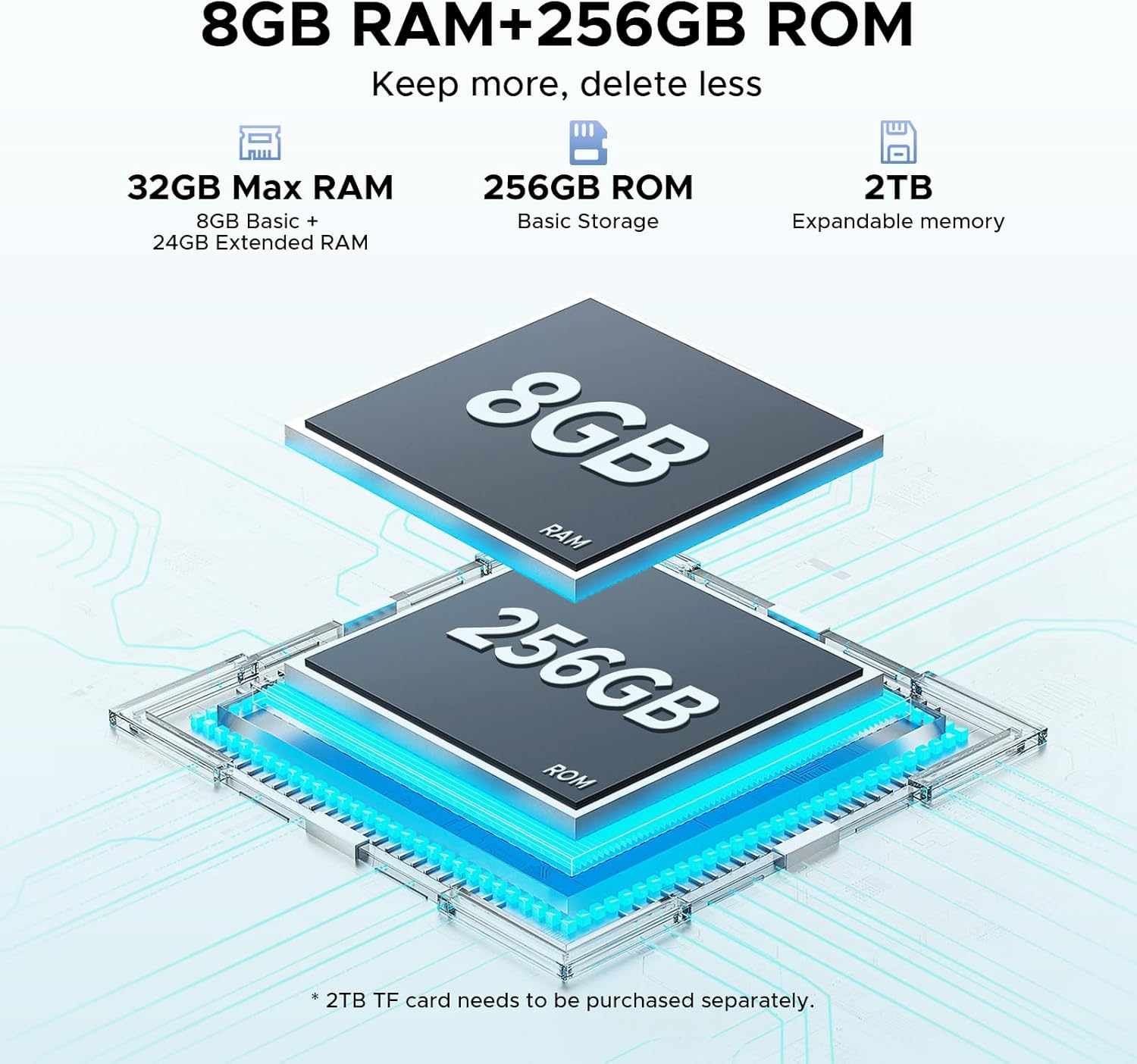
Image 8.2: Memory configuration of 8GB RAM + 256GB ROM, expandable to 2TB.
9. Warranty and Support
Your DOOGEE Tab E3 tablet comes with a warranty. Please refer to the included Warranty Card for specific terms, conditions, and duration of the warranty coverage.
For technical support, service, or further inquiries, please contact DOOGEE customer support through their official website or the contact information provided on your warranty card.


