
1. Introduction
Thank you for choosing the FUWANG Touch Keyboard Case. This manual provides detailed instructions for setting up, operating, and maintaining your keyboard case to enhance your iPad experience. Please read this manual thoroughly before use.

The FUWANG Touch Keyboard Case with an iPad inserted, displaying the backlit keyboard and integrated trackpad.
2. Compatibility
This keyboard case is compatible with the following iPad models:
- iPad Air 13-inch M3 2025 (Model Numbers: A3268, A3269, A3271)
- iPad Air 13-inch M2 2024 (Model Numbers: A2900, A2899, A2898)
- iPad Pro 12.9-inch 6th Generation (Model Numbers: A2436, A2437, A2764, A2766)
- iPad Pro 12.9-inch 5th Generation (Model Numbers: A2378, A2379, A2461, A2462)
- iPad Pro 12.9-inch 4th Generation 2020 (Model Numbers: A2229, A2069, A2232, A2233)
- iPad Pro 12.9-inch 3rd Generation 2018 (Model Numbers: A1876, A2014, A1895, A1983)
To verify your iPad model, check the back of your device or go to Settings > General > About > Model Number.

A visual guide detailing the compatible iPad models and instructions on locating your iPad's model number.
3. Package Contents
Ensure all items are present in your package:
- 1 x FUWANG Touch Keyboard Case
- 1 x Type-C USB Charging Cable (charger not included)
- 1 x User Manual

A clear layout of the package contents: the Touch Keyboard Case, a Type-C charging cable, and the product manual.
4. Product Features
- 360° Swivel Design: Allows for versatile viewing angles and transforms your iPad into a laptop, tablet, or presentation display.
- Multi-Touch Trackpad: Supports various gestures for precise navigation and control, enhancing productivity.
- 7-Color Backlit Keyboard: Features adjustable 3-level brightness and 7 color options for comfortable typing in any lighting condition.
- Durable Construction: Equipped with aluminum hinges tested for 20,000 folding cycles, ensuring long-lasting stability.
- Rechargeable Battery: Built-in 500mAh battery provides approximately 120 hours of working time on a 2-3 hour charge.
- Full Protection: Hard shell case protects all sides of your iPad from scratches and minor impacts.
- Precise Cutouts: Ensures full access to all ports, buttons, and camera.
- Integrated Pencil Holder: Convenient slot for storing and charging your Apple Pencil.
- Auto Sleep/Wake: Automatically conserves battery life by putting the iPad to sleep when closed and waking it when opened.

A composite image detailing various design elements: a dedicated slot for the Apple Pencil, the durable scissor-key structure, the Type-C charging port, the responsive multi-touch trackpad, and the overall compact, portable design.
5. Setup Instructions
5.1 Charging the Keyboard
- Locate the Type-C charging port on the side of the keyboard case.
- Connect the provided Type-C USB cable to the keyboard port and the other end to a USB power adapter (not included) or a computer's USB port.
- The charging indicator light will illuminate. A full charge typically takes 2-3 hours.

Information regarding the keyboard's 500mAh battery, indicating a charging time of 2-3 hours and a working time of approximately 120 hours.
5.2 Pairing with Your iPad via Bluetooth
- Slide the power switch on the keyboard to the 'On' position.
- Press the 'Pair' button (often labeled 'BT' or a Bluetooth icon) for 3 seconds. The Bluetooth indicator light will flash blue, indicating it's in pairing mode.
- On your iPad, go to Settings > Bluetooth and ensure Bluetooth is turned on.
- Your iPad will automatically search for nearby devices. Select 'Bluetooth Keyboard' (or a similar name) from the list of available devices to connect.
- Once connected, the Bluetooth indicator light on the keyboard will turn off or remain solid blue.

A step-by-step visual guide on pairing the keyboard with your iPad via Bluetooth.
5.3 Inserting Your iPad into the Case
- Gently align your iPad with the case's frame, ensuring the camera cutout and ports match.
- Press firmly but carefully around the edges until the iPad is securely seated in the case.
- The case is designed for a snug fit to provide maximum protection.
6. Operating Instructions
6.1 Using the Multi-Touch Trackpad
The integrated trackpad supports various multi-touch gestures (requires iPadOS 13 or later):
- Single Finger Tap: Click/Select
- Two Fingers Slide Up/Down: Scroll content
- Two Fingers Pinch In/Out: Zoom in/out
- Three Fingers Swipe Up: Go to Home screen
- Three Fingers Swipe Left/Right: Switch between open apps
To turn off the trackpad function, press Fn + A.
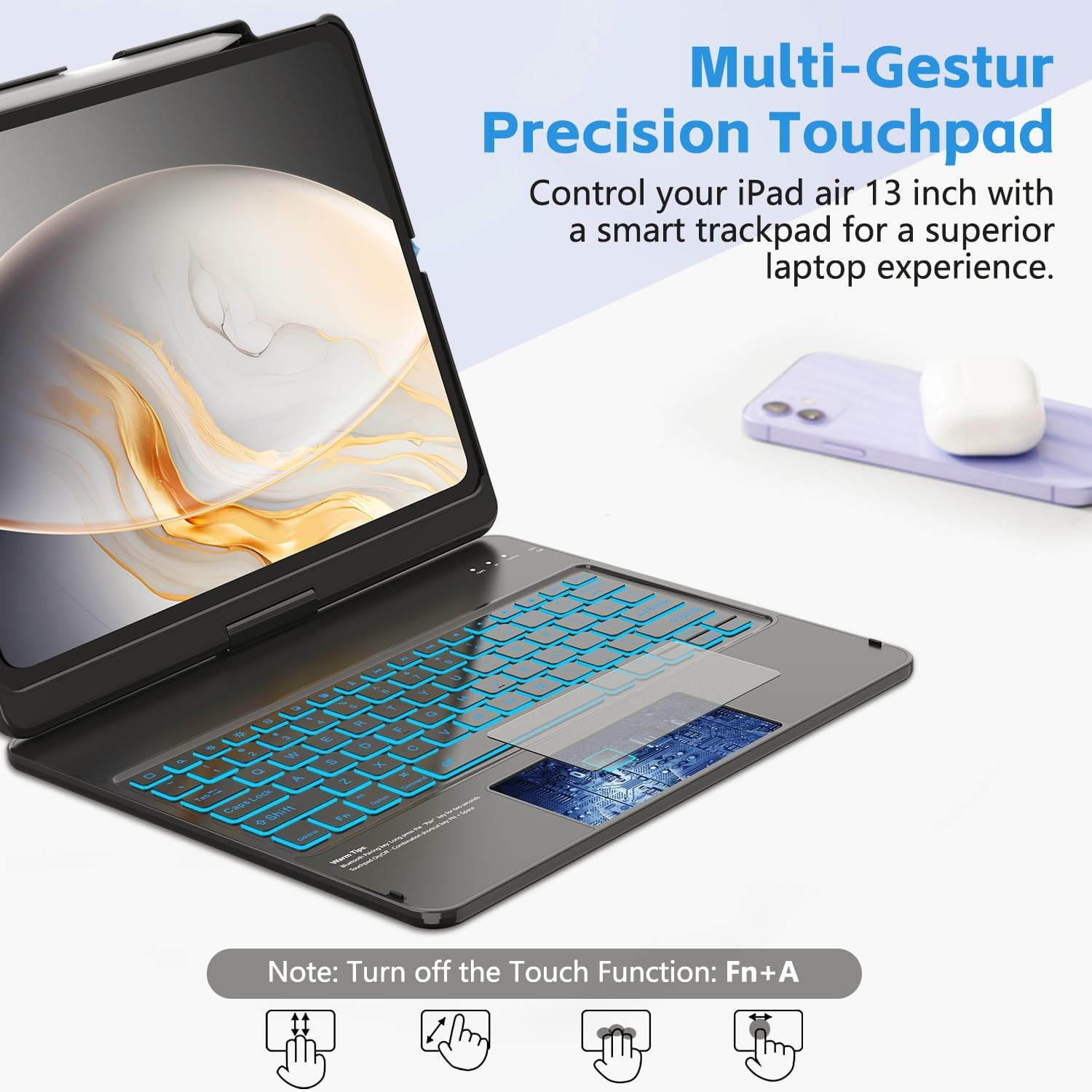
An illustration of the multi-touch trackpad, highlighting various gestures such as two-finger scroll, pinch-to-zoom, three-finger swipe for home, and single-finger tap for clicking.
6.2 Adjusting Backlight
The keyboard features 7 colors and 3 levels of brightness:
- Press the Light Bulb key (usually near the top right) to cycle through the 7 backlight colors.
- Press the Light Bulb key + Up/Down Arrow keys to adjust the brightness level (3 levels).

The keyboard illuminated with vibrant backlighting, demonstrating the seven available colors and the function keys for color and brightness adjustment.
6.3 Using Shortcut Keys
The top row of the keyboard includes dedicated shortcut keys for quick access to iPad functions:

An illustration pointing out the dedicated row of shortcut keys for quick access to various iPad functions.
6.4 Multi-Angle Usage
The 360° swivel and 180° flip design allows you to adjust your iPad to various positions:
- Laptop Mode: For typing and productivity.
- Tablet Mode: Fold the keyboard back for touch-only interaction.
- Viewing Mode: Position the screen at an optimal angle for watching videos or presentations.

Visual representations of the case's 360-degree swivel and 180-degree flip functionality, allowing for diverse viewing and typing angles.
6.5 Auto Sleep/Wake Function
The case automatically detects when it is opened or closed. Closing the case will put your iPad to sleep, and opening it will wake your iPad, helping to conserve battery life for both devices.

A visual showing how the case automatically puts the iPad to sleep when closed and wakes it when opened, conserving battery life.
6.6 Stylus Pen Slot
A dedicated slot is provided for your Apple Pencil, allowing for secure storage and charging (if your iPad model supports magnetic charging).
7. Maintenance
- Keep the keyboard case away from liquids and extreme temperatures.
- Clean the exterior with a soft, damp cloth. Avoid harsh chemicals.
- Ensure the charging port is free of dust and debris.
- When not in use for extended periods, fully charge the keyboard and store it in a cool, dry place.
8. Troubleshooting
8.1 Keyboard Not Connecting via Bluetooth
- Ensure the keyboard is powered on and fully charged.
- Make sure Bluetooth is enabled on your iPad.
- Press the 'Pair' button on the keyboard to enter pairing mode.
- Forget the device in your iPad's Bluetooth settings and try pairing again.
- Restart both your iPad and the keyboard.
8.2 Trackpad Not Responding
- Ensure your iPad's operating system is iPadOS 13 or later.
- Check if the trackpad is accidentally turned off (press Fn + A to toggle).
- Ensure the Bluetooth connection is stable.
- Clean the trackpad surface.
8.3 Backlight Not Working
- Ensure the keyboard is powered on.
- Press the Light Bulb key to turn on or cycle through backlight options.
- Check battery level; low battery might disable backlight.
9. Specifications
| Product Dimensions | 12.99 x 10.63 x 0.98 inches |
| Item Weight | 2 pounds |
| Manufacturer | FUWANG |
| Battery Capacity | 500mAh Lithium Ion (included) |
| Charging Time | 2-3 hours |
| Working Time | Approximately 120 hours |
| Connectivity Technology | Bluetooth |
| Keyboard Features | Flexible Touch Backlit Wireless Bluetooth Keyboard, Scissor-foot keys |
| Special Features | 360° Swivel, 7-Color Backlit, Comprehensive Protection, Pencil Holder, Multi-Touch Trackpad, Auto Sleep/Wake |
10. Warranty and Support
10.1 Warranty Information
FUWANG products are designed for durability and performance. For specific warranty details, please refer to the warranty card included with your purchase or contact FUWANG customer support. Keep your proof of purchase for warranty claims.
10.2 Customer Support
If you encounter any issues or have questions not covered in this manual, please contact FUWANG customer support through the retailer where you purchased the product or visit the official FUWANG website for assistance.