
1. Introduction
The WAVLINK 5Gbps USB-C to Ethernet Adapter provides a high-speed wired network connection for your USB-C enabled devices. This adapter offers speeds up to 5000Mbps, significantly faster than standard Gigabit Ethernet, ensuring a stable and efficient internet experience for various applications, including online gaming, streaming, and large file transfers.
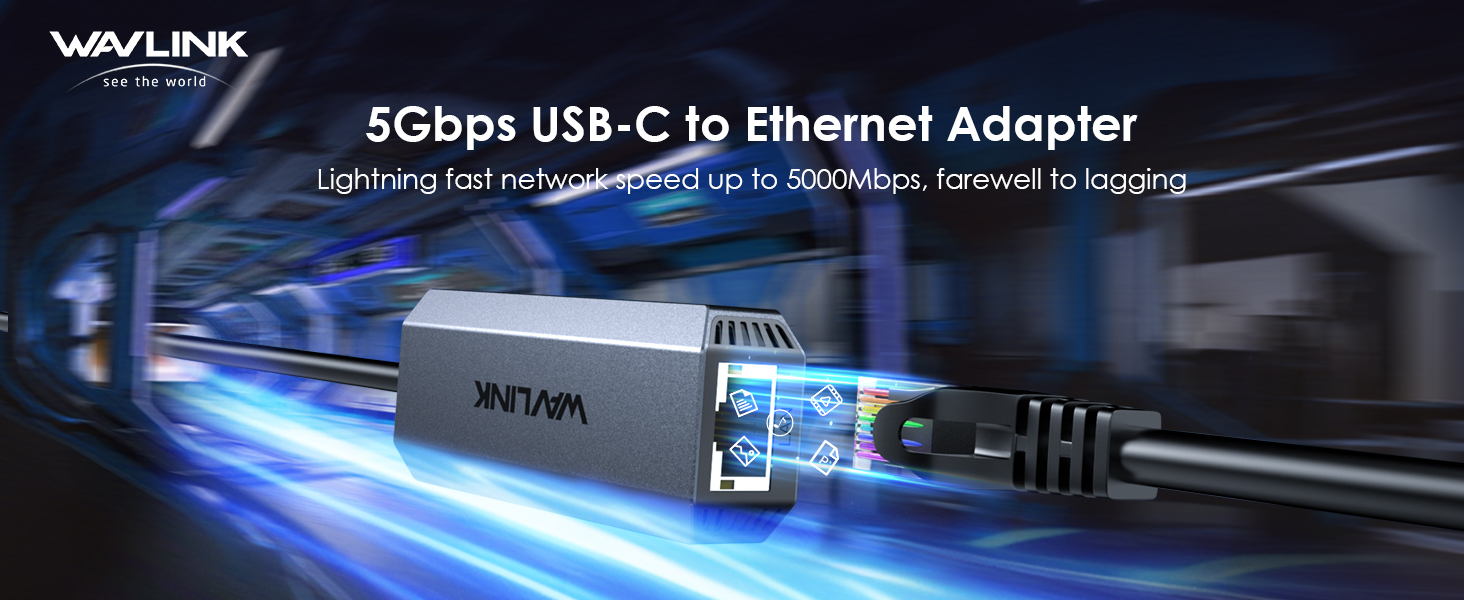
Image: The WAVLINK 5Gbps USB-C to Ethernet Adapter connected, illustrating its high-speed capability.
This manual will guide you through the setup, operation, and troubleshooting of your new adapter to ensure optimal performance.
2. Package Contents
Please verify that all items are present in your package:
- WAVLINK 5Gbps USB-C to Ethernet Adapter (Model WL-NWU341G)
- Quick Start Guide
- Safety Information Leaflet
- Driver Download Links Card (may include a mini-CD for older systems)
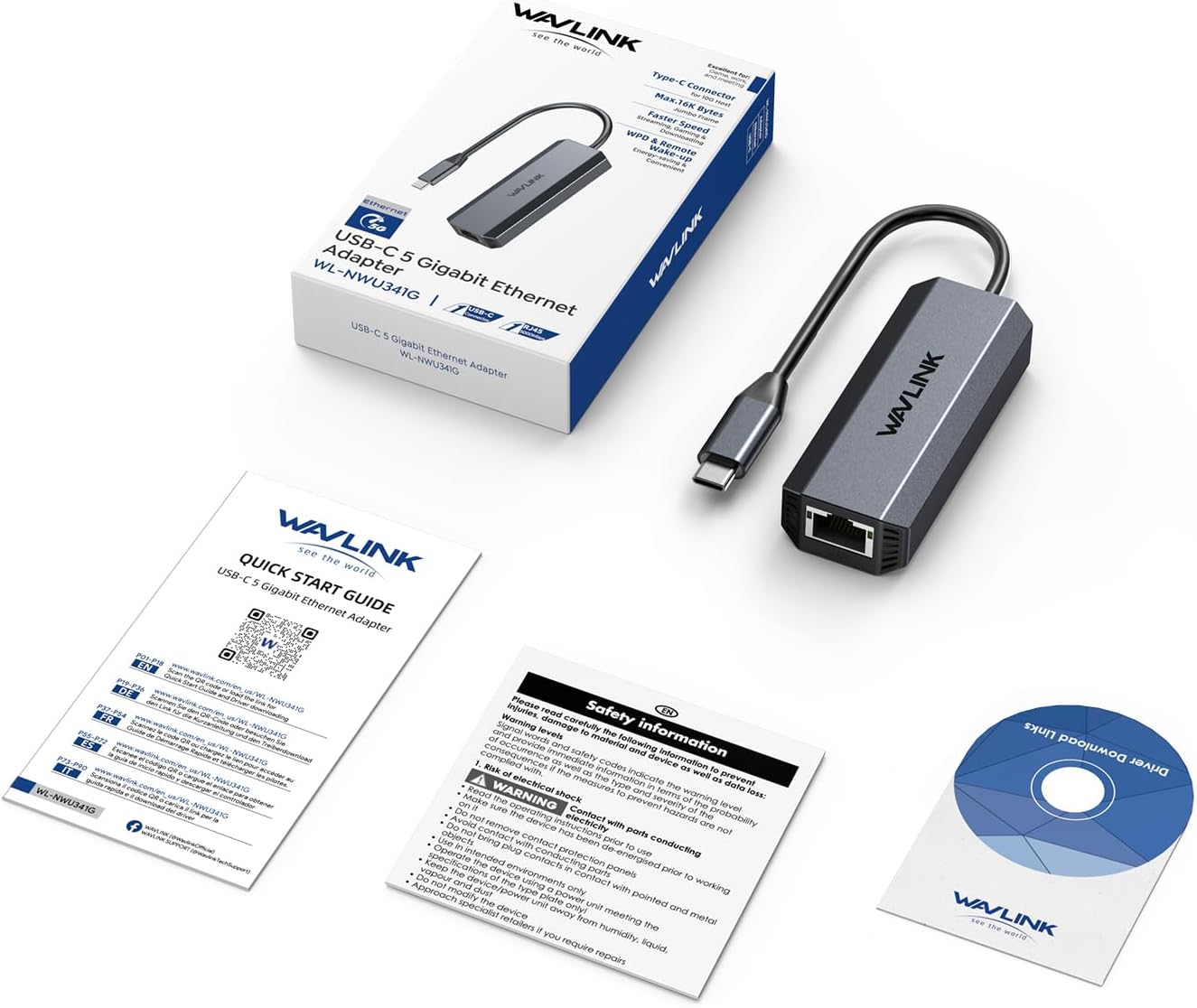
Image: All items included in the product packaging: the adapter, quick start guide, safety information, and driver download card.
3. Product Overview
The WAVLINK 5Gbps USB-C to Ethernet Adapter features a compact design with a durable aluminum alloy casing and a reinforced PVC cable for enhanced longevity. It includes a USB-C connector for your device and an RJ45 Ethernet port for network connection.
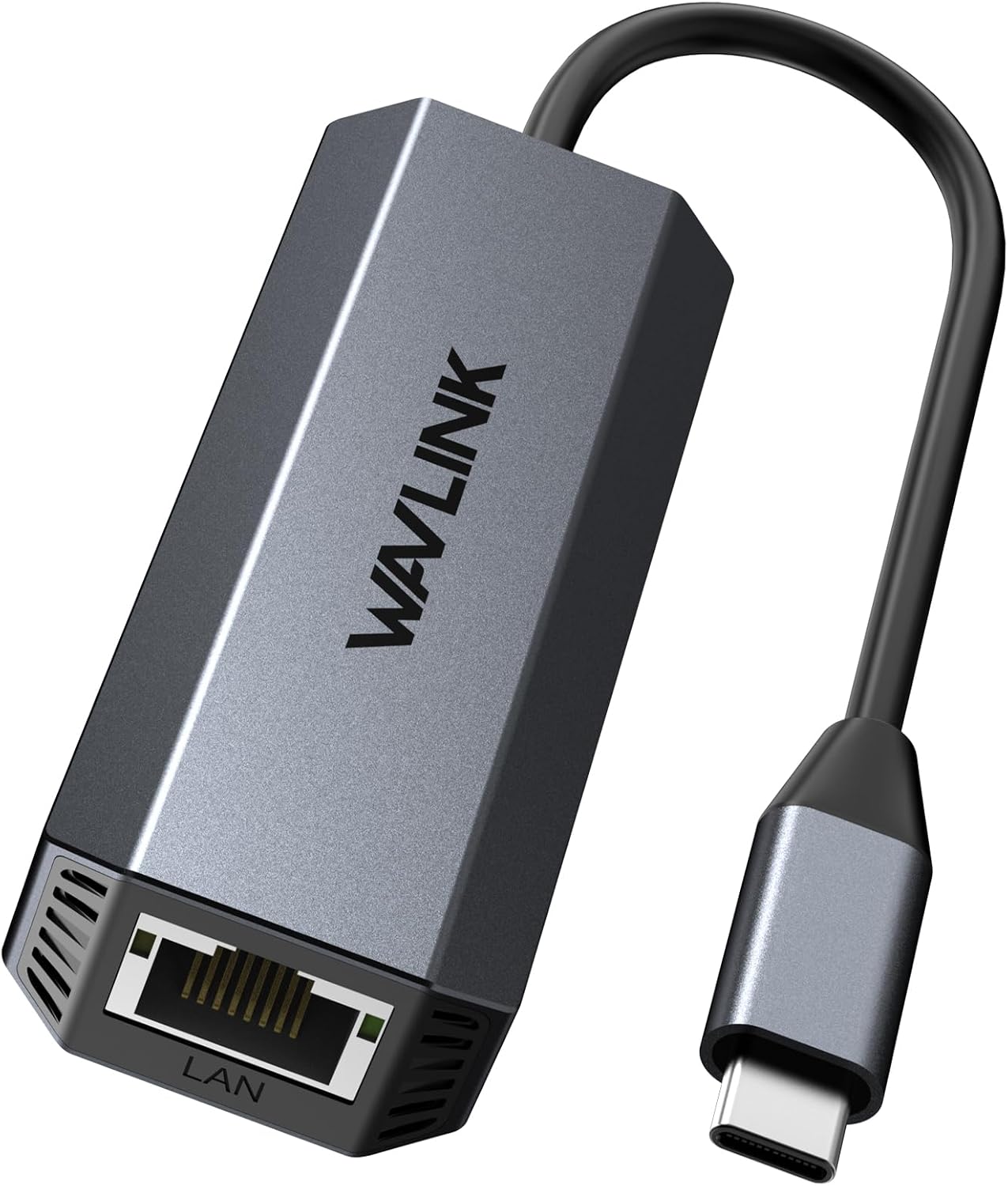
Image: A close-up view of the WAVLINK USB-C to Ethernet Adapter, highlighting its sleek design and RJ45 port.
Key Components:
- USB-C Connector: Connects to your host device (laptop, tablet, phone).
- RJ45 Ethernet Port: Connects to your Ethernet cable for network access.
- LED Indicator: Provides visual feedback on network activity and connection status.
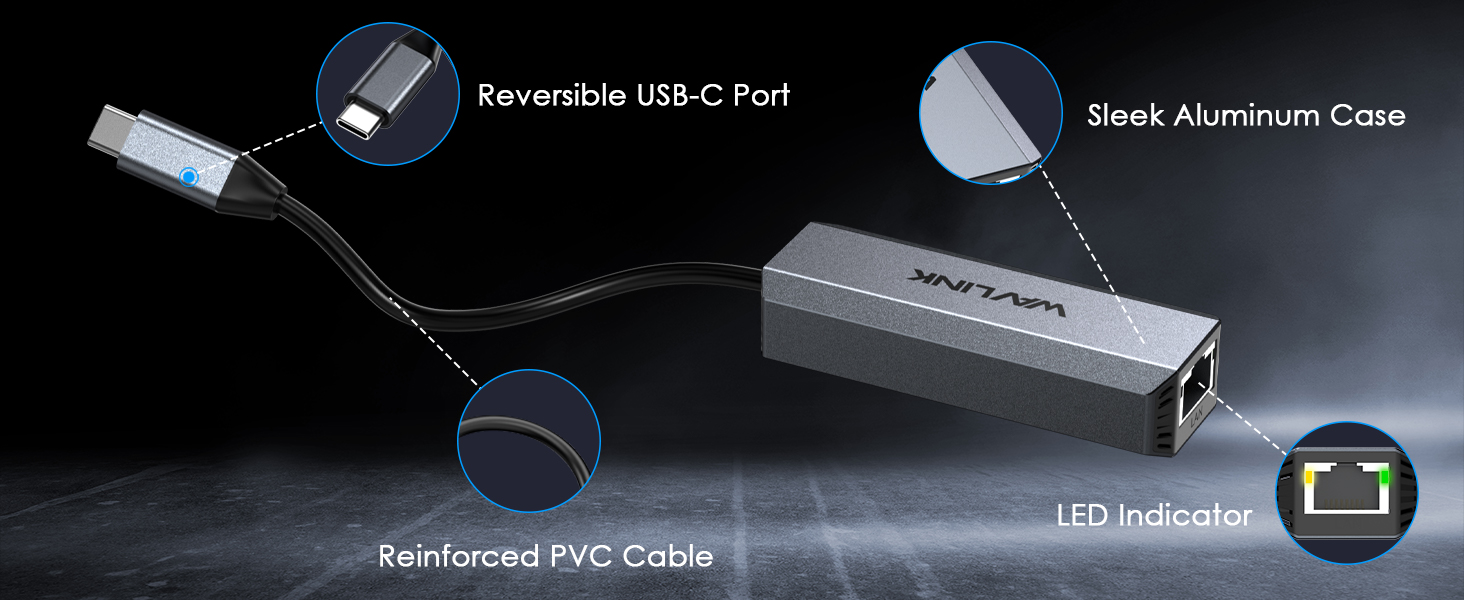
Image: An exploded view diagram illustrating the reversible USB-C port, reinforced PVC cable, sleek aluminum case, and LED indicator.
4. Setup Instructions
Follow these steps to set up your WAVLINK 5Gbps USB-C to Ethernet Adapter:
- Connect Ethernet Cable: Insert one end of a CAT6A or higher-grade Ethernet cable into the RJ45 port of the WAVLINK adapter. Connect the other end of the Ethernet cable to your router, modem, or network switch.
- Connect to Host Device: Plug the USB-C connector of the WAVLINK adapter into an available USB 3.2 Gen2 (10Gbps) or higher standard USB-C port on your computer, tablet, or smartphone. For optimal 5Gbps performance, ensure your device's USB-C port supports USB 3.2 Gen2 or Thunderbolt 3/4.
- Driver Installation (if required):
- For most modern operating systems (Windows 10/11, macOS 10.13.6+, iPadOS, up-to-date Chrome OS, Linux kernel 5.x+), the adapter should be plug-and-play, and drivers will install automatically.
- If automatic installation does not occur, or for older OS versions (Windows 7/8.x/Vista/XP, macOS 10.6-10.13.5, Linux kernel 3.2-4.x), you may need to manually install drivers. Refer to the included Driver Download Links Card or visit the official WAVLINK product page for Model WL-NWU341G: www.wavlink.com/en_us/WL-NWU341G.
- Verify Connection: Once connected, the LED indicator on the adapter should illuminate, indicating an active network connection. Check your device's network settings to confirm the wired connection is active.
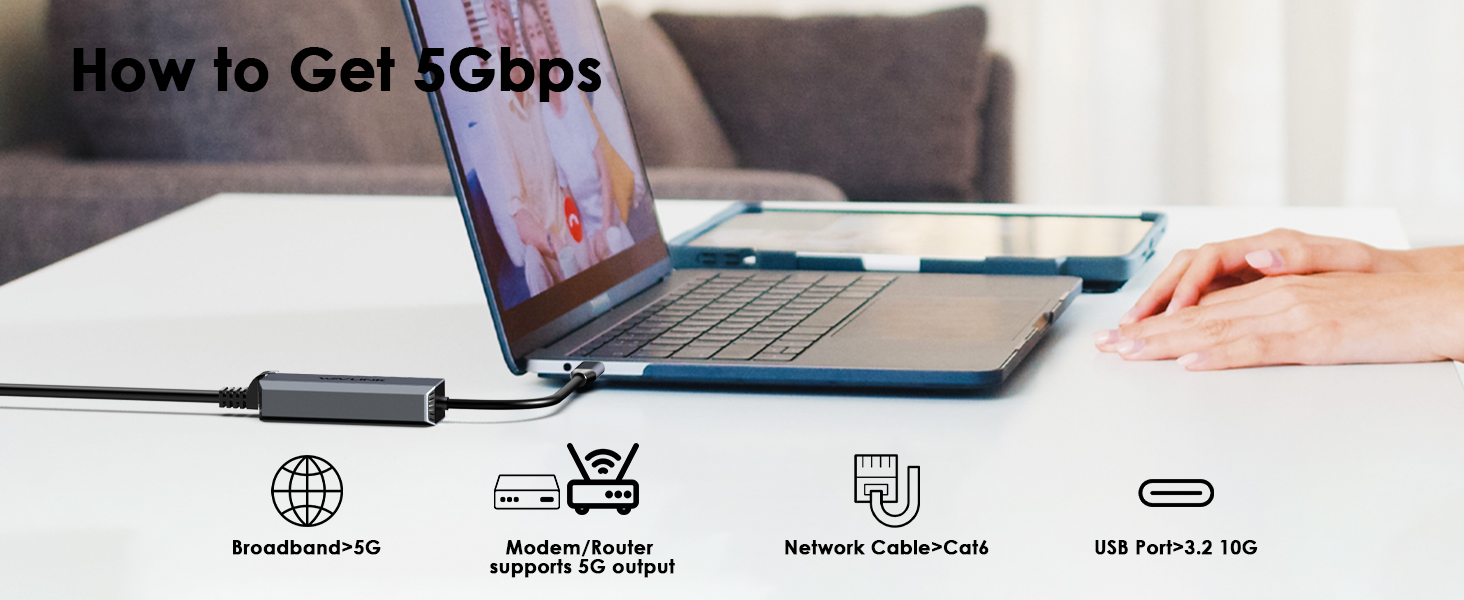
Image: Visual guide on how to achieve 5Gbps speeds, detailing requirements for broadband, modem/router, network cable, and USB port.
Important Note for 5Gbps Performance:
- Your broadband speed must exceed 5Gbps.
- Use a CAT6A or higher-grade Ethernet cable.
- Connect the adapter to a USB 3.2 Gen2 (10Gbps) or higher standard port on your host device. Connecting to a USB 2.0/3.0 port will limit speeds.
5. Operating Instructions
Once the adapter is successfully installed and connected, your device will automatically prioritize the wired Ethernet connection over Wi-Fi, providing a more stable and faster internet experience.
Usage Scenarios:
- Enhanced Productivity: Ideal for office environments requiring stable and fast network access for data transfer and cloud operations.
- Seamless Entertainment: Enjoy buffer-free 4K/8K streaming and online gaming with reduced latency.
- Reliable Connectivity: Provides a dependable wired connection in areas with weak or unreliable Wi-Fi signals.

Image: A user engaged in online gaming, demonstrating the adapter's suitability for high-bandwidth activities.
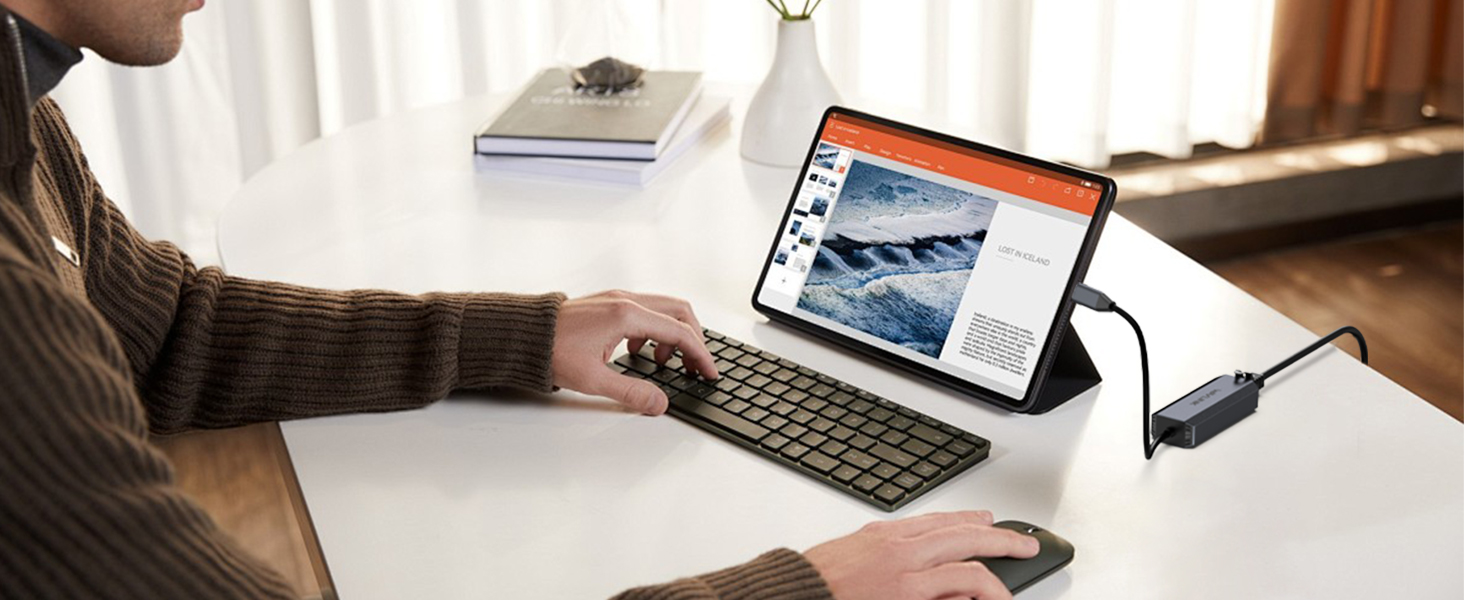
Image: A person using a tablet with an external keyboard, connected via the WAVLINK adapter for stable internet access.
6. Compatibility
The WAVLINK 5Gbps USB-C to Ethernet Adapter is designed for broad compatibility with various operating systems and devices.
Supported Operating Systems:
- Windows 10/11/8.x/7/Vista/XP
- macOS 10.6 and above (including M4 MacBook Pro)
- iPadOS
- Linux Kernel 3.2 and above (driver installation or kernel update to 5.x+ for full support)
- Up-to-date Chrome OS
Compatible Devices:
- Devices with USB-C (10Gbps) or Thunderbolt 3/4 ports
- iMac, MacBook M4, Dell XPS, iPad Pro/Air, Mac Mini M4, Asus Zenbook, iPhone 15/16
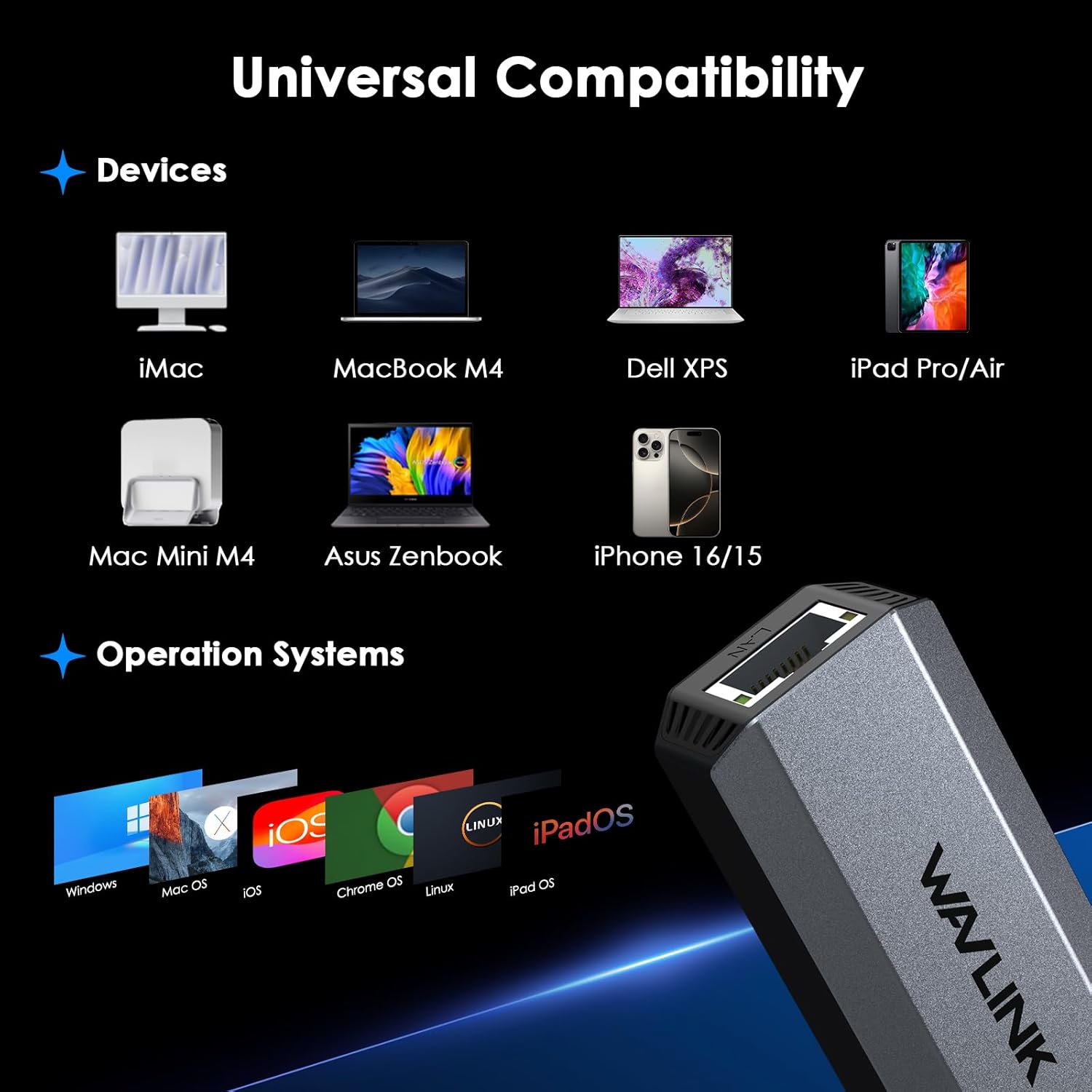
Image: A visual representation of the adapter's universal compatibility with different devices (iMac, MacBook, Dell XPS, iPad, Mac Mini, Asus Zenbook, iPhone) and operating systems (Windows, macOS, iOS, Chrome OS, Linux, iPadOS).
Not Compatible With:
- ARM-based Windows RT and Windows Mobile
- Most Android devices
- Nintendo Switch
- TiVo Series 2, Wii, or other non-PC/Mac platforms
- FreeBSD or pfSense (not recommended)
7. Specifications
| Feature | Description |
|---|---|
| Model | WL-NWU341G |
| Data Transfer Rate | Up to 5 Gigabits Per Second (5000Mbps) |
| Backward Compatibility | 10/100/1000/2500Mbps |
| Hardware Interface | USB Type C, RJ45 Ethernet |
| USB Standard | USB 3.2 (compatible with USB 3.2 Gen2, Thunderbolt 3/4) |
| Ethernet Standard | IEEE 802.3bz (2500/5000Mbps) |
| Product Dimensions | 3 x 1 x 0.5 inches (7.62 x 2.54 x 1.27 cm) |
| Item Weight | 1.62 ounces (46 grams) |
| Casing Material | Aluminum Alloy |
8. Troubleshooting
If you encounter issues with your WAVLINK 5Gbps USB-C to Ethernet Adapter, please refer to the following common solutions:
- No Network Connection:
- Ensure both the Ethernet cable and the USB-C connector are securely plugged in.
- Verify that your router/modem is functioning correctly and providing internet access.
- Check the LED indicator on the adapter. If it's off, try a different USB-C port or restart your device.
- Confirm that the necessary drivers are installed. Refer to Section 4 for driver installation.
- Slow Speed / Not Reaching 5Gbps:
- Ensure your broadband plan supports speeds greater than 5Gbps.
- Use a CAT6A or higher-grade Ethernet cable. Lower grade cables may limit speed.
- Connect the adapter to a USB 3.2 Gen2 (10Gbps) or Thunderbolt 3/4 port on your device. USB 2.0/3.0 ports will not achieve 5Gbps.
- Avoid connecting the adapter through a USB hub if possible, or ensure the hub itself supports high-speed data transfer. Direct connection to the PC port is recommended for reliable performance.
- Update the adapter's drivers to the latest version from the WAVLINK website.
- Frequent Disconnections:
- Ensure the USB-C connection is stable and not loose.
- Try connecting to a different USB-C port on your device.
- Update your device's USB controller drivers.
- If issues persist, test the adapter on another compatible device to rule out a device-specific problem.
9. Maintenance
To ensure the longevity and optimal performance of your WAVLINK 5Gbps USB-C to Ethernet Adapter, follow these maintenance guidelines:
- Cleaning: Use a soft, dry cloth to clean the adapter. Avoid liquid cleaners or solvents.
- Storage: Store the adapter in a cool, dry place away from direct sunlight and extreme temperatures.
- Handling: Avoid bending or twisting the cable excessively. Do not drop the adapter or subject it to strong impacts.
- Environment: Do not use the device in excessively humid or dusty environments.
10. Warranty and Support
WAVLINK products are designed for reliability and performance. For warranty information, technical support, or to download the latest drivers and firmware, please visit the official WAVLINK website or contact their customer support.
Official Product Page: www.wavlink.com/en_us/WL-NWU341G
Please retain your proof of purchase for warranty claims.