
1. Introduction
This manual provides comprehensive instructions for the installation, operation, and maintenance of the DEWIN WiFi DIN Rail Circuit Breaker, Model QCCDACYXI-GS99074BZ0310. This smart circuit breaker allows for remote monitoring and control of electrical loads via the Tuya Smart application, offering features such as real-time data display, timing functions, and precise measurement.
2. Safety Information
WARNING: Electrical installation should only be performed by qualified personnel. Failure to follow these instructions may result in electric shock, fire, or serious injury.
- Always disconnect power before installation or maintenance.
- Ensure the device is installed in a dry environment, protected from moisture and direct sunlight.
- Verify that the voltage and current ratings of the circuit breaker match your electrical system requirements.
- Do not attempt to repair or modify the device. Contact qualified service personnel for assistance.
- This device is designed for indoor use only.
3. Product Overview
The DEWIN WiFi DIN Rail Circuit Breaker is a smart electrical protection device designed for integration into smart home systems. It features a robust, flame-retardant PC casing and high-quality internal components for accurate measurement and reliable operation. The device is installed on a standard 35mm DIN rail.
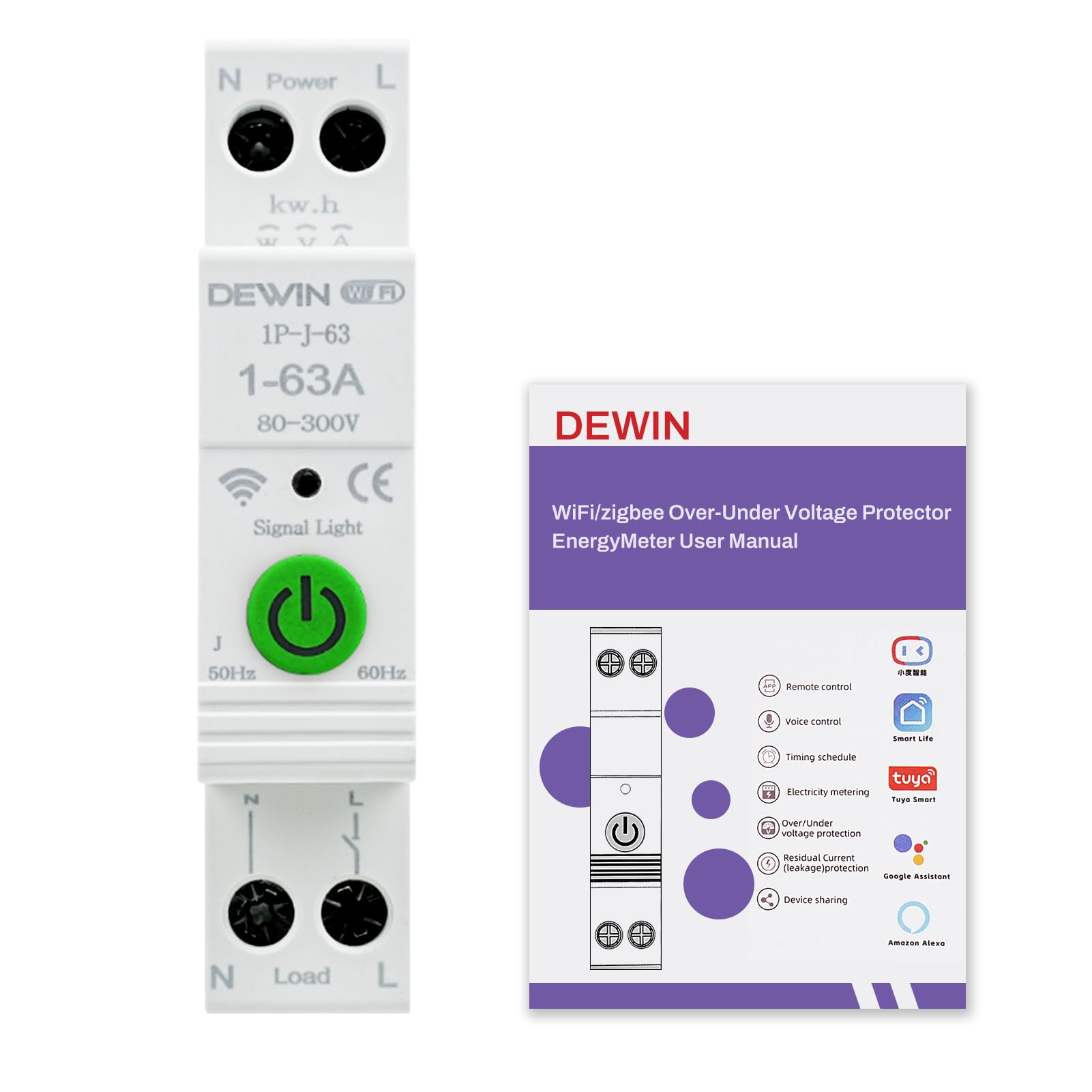
Figure 3.1: Front view of the DEWIN WiFi DIN Rail Circuit Breaker.

Figure 3.2: Back view of the circuit breaker showing model and rating information.

Figure 3.3: Angled view of the circuit breaker.

Figure 3.4: Side view of the circuit breaker.
4. Specifications

Figure 4.1: Product dimensions and key specifications.
| Feature | Specification |
|---|---|
| Product Name | Tuya WiFi Intelligent Circuit Breaker |
| Model Number | QCCDACYXI-GS99074BZ0310 |
| Brand | DEWIN |
| Connection Platform | Tuya Smart App |
| Material | Flame-retardant PC material |
| Rated Voltage | 230V AC |
| Operating Voltage Range | 80-400V AC (single phase) |
| Current | 1-63A (adjustable) |
| Rated Frequency | 50/60 Hz |
| Overvoltage Setting Range (>U) | 120-300V |
| Undervoltage Setting Range (<U) | 80-210V |
| Wi-Fi Frequency | 2.4 GHz |
| Installation Method | 35mm DIN Rail |
| Product Dimensions | 8.7 x 5 x 1.9 cm |
| Ambient Temperature Range | -30°C to 70°C |
| Number of Poles | 1 |
| UPC | 850076449117 |
5. Setup and Installation
This device is designed for easy installation on a standard 35mm DIN rail without the need for screws. Follow these steps for proper installation:
- Power Disconnection: Before beginning any electrical work, ensure that the main power supply to the circuit is completely disconnected at the main breaker or fuse box. Use a voltage tester to confirm that no power is present.
- Mounting: Attach the DEWIN WiFi DIN Rail Circuit Breaker onto a standard 35mm DIN rail. The device is designed to clip securely onto the rail.
- Wiring: Connect the live (L) and neutral (N) lines according to the wiring diagram. The input power connects to the top terminals (N Power, L Power), and the load connects to the bottom terminals (N Load, L Load).
- Secure Connections: Ensure all wire connections are tight and secure to prevent loose contacts and potential hazards.
- Power Restoration: Once installation is complete and verified, restore power to the circuit.

Figure 5.1: Device mounted on a 35mm DIN rail.

Figure 5.2: Wiring diagram. Connect the live line (red) and neutral line (green) as indicated.
6. Operating Instructions
6.1 Initial Power-Up and Indicator Lights
Upon initial power-up, observe the indicator lights on the device:

Figure 6.1: Indicator lights for WiFi status and switch status.
- WiFi Light:
- Steady On: WiFi connection is successful.
- Blinking: Device is waiting for a WiFi connection.
- Switch Light:
- Red: The circuit breaker is connected (ON).
- Dark: The circuit breaker is disconnected (OFF).
6.2 Tuya Smart App Connection and Remote Control
To utilize the smart features, connect the circuit breaker to the Tuya Smart application:
- Download the Tuya Smart app from your mobile device's app store.
- Register or log in to your Tuya Smart account.
- Add a new device within the app. Follow the in-app instructions to put the circuit breaker into pairing mode (usually indicated by a blinking WiFi light).
- Once connected, the mobile phone can display various data, including total energy consumption, current, voltage, and power.
- The app allows for remote monitoring of the real-time status of connected load equipment.
- Set up single timing, cycle timing, countdown, and other functions to meet specific switching requirements for your equipment in different scenarios.

Figure 6.2: Real-time monitoring and remote control via the Tuya Smart app.
6.3 Overvoltage and Undervoltage Protection
The circuit breaker includes adjustable overvoltage and undervoltage protection. Refer to the specifications section for default and adjustable ranges. The device will automatically trip to protect connected equipment if voltage exceeds or falls below the set thresholds.
7. Maintenance
- Regular Inspection: Periodically inspect the device for any signs of physical damage, loose connections, or overheating.
- Cleaning: Ensure the device is clean and free from dust and debris. Use a dry, soft cloth for cleaning. Do not use liquid cleaners.
- Firmware Updates: Check the Tuya Smart app for any available firmware updates for the device to ensure optimal performance and security.
- Professional Check: For any concerns regarding the device's functionality or electrical safety, consult a qualified electrician.
8. Troubleshooting
| Problem | Possible Cause | Solution |
|---|---|---|
| Device does not power on. | No power supply; incorrect wiring. | Check main power supply. Verify wiring according to the diagram in Section 5. |
| WiFi light is blinking, cannot connect to app. | Incorrect WiFi password; device too far from router; 2.4GHz WiFi not selected. | Ensure correct 2.4GHz WiFi network and password. Move device closer to router. Reset device and try pairing again. |
| Circuit breaker trips frequently. | Overload on the circuit; overvoltage/undervoltage condition; faulty appliance. | Reduce load on the circuit. Check voltage levels. Disconnect appliances one by one to identify faulty equipment. Consult an electrician if the problem persists. |
| Remote control via app is unresponsive. | No internet connection on phone or device; app issue. | Check phone's internet connection. Verify device's WiFi connection (steady light). Restart the Tuya Smart app. |
9. Warranty and Support
DEWIN products are manufactured to high-quality standards. For warranty information, please refer to the documentation provided with your purchase or contact DEWIN customer support.
For technical support or inquiries, please visit the official DEWIN website or contact our customer service team. Please have your model number (QCCDACYXI-GS99074BZ0310) and purchase details ready when contacting support.
- Manufacturer: DEWIN
- Model Number: QCCDACYXI-GS99074BZ0310
- ASIN: B0DZWSKZ1J