
1. Introduction
This manual provides detailed instructions for setting up and operating your BIGASUO Frameo 10.1" Digital Picture Frame. Please read this manual thoroughly before use to ensure proper functionality and to maximize your enjoyment of the product. This digital picture frame allows you to share photos and videos instantly with family and friends from anywhere in the world via the Frameo app.
2. Product Overview
The BIGASUO Frameo 10.1" Digital Picture Frame is designed to display your cherished memories with ease. Featuring a 10.1-inch IPS HD touch screen, it offers vivid colors and clear details. Its Wi-Fi connectivity enables remote photo and video sharing through the dedicated Frameo app. The frame includes 32GB of internal memory and supports external storage via SD card and USB flash drive.
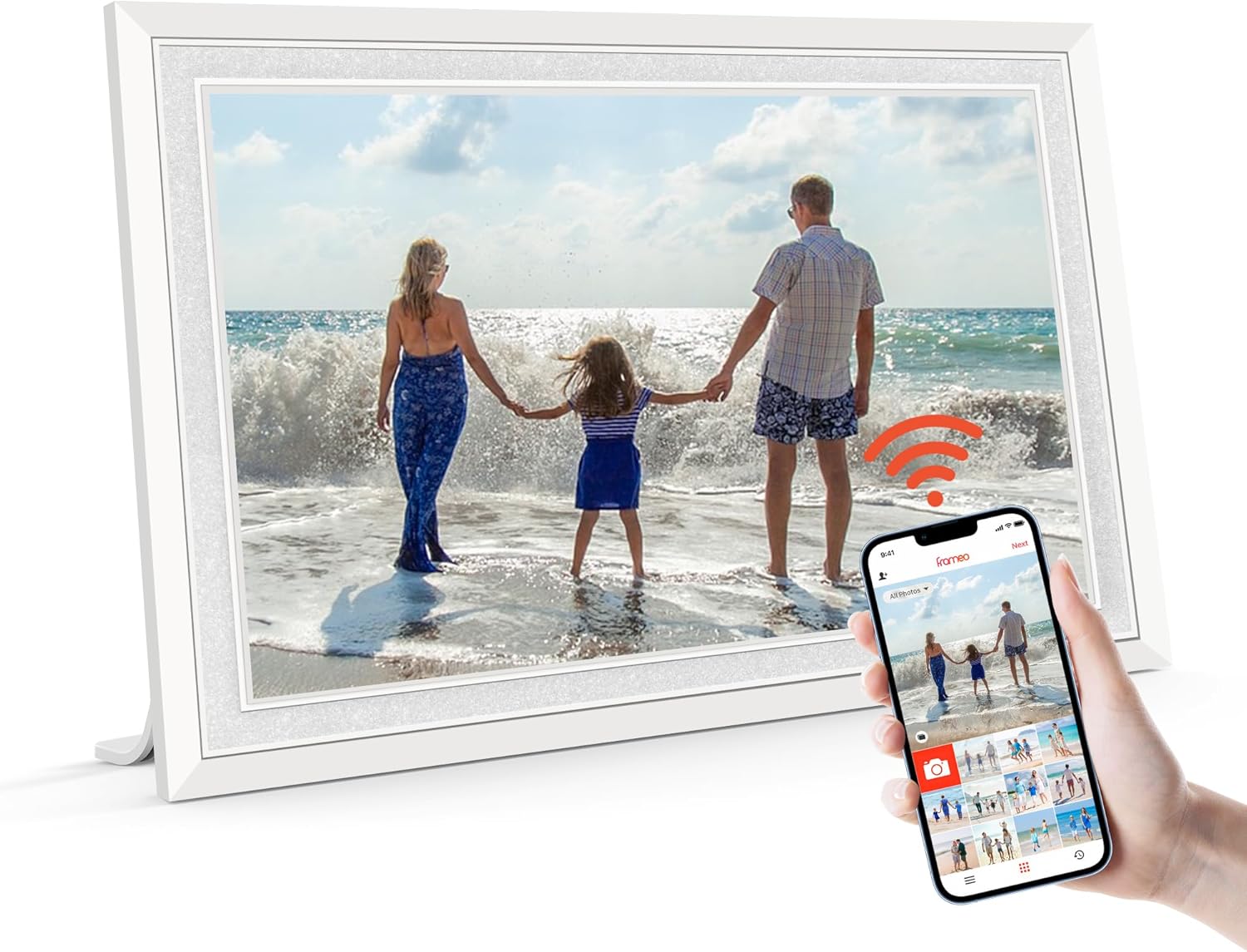
Image: The BIGASUO Frameo 10.1" Digital Picture Frame in white, showcasing a family photo. A smartphone next to it displays the Frameo app, indicating remote sharing capabilities.
3. Package Contents
Upon unpacking, please ensure all items listed below are present and in good condition:
- 1 x Gift Box (packaging)
- 1 x Digital Picture Frame
- 1 x Power Adapter
- 1 x Frame Stand
- 1 x User Manual

Image: A visual representation of the package contents, showing the digital picture frame, power adapter, frame stand, and user manual.
4. Setup
- Power On: Connect the power adapter to the frame and plug it into a power outlet. The frame will automatically power on.
- Initial Configuration: Follow the on-screen prompts to select your language, time zone, and connect to a Wi-Fi network.
- Download Frameo App: Download the "Frameo" app from the App Store (iOS) or Google Play Store (Android) on your smartphone.
- Connect Frame to App: Open the Frameo app, create an account, and add your digital picture frame by entering the unique frame ID displayed on the screen.

Image: Illustration of instant and wireless sharing, demonstrating how photos and videos are sent from a smartphone to the digital frame using the Frameo app.
5. Operating Instructions
5.1 Sending Photos and Videos
Once your frame is connected to the Frameo app, you can easily send photos and videos:
- Open the Frameo app on your smartphone.
- Select the photos or videos you wish to send from your gallery.
- Choose the recipient frame(s) and add an optional caption.
- Adjust the photo/video to select the most important part, then send.
Note: Videos uploaded via the Frameo app are limited to 15 seconds. No time limit for videos uploaded via SD card/USB flash drive.
5.2 Touch Screen Navigation
The frame features a responsive touch screen for intuitive navigation:
- Swipe: Swipe left or right to browse through photos and videos.
- Tap: Tap on a photo to access options like 'React', 'Hide photo', 'Gallery', 'Fit to frame', or 'Adjust photo'.
- Settings: Access the main settings menu by tapping the gear icon.
5.3 Multiple User Connections
You can invite multiple friends and family members to send photos and videos to your digital frame. Each user will receive a unique code to connect their Frameo app to your frame, allowing for shared memories regardless of distance.

Image: The frame illustrating its multi-user connection capability, where various family members can send photos to the frame.
5.4 Sleep Mode
To conserve energy and avoid disturbance, you can set a sleep schedule for your frame. The screen will automatically turn off and on at your specified times.

Image: The frame demonstrating its sleep mode, showing the screen off at night and on during the day.
5.5 React Feature
Engage with shared photos by tapping the 'React' button and sending emojis to the sender, letting them know your feelings in real-time.
5.6 Greetings
Send personalized greetings for various occasions directly through the Frameo app to appear on the frame.
6. Key Features
- 10.1 Inch IPS HD Touch Screen: Enjoy a full-view display with 1280 x 800 pixels, offering vivid colors and exquisite details. The touch screen simplifies setup and photo viewing.
- 32GB Large Internal Memory: Store approximately 50,000 photos (at 300KB/pic) directly on the device.
- Secure & Easy to Use: Frameo is a professional, secure photo management application. Only authorized users can access your frame.
- Videos with Sound: Beyond photos, the frame plays videos with sound, bringing your memories to life.
- Auto Rotation: The frame automatically adjusts photo orientation (horizontal or vertical) based on its placement.
- Custom Functions: Personalize your experience with settings for slideshow display, play order, brightness, title display, and sleep mode.

Image: The frame's IPS HD touch screen displaying a vibrant image, emphasizing its high resolution and wide viewing angle.
Video: A full demonstration of the digital frame's features and functionality, including app usage and photo/video display.
7. Memory and Storage
The frame comes with 32GB of built-in memory. For expanded storage, you can use an SD card or USB flash drive. These external storage options allow for direct playback of photos and videos without importing, and can also be used to import, export, and backup pictures.
- Compatibility: Ensure your SD card/USB drive is formatted to "FAT32".
- Recommendation: For optimal compatibility, a 32GB SD card/USB drive is recommended. Larger capacities (64GB, 128GB) may not function correctly.

Image: The frame highlighting its 32GB internal memory and compatibility with SD cards and USB drives for extended storage.
8. Wall Mounting and Placement
The digital picture frame is versatile in its placement options:
- Desk Placement: Use the included detachable stand to place the frame on any flat surface.
- Wall Mounting: The frame is equipped with a screw hole for wall mounting. Ensure proper installation using appropriate wall anchors and screws (not included).
- Auto-Rotate: The auto-rotate function ensures your photos are always displayed in the correct orientation, whether the frame is placed horizontally or vertically.

Image: The frame demonstrating its auto-rotate and wall-mounting capabilities, showing it in both landscape and portrait orientations.
9. Maintenance
To ensure the longevity and optimal performance of your digital picture frame, follow these maintenance guidelines:
- Cleaning: Use a soft, dry cloth to clean the screen and frame. Avoid abrasive cleaners or solvents.
- Power Management: Always turn off the frame before unplugging it from the wall outlet to prevent potential damage.
- Environment: Keep the frame away from direct sunlight, excessive heat, and moisture.
10. Troubleshooting
If you encounter any issues with your digital picture frame, please refer to the following common solutions:
- Frame Not Turning On: Ensure the power adapter is securely connected to both the frame and a working power outlet.
- Cannot Connect to Wi-Fi: Verify your Wi-Fi password is correct and that the frame is within range of your router. Try restarting your router.
- Photos/Videos Not Displaying from SD Card/USB Drive: Check that the external storage device is formatted to "FAT32". Ensure the files are in supported formats (JPG/JPEG/BMP/PNG for pictures, MP4 for videos).
- Frameo App Issues: Ensure your Frameo app is updated to the latest version. Try restarting the app or your smartphone.
- Screen Unresponsive: Try restarting the frame by unplugging it, waiting 10 seconds, and plugging it back in.
11. Specifications
| Feature | Specification |
|---|---|
| Product Dimensions | 10.5 x 7.17 x 0.99 inches |
| Item Weight | 1.7 pounds |
| Item Model Number | 114K |
| Resolution | 1280x800 HD |
| Screen Size | 10.1 Inches |
| Connectivity Technology | Wi-Fi |
| Internal Memory | 32GB |
| Compatible Devices | Smartphone |
12. Warranty and Support
For warranty information or technical support, please refer to the contact details provided in the product packaging or visit the official BIGASUO website. Keep your purchase receipt as proof of purchase for any warranty claims.