
Introduction
The MAMBASNAKE ATTACK SHARK X68PRO HE is a high-performance gaming keyboard designed for precision and speed. It features Hall Effect magnetic switches with adjustable actuation, multiple connectivity options, and customizable RGB lighting. This manual provides detailed instructions for setting up, operating, maintaining, and troubleshooting your keyboard.
Package Contents
- ATTACK SHARK X68PRO HE Keyboard
- USB-C Coiled Cable
- 2.4GHz Wireless Receiver
- User Manual
Setup
1. Charging the Keyboard
Before initial use, connect the keyboard to a USB power source using the provided USB-C cable. The keyboard features a 3000mAh battery. A full charge ensures optimal wireless performance.
2. Connectivity Options
The X68PRO HE supports three connection modes: Bluetooth, 2.4GHz wireless, and USB-C wired.

Figure 1: Tri-Mode Connectivity - The keyboard supports USB-C wired, 2.4GHz wireless, and Bluetooth connections for versatile use across multiple devices.
2.1. USB-C Wired Connection
- Connect the provided USB-C coiled cable to the keyboard and your computer.
- The keyboard will automatically switch to wired mode and begin charging. This mode supports an 8000Hz polling rate.
2.2. 2.4GHz Wireless Connection
- Locate the 2.4GHz wireless receiver.
- Plug the receiver into an available USB port on your computer.
- On the keyboard, use the side switch or press FN + R to activate 2.4GHz mode. The keyboard will connect automatically. This mode provides a 1000Hz polling rate.
2.3. Bluetooth Connection
- On the keyboard, press FN + Q, FN + W, or FN + E to select one of three Bluetooth channels. The indicator light will flash, indicating pairing mode.
- On your device (PC, Mac, Tablet), search for Bluetooth devices and select "X68PRO HE" to pair.
- Once paired, the indicator light will become solid. You can switch between paired Bluetooth devices using FN + Q/W/E. This mode provides a 1000Hz polling rate.
3. Driver Customization
The X68PRO HE utilizes a QMK web driver for customization. This allows you to adjust key functions, macros, and RGB effects without software downloads.
- Access the web driver at: bit.ly/X68HESOFT
- Follow the on-screen instructions to customize your keyboard settings.
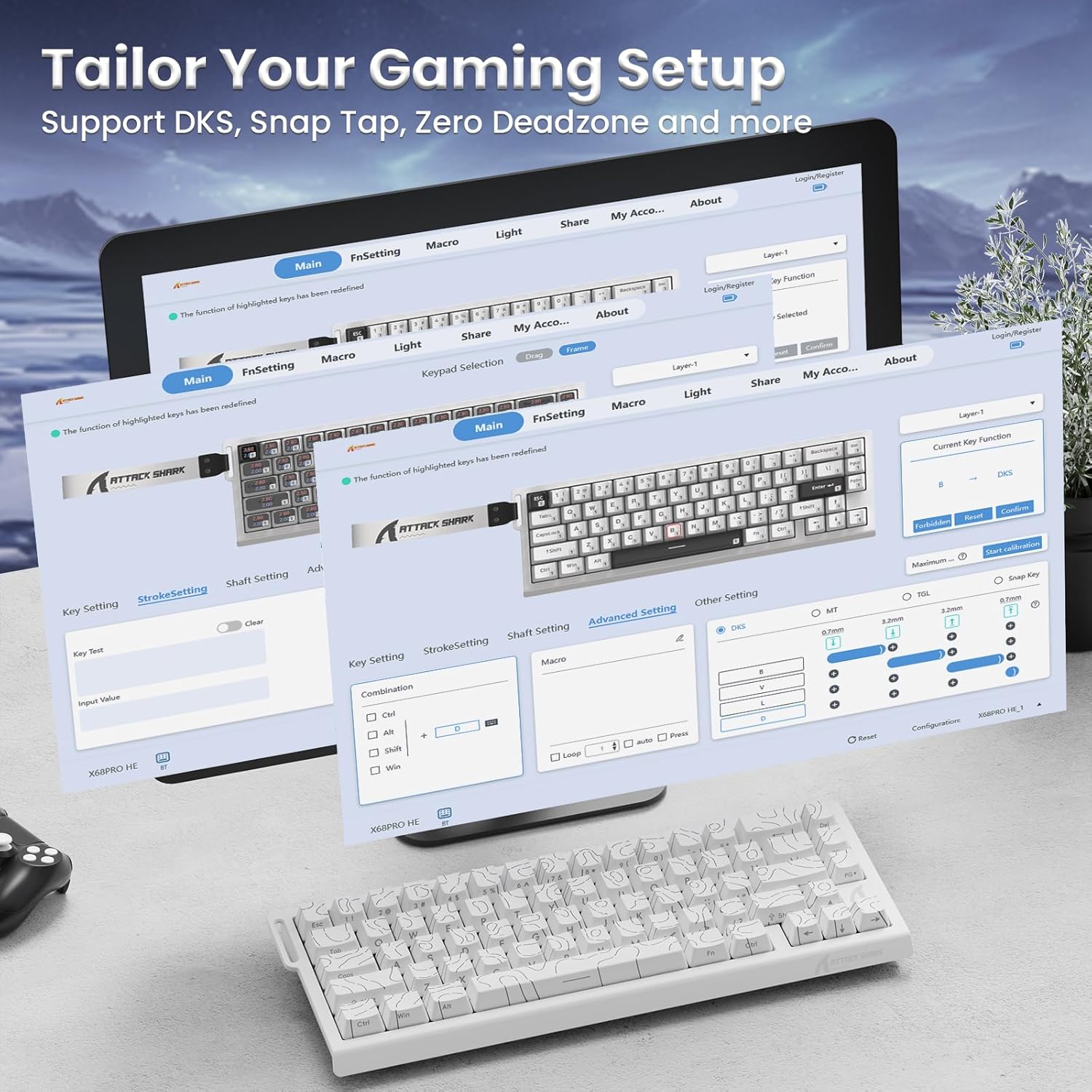
Figure 2: QMK Web Driver Interface - Customize key functions, macros, and RGB lighting effects through the intuitive web-based driver.
Operating Instructions
1. Rapid Trigger and Adjustable Actuation
The Hall Effect magnetic switches offer 0.01mm trigger accuracy and adjustable actuation from 0.1mm to 3.4mm. This allows for precise control and rapid key presses, ideal for gaming.
- Rapid Trigger (RT): Allows keys to reset instantly upon upward movement, enabling faster repeated inputs.
- Dynamic Keystroke (DKS): Assigns up to four actions to a single key based on press depth.
- Mod-Tap (MT): Performs one action on a quick tap and another on a sustained press.
- Toggle (TGL): Toggles a function on or off with a single key press.
Adjust these settings via the QMK web driver for personalized performance.

Figure 3: Rapid Trigger Accuracy - Experience enhanced responsiveness with 0.01mm RT accuracy, crucial for competitive gaming.

Figure 4: Adjustable Magnetic Switches - Customize your key actuation point from 0.1mm to 3.4mm for optimal control.
2. RGB Lighting Control
The keyboard features south-facing RGB lighting with over 20 preset light effects and 16.8 million color options.

Figure 5: Dynamic RGB Light Effects - Control your keyboard's lighting with various FN key combinations.
Use the following FN key combinations to adjust RGB lighting:
- FN + \|: Switch Light Mode
- FN + Backspace: Light on/off
- FN + -/=: Backlit Speed ±
- FN + Enter: Switch Light Color
- FN + Tab: White Light
- FN + ↑/↓: Backlit Brightness ±
3. Macro Customization
Create and assign custom macros using the QMK web driver to streamline complex commands and actions.
Maintenance
1. Cleaning
- Disconnect the keyboard from all power sources before cleaning.
- Use a soft, lint-free cloth lightly dampened with water or a mild cleaning solution to wipe the keycaps and chassis.
- Avoid spraying liquids directly onto the keyboard.
- For deeper cleaning, keycaps can be carefully removed.
2. Hot-Swappable Switches
The X68PRO HE features a hot-swappable PCB, allowing you to easily replace magnetic switches without soldering. This supports N-pole-down magnetic switches.
- Use a switch puller tool to gently remove the desired switch.
- Align the pins of the new switch with the sockets on the PCB and press firmly until it clicks into place.

Figure 6: Gasket-Mounted Design - The internal structure ensures a satisfying sound profile for each keystroke.
3. Battery Care
- Avoid fully discharging the battery frequently to prolong its lifespan.
- Store the keyboard in a cool, dry place when not in use for extended periods.
Troubleshooting
| Issue | Possible Cause | Solution |
|---|---|---|
| Keyboard not responding (Wired) | Loose cable connection, faulty USB port. | Ensure USB-C cable is securely connected. Try a different USB port or cable. |
| Keyboard not responding (2.4GHz/Bluetooth) | Low battery, incorrect mode, pairing issue, receiver not connected. | Charge the keyboard. Ensure correct mode is selected (FN+R for 2.4G, FN+Q/W/E for Bluetooth). Re-pair the device. Ensure 2.4GHz receiver is plugged in. |
| RGB lighting not working | Lighting turned off, low battery. | Press FN + Backspace to toggle lighting. Charge the keyboard. |
| Keys not registering or double-typing | Switch issue, driver settings. | Check for debris under keycap. If hot-swappable, try reseating or replacing the switch. Review actuation settings in the QMK web driver. |
| Latency issues | Interference, distance from receiver, device performance. | Ensure keyboard is close to the 2.4GHz receiver or Bluetooth device. Minimize wireless interference. Use wired mode for lowest latency. |
Specifications
| Feature | Detail |
|---|---|
| Model | X68PRO HE |
| Layout | 60% QWERTY, 66 keys |
| Switch Type | Hall Effect Amber Magnetic Switches (Linear) |
| Actuation Range | 0.1mm to 3.4mm (Adjustable) |
| Trigger Accuracy | 0.01mm Rapid Trigger |
| Polling Rate (Wired) | 8000Hz |
| Polling Rate (Wireless) | 1000Hz |
| Scan Rate | 128KHz |
| Latency | 0.125ms |
| Connectivity | Bluetooth, 2.4GHz Wireless, USB-C Wired |
| Battery Capacity | 3000mAh |
| RGB Lighting | South-facing, 16.8 million colors, 20+ effects |
| Compatible Devices | Laptop, MAC, PC, Tablet |
| Product Dimensions | 14.25 x 6.18 x 1.93 inches |
| Item Weight | 2.47 pounds |
Warranty and Support
MAMBASNAKE products are designed for reliability and performance. For technical support, warranty claims, or further assistance, please refer to the contact information provided with your purchase or visit the official MAMBASNAKE website.
Keep your proof of purchase for warranty purposes.